

Company contacts follow the task guides below. MSP staff create templates, set up access, and manage submissions in the MSP guides.
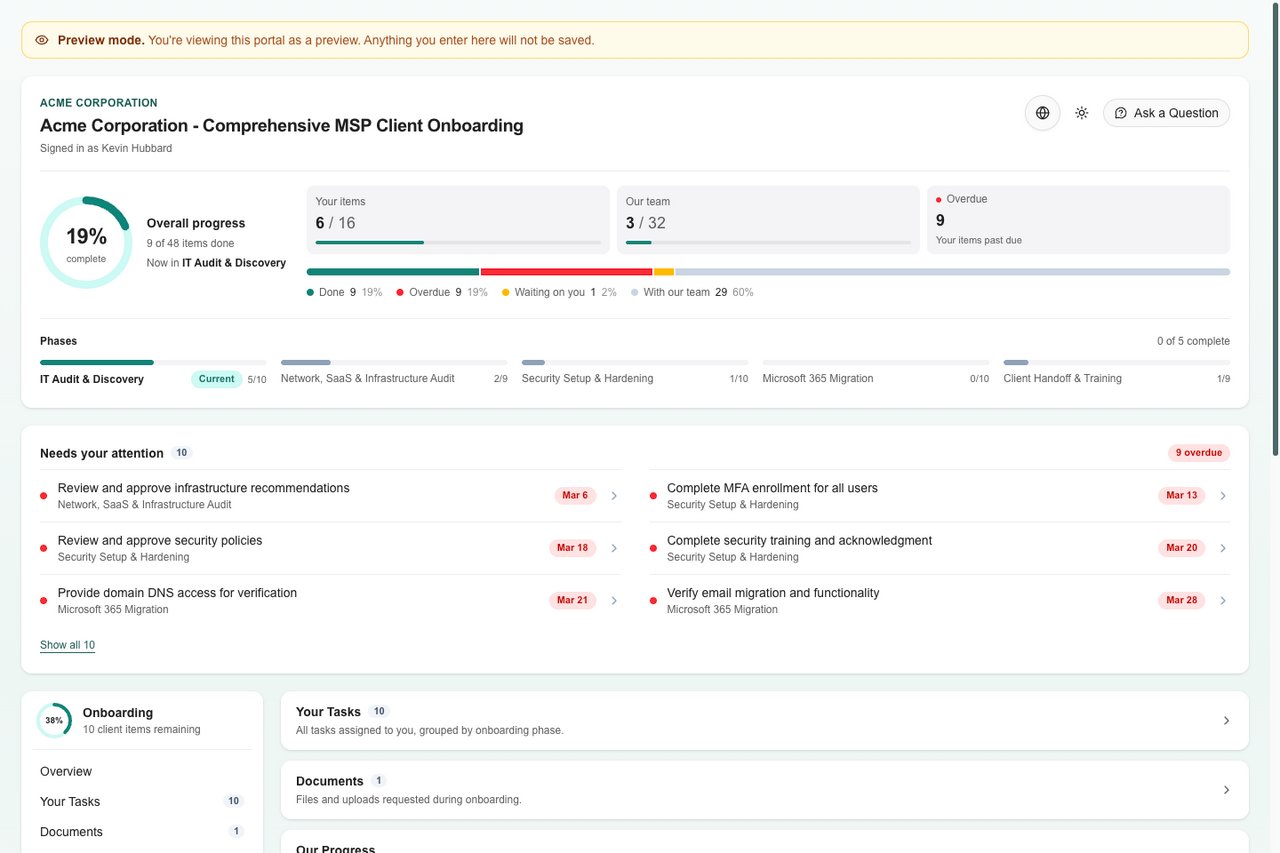
The client portal overview. This is an MSP preview, so nothing entered here is saved.
Find the right guide
How clients get in
Clients open the portal from an emailed invitation, with no account or password.1
Open the invitation link
Each contact has their own link. Links should not be shared between people.
2
Verify the email address
The portal asks the client to confirm the invited email address and emails a verification link. The link expires after 30 minutes. A client can request up to 5 verification emails.
3
Continue to the portal
The client selects Continue to Portal. A session starts and lasts 30 days.
What appears in the portal
Your provider chooses the visible phases, tasks, documents, approvals, and pages. The role assigned to a contact can change what that contact sees, so another contact may see a different set. The header shows the company, portal name, and who is signed in. It also has a language switcher, a light and dark theme switch, and Ask a Question. Below it, the overview shows overall progress as a ring, counts for Your items and Our team, Overdue items, progress through each phase, and up to three key dates. Needs your attention lists what is waiting on the client. When nothing is, it shows You are caught up. The page then has these sections, also shown in a side menu.- Pages are read-only reference articles. Reading a page does not sign off a task.
- Your Tasks holds work assigned to the client, grouped by phase.
- Documents holds upload requests and reference material. Submitting a file and getting approval are separate events.
- Approvals asks the client for a decision. Items already decided show their result.
- Our Progress shows the provider’s own work that you chose to make visible.
What saves and when
A client should wait for the result on the item before leaving. If the result is unclear, check the item’s status before repeating the action.
Questions and progress
Clients use Ask a Question for a general question, and the comment thread on a task for task-specific discussion. Sending a comment does not submit a form or complete the task. Your internal notes never show to clients. Finishing all visible work does not finish the onboarding. Other contacts, provider tasks, reviews, and dependencies may still be open. A completed portal is read-only.Security
Preview as a client
MSP staff with onboarding write access can use View as in the page header to see a contact’s or role’s view. A preview does not save anything and does not prove a real client can sign in. See Managing Portals.Frequently asked questions
Does a Company administrator manage onboarding contacts?
Does a Company administrator manage onboarding contacts?
No. The MSP manages onboarding contacts and their access. Ask your provider to add a contact or change access.
Can everyone at my company use my invitation?
Can everyone at my company use my invitation?
No. Each contact needs their own invitation. Forwarding a link does not change whose it is.
Why does another contact see different tasks?
Why does another contact see different tasks?
Your provider controls visibility and contact roles. Ask them to check the missing item and your contact’s role.
Can I finish my provider's work?
Can I finish my provider's work?
No. Complete the items assigned to you. The provider handles its own work, shown under Our Progress.
Does a successful MSP preview submit a client response?
Does a successful MSP preview submit a client response?
No. Preview entries are not saved and do not prove a contact has opened the portal.
Why can I read a completed portal but not save?
Why can I read a completed portal but not save?
A completed portal stays readable and turns off submissions. Contact your provider if more action is needed.