

Before you start
- An active Phished plan with API access.
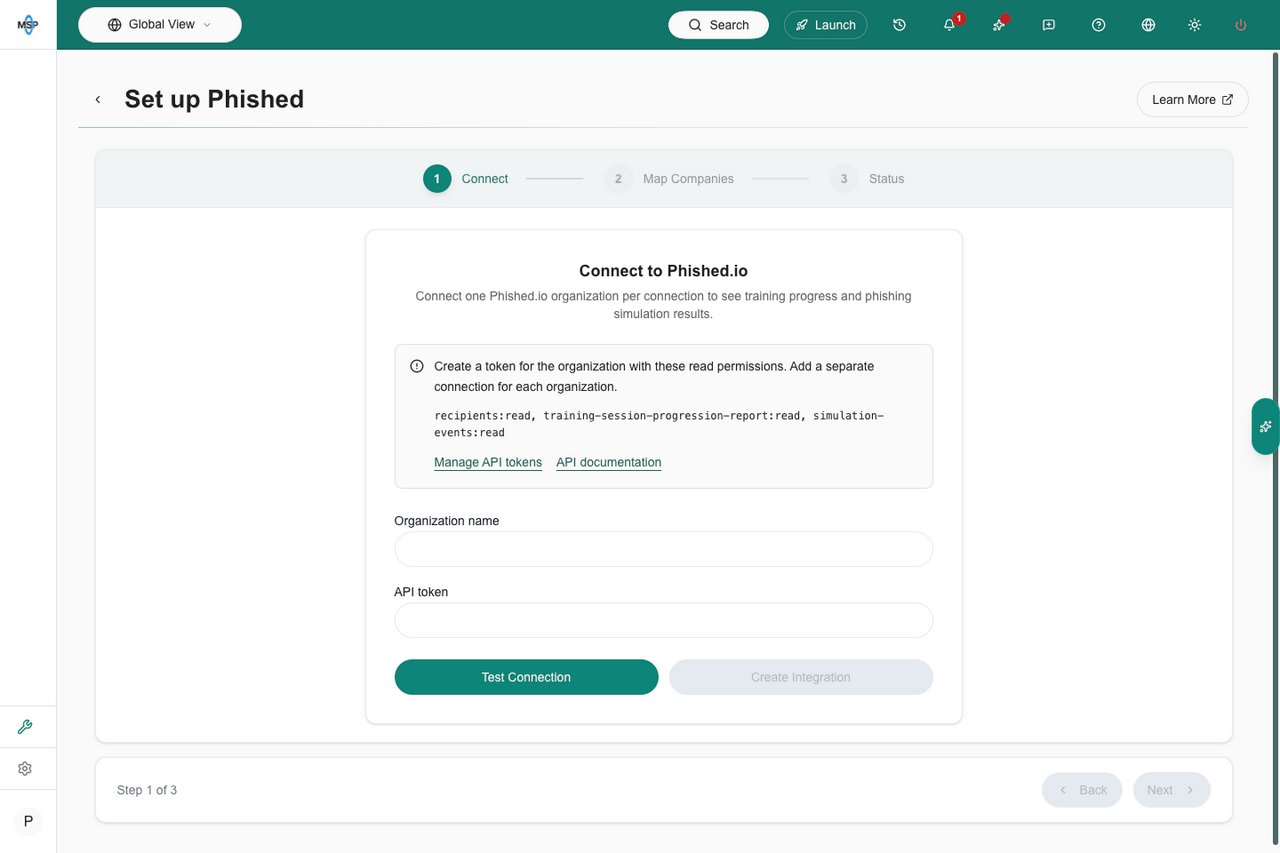
- An organization token from Organisation > Tokens in Phished.
- These read permissions on the token:
recipients:readtraining-session-progression-report:readsimulation-events:read
- The MSPortal company that should own the organization’s results.
Connect and map the organization
1
Open Phished.io setup
Open Settings > Integrations, find Phished.io, and open its setup. Review existing connections first so you choose the correct organization.
2
Test the token, then save
On Connect, enter Organization name and API token. Select Test Connection, then Create Integration after verification succeeds. Testing alone does not save the connection. For an existing connection, use Save Changes after editing and testing its credentials. Saving a replacement token clears the previous company mapping and imported snapshot; map the organization again before reviewing new results.
3
Map the company
Select Next to open Map Companies. Choose the MSPortal company for this organization and save the mapping with the shared mapping controls. Next saves pending mappings before continuing. Review the company carefully before allowing users to see the results.
4
Review synchronization
On Status, review the mapped organization, recipient, training-session and simulation-event counts, together with Last sync. Use Sync All Data when you need to request another provider sync. Check the final result and timestamp before relying on the imported figures.
Read training and simulation insights
Open Security > Security Awareness, choose Phished.io when multiple providers are available, and confirm the company selector.- Learners shows the shared learner status table, including the training counts supplied by Phished.
- Insights shows recipient and training-session counts, the latest synchronization time, simulation event types and counts, and paginated training-session summaries.
- The Phished.io Training and Simulation Insights report block presents current coverage and recent simulation activity for the report’s company scope.
Maintain the connection
Reopen the intended connection to update its token. Saving a different token clears the existing company mapping and the previously synchronized Phished snapshot. This also applies when rotating a token for the same organization. Return to Map Companies, confirm and save the intended company, then check the next successful sync before relying on the results. Saving with the unchanged masked token keeps the stored token, company mapping and existing snapshot. The mask represents the saved credential; it is not a new token. Use the integration card’s Pause and Resume controls to stop or resume scheduled synchronization. Use Delete only when you intend to disconnect the integration and remove its stored credentials and synchronized Phished data. Reconnecting requires setup and mapping again.Troubleshooting
Related guides
Company mapping
Review shared mapping controls and save boundaries.
Security awareness
Find learner status and understand provider-specific metrics.