

Branch preview for the 2026-09-25 release. Wirespeed setup is not yet generally available. The screenshot shows the unreleased branch UI.
Prepare the API key
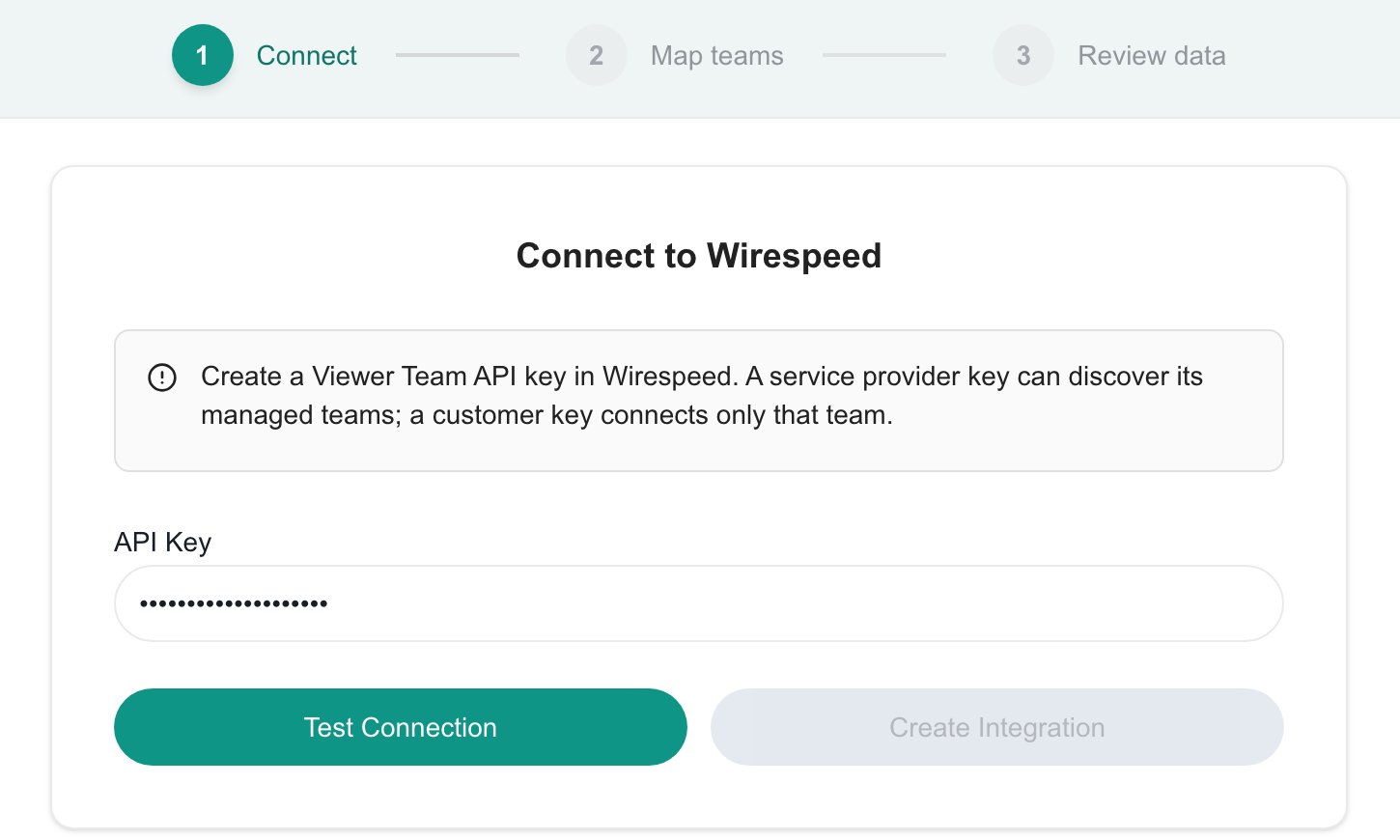
Create a Viewer Team API key in Wirespeed. The key type decides which teams MSPortal can see:
MSPortal only reads from Wirespeed. It does not create tickets, import devices into your PSA or run containment or remediation actions.
Connect
1
Open the setup page
Open Settings > Integrations, search for Wirespeed and select Connect.
2
Enter the key
On Connect, paste the key into API Key.
3
Test the key
Select Test Connection and wait for Connection verified. Create Integration stays disabled until the test succeeds. Editing the key clears the verified state, so test again after any change.
4
Save the connection
Select Create Integration. The key is stored in the secure vault and the field shows a masked value from then on. Select Next to continue.
Map teams
Map teams lists the Wirespeed teams discovered by the key. Link each team to the MSPortal company it protects.- Use Quick Match to propose matches by name. Proposals are saved only after you review them.
- Choose a company for any remaining team, or create a new company from the picker.
- Save pending links with Import Selected. Moving on with Next saves pending links and starts a sync when mappings changed.
Review data
Review data shows Synced Data for three datasets:
The totals at the top count each dataset. Use the dataset selector above the table to switch between them, and filter by Record to search names, teams and companies. Last synced shows the most recent successful sync. Select Sync All Data to request a sync now.
If a dataset fails to sync, the page reports that some data could not be synced. MSPortal keeps the previously saved records for that dataset, so check Last synced before relying on the numbers.