

Overview
Cork is a security and compliance platform that helps MSPs monitor their clients’ security posture. By integrating Cork with MSPortal.ai, you can:- View compliance events, vulnerabilities, and endpoints in a centralized dashboard
- Track security metrics across all your managed clients
- Add security findings to the Planner for remediation tracking
- Include security data in client reports
Prerequisites
- Active Cork account with API access
- MSPortal.ai account with integration management permissions
- Cork API key with read access
Part 1: Generate Cork API Key
Before connecting to MSPortal.ai, you need to create an API key in Cork.1
Log into Cork
Access your Cork dashboard at app.corkinc.com or your Cork instance URL.
2
Navigate to API Settings
Go to Settings > API Keys in the Cork dashboard.
3
Create API Key
Click Create API Key or Add New Key.Configure the following:
4
Copy API Key
After creating the key, copy it immediately.
Part 2: MSPortal Setup Wizard
MSPortal.ai provides a guided 3-step wizard to connect and configure your Cork integration.Starting the Wizard
1
Navigate to Integrations
In MSPortal.ai, go to Settings > Integrations.
2
Find Cork
Locate the Cork card under Add integration.
3
Start Setup
Click Connect on its row to launch the setup wizard. If Cork is already connected, click Configure on its row under Connected Services instead.
Step 1: Connect
Enter your Cork API key to establish the connection.1
Enter API Key
Paste your Cork API key into the API Key field.
Your API key is stored securely using Supabase Vault encryption. It is never exposed in logs or API responses.
2
Test Connection
Click Test Connection to verify your credentials.When the test passes, the button changes to Connected and a green “Connection tested successfully” message appears.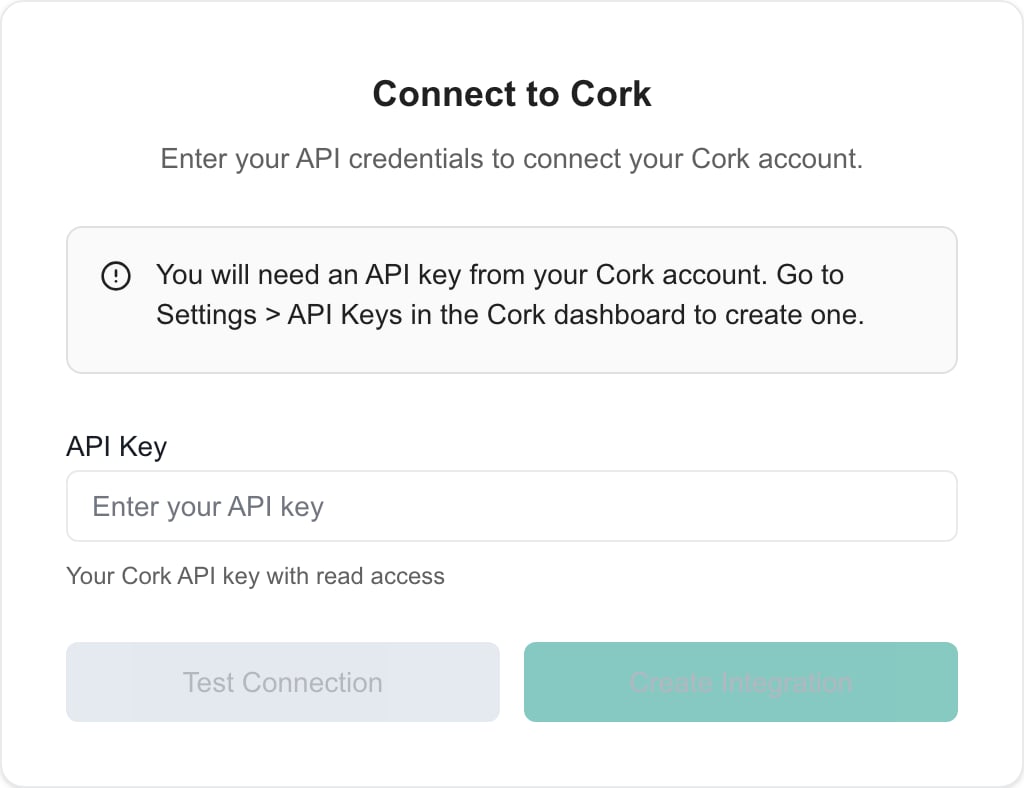
- Verify you copied the full API key without extra spaces
- Ensure the API key has not been revoked or expired
- Check that your Cork account has API access enabled
3
Create Integration
Once the connection test passes, click Create Integration to save your credentials and proceed. A successful test on its own does not create the integration.MSPortal starts a client sync in the background as soon as the integration is created. Click Next to go to the Map step.
Step 2: Map Clients
Map Cork clients (organizations) to your MSPortal companies. This determines which data syncs to which company.1
Sync Clients
If no clients appear, click Sync Clients to fetch clients from your Cork account. Once the list has loaded, the same action is the Sync button above the list.
The initial sync runs in the background. Check back after a few minutes if clients don’t appear immediately.
2
Use Quick Match
Click Quick Match to automatically match Cork clients to MSPortal companies based on name similarity.Use the confidence slider to auto-select matches, review the suggestions, and check or uncheck individual matches. Then click Apply Matches. Applied matches show as Pending until you save them.
3
Manual Mapping
For clients that weren’t automatically matched:
- Find the client in the list
- Click the Select company dropdown in the “Mapped To” column
- Search for and select the correct MSPortal company
4
Create New Companies
If a Cork client doesn’t have a corresponding MSPortal company:
- Click the + button next to the client to create a new company
- Or click Create new company above the list to open Bulk Create Companies and create companies for several unmapped clients at once
Search for an existing company first to avoid duplicates. MSPortal creates the new company right away, but its Cork mapping stays Pending until you save it.
5
Save Your Mappings
Click Import Selected to save pending mappings. Filtering the list does not discard pending changes.
6
Filter Clients
Click the summary cards above the list to filter the view:
- Total Items - Show all synced clients
- Mapped - Show only clients linked to companies
- Unmapped - Show clients that still need mapping
7
Proceed
Once you’ve mapped at least one client, click Next to continue. Next also saves any mappings that are still pending and starts a security data sync for the mapped clients.
Step 3: Import
Review the data that will sync from Cork and initiate the first sync.1
Review Data Types
The Import step shows what data types will be synced:
2
Start Initial Sync
Click Sync All Data to trigger the initial data sync. This requests a fresh import of compliance events, endpoints, inboxes, and vulnerabilities. It does not refresh the client list; use Sync on the Map step for that.The sync runs in the background. Depending on your data volume, the initial sync may take several minutes.
3
Review Sync Stats
The page displays counts for each data type as they sync:
- Compliance Events
- Endpoints
- Inboxes
- Vulnerabilities
4
Complete Setup
Click Complete Setup to finish the wizard and return to the Integrations page. Background imports keep running after you leave.
What Gets Synced
Cork integration syncs the following data types to MSPortal:Compliance Events
Security compliance findings from Cork, including:- Event type and description
- Affected entity (device, inbox, or domain)
- At-risk status
- Resolution status
- Creation date
Endpoints
Device and endpoint information:- Device name and hostname
- Operating system type and version
- IP addresses
- Last seen timestamp
Inboxes
Email inbox data:- Inbox identifier
- Associated user
- Domain information
Vulnerabilities
Software vulnerability data:- CVE identifier
- Affected software product and version
- Vendor information
- CVSS score (severity rating 0.0-10.0)
- EPSS score (exploitation probability)
- Cork priority (Critical, Accelerated, Routine)
- Known exploited status
Synchronization Schedule
After initial setup, data syncs automatically:You can trigger a manual sync at any time by returning to the Cork integration settings and clicking Sync All Data.
Managing Your Integration
After setup, manage your integration from Settings > Integrations:Checking or Replacing Your API Key
On an existing Cork integration, the Connect step shows Retest Connection. Leave the API Key field blank to retest the saved key, or enter a different key to test it.Adding More Client Mappings
As you onboard new clients in Cork:1
Open Integration Settings
Go to Settings > Integrations and click Configure on the Cork card.
2
Navigate to Map Step
Click Map in the wizard stepper.
3
Sync New Clients
Click Sync to fetch any new clients from Cork.
4
Map New Clients
Use Quick Match or manual mapping to connect new clients to companies, then click Import Selected.
Troubleshooting
Security & Privacy
- API Key Storage: Your Cork API key is encrypted using Supabase Vault and never exposed in logs or responses
- Data Isolation: All synced data is tenant-isolated and only visible to your organization
- Read-Only Access: MSPortal only requires read access to Cork data; it never modifies your Cork configuration
Next Steps
After setting up the Cork integration:View Security Data
Explore compliance events, vulnerabilities, and endpoints
Read Cork Events
Review Cork compliance events per company
Read Vulnerabilities
Review vulnerabilities with CVE, CVSS, and priority
Add to Planner
Convert findings into actionable work items
Build Reports
Include security metrics in client reports
Other Integrations
Explore additional integration options