

Before you start
- You need an MSPortal account and a role with MCP Server write permission. Without it you can open Settings > MCP Server and see the page, but the setup cards are disabled and the page says “You have view-only access.”
- Your MSP administrator manages roles in Settings > Users & Roles, including for company users.
- Your AI client must support remote Streamable HTTP MCP servers with browser OAuth sign-in. Local-server support alone is not enough.
- Data that tools return goes to the AI client you connect. It is handled under that service’s terms and your organization’s policies. Connect only the areas you need.
Let your agent set up the connection
Open Launch Center > Connect > Continue with MCP, then select Copy setup script. Paste it into your AI agent. It includes your server address, client-specific installation recipes, browser OAuth instructions and a brief for finishing portal setup. The agent should use only the recipe for its current client, preserve existing connections, and call get_current_user to verify your tenant.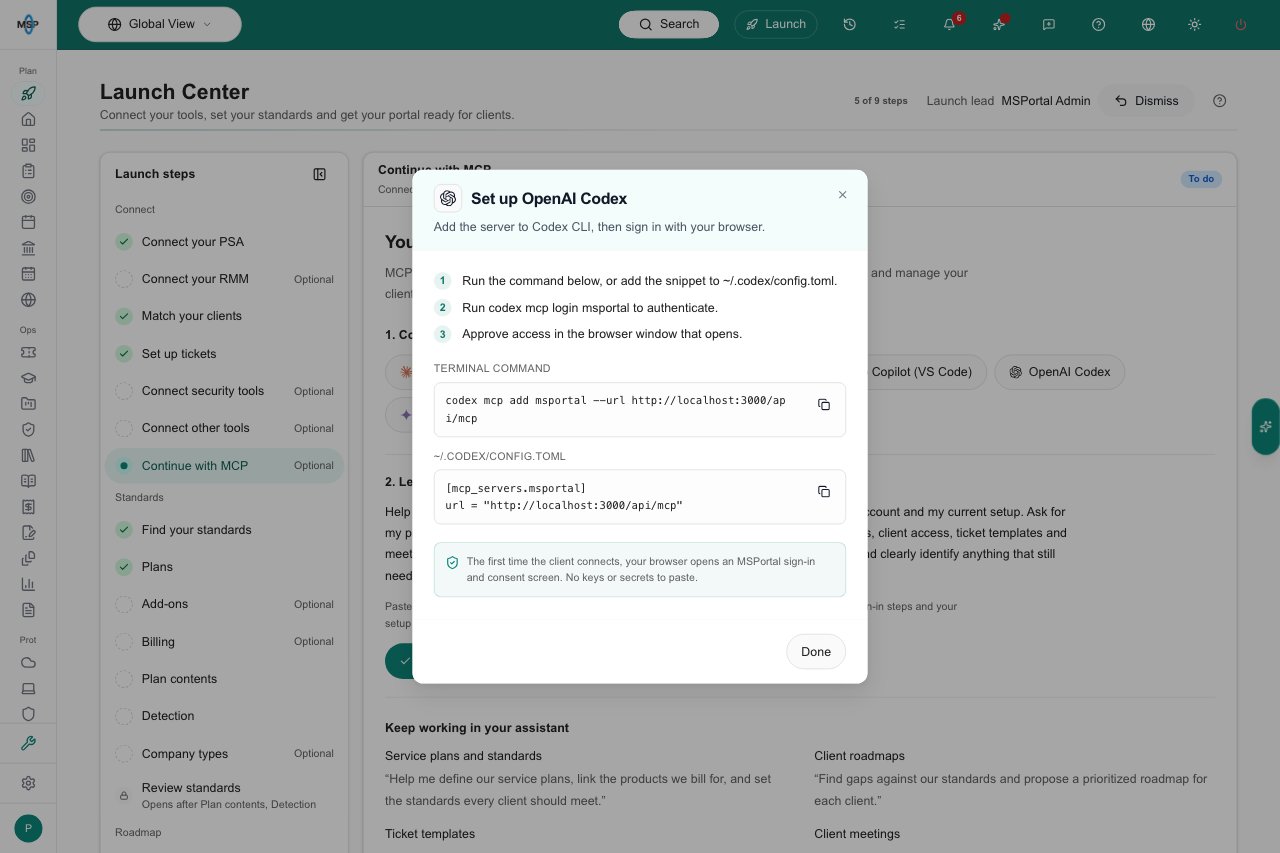
Codex connection instructions opened from Launch Center.
- Read and update tenant contact details, address, locale, currency, domain hostname and primary administrator.
- Upload branding assets and set logos, brand color and sign-in design; configure supported portal, support and AI settings.
- Create staff/client roles, review permission grants and change defaults; enable or disable existing training courses for tenant defaults or selected companies.
- Configure service-plan billing recognition, software/integration detection rules and guided Standards answers.
Connect your client
Open MCP Server settings
Copy the Server URL
Open the setup card for your client
Add the server to your client
Sign in and approve access
Check that it works
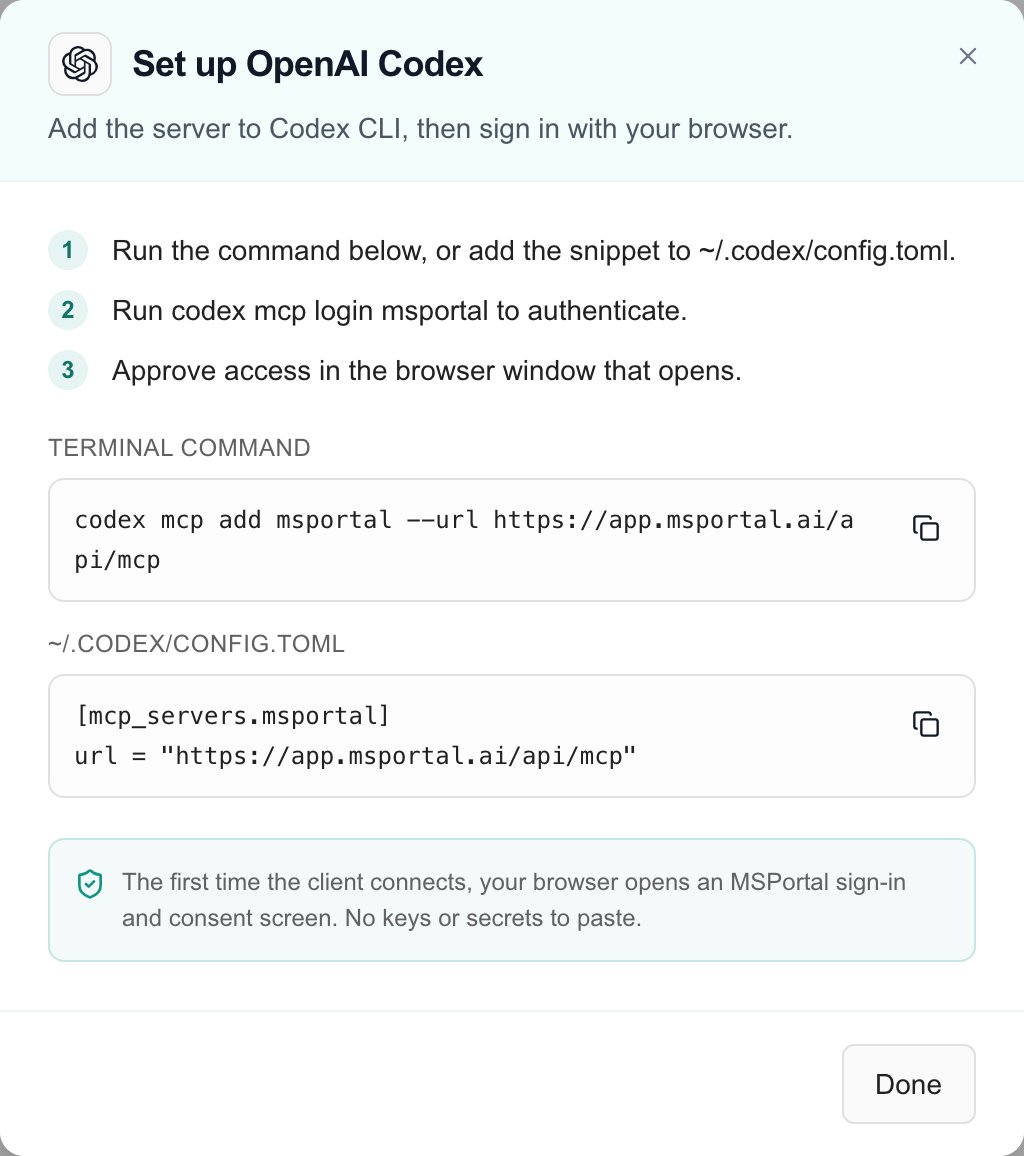
The Codex setup dialog in MSPortal. Nothing is authorized until you approve access in the browser.
Add the server to your client
ReplaceYOUR_SERVER_URL with the Server URL you copied. The setup card in MSPortal fills in your URL for you.
- Claude Code
- Claude Desktop & Web
- Cursor
- GitHub Copilot (VS Code)
- OpenAI Codex
- Gemini CLI
- Windsurf
- Other clients
- Run this command in your terminal:
- In Claude Code, run
/mcpand select msportal to authenticate. - Approve access in the browser window that opens.
What an assistant can do
Tools cover tickets, devices, reporting, Planner, goals, budgets, meetings, compliance, projects and project documents, financial data, cloud services, security, backup, surveys, training, onboarding and more. The MCP Tools Reference lists every action and how it behaves. What you actually get depends on the server version, the areas you approved, your role, your company access, your integrations and your client’s tool selection. A company identity does not get MSP-only tools, even with broader scopes. List results can be paginated or cut short, so a small result does not prove a search was complete. A good first request is: “Use read tools to find the company I name and summarize the available evidence. Do not change records or send messages.” Then check the cited records, dates and gaps before you ask for follow-up work.Grouped tools and existing connections
The catalog groups related operations into 114 public tools that cover 359 existing operations. Read tools have names such asquery_planner. Changes use names such as manage_planner, with an action for creating, editing or archiving. The assistant reads each tool’s input schema to pick the action and its arguments.
The full catalog fits under a 128-tool client limit. The consent screen counts the tools for the areas you pick. Other servers connected to your client also count toward its limit.
Existing tool names keep working with their original arguments and response shapes, including the two compatibility aliases. Pending confirmations keep their original operation and expiry. You do not need a new server URL or broader access because of the grouping.
When your client refreshes its tool list, it sees the grouped names. Update any tool-name allowlist to include them. A custom client that needs old names in tools/list must change its discovery logic, because old calls still work but the old discovery response does not. See grouped calls and legacy compatibility.
Confirmation before changes
Most changes use a two-call proposal and confirmation flow.Request the change
manage_* tool without confirm. MSPortal returns a proposal with a preview, the company, the records and the effects. Nothing is saved yet.Review and approve
Confirm before it expires
confirm: true and the returned confirmationId. A proposal expires after ten minutes.Check the result
Install the Ron skill (optional)
The Ron skill is a set of instructions that guides an assistant through client briefings, risk reviews, QBR preparation and planning. It does not connect to MSPortal or grant permissions. You still connect the MCP server first.Keep the folder layout
SKILL.md in a folder named ron-vcio, and the other two files in a references folder inside it.Add it to your client
Test it
Manage connected clients
Open Settings > MCP Server and scroll to Connected clients. It lists the applications you have authorized, each with an MSPortal or External app badge, the Last authorized time, the number of active sessions and the number of scopes. It shows only your own connections, not those of other users.Find the client
Revoke it
Reconnect if needed
Troubleshooting
Frequently asked questions
Does copying the Server URL connect a client?
Does copying the Server URL connect a client?
Can a view-only user connect clients?
Can a view-only user connect clients?
Do broader OAuth scopes override my permissions?
Do broader OAuth scopes override my permissions?
Will the grouped catalog break calls with the old tool names?
Will the grouped catalog break calls with the old tool names?
Does a proposal mean a record was created?
Does a proposal mean a record was created?
Can I change a proposal by changing the confirmation arguments?
Can I change a proposal by changing the confirmation arguments?
Does every action need a second confirmation call?
Does every action need a second confirmation call?
Will the assistant report missing features to MSPortal by itself?
Will the assistant report missing features to MSPortal by itself?
Does Revoke cancel every token right away?
Does Revoke cancel every token right away?
Does Revoke erase data the client already has?
Does Revoke erase data the client already has?
Does the Ron skill replace sign-in or permissions?
Does the Ron skill replace sign-in or permissions?