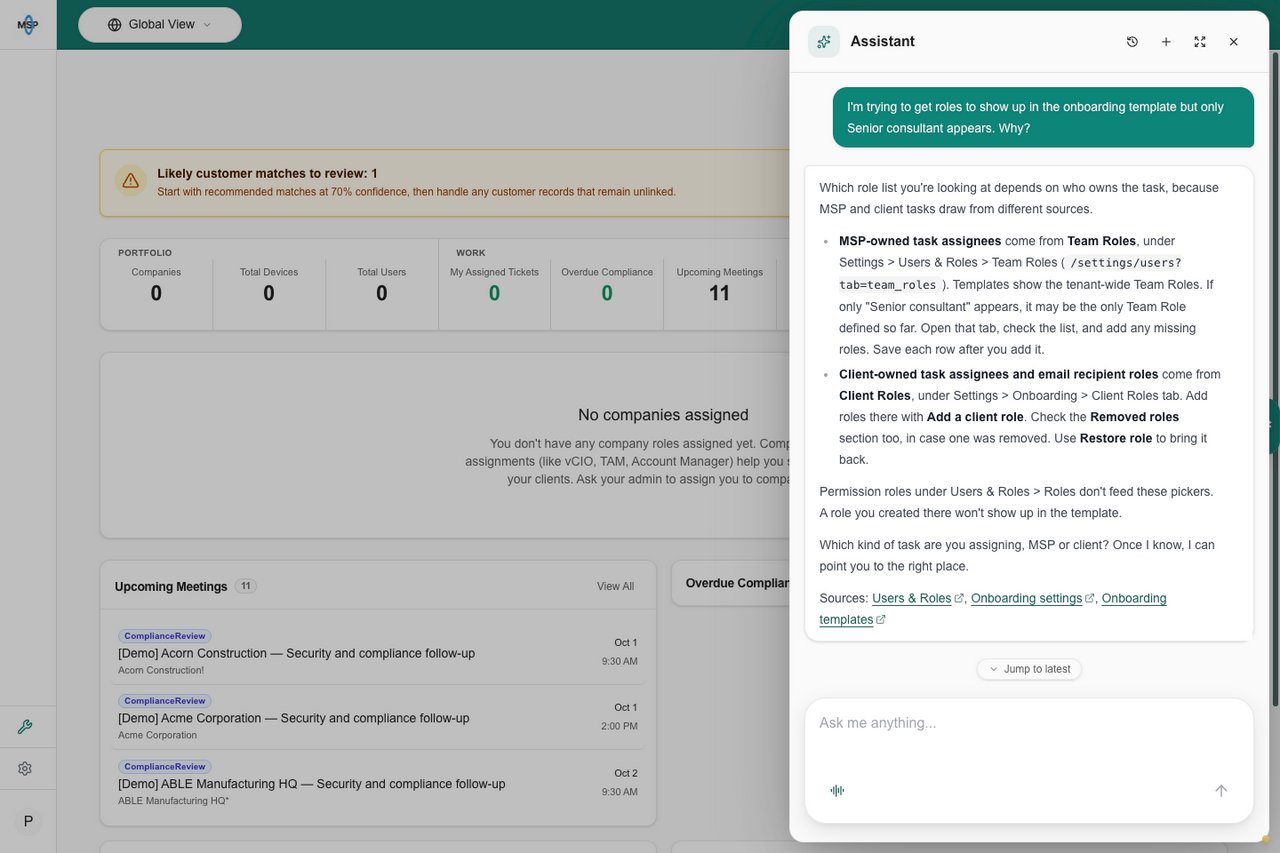
The AI Assistant is a conversational helper built into MSPortal. Instead of clicking through menus, you can simply describe what you need, and the assistant opens tickets, checks on and replies to existing tickets, searches your data, checks your training progress, and points you to the right page, all in plain language. The assistant always acts as you. It can only see and do what your MSPortal permissions allow, and for client users it stays scoped to your own company.

Where to find it

For client users (and for MSPs who have the AI home enabled), the assistant is your Home page. After signing in you land on a chat screen with a greeting and a prompt box. You’ll see:
  • A time-based greeting (Good morning / afternoon / evening) followed by your first name and “what can I help with?”
  • A prompt box that reads “Ask anything about [your MSP]…”
  • A row of suggested actions to get you started.

Quick-start suggestions

Four suggestion chips appear before you start a conversation. Click one to send it instantly:

Find my Account Manager

“Who is my account manager and how can I contact them?”

Open a support ticket

“I want to open a ticket”

Check training status

“What is my training progress? What courses should I complete next?”

View open tickets

“Show me all my open support tickets and their current status”
You don’t have to use the suggestions, they’re just shortcuts. Type anything into the prompt box and the assistant will respond.

What you can ask

The assistant can help with a range of everyday tasks:

Open a support ticket

Describe your problem in your own words. The assistant picks the right ticket type, fills in what it can, asks for anything missing, and shows you a draft to confirm before it’s submitted.

Ask about an existing ticket

Ask “what’s the status of my new computer request?” and the assistant finds the ticket and answers from its latest updates.

Reply to a ticket

Ask the assistant to post a response on a ticket. It shows you the exact text first and posts only after you confirm.

Find your account manager

Get your MSP’s support contact details, including how to reach your account manager.

Track training

See your training progress and which courses to complete next.

Search the portal

Find tickets, devices, training, and other records across the modules you have access to.

Get around faster

Ask the assistant to take you to a page, like Tickets, Training, or Devices.

Opening a ticket, step by step

1

Describe the problem

Tell the assistant what’s wrong, for example “My laptop won’t connect to the VPN.” You don’t need to know which form or category to use.
2

Answer any follow-up questions

The assistant gathers any missing details through the conversation and builds a draft ticket.
3

Review the draft

The assistant shows you the ticket it’s about to create so you can check it.
4

Confirm to submit

Nothing is submitted until you confirm. Once you approve, the ticket is created and you’ll get its details.
The assistant chooses the best ticket type automatically from your description, so you don’t pick a template by name. The more clearly you describe the issue, the better the match.

Asking about an existing ticket

You don’t need the ticket number to check on a ticket. Describe it the way you remember it, for example “What’s the status of my new computer request?” or “Any update on the printer issue?” The assistant finds the matching ticket and answers from its actual updates, not just the status field, so you get the latest word from the technician working on it. When the assistant searches for a ticket, it matches on:
  • Ticket title, so “the printer issue” finds a ticket titled “Office printer offline”
  • Ticket number, if you have it
  • Company name, useful when you work across multiple companies
Closed tickets are searchable too, so you can ask about something that was already resolved, like “How was my VPN ticket fixed last month?”

Replying to a ticket

You can respond to a ticket without leaving the chat. Say something like “Tell them Thursday works for me” or “Let the tech know it’s still broken.”
1

Ask the assistant to reply

Name the ticket and say what you want to communicate, in your own words.
2

Review the exact text

The assistant shows you the exact note it’s about to post.
3

Confirm

Nothing is posted until you approve the text. Once you confirm, the reply is added to the ticket where the technicians working on it will see it.
MSP staff can ask for a reply to be posted as an internal note that’s hidden from the client. Replies from client users are always client-visible.

In the Chrome extension

The same ticket capabilities are available in the MSPortal Chrome extension’s AI chat: ask about a ticket’s status, search tickets, and post confirmed replies without opening the portal.

Privacy and permissions

  • The assistant runs with your permissions, never more.
  • Client users can only access their own company’s data. The assistant cannot reach other companies’ records.
  • Any action that creates or changes data is shown to you for confirmation first.

Tips for better answers

Be specific. “Show me my open tickets from this month” works better than “tickets.” Mentioning the system, error message, or timeframe helps the assistant find or create exactly what you need.
  • Ask follow-up questions in the same conversation, the assistant remembers recent context.
  • If a request is outside your access, the assistant will let you know rather than guess.
  • Open a ticket with AI — more on the AI ticket flow.
  • MCP Server — connect external AI tools (Claude, ChatGPT, Cursor) to the same secure MSPortal data layer.
  • Training — track and complete assigned courses.