

Before you start
- AI must be turned on for your portal. If you see no assistant, ask your MSP administrator.
- The assistant works with your own access and the company you have selected. It cannot show or change anything your role cannot.
- Keep passwords, recovery codes and API keys out of the chat.
Ask the assistant a question
1
Open the assistant
On Home, when your portal uses the AI Home, the assistant is the message box in the middle of the page. On other pages, click the sparkle tab on the right edge of the screen, labeled Open assistant. The Assistant drawer opens. Open on home in its header switches to the full Home view.
2
Choose the company
Check the company selector first. The assistant reads and proposes changes for the companies you have selected.
3
Type your question and send it
Describe what you need and press Enter, or click Send message. Press Shift+Enter for a new line. A shortcut such as Find my Account Manager sends its question at once.
4
Review before anything changes
When the assistant proposes a change, it shows a Review change card. Click Apply change only if the target record and values are right. Click Discard if not. Typing “yes” in the chat does not apply a card.
Ask about the product or about a record
Ask “How do Company users open a ticket? Cite the product guide” for product instructions. Ask about one ticket only when you want the assistant to read that ticket. A guide describes a feature. It does not give you access to it.Portal how-to and configuration questions are kept separate from support-ticket requests. The web assistant and Chrome extension consult the product guides and answer these questions in the conversation. You can still explicitly ask the extension to open a support ticket, subject to your permissions.
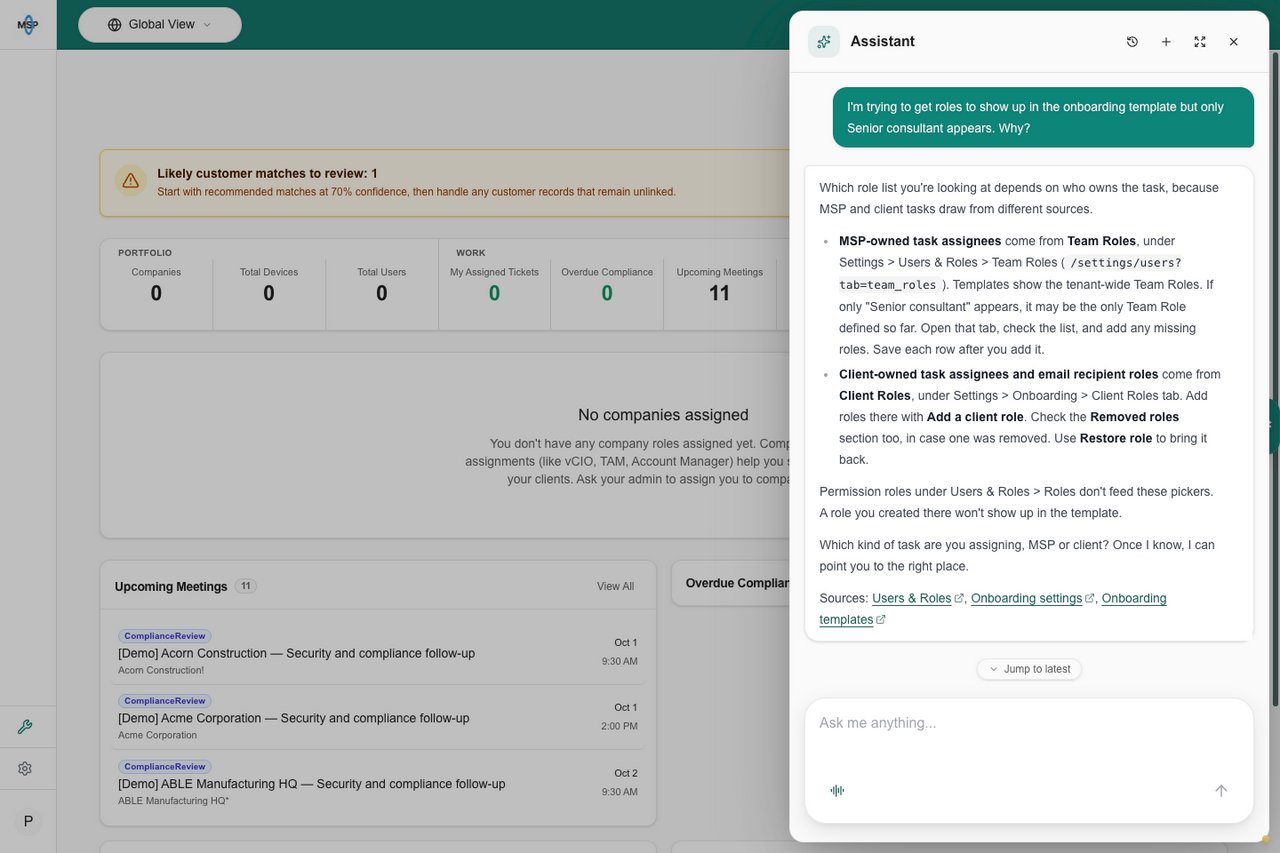
An onboarding-role question receives guide-backed help in the conversation.
Connect an external AI tool
To use Claude, Cursor, Codex or another AI client with MSPortal, follow MCP Server. See the MCP Tools Reference for what it can do. That connection is separate from the Home assistant.Troubleshooting
Frequently asked questions
Do Company administrators manage portal users through AI?
Do Company administrators manage portal users through AI?
No. The MSP manages Company user roles and access.
Does a proposal mean the action succeeded?
Does a proposal mean the action succeeded?
No. Click Apply change, then check the result. On a page editor, use the page’s Save button too.
Where do I learn the Home controls?
Where do I learn the Home controls?