

Branch preview: This guide describes the reporting changes under review. Availability depends on your organization’s feature settings and your role. Verify the released interface before using these steps in production.
Before you start
- The AI block builder must be enabled for your organization.
- MSP staff need permission to create or edit reports, or reporting management access. Publishing, unpublishing and archiving require reporting management access. Client users cannot author blocks.
- AI must be available to your organization, with sufficient credits where required.
- Available datasets depend on your permissions, connected integrations and synchronized data. A block can only read data your account may access.
Create and review a block
1
Open a new block
Open Reporting, select Blocks, then choose New block.
2
Describe the answer
Use Design with AI to request a figure, trend, comparison, chart or table. Include the measure, grouping and filters you need. For example: “Show open tickets by priority, with a separate overdue count.”The AI can check available data while designing the block. Its answer appears as a draft; sending a message does not save a block version.
3
Inspect the preview
Check the selected companies, period, labels, units and values. Use Preview size and Fit check to inspect the design at the sizes you intend to use. Ask for changes, or use the available edit controls.Keep missing data separate from a confirmed zero. If a preview reports a loading, access or incompatible-data problem, resolve it before relying on the result.
4
Save the version
Enter a clear Name and optional Description, then click Save or press Ctrl+S (Cmd+S on Mac). Wait for the saved-version confirmation. Each successful save creates a version in History.
5
Publish for reuse
With reporting management access, choose Publish v… after saving. Published blocks become available for placement in reports and dashboards. Saving another draft does not automatically publish that new version.
- Desktop builder
- Phone builder
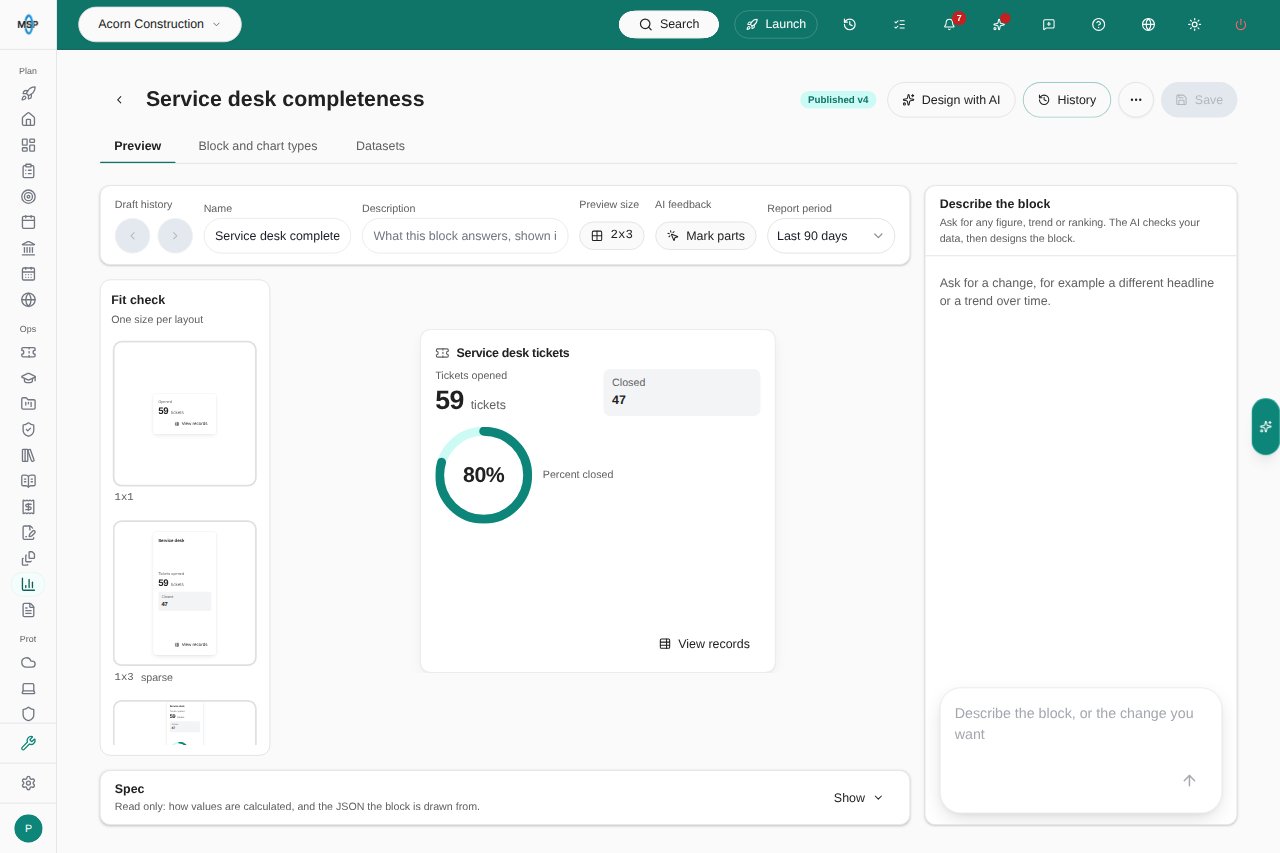
Branch preview: a published service desk block in the MSP builder, scoped to a Demo company.
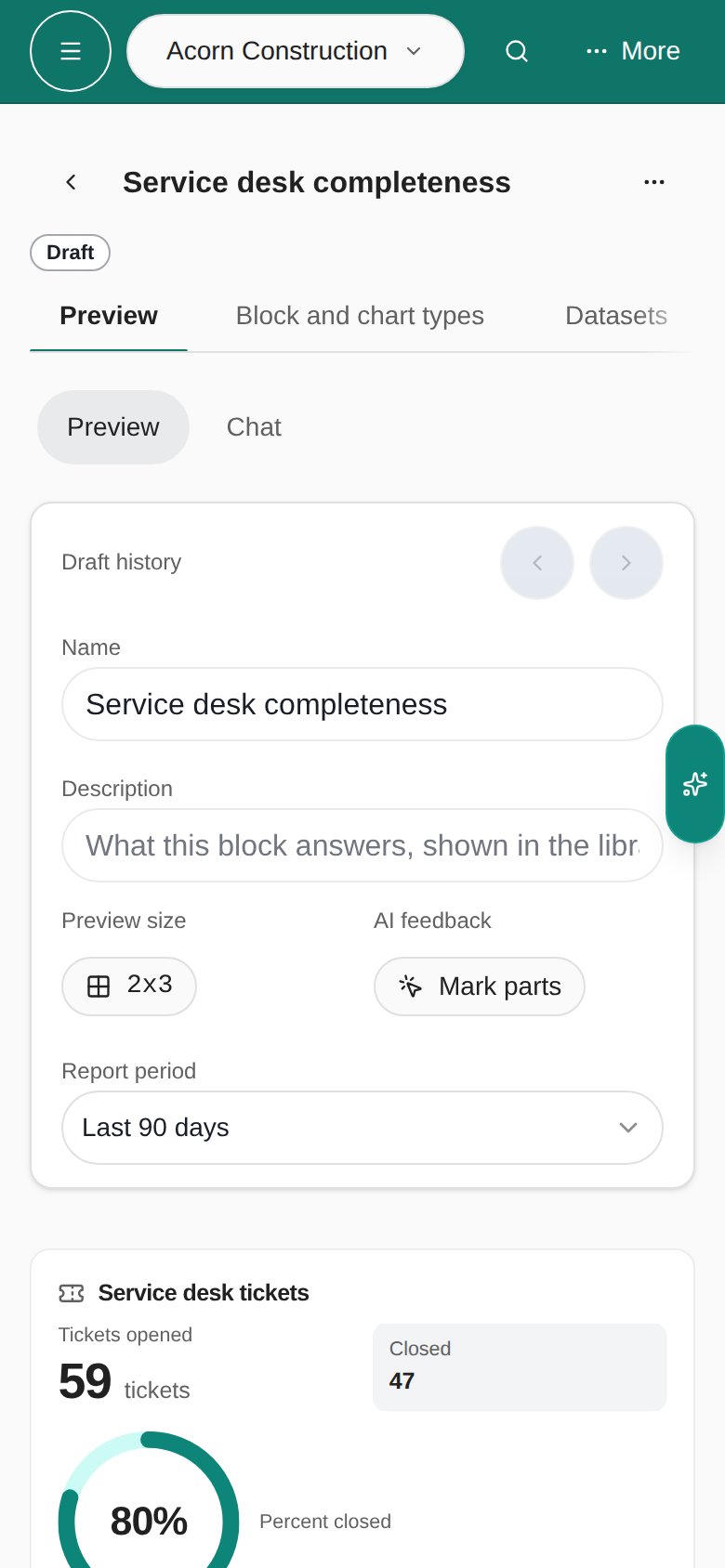
Use a published block
In a report or dashboard editor, open Custom blocks in the block palette or library and choose the published block. Only blocks whose data you may access are shown. New placements use the published version available when you add them. In a placed block’s edit controls, check Version before sharing the result. Update to version … applies a newer published design to that placement; the version selector also lets you choose an earlier available version.Complete tables and ranked highlights
Describe which kind of table you need when asking the AI to design a block.
View records opens a searchable, paginated table of the loaded records. Its Loaded … of … matching records count distinguishes what has loaded from what matches the source query. Browsing another page in this dialog does not load additional records beyond the source’s limit.
If more records match than the source can load, narrow the block’s filters, reporting period or company selection. A larger card can reveal more loaded rows, but it cannot retrieve records omitted by the source limit.
- Desktop records
- Phone records
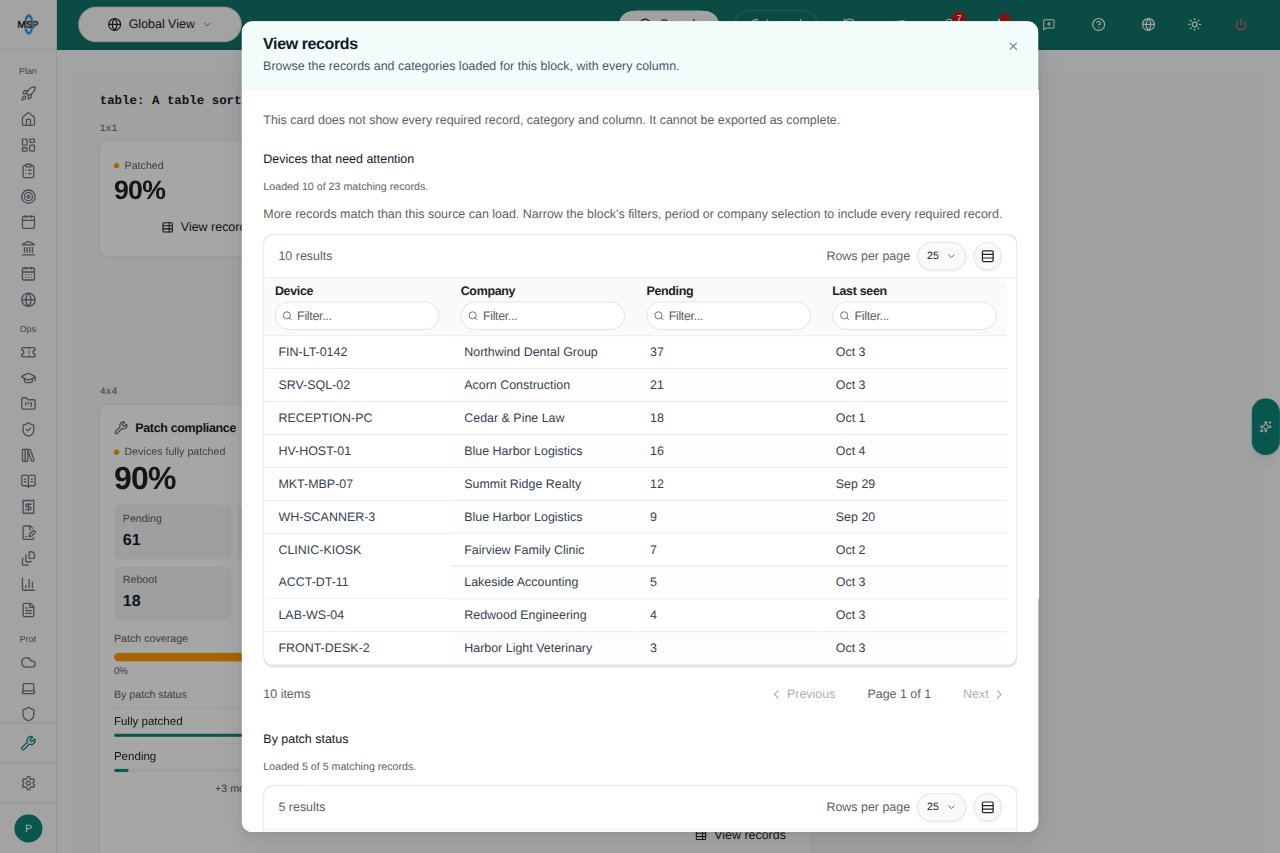
Branch preview with illustrative data: View records shows the loaded rows and warns when the source is incomplete.
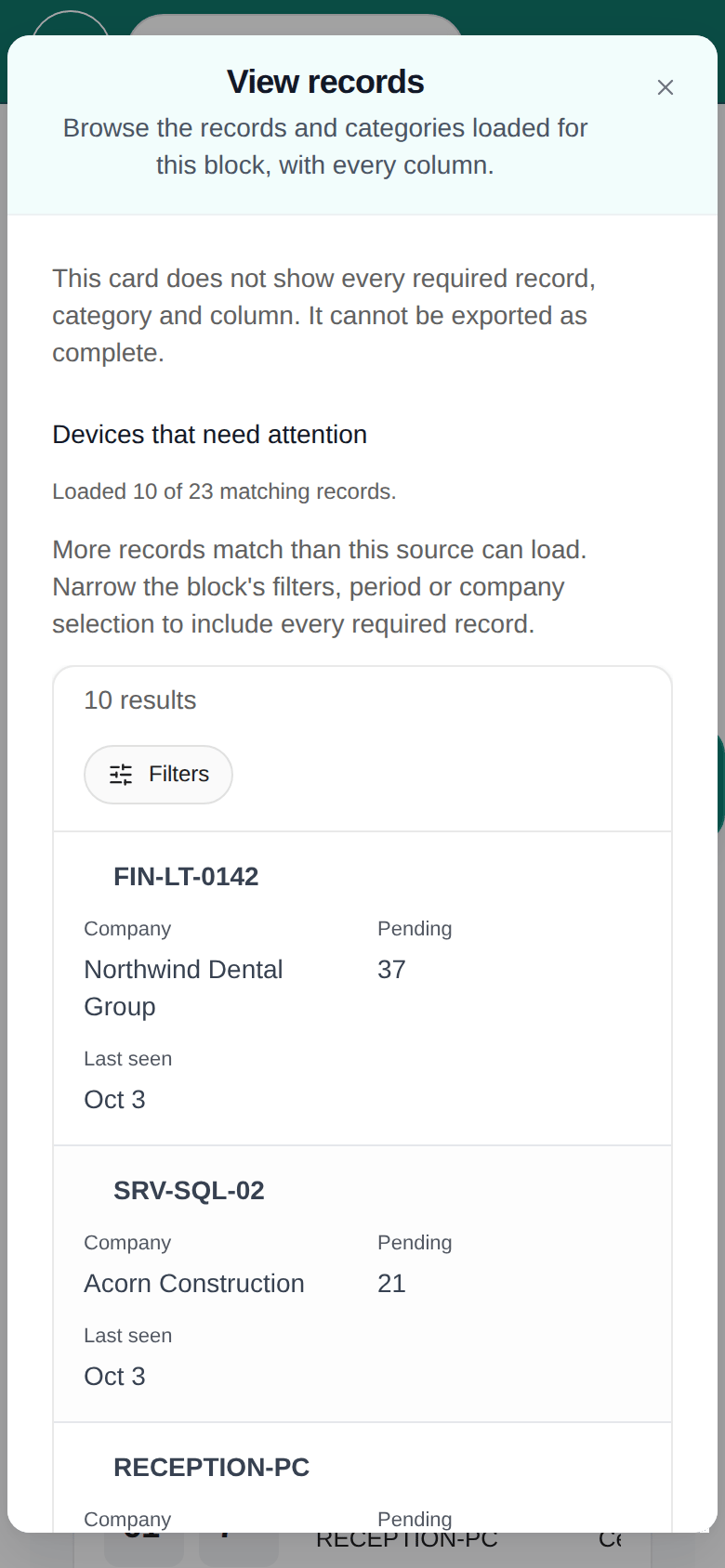
Revisit a saved block
Open a block from the Blocks library using Open in builder. History lists saved versions newest first:- Preview shows an older saved design without replacing the current draft. Use Back to draft to return.
- Restore saves a copy of that version as a new latest version. This is a saved action, separate from moving between unsaved drafts.
- Publishing a saved version chooses which version is available for new placements. Review the version selected on an existing report or dashboard block; placements can retain a specific version until you change it.