

Before you start
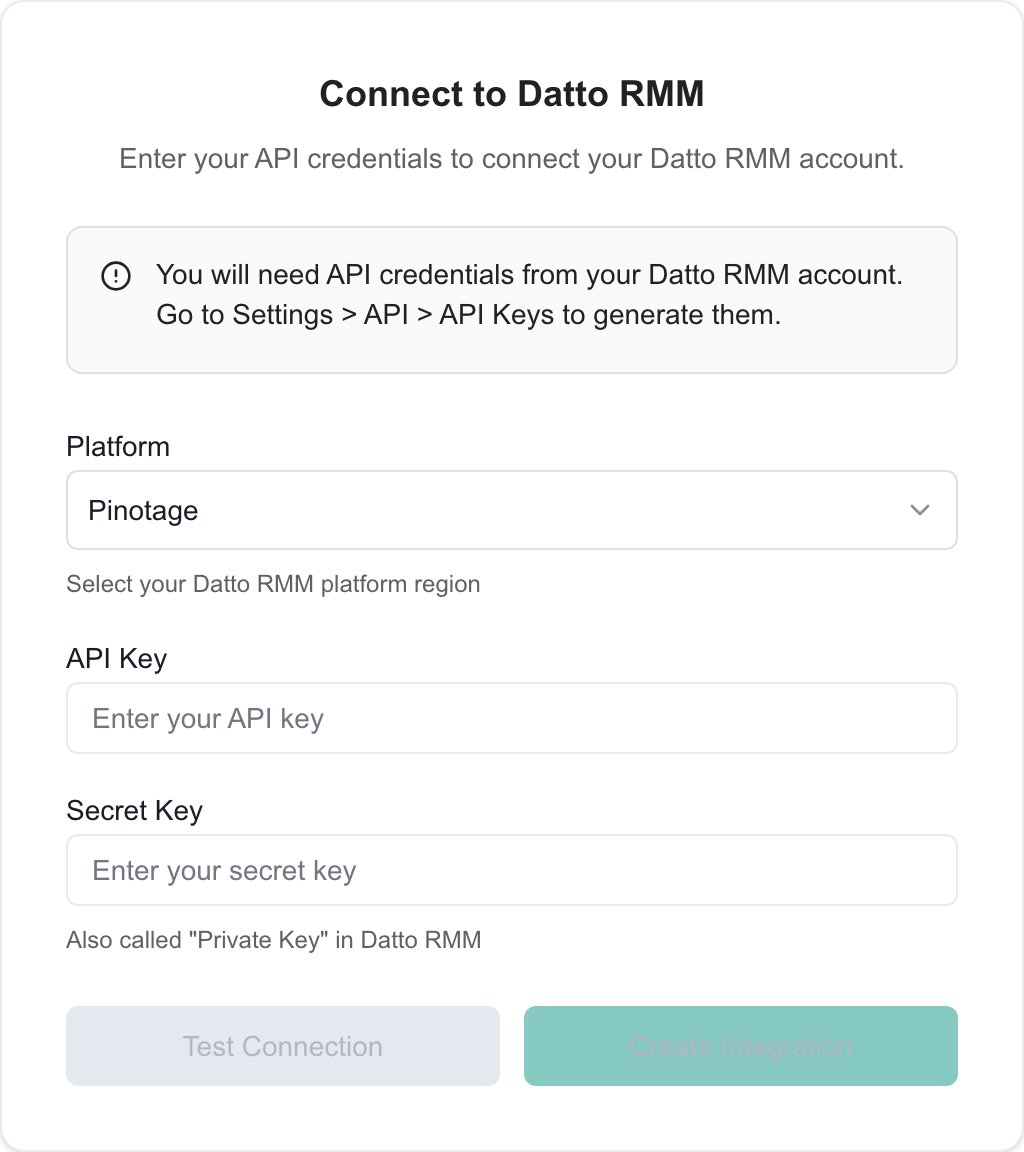
This is an MSP staff task. You need access to Settings > Integrations, permission to manage integrations, authorized vendor credentials, and companies to receive the imported records. Company users do not configure this connection. Enable API access for your Datto account, then generate credentials for an authorized user and save that user. Record the API URL so you can choose the matching platform. Follow Datto’s API access instructions; the API security and component levels control what that user can access.Connect the provider
- Open Settings > Integrations, find Datto RMM, and choose its connection/setup action. Use Configure on the existing connection when managing an established setup.
- Enter the connection fields below.
- Choose Test Connection and resolve any reported error.
- After a successful test, choose Create Integration. This saves the connection and starts discovery. A successful test alone does not create it.
Regenerating Datto keys invalidates the previous pair. Coordinate replacement with any other connection using those credentials.
Map sites to companies
- Continue to Map after discovery has returned the provider’s sites.
- Select an existing company for each intended record, or use Quick Match and review each suggested company.
- Review the pending links, then choose Import Selected to apply the selected imports and pending links. Check the selected records as well as the pending-link count before submitting. The wizard’s Next also attempts to save pending mappings before continuing. Check that the rows show saved links before proceeding.
- Remove a pending suggestion to discard that draft. Removing an already saved link takes effect immediately.
Import devices
The Import step is an entry point. Select Open Device Import to open the actual device staging and type-mapping page. Review the company and device type before importing. Map provider categories to MSPortal device types, then import the intended records. Where offered, Auto-Sync enables future imports for the mapped category and Ignore excludes a category. These are saved configuration choices, not temporary list filters. Follow Import Devices for selection, type mappings and result handling. Check the import result and resulting Devices records. Complete Setup finishes the wizard; its success message does not prove every background sync or device import has completed.Manage an existing connection
To rotate credentials, reopen the existing connection, enter the replacement API Key and Secret Key, test them, then choose Update API Key. The Platform selector stays locked for an existing connection. Retesting alone does not save replacements. Reopen the specific connection to review mappings and imports. An existing Connection verified state is not evidence that a fresh retest just ran. Inspect recent sync status and errors when diagnosing stale inventory. The wizard’s Delete action opens a Delete Integration confirmation. Read it before proceeding: deletion is not a refresh or a temporary pause. It does not revoke vendor credentials on the vendor’s behalf.Troubleshooting
Frequently asked questions
Does Test Connection save the integration?
Does Test Connection save the integration?
No. For a new connection, complete the successful test and then choose Create Integration. Existing-connection retesting is also distinct from any credential-update action.
Does Quick Match immediately save every suggested link?
Does Quick Match immediately save every suggested link?
No. Review and apply the intended suggestions, then save the pending mappings. Removing a saved link is an immediate change.
Does Complete Setup mean all devices are imported?
Does Complete Setup mean all devices are imported?
No. Device discovery, saved mappings and inventory imports have separate results. Open the device import page and check the resulting inventory.
Can a Company user configure this provider?
Can a Company user configure this provider?
No. Provider setup is an MSP settings task. Company access to resulting data depends on portal permissions and company scope.
Is Datto RMM the same as a Datto backup connection?
Is Datto RMM the same as a Datto backup connection?
No. This guide covers RMM sites, device inventory and software. Configure the relevant backup provider separately for backup workloads.