Overview
Projects in MSPortal are automatically synced from your connected PSA integration (ConnectWise, Autotask, Halo PSA, or Syncro). The module enhances your PSA data with:- Visual kanban boards for project and ticket management
- Health status tracking and variance indicators
- Client action management
- Weekly update posting with AI assistance
- Deliverable and milestone tracking
- Phase and ticket views with time entry details
- Team contact assignments
Projects are synced from your PSA integration. If no projects appear, ensure your PSA integration is configured in Settings > Integrations.
Projects Dashboard
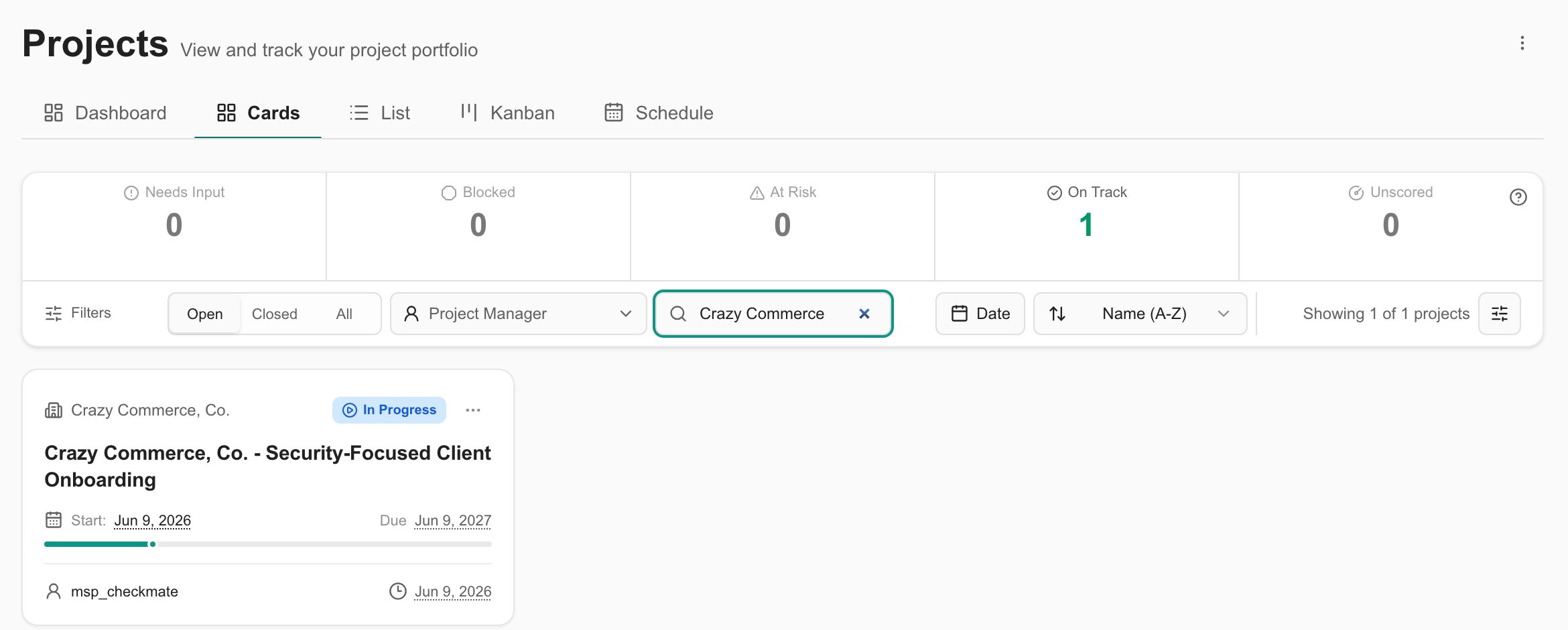
The main dashboard displays all your projects with at-a-glance metrics.Summary Cards
At the top of the dashboard, summary cards show:- Total Projects - All projects in your portfolio
- In Progress - Active projects currently being worked on
- Completed - Successfully finished projects
- On Hold - Paused projects
- Overdue - Projects past their due date
- Over Budget - Projects exceeding estimated hours
View Options
Toggle between two display modes:- Kanban View
- Table View
The kanban view displays projects as cards organized by status columns. This view is ideal for:
- Visualizing project pipeline at a glance
- Quickly moving projects between statuses
- Seeing project health via color-coded indicators
Filtering Projects
Use the search bar and filters to find specific projects:- Search - Find projects by name
- Status Filter - Filter by Not Started, In Progress, On Hold, Completed, or Cancelled
Projects Kanban Board
The kanban board provides a visual way to manage your project portfolio by status.Understanding Columns
Projects are organized into columns based on their lifecycle status:| Column | Description |
|---|---|
| Not Started | Projects that haven’t begun yet |
| In Progress | Active projects being worked on |
| On Hold | Paused projects awaiting action |
| Completed | Successfully finished projects |
| Cancelled | Projects that were terminated |
Project Cards
Each project card displays key information at a glance:Status & Health
Color-coded left border indicates health status (green = On Track, yellow = At Risk, red = Behind). Status badge shows lifecycle stage.
Progress Tracking
Visual progress bar showing percentage of hours completed vs. estimated.
Hours & Variance
Actual hours vs. estimated with variance badges showing if under (green) or over (red) budget.
Timeline
Due date displayed with overdue dates highlighted in red.
Moving Projects Between Statuses
To change a project’s status using the kanban board:Drag the Project Card
Click and hold the drag handle on the project card, then drag it to the target column.
Select Target Status
If multiple PSA statuses are mapped to the target column, a modal appears asking you to select the specific status.If only one status is mapped, the project moves automatically.
If you drag a project to a column with an unmapped status and you have settings permissions, MSPortal will offer to add that status to the column mapping automatically.
Project Details
Click any project card to view the full project details. The detail view includes multiple tabs:Overview Tab
The main summary showing:- Project Outcome - The objective and description
- Current Phase - Where the project stands in its lifecycle
- Contacts - MSP lead and client sponsor with email links
- Weekly Summary - The most recent weekly update with completed work, upcoming items, and risks
- Milestone Progress - Visual tracker of milestone completion
- Deliverables Summary - Status of project deliverables
Timeline Tab
A Gantt-style visualization showing:- Milestone dates and status
- Phase progression
- Key dates and deadlines
Updates Tab
Weekly project updates containing:- What was done
- What’s next
- Current risks
- Decisions needed
AI-Generated Updates
Generate weekly updates automatically using AI. Click the sparkle icon in the Updates tab header and select:- Generate Update - AI analyzes time entries, completed tickets, pending decisions, and project activity for the selected week
- Generate with Prompt - Add custom instructions to guide the AI (e.g., “Focus on budget concerns” or “Highlight the migration timeline”)
Decisions Tab
Track pending client actions:- Approvals - Items awaiting client sign-off
- Questions - Topics needing client input
- Access Requests - Credentials or system access needed
- Scheduling - Meetings or sessions to arrange
- Decisions - Scope or direction choices pending
Deliverables Tab
Track project deliverables through their lifecycle:- Planned
- In Progress
- In Review
- Complete
Budget Tab
Financial overview including:- Revenue tracking
- Cost analysis
- Budget variance
Phases Tab
View and manage project phases synced from your PSA. This tab provides a hierarchical view of your project structure with expandable phases, tickets, and time entries.Phase Overview
At the top of the Phases tab, you’ll see summary statistics:- Total Phases - Number of phases in the project
- Completed / In Progress - Phase completion breakdown
- Total Hours - Actual vs. estimated hours across all phases
- Open Tickets - Count of tickets still being worked (if tickets enabled)
Phase Details
Each phase row displays:| Field | Description |
|---|---|
| Phase Name | Name with status icon (circle = not started, play = in progress, checkmark = complete) |
| Milestone | Flag indicator if this is a milestone |
| Tickets | Badge showing ticket count (if enabled) |
| Status | Complete, In Progress, or Not Started |
| Schedule | Start and end dates |
| Hours | Actual/Estimated with variance indicator |
| Progress | Visual progress bar |
Viewing Tickets Under Phases
When you expand a phase, you’ll see all tickets associated with it:- Ticket ID - The PSA ticket identifier
- Summary - Ticket title/description
- Status - Current ticket status badge
- Owner - Assigned technician
- Hours - Actual hours vs. budget
Viewing Time Entries
Click the expand arrow on any ticket to see all time entries logged against it:| Field | Description |
|---|---|
| Date | When the work was performed |
| Person | Who logged the time |
| Duration | Hours worked (green highlight if billable) |
| Work Type | Type of work performed |
| Notes | Description of work done |
| Billable | Whether the time is billable |
Kanban Tab
The Kanban tab is currently available in development environments only. It will be enabled for all users in a future release.
Ticket Kanban Features
The ticket kanban provides powerful filtering and organization options:Search and Filter
Search and Filter
Use the search bar to find tickets by:
- Ticket ID
- Summary/title
- Owner name
Group By Options
Group By Options
Organize tickets into columns by:
- Status (default) - Group by ticket status
- Technician - Group by assigned owner
- Priority - Group by priority level
Display Density
Display Density
Choose how much information appears on each card:
- Comfortable - Full details with status/priority badges
- Compact - Reduced info, hides some badges
- Dense - Minimal info for maximum visibility
Hide Completed
Hide Completed
Toggle to hide completed tickets and focus on active work.
Ticket Cards
Each ticket card on the kanban displays:- Ticket ID - The PSA identifier (task_ prefix stripped for Autotask)
- Summary - Ticket title
- Hours - Actual vs. budgeted hours
- Owner - Assigned technician
- Status/Priority Badges - Visible in comfortable density mode
Moving Tickets Between Statuses
Drag ticket cards between columns to update their status:Select Status (if needed)
If multiple statuses map to that column, choose the specific status from the modal.
Viewing Ticket Details and Time Entries
Click any ticket card to open the Ticket Details Modal. This unified modal displays: Left Panel - Ticket Information:- Ticket ID and summary
- Status and priority badges
- Assigned technician
- Company and project
- Hours worked vs. budget
- Created and updated dates
- Notes and communications
- Time entries logged against the ticket
- Log hours worked
- Add work notes
- Specify work type
- Mark as billable/non-billable
The Phases and Kanban tabs are only visible if enabled in your project settings (Settings > Projects).
Creating Items from Phases & Tickets
You can quickly create deliverables, updates, and decisions directly from project phases or tickets. This automatically links the new item back to its source, making it easy to track work related to specific phases or tickets.From a Phase
Click the ⋯ (more options) button on any phase row to:- Create Deliverable - Creates a new deliverable linked to the phase
- Create Update - Creates a weekly update referencing the phase
- Decision Needed - Creates a client action item linked to the phase
From a Ticket
Click the ⋯ (more options) button on any ticket within a phase to:- Create Deliverable - Creates a deliverable linked to the specific ticket
- Create Update - Creates a weekly update for the ticket
- Decision Needed - Creates a decision item linked to the ticket
Linked Item Indicators
Items created from phases or tickets display a link indicator showing their source. This helps you:- Trace deliverables back to the work that spawned them
- Connect updates to specific project activities
- Associate pending decisions with relevant tickets or phases
Project Health Status
MSPortal automatically calculates project health based on:- Days remaining vs. work completed
- Hours variance from estimate
- Overdue status
| Status | Meaning |
|---|---|
| On Track | Project progressing well |
| At Risk | Minor concerns - approaching deadline or moderately over budget |
| Behind | Critical issues requiring attention |
| Completed | Project finished |
Editing Projects
Users with project management permissions can edit project details:Update Information
Modify the outcome, phase, health status, contacts, deliverables, milestones, or client actions.
Configuring Project Display
Customize what information appears on project cards and which features are enabled in Settings > Projects.Project Settings
Configure project display options, status mappings, and feature visibility.
Permissions
| Permission | Capability |
|---|---|
read_projects | View projects and project details |
write_projects | Edit project information and post updates |
manage_projects | Full project management including settings |