

Before you start
You need project-settings read access to view this page and write access to change it. PSA-specific selectors depend on the integrations and definitions available in your tenant.Client project access
This tab controls which projects company users can see. MSP staff continue to use their own permitted project scope.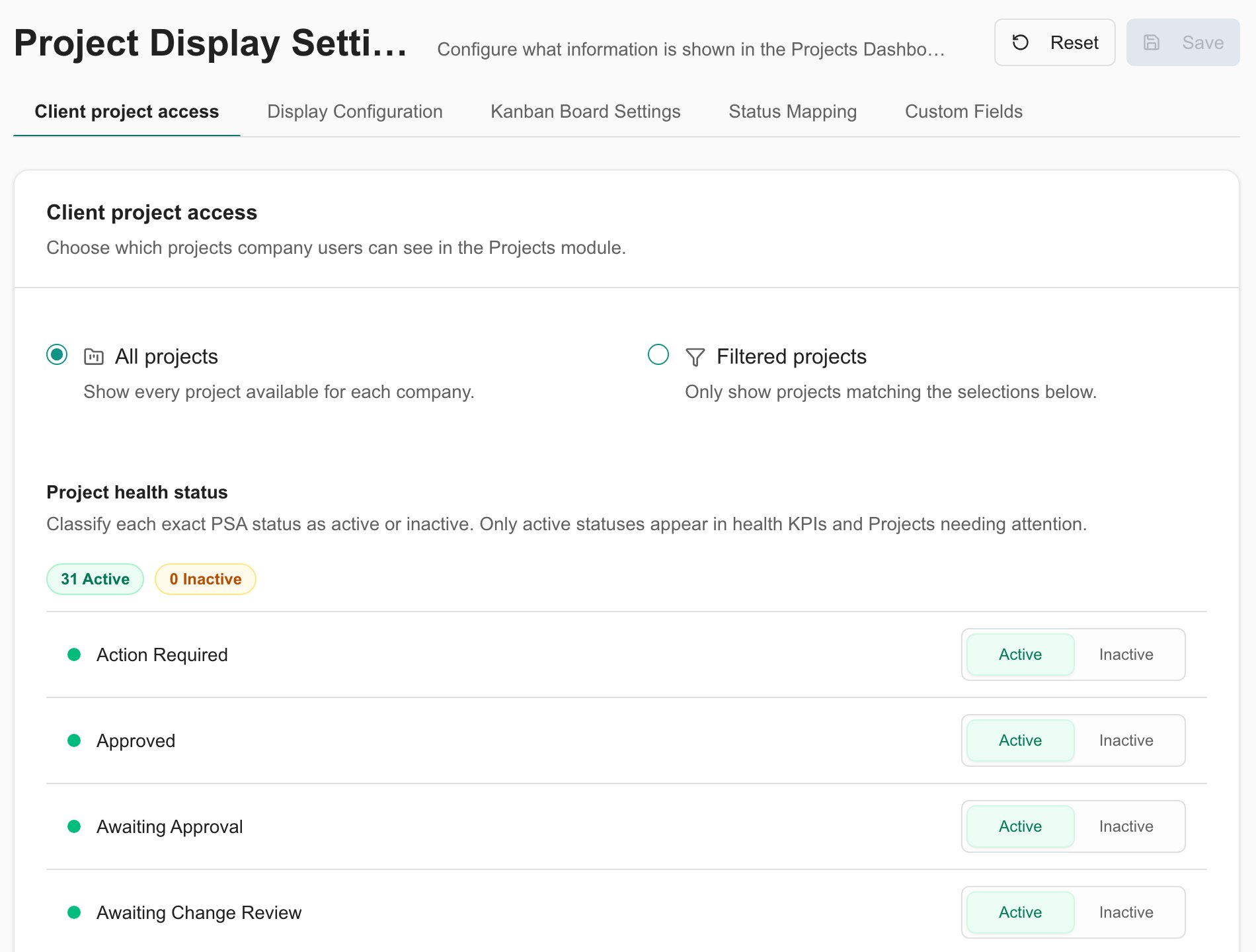
1
Choose Filtered projects
Select Filtered projects to reveal the available selectors.
2
Select the projects to include
Choose Project types, supported Project boards or Lines of business, and/or Specific projects. Use the searchable project selector for individual projects. Autotask uses lines of business rather than project boards.
3
Save the access rules
Select Save in the header. Review the result using the intended client role and company scope.
Project health status
On the same tab, mark each exact PSA status Active or Inactive. Inactive statuses are excluded from health KPIs and Projects needing attention. New PSA statuses start as active. Use this to exclude statuses that should not participate in portfolio health. It does not change the project’s PSA status, replace client access rules, or configure Kanban column mappings. Select Save to apply changes.Display Configuration
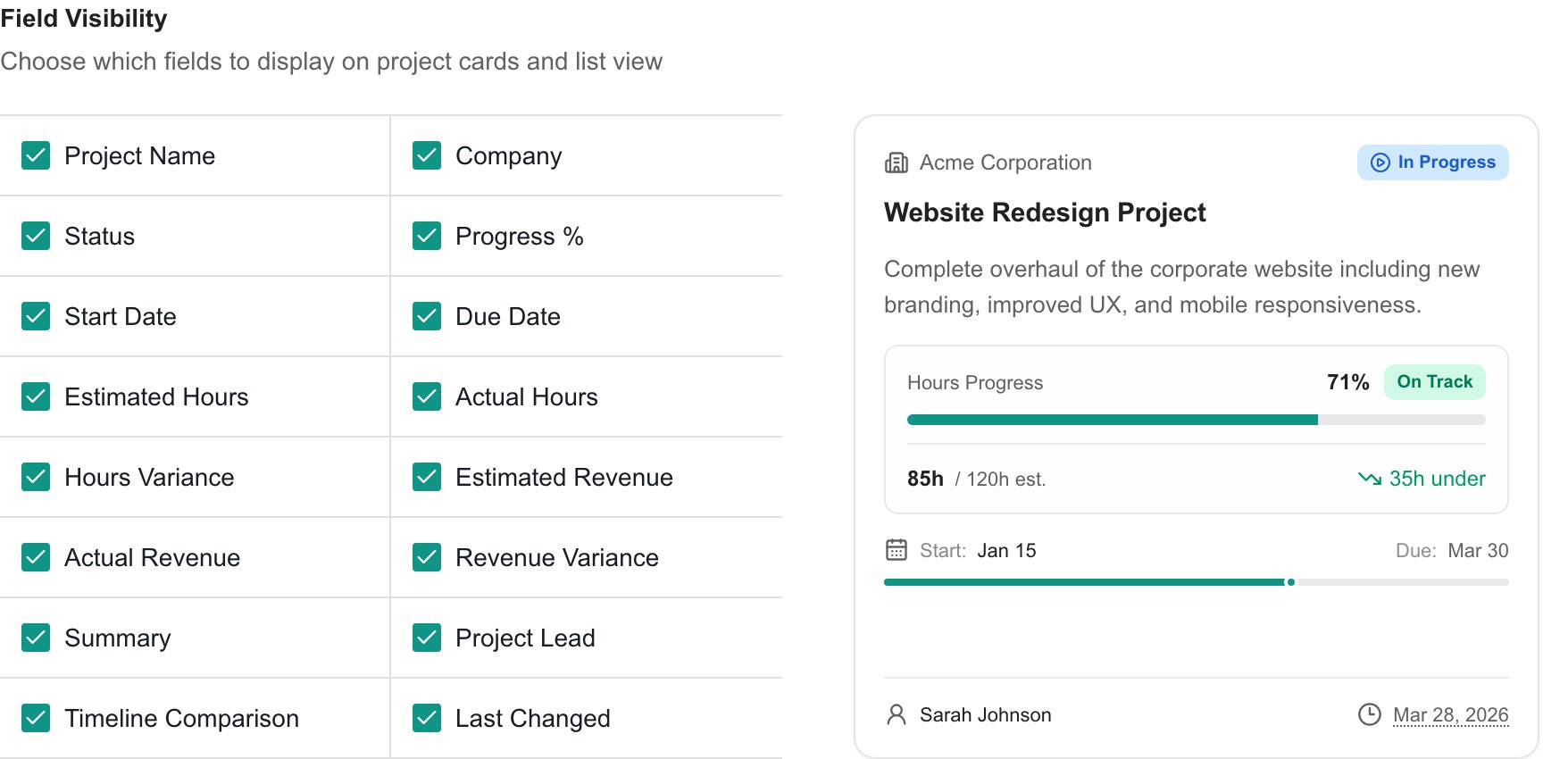
Use Section Visibility for detail-page sections and Field Visibility for cards and the project list. The sample card preview updates as you change the display options.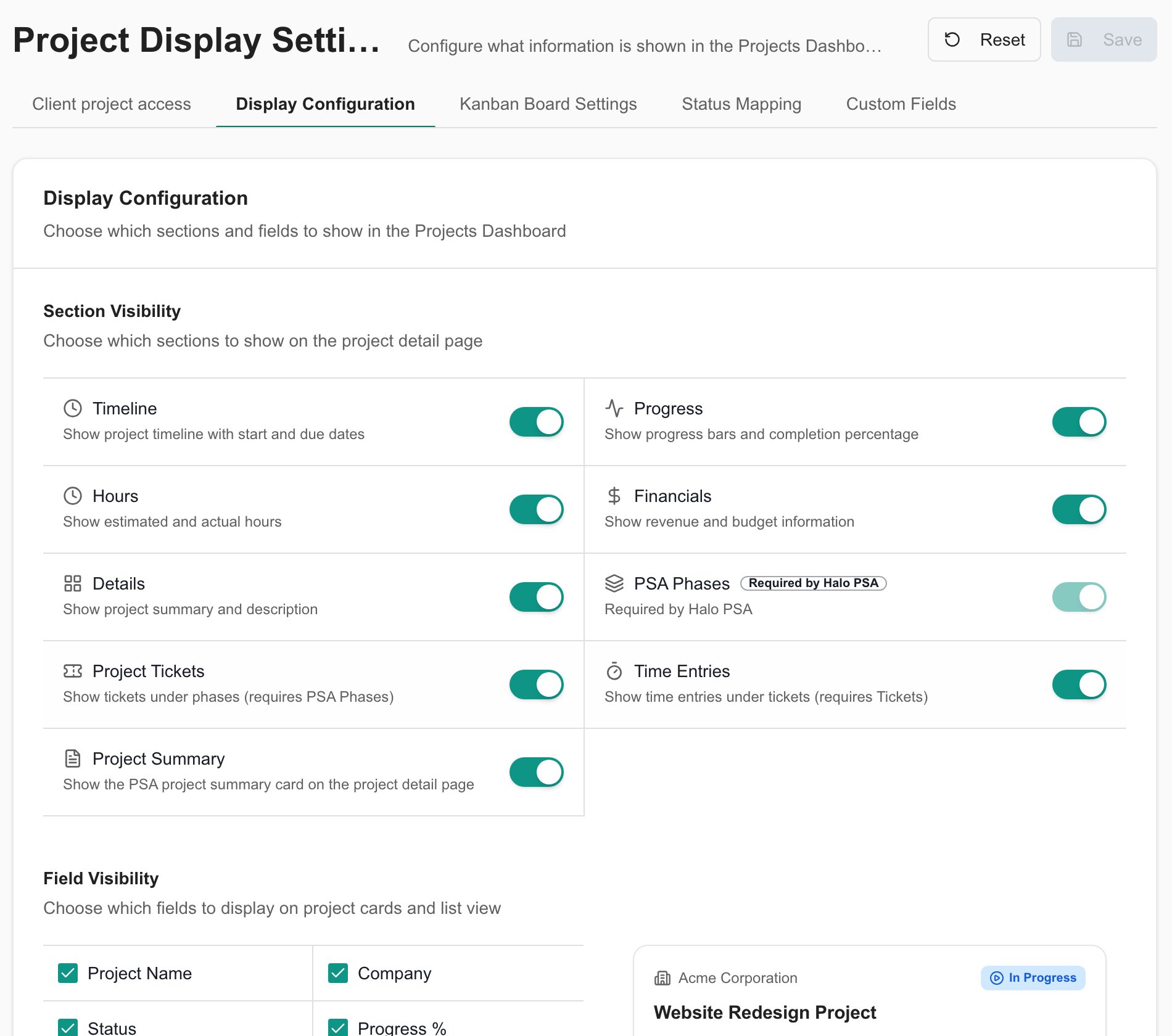
- Project Tickets requires PSA Phases.
- Time Entries requires Project Tickets.
- PSA Phases is required for Halo PSA and cannot be disabled there.
- Ticket Kanban has its own control on Kanban Board Settings.
Kanban Board Settings
Enable Kanban Board to make the ticket board available on eligible project workspaces. Configure Kanban technicians to determine the technician columns and assignable roster.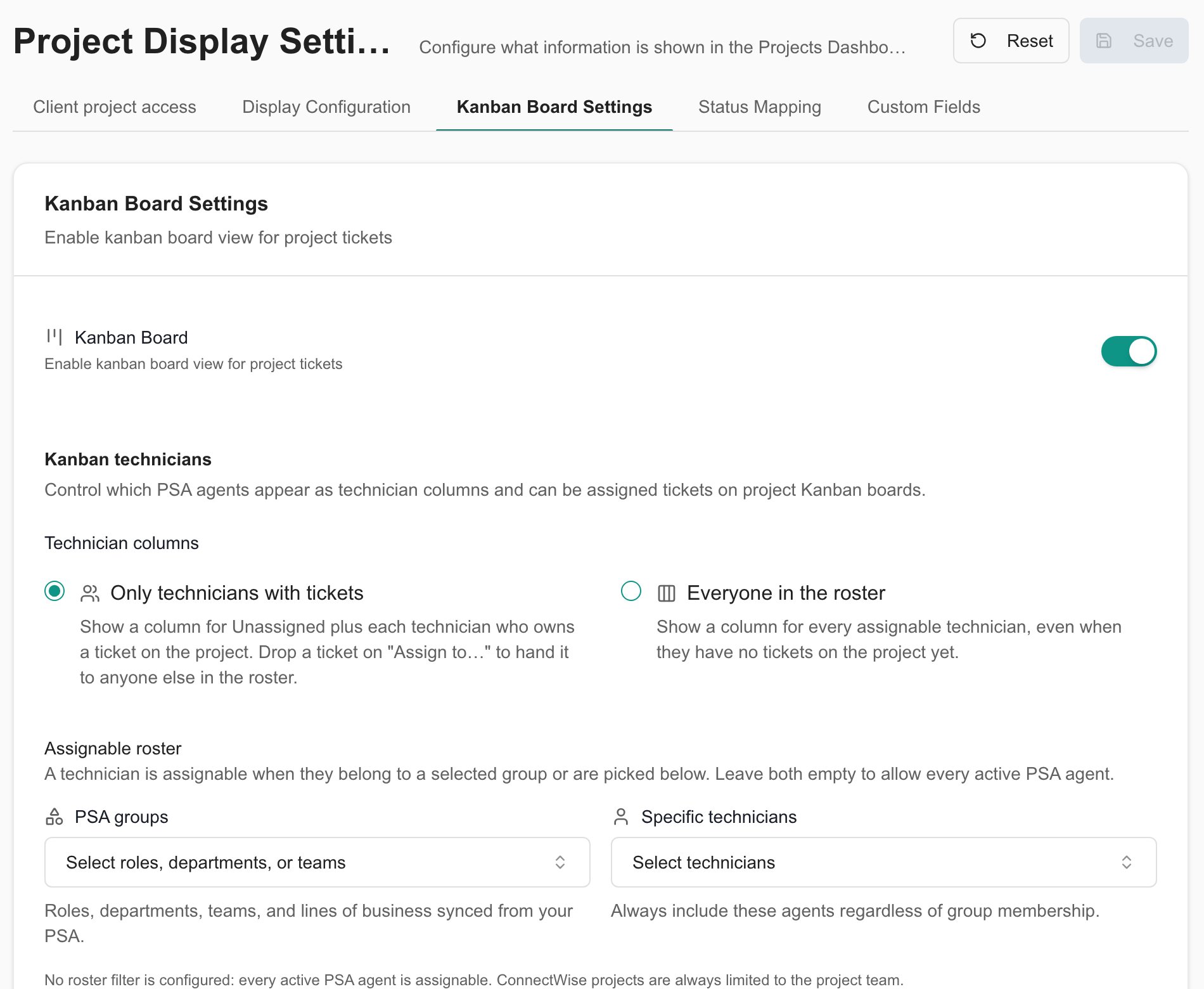
Leave both roster selectors empty to allow every active PSA agent. ConnectWise projects remain limited to their ConnectWise project team; roster settings can narrow that team further. Save the settings when finished.
Status Mapping
Configure Project Statuses and Ticket Statuses separately. The first organizes whole projects; the second organizes tickets inside project Kanban.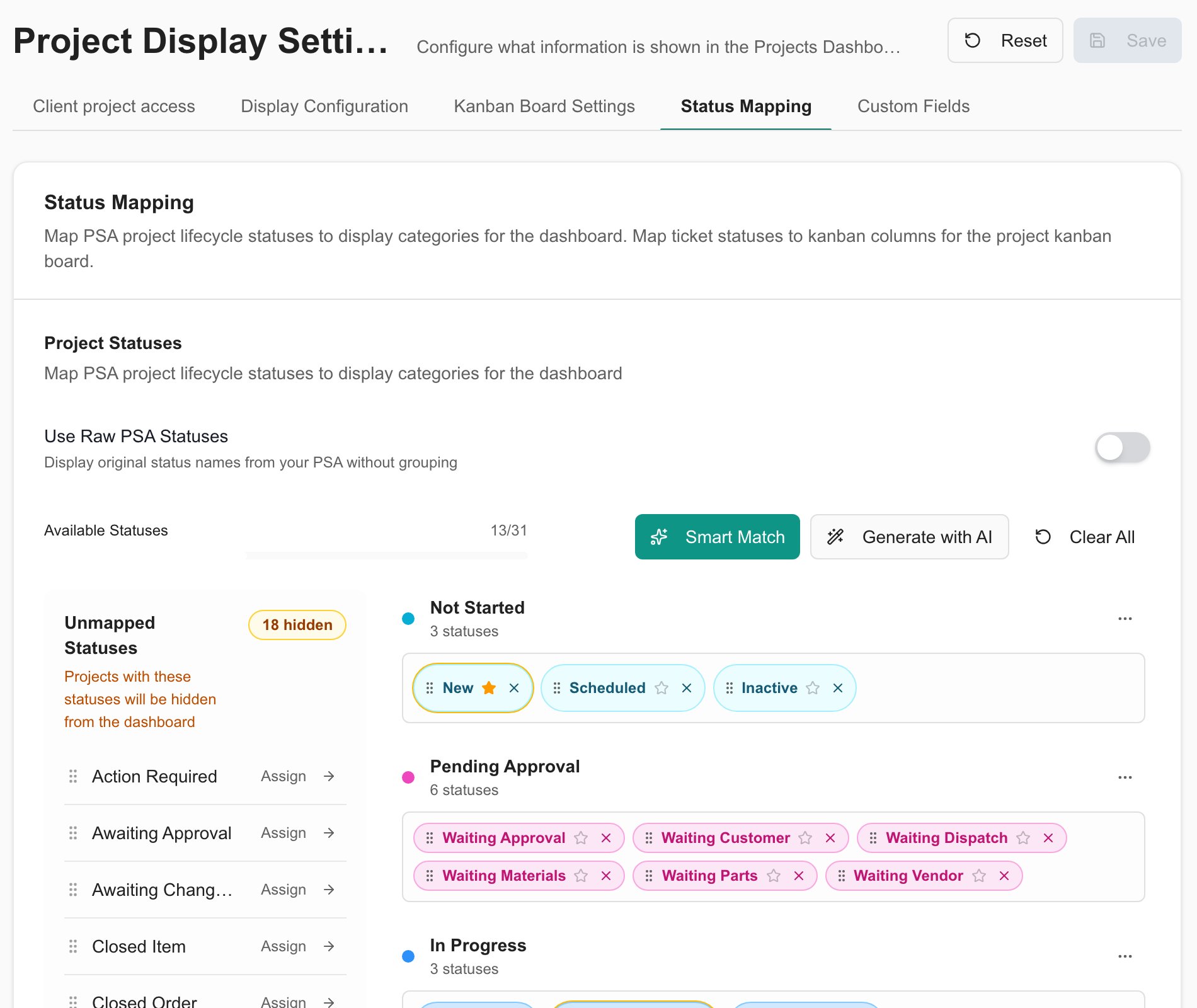
1
Choose raw statuses or groups
Enable Use Raw PSA Statuses to display original PSA names. To group statuses, keep it disabled and review the configured columns.
2
Place unmapped statuses
Use Assign beside an unmapped status, or drag it into a group. Smart Match helps place remaining unmapped statuses; review its result. You can also use Generate with AI and review the generated mappings before saving.
3
Review columns and defaults
Add or rename groups as needed. Where a default status is configured, it determines the destination used for a board move; otherwise a move can require a status selection. A status belongs to one group at a time.
4
Save the mappings
Check both Project Statuses and Ticket Statuses, then select Save.
Custom Fields
Add supported ConnectWise, Halo, or Autotask custom fields and decide where they appear and who can access them.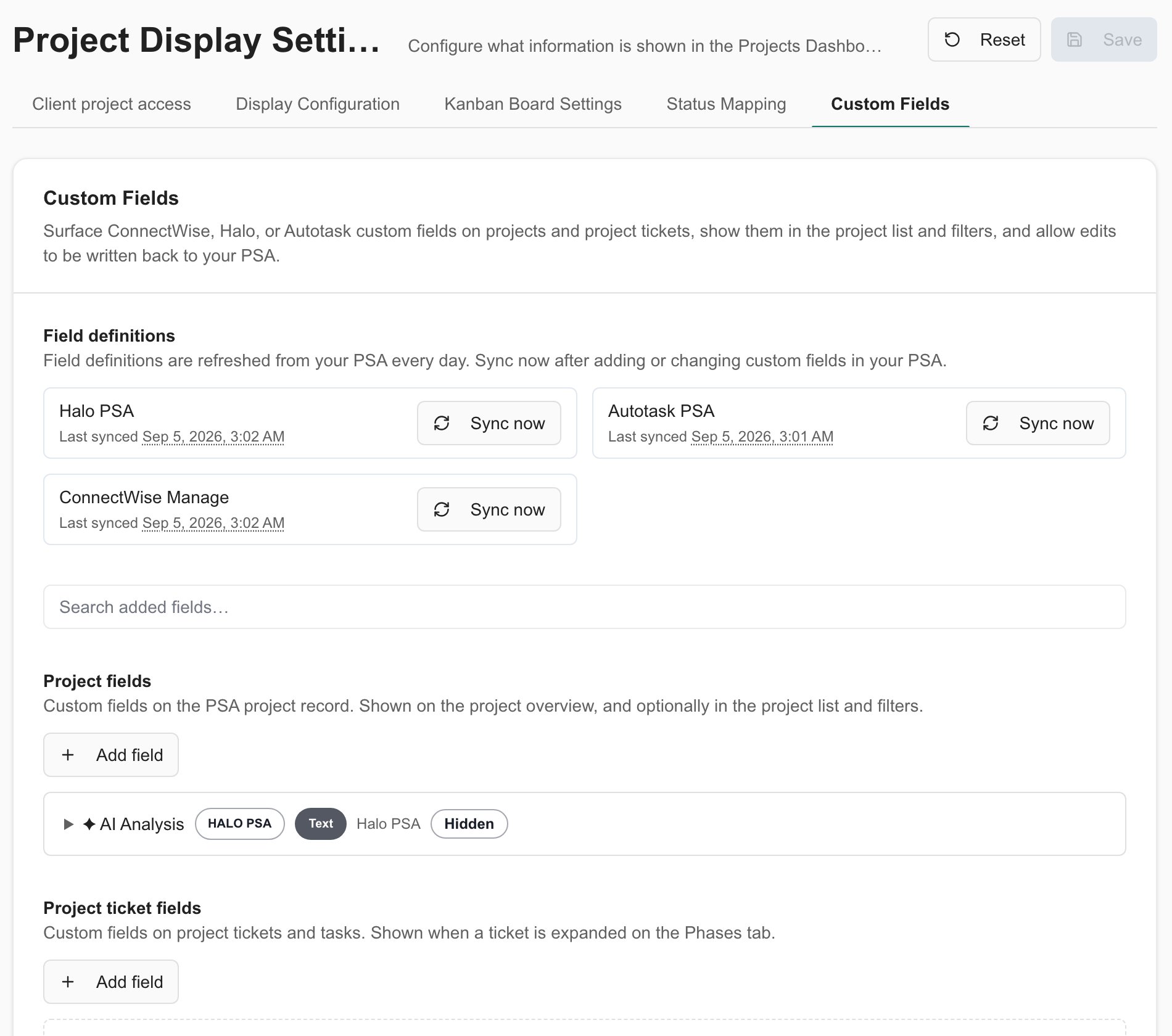
1
Check field definitions
Review the provider’s last sync. Definitions refresh daily. Use Sync now after changing definitions in your PSA and wait for the sync result.
2
Add a field
Under Project fields or Project ticket fields, select Add field and search the available PSA definitions. Open an added field to configure it.
3
Set visibility and access
Configure Show on projects and, for project fields, List and filters. Choose Who can view and Who can edit using Staff only or Selected roles. Selected roles with no roles chosen grants no access.
4
Choose whether to allow PSA edits
Enable Allow edits only for a supported writable field. An editor also needs field-view access, project edit permission, and the configured field-edit access. Edits to the field value are written back to the PSA.
Changes on Custom Fields are saved immediately. Configure role access before showing a field in project views.
Save, leave, or reset
The header Save applies changes across the first four tabs. Switching between them lets you continue editing the same unsaved configuration. If you navigate away with unsaved changes, review the app’s prompt. Reset replaces those form values with product defaults locally. Review the result and select Save to apply it. Reset does not immediately change the saved configuration and does not undo separately saved Custom Fields changes.Troubleshooting
Projects
Review the portfolio and project health.
Project workspace
Use project tabs and collaboration tools.
Project calendar
Review schedules and supported date changes.
Integrations
Configure your PSA connection.