

Before you start
Your role determines which project views and editing controls are available. Select a company in the company selector to focus the portfolio, or use Global View to see the companies available to you. Native projects run directly in MSPortal. PSA project details also depend on your connected provider. Project settings and permissions control the available views.Screenshots show the MSP staff experience using Demo data. Client access is limited by company scope, role permissions, and Settings > Projects > Client project access.
Choose a portfolio view
Find a project
Follow Find and open a project for Company and MSP instructions, or Filter and sort projects for dates, managers, health, and remembered choices.1
Choose the company scope
Use the company selector at the top of the app. Then open Projects.
2
Narrow the portfolio
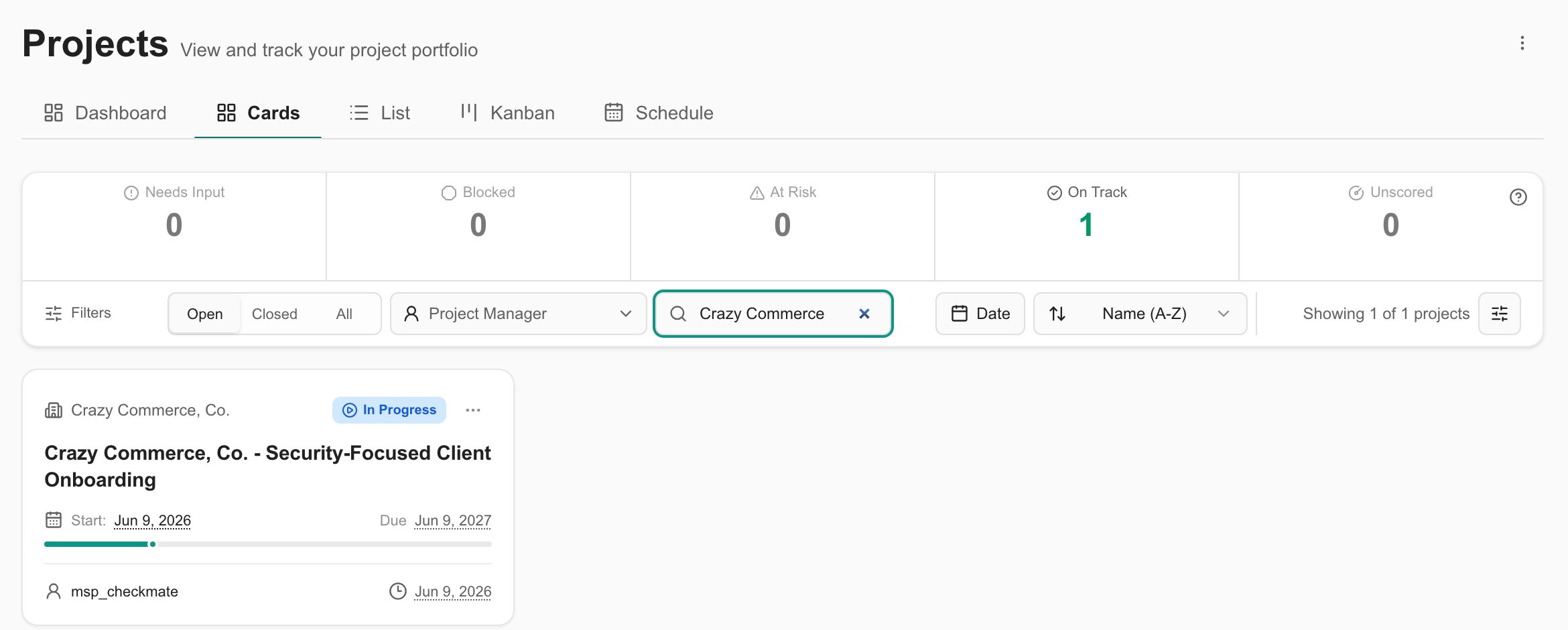
In Cards, List, or Kanban, use the search field to search projects, companies, or outcomes. Choose Open, Closed, or All; Open is the initial selection. Use Project Manager, Date, or Filters to narrow the results further.
3
Open the project
Select a project card or list row to open its workspace. Clear your filters and separately switch to All if you cannot find an older project. Clearing filters leaves Open / Closed / All unchanged.
Understand portfolio health
For MSP staff, the Dashboard includes Active schedule, On-time delivery, and Effort adherence. Each metric shows its eligible project count; missing evidence does not mean a project is healthy.- Active schedule considers open projects with due dates that are not overdue.
- On-time delivery considers projects completed on or before their due date in the last 12 months.
- Effort adherence considers projects at or below 110% of estimated hours.
- Unscored means an open project lacks both a due date and enough hours information to calculate health.
Work with project Kanban
Portfolio Kanban groups whole projects. The Kanban tab inside an individual project groups its tickets instead. With status-edit permission, drag a project to a destination column. MSPortal uses the configured default status where available or asks you to select a target PSA status. A successful status change is written to the supported PSA integration. Review the destination before completing the move.Troubleshooting
Create and deliver a native project
MSP staff with project write permission can select New project, when available, to create from a reusable template. Company users request new work through their MSP. Choose MSPortal only to keep the project, phases, and tickets in MSPortal. Follow Native Projects: Start to Finish for the complete workflow.Related guides
Native Projects
Create, deliver, and close out an MSPortal-only project.
Project templates
Build reusable plans with phases, tickets, decisions, and action items.
AI, MCP, and client reviews
Connect delivery evidence to reviewed updates, QBR reports, and meetings.
Project workspace
Work with milestones, updates, decisions, action items, and tickets.
Project calendar
Navigate Schedule and inspect scheduled project work.
Project settings
Configure access, display, Kanban, status mappings, and custom fields.
Integrations
Connect your PSA and review its configuration.
FAQs
Where should a Company user start with Projects?
Where should a Company user start with Projects?
Open Projects and choose Cards or List if your role allows it. Search for the project, check Open / Closed / All and filters, then select its card or row. See Find and open a project.
Why do Company users and MSP staff see different tabs?
Why do Company users and MSP staff see different tabs?
Dashboard is MSP-only. Cards, List, Kanban, and Schedule each have separate role permissions. The MSP also controls which projects and fields are shared with Company users.
Does changing a filter update the project?
Does changing a filter update the project?
No. Search, view selection, filters, and sort change the displayed results. Some preferences are remembered in your browser. Record actions such as moving status or rescheduling are separate workflows.
Who can change a Company user's project permissions?
Who can change a Company user's project permissions?
The MSP manages users and permission roles. Company administrators should ask their MSP to review access; see Company user permissions (MSP).