

The review queue is available only for tenants where MSPortal has enabled it. Until then, the CSAT Review Queue menu item, Review settings tab and correction badges are hidden. Your existing CSAT dashboard continues to work.
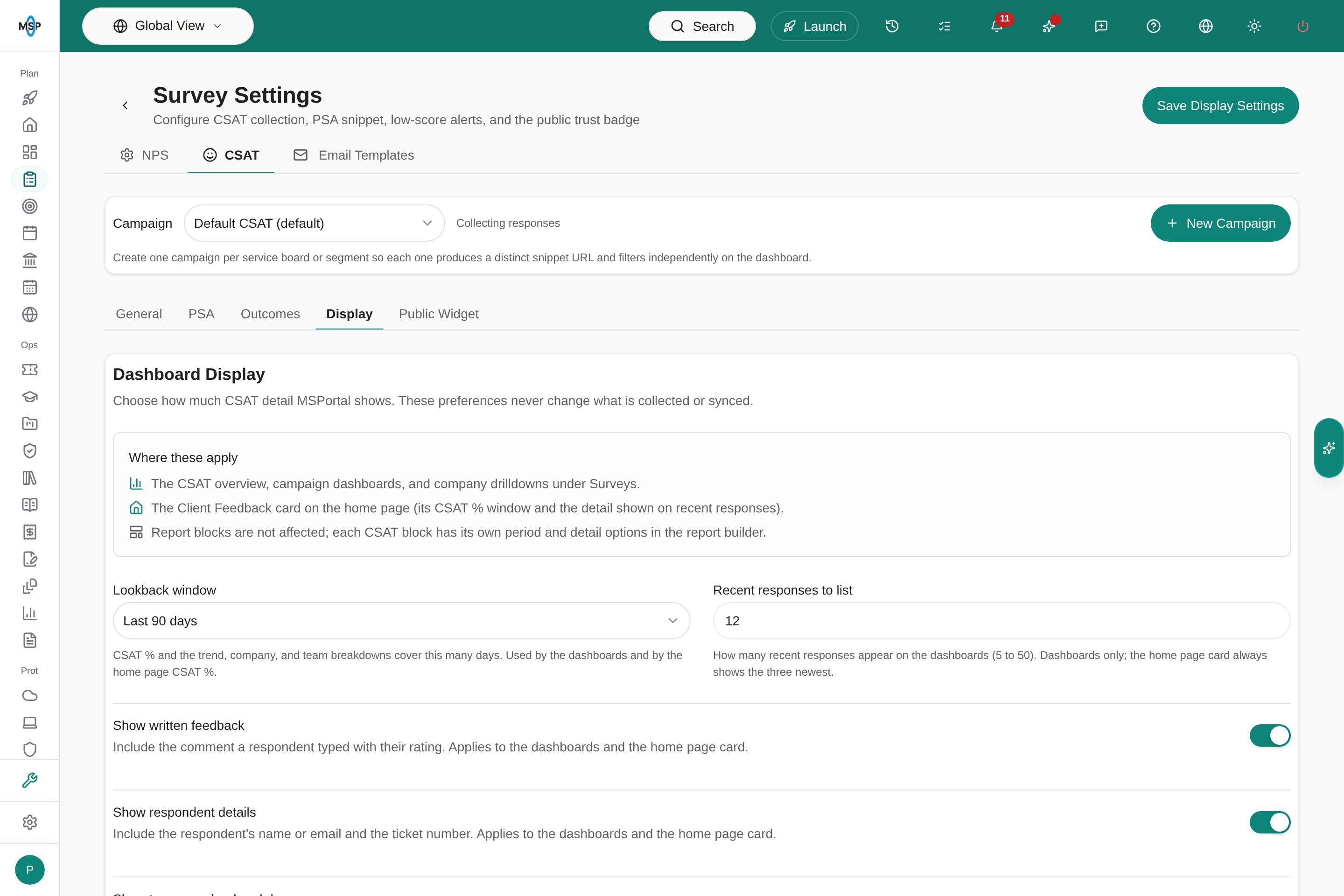
When review access is off, CSAT settings keep the Display tab and hide Review.
Who can do what
Turn on the review queue
- Open Surveys from the sidebar, then choose Configure from the Surveys menu.
- Select the CSAT tab, then the Review tab.
- Turn on Send low ratings to a reviewer.
- Choose a Reviewer. Only staff with access to CSAT are listed.
- Under Review ratings, choose which ratings go to the queue:
- Below the top score: every rating except the best one, for example 1 to 3 out of 4.
- Below satisfied (under 80%): neutral and dissatisfied ratings.
- Dissatisfied only (under 40%): only the lowest ratings.
- Under Sources to review, choose Built-in CSAT, HaloPSA, Autotask and Simplesat as needed.
- Optionally change Review ratings submitted on or after. The queue starts today when you turn it on. Choose an earlier date, up to 365 days back, to review past ratings; the reviewer gets one summary email for them.
- Optionally add up to 10 managers under Copy managers, then choose Copy managers on corrections and Copy managers on explanations and closed reviews.
- Select Save Review Settings.
Work the queue
- Open Surveys from the sidebar, then choose CSAT Review Queue from the Surveys menu. On the CSAT dashboard you can also select Review queue, which shows the number of open reviews.
- The queue opens on every Open review. Use Assigned to me to see only your reviews, or Everyone for the whole queue.
- Filter or sort by Rating, Company, Respondent, Comment, Source, Status, Reviewer or Submitted. Change the Status filter to see explained, corrected or closed reviews.
- Select a row to open the review.
Explain a rating
Write what happened, and what was done about it, in Explanation, then select Explain and close. The review’s status becomes Explained. To close a review without an explanation, select Close without explanation. Its status becomes Closed. Select Reopen to send an explained or closed review back to Open.Correct a mis-submitted rating
- In Correct a mis-submitted rating, choose the Corrected rating.
- Give a Reason, for example “The customer told us they meant to select 4”.
- Select Correct rating.
Reassign a review
Choose another person under Reviewer in the review. They are notified, and the change is recorded in the history.Notifications
- The reviewer gets one email and one in-app notification for each batch of new reviews, a few minutes after the ratings arrive. Turning the queue on with an earlier start date sends one summary, not one message per rating.
- Copied managers get an email and in-app notification for corrections and removed corrections, and, when Copy managers on explanations and closed reviews is on, for explanations and closed reviews too.
- Nobody is emailed about their own decisions.
Frequently asked questions
Why can't I see the Review tab or review queue?
Why can't I see the Review tab or review queue?
The feature must be enabled for your tenant, and you must be MSP staff with the relevant CSAT or survey-management permission. Contact MSPortal if your tenant needs access. If access to the feature is turned off later, existing rating corrections remain in your dashboards and reports.
Does correcting a rating change it in HaloPSA or Autotask?
Does correcting a rating change it in HaloPSA or Autotask?
No. The correction stays in MSPortal. The PSA keeps the customer’s original rating.
Can a client see that a rating was corrected?
Can a client see that a rating was corrected?
No. Company users never see reviews, explanations or reasons. Their CSAT views use the corrected rating.
Why is a rating I expected missing from the queue?
Why is a rating I expected missing from the queue?
Check the threshold, the sources and the start date in the Review settings, and that the rating is linked to a company. CES and NPS-style campaigns are not reviewed.
Why can't I change a review?
Why can't I change a review?
Only the assigned reviewer, or staff who can manage surveys, can change a review. Ask your survey administrator to reassign it.
Does closing a review delete the rating?
Does closing a review delete the rating?
No. Closing a review only records that it was handled. The rating stays in every dashboard and report.