

Before you start
- Use your own invitation link. It identifies you and your company, so do not assume your response is anonymous.
- The survey asks how likely you are to recommend your provider. Your provider chooses how the scale looks.
Submit your feedback
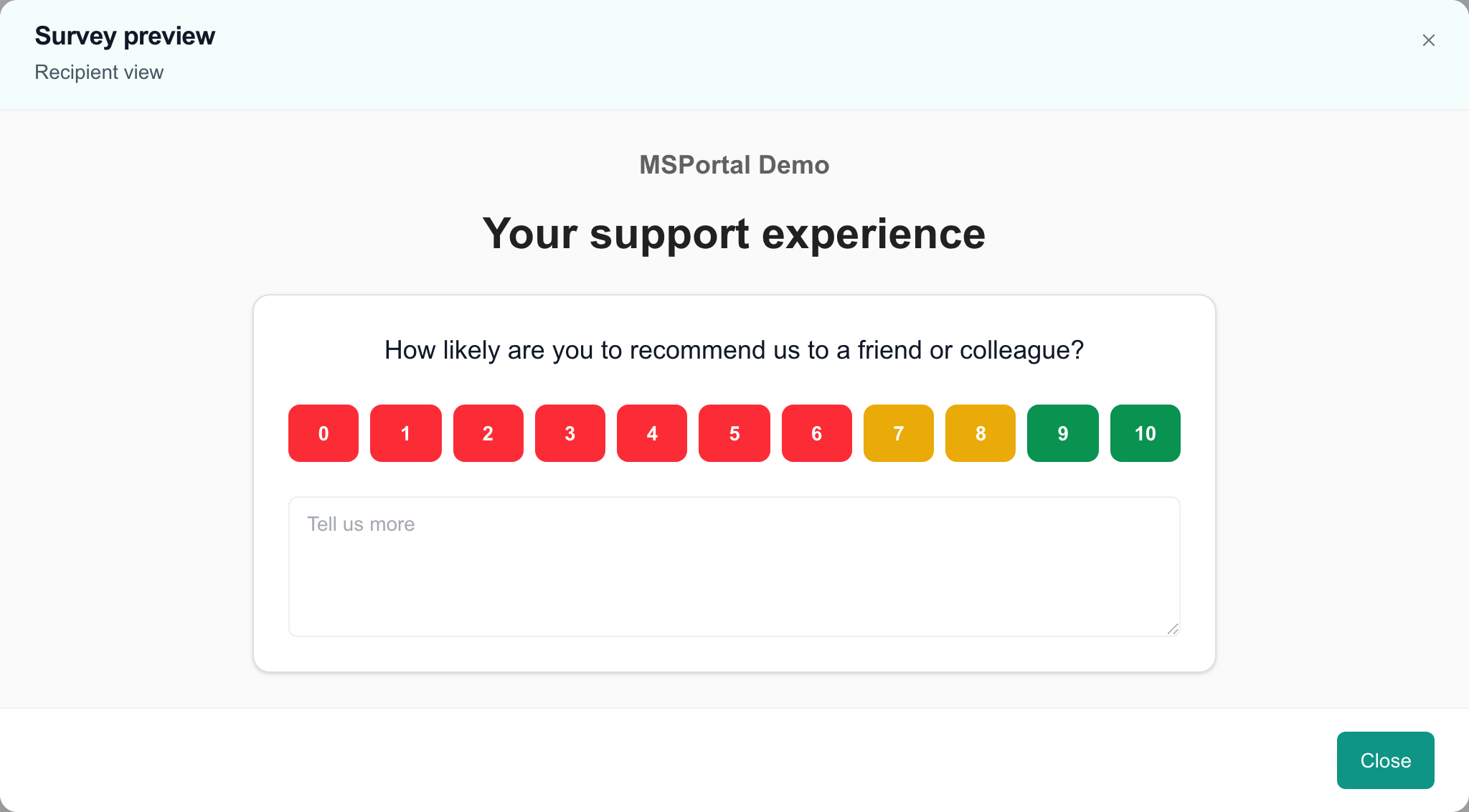
Example NPS survey preview. A live invitation also shows the Submit Feedback button.
1
Open your invitation
Click the survey link in your provider’s email. Read the question and any introduction.
2
Choose a rating
Pick the number, star, face or dog that matches your experience. Numbers run from 0 (not at all likely) to 10 (extremely likely). Choosing a rating does not send anything, and you can change it before you submit.
3
Add a comment
Optional. Type in Tell us more (optional). You can write up to 1,000 characters.
4
Answer any extra questions
Your provider can show extra questions for certain scores. Answer the ones that appear. Required questions are marked with an asterisk (*). If you change your rating, check which questions are showing.
5
Submit
Click Submit Feedback. The button stays disabled until you choose a rating.
6
Wait for the thank-you page
A Thank You! page means your feedback was recorded. Wait for it before you close the page.
After you submit
The thank-you page can show a message from your provider and links to review sites. A review link opens another website. Your NPS response does not post a public review, so you only review there if you choose to. Your invitation takes one response. The form has no edit option afterward. If you need to correct your feedback, contact your provider.Troubleshooting
Frequently asked questions
Does clicking a number or star submit my rating?
Does clicking a number or star submit my rating?
No. You must click Submit Feedback.
Can I change my rating before I send it?
Can I change my rating before I send it?
Yes. Pick another rating. The extra questions can change, so check the ones that show.
Do I have to write a comment?
Do I have to write a comment?
No. The comment is optional. Extra questions marked with an asterisk are required.
Is my feedback anonymous?
Is my feedback anonymous?
No, do not assume it is. Your invitation identifies you, and your provider can link the response to you and your company.
Can I edit my response after the thank-you page?
Can I edit my response after the thank-you page?
No. Contact your provider to arrange a correction.
Can I answer from the Surveys page in the portal?
Can I answer from the Surveys page in the portal?
No. Use your invitation link. The Surveys page in the portal is for viewing survey information, not for answering.