

Before you start
- You need Dashboards access under Settings with Write or Manage to change exclusions. With Read only, the page shows the values and the message You don’t have permission to modify exclusions.
- Exclusions hide values from supported widgets. They do not delete tickets, change your PSA or replace user permissions.
- They do not affect external dashboards.
Choose the right exclusion
Add a submitter or ticket type
1
Open the Exclusions tab
Go to Settings > Dashboards and click Exclusions.
2
Click Add
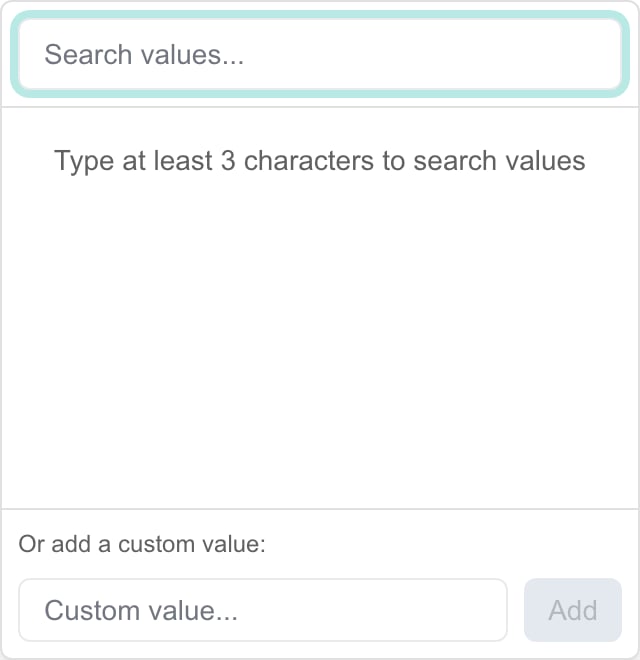
Click Add under Excluded Submitters or Excluded Ticket Types. A search box opens.
3
Search for the value
Type at least three characters in Search values… and wait for the results. Click the value to add it. The search shows up to 50 matches, so narrow it if you do not see yours.
4
Or add a custom value
If the value is not listed, type it in Custom value… and click Add, or click Add “your text” as custom. Match the spelling, capitalization and spacing exactly.
5
Click Save Exclusions
The new badge is only a draft until you click Save Exclusions. Wait for Exclusions saved. Dashboard widgets will now filter out excluded values.
6
Check a dashboard
Open an affected dashboard with the company and dates you care about and check the chart.
Change or remove an exclusion
1
Remove a badge
Click the X on the badge. To fix a typo, remove the old value and add the correct one.
2
Include recurring tickets again
Turn off Exclude Recurring Tickets.
3
Click Save Exclusions
Nothing changes for readers until you save.
Discard unsaved changes
Reset appears once you have unsaved changes. It puts the page back to the last saved values. It does not clear saved exclusions. To remove a saved exclusion, remove it and click Save Exclusions. Save Exclusions is disabled until you change something. Switching to another tab in Dashboard settings keeps your unsaved draft while the page stays open. Leaving the page does not save it.Matching and chart scope
- Matches are exact and case-sensitive. A partial name or wildcard does not work. Excluding Unknown does not exclude Unknown User.
- A submitter is matched against the ticket’s contact name, or its reported-by name when there is no contact.
- Submitter exclusions affect submitter charts. Type exclusions affect type charts. Other ticket totals still count those tickets.
- The page has no company, contact, technician or subtype exclusions.
Troubleshooting
Frequently asked questions
Are exclusions limited to the selected company?
Are exclusions limited to the selected company?
No. They apply tenant-wide to supported widgets for all users.
Does Add save the exclusion?
Does Add save the exclusion?
No. It adds a badge to the draft. Click Save Exclusions.
Can I add a value that is not in the search results?
Can I add a value that is not in the search results?
Yes. Type it as a custom value, click Add, then Save Exclusions.
Does Reset undo a saved change?
Does Reset undo a saved change?
No. It restores the last saved values and discards your unsaved edits.
Do submitter and type exclusions change every ticket total?
Do submitter and type exclusions change every ticket total?
No. They apply to submitter and type charts only.
Does Exclude Recurring Tickets stop recurring tickets in Autotask?
Does Exclude Recurring Tickets stop recurring tickets in Autotask?
No. It filters supported dashboard data. Schedules stay in your PSA.
Can I set exclusions per dashboard or per user?
Can I set exclusions per dashboard or per user?
No. They are tenant-wide.
Can exclusions replace ticket permissions?
Can exclusions replace ticket permissions?
No. They are display filters, not access rules.
Do exclusions change an external dashboard?
Do exclusions change an external dashboard?
No. The external service has its own filtering.