

Before you start
- Add the external dashboard first. See Configure external dashboards.
- Company users always use their company’s URL. A company with no URL never falls back to the default URL, and the dashboard is hidden from it. The default URL is used for MSP staff in Global View.
- Every URL must start with
https://. MSPortal rejects anything else with URL must start with https://.
Add a company URL
1
Open Company URLs
Go to Settings > Dashboards > External Dashboards. On the item’s row, open … > Company URLs. The Company-Specific URLs dialog opens.
2
Choose the company
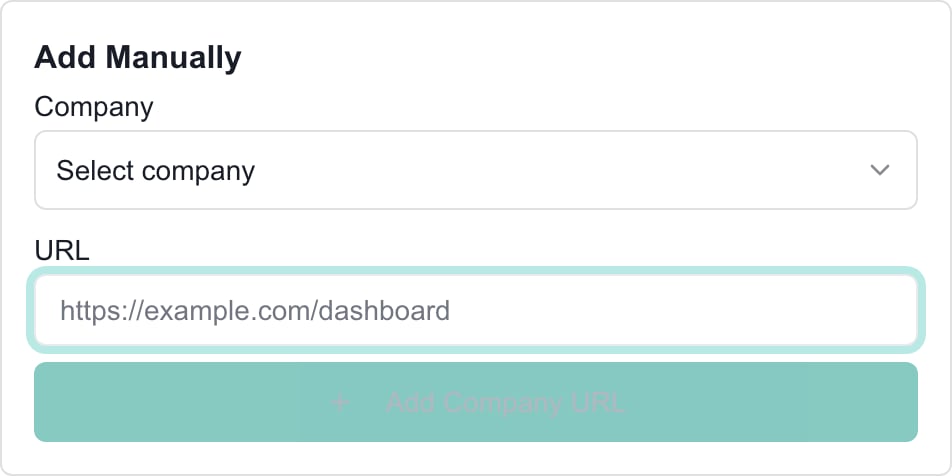
Under Add Manually, pick a company in Company. The list shows only companies that do not have a URL for this item yet.
3
Enter the URL
Type the company’s
https:// dashboard address in URL.4
Click Add Company URL
The URL is saved at once and appears under Assigned URLs.
5
Test it
Open the dashboard with that company selected, or as a user of that company, and confirm it loads. The embedding check covers the default URL only, so test each company URL yourself.
Edit or remove an assignment
1
Find the company
The right side lists Assigned URLs (n). Use Filter by company or URL… to narrow it.
2
Edit the URL
Click the pencil icon, change the URL, then click the check mark to save. The X cancels the edit.
3
Or remove the assignment
Click the trash icon. It needs Manage on Dashboards under Settings, so users with only Write do not see it. The assignment is removed at once with no confirmation. That company no longer sees the dashboard.
Import and export with CSV
The dialog works on one external item at a time.1
Export the current list
Click Export CSV above the list. Choose Export Current (n) for assigned URLs only. Choose Export All Companies (n) for every company, with a blank URL for those not assigned. The filter box does not narrow either export.
2
Edit the file
Keep the header
"Company Name","URL". Put both values in double quotes, one company per line. Match the company’s name. Use https:// addresses. A row that does not use https:// is not imported.3
Upload it
Under Import from CSV, click Upload CSV and choose the file. It processes as soon as you pick it. There is no preview.
4
Read the result
A message reports how many rows were added, updated, skipped or not imported. If any row failed, a red Rows not imported (n) list appears in the dialog. Each entry starts with the row number in your file, counting the header as row 1, for example Row 4: the URL for Contoso must start with https://. Fix those rows and upload the file again. Open Assigned URLs to check the actual result.
Troubleshooting
Frequently asked questions
Where do I give a company its own dashboard URL?
Where do I give a company its own dashboard URL?
Settings > Dashboards > External Dashboards, then the item’s … > Company URLs.
Does the default URL give unassigned companies access?
Does the default URL give unassigned companies access?
No. Each company needs its own URL. The default URL is for MSP staff.
Can two companies use different links for the same item?
Can two companies use different links for the same item?
Yes. Assign each company its own URL under the same item.
Does Add Company URL save at once?
Does Add Company URL save at once?
Yes. Close is not an undo.
Does removing a URL ask for confirmation?
Does removing a URL ask for confirmation?
No. The trash icon removes it right away.
Does Export All Companies assign every company?
Does Export All Companies assign every company?
No. It only creates a list. Blank rows do nothing when you import them.
Does CSV upload have a preview?
Does CSV upload have a preview?
No. Choosing the file starts the import and saves valid rows.
Can Company users change these assignments?
Can Company users change these assignments?
No. Ask the MSP.