

Before you start
- You need Dashboards read access. Your MSP controls which dashboards each role can open.
- Dashboard access does not give access to every module behind a widget.
- Company users cannot change dashboard settings. Ask your MSP.
Open a dashboard
1
Open Dashboards
Click Dashboards in the main navigation. A default or first available dashboard opens automatically.
2
Switch dashboards
Use the icon rail on the left of the page. Hover over an icon to see the dashboard name. The outlined icon is the dashboard you have open, not necessarily the default.
3
Check the title
Read the page title and description before comparing numbers. System dashboards include Ticketing Dashboard and Risk Dashboard.
Choose the company
1
Open the company selector
Use the company selector at the top of the portal.
2
Pick a company or group
Choose one company, Assigned Companies, or Global View if your role allows it. Company users see only their own company.
3
Wait for the charts to load
A single company can show fewer widgets and records than Global View.
Change the dates
1
Open the date menu
Select the date button in the page header. It shows the current choice, for example Widget Defaults.
2
Choose a preset
Pick one of the presets in the table below. The check mark shows the active choice and Default marks the dashboard’s saved default.
3
Check each chart
Read the dates printed on each chart. A widget can have its own date setting.
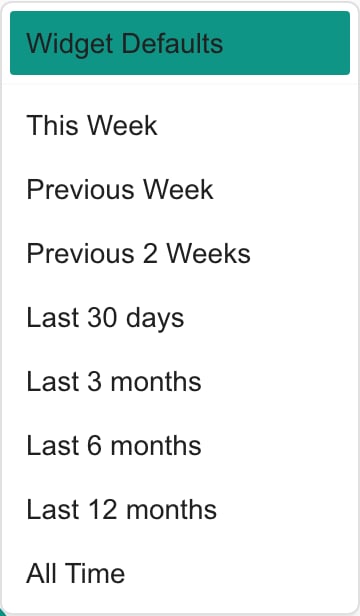
The menu has no custom start and end date picker. Current-state widgets may not use dates at all. Summary cards keep their own windows and ignore this menu.
Some users also see Save as dashboard default at the bottom of the menu. It saves the current choice as the date range the dashboard opens with, for everyone who uses it. Shared and system dashboards need Dashboard settings write access. A personal dashboard needs you to be its owner with write access to Dashboards.
Change the widget width
1
Find the width button
It sits beside the date menu and shows ½, ⅓ or ¼.
2
Click it to cycle
Each click changes the layout to two, three or four columns.

Read shortened labels
Hover over a shortened dashboard title, label, or note to read its full text. This also works in chart axes, the widget picker, and ticket or device drilldowns. Labels that fit stay quiet. Use Tab to focus clipped text or its row, and Escape to dismiss the tooltip.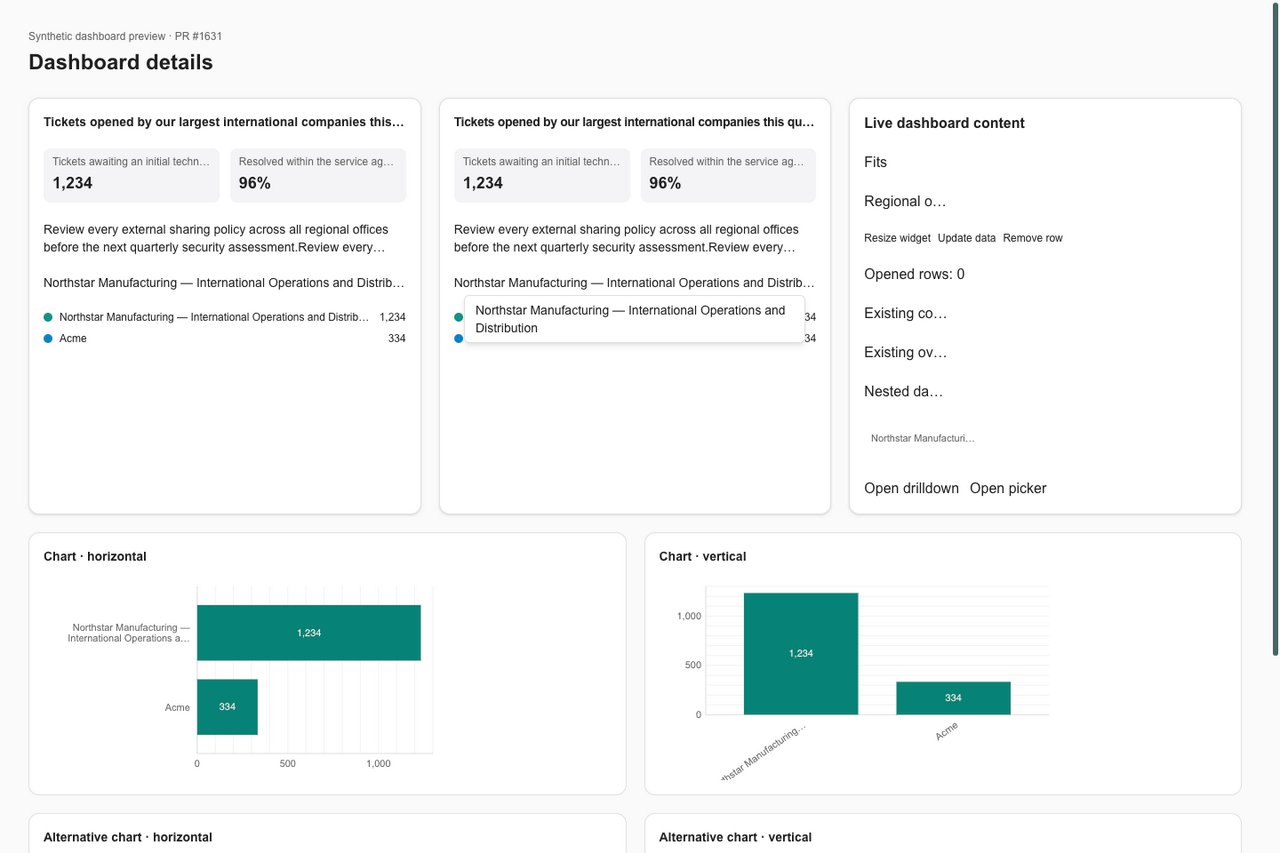
Desktop preview: the full company name appears below its clipped row.
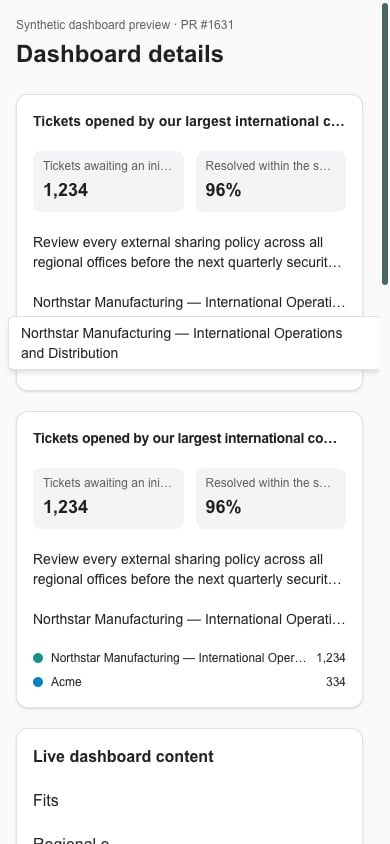
Phone-width preview: the tooltip stays within the viewport.
Troubleshooting
Frequently asked questions
Does the outlined dashboard icon mean it is the default?
Does the outlined dashboard icon mean it is the default?
No. It marks the dashboard you have open. The default is shown in the date menu and in Settings > Dashboards.
Why did Dashboards open a different dashboard?
Why did Dashboards open a different dashboard?
The portal opens the default dashboard, then the first available one. It can also remember the last dashboard you used. A saved link opens another dashboard if the first is no longer available.
Why do I not see ticket summary cards?
Why do I not see ticket summary cards?
Cards appear only on dashboards set up with them. Risk and other dashboards use different widgets.
Is Last 3 months exactly 90 days?
Is Last 3 months exactly 90 days?
No. It starts on the first day of the month three months ago and ends now. Check the dates printed on the chart.
Does changing a filter change tickets or risks?
Does changing a filter change tickets or risks?
No. The date, company and width controls change only what you see.
Can Company users see an internal-only dashboard?
Can Company users see an internal-only dashboard?
No. Ask your MSP for a dashboard shared with Company users. A direct link does not grant access.
Can a Company administrator change dashboard permissions?
Can a Company administrator change dashboard permissions?
No. Ask your MSP to change user permissions or dashboard access.