

Overview
By integrating Kaseya SaaS Protection with MSPortal.ai, you can:- Monitor 24-hour backup coverage for Exchange, OneDrive, SharePoint, and Teams per client
- Track protected seats (users, shared mailboxes, sites, and Teams)
- See daily backup success trends across your customer base
- Include SaaS Protection health in client reports
Kaseya SaaS Protection is currently a pilot integration. If it is not available in Settings > Integrations, contact support@msportal.ai.
Prerequisites
- A Kaseya SaaS Protection account with Datto Partner Portal access
- MSPortal.ai integration management permission
- MSPortal companies to map to your SaaS Protection domains
Part 1: Get Your API Keys
1
Open the Datto Partner Portal
Log in to the Datto Partner Portal.
2
Navigate to API Keys
Go to Admin > Integrations > API Keys.
3
Copy Both Keys
Copy the Public Key and the Secret Key. MSPortal stores both only in Vault.
Part 2: Connect in MSPortal
Go to Settings > Integrations, open the Directory tab, find Kaseya SaaS Protection, and select Connect. If you already have a connection, open it from the Active tab with Open instead. The connection page lists its tasks in the Setup guide. Under Setup you will find Connect, Choose data, Import or match companies, and Review. Under Manage you will find Overview and Sync activity. Select a task to open it.Connect
1
Enter Your Keys
Enter your keys in the Public API key and Secret API key fields. Credentials are stored in the vault and never shown again.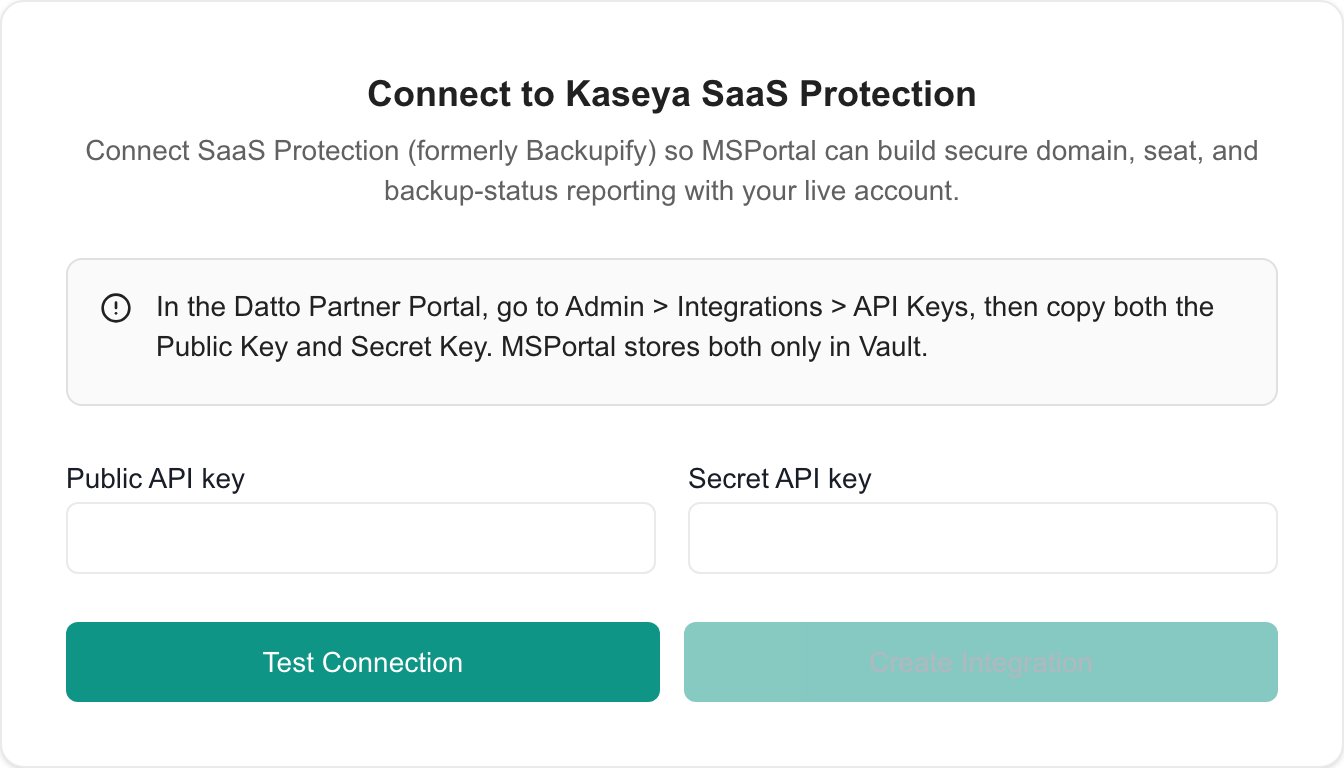
2
Test the Connection
Select Test connection. On success you’ll see a confirmation such as “The API accepted these credentials and returned [n] accessible domains.” A successful test can still return no accessible domains; if so, confirm the keys have access to the customers you expect.If the test fails:
- A rejected key message means the public or secret API key is incorrect
- A rate limiting message means Kaseya is throttling connection tests; try again shortly
- A timeout message means the Kaseya API did not respond; try again in a moment
3
Save the Connection
Select Save and continue. The first sync starts automatically.
Test connection does not save anything. If you change a key after testing, select Test again before you save.
Choose data
Choose data controls what MSPortal fetches. Customer domains are always discovered for mapping; detailed data is fetched only for domains linked to an MSPortal company.
Each switch saves as soon as you change it and starts a fresh sync. Wait for Saving… to clear before you leave the task. This task is optional; both datasets are on for a new connection.
Import or match companies
Link the SaaS Protection domains you want to report on to MSPortal companies. The workspace is titled Import or match Kaseya SaaS Protection domains and shows each domain’s Microsoft 365 domain, Seats, and 24h backup percentage.1
Wait for Domains
Domain discovery normally completes in less than a minute. If no domains appear, select Sync domains in the empty list or Run sync in the connection header, then check the result in Sync activity.
2
Review Suggestions
Open Suggested to review proposed matches. Select Accept to save a match, or Change to pick a different company. Accept N strong matches accepts every suggestion with 90% confidence or more at once.
3
Match Remaining Domains
In Import, the view the workspace opens on, choose a company for each remaining domain. If the company does not exist yet, select Import company. MSPortal creates the company right away, so check for an existing match first. Select Ignore for domains you don’t want to report on; you can Restore them later from Ignored.
4
Check Your Matches
Review Matched. Matches save as you apply them and start a detailed sync for the matched domains. Remove match takes effect immediately.
Only matched domains get detailed seat and backup health data. Unmatched domains appear for matching only. Matching does not create a customer in Kaseya or start a backup job.
Review
Open Review and select Finish setup once the required tasks are done. Finishing setup does not mean every workload has synced; check Sync activity and the backup health page. To change what counts as done, select Reopen setup.Sync Schedule
Matched domains sync automatically every hour. Syncs also run when you first connect, when you save new keys, when you change a Choose data switch, and after you match domains. Backup trend history is retained on a rolling window of roughly 45 days.The SaaS Protection Health Page
Once the integration is active, a SaaS Protection tab appears in the Backup module. It shows Kaseya backup health across Microsoft 365 workloads, scoped to your current company selection.Health States
Page Sections
- Overall health summary: Aggregate status, customers in scope, last synced time, and tiles for Backed up in the last 24 hours, Services in initial backup, and Last 100% successful backup.
- Workload health: Four cards for Exchange, OneDrive, SharePoint, and Teams showing current 24-hour protection coverage.
- Backup result trend: A daily successful-service coverage chart with one line per workload, switchable between 10 days and 30 days.
- Customer backup health: A table of your portal companies and their mapped Kaseya domains, with per-workload ratios, initial-backup counts, and the last full success date.
Reporting
Three SaaS Protection blocks are available in the report builder: health summary, trend, and customer table, so you can include backup coverage in client reports.Troubleshooting
Managing Your Integration
After setup, open the connection from the Active tab in Settings > Integrations.
Disconnect… removes the stored credentials, the matches between Kaseya domains and companies, and synced data. This cannot be undone. It does not revoke the keys in the Datto Partner Portal.
Replacing Your API Keys
1
Open Connect
Open the Kaseya SaaS Protection connection and select Connect in the Setup guide.
2
Enter and Test the New Keys
Enter the new Public API key and Secret API key, then select Test connection.
3
Save the Keys
Select Save changes. MSPortal stores the new keys and starts a fresh sync.
Frequently Asked Questions
Does Test connection save the keys?
Does Test connection save the keys?
No. Select Save and continue for a new connection or Save changes for replacement keys.
Does changing a sync switch save immediately?
Does changing a sync switch save immediately?
Yes. Each switch in Choose data saves when changed. Wait for the save to finish.
Are suggested matches already saved?
Are suggested matches already saved?
No. Review each suggestion, then select Accept to save the match. Removing a saved match also takes effect immediately.
Can I restore a backup from this connection page?
Can I restore a backup from this connection page?
No. This connection configures reporting. Perform recovery in Kaseya SaaS Protection.
Does missing backup data mean everything is healthy?
Does missing backup data mean everything is healthy?
No. Check company matches, the datasets in Choose data, and sync errors before drawing a conclusion. A missed workload backup does not identify the particular active resource that caused it. Use Kaseya SaaS Protection reporting for resource-level investigation.
Security & Privacy
- Credential storage: Your API keys are encrypted in Supabase Vault and never exposed in logs or responses
- Disconnecting: Removing the integration deletes the connection and its stored Vault credentials; this cannot be undone. It does not revoke the keys in the Datto Partner Portal.
Related Resources
Backup
Monitor backup protection across devices and Microsoft 365
Reporting
Include backup health in client reports