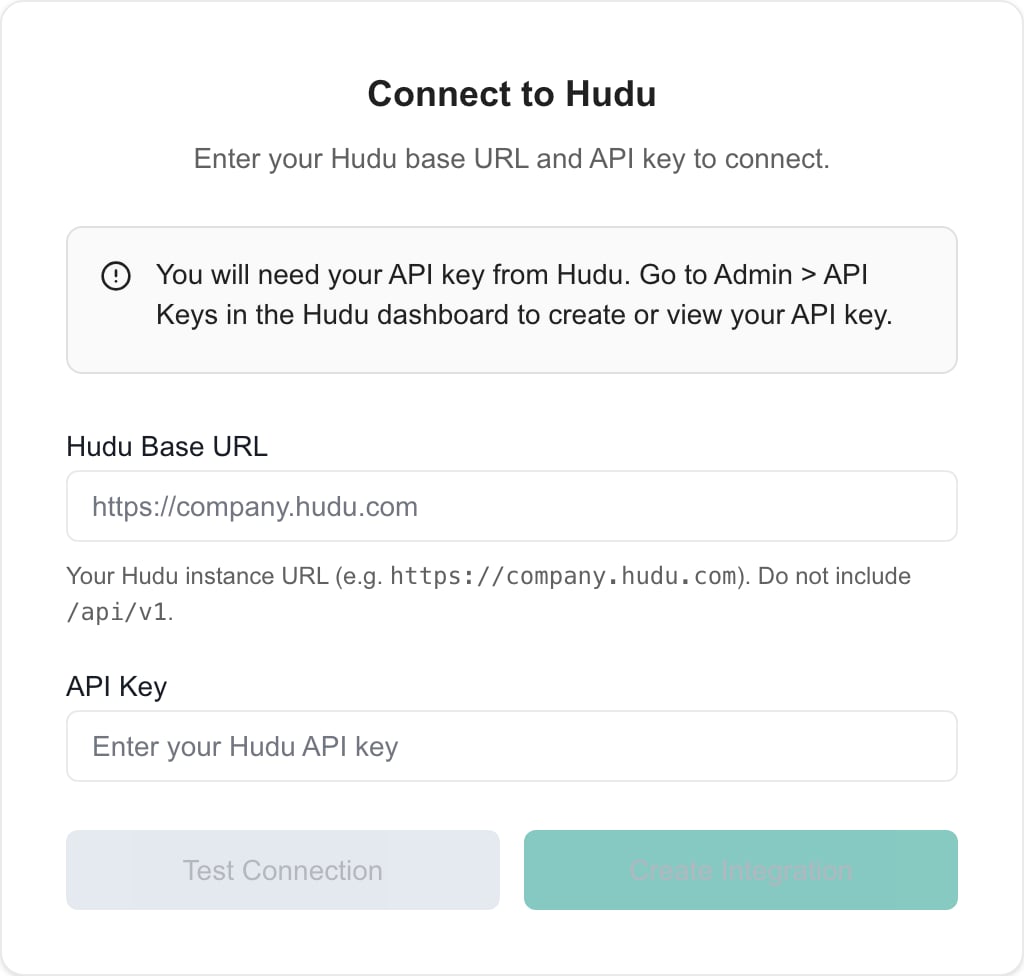
This guide walks you through connecting your Hudu instance to MSPortal.ai using our streamlined 5-step setup wizard.

Overview

Hudu is an IT documentation platform that helps MSPs organize knowledge bases, asset information, passwords, and procedures. By integrating Hudu with MSPortal.ai, you can:
  • Access Hudu documentation, articles, and procedures directly from MSPortal
  • Browse and reveal passwords securely without leaving MSPortal
  • Map Hudu companies to your MSPortal companies for unified data access
  • Push compliance data from MSPortal to Hudu Magic Dash

Prerequisites

Before you begin, ensure you have:
  • Active Hudu account with administrative access
  • MSPortal.ai account with integration management permissions
  • Companies already set up in MSPortal (from your PSA integration or manually created)
Only one documentation integration can be active at a time. If you already have IT Glue connected, you must remove it before setting up Hudu. Go to Settings > Integrations, open the IT Glue integration, and delete it first.
The Hudu integration maps companies to existing companies in MSPortal. Import your companies from your PSA integration first, or create them manually before setting up Hudu.

Part 1: Generate API Credentials in Hudu

Before connecting to MSPortal, you need to create an API key in your Hudu instance.
1

Log into Hudu

Access your Hudu instance at your organization’s URL (e.g., https://your-instance.huducloud.com).
2

Navigate to API Keys

Go to Admin > API Keys from the main navigation. Depending on your Hudu version, this may also be under Account Settings > API Keys.
3

Create a New API Key

Click New API Key and enter a descriptive name such as MSPortal Integration.
Use a descriptive name so you can easily identify this key’s purpose later. Avoid generic names like “API Key 1”.
4

Copy the API Key

After creating the key, copy it immediately and store it in a secure location.
Copy the API key now! It will not be displayed again after you leave this page. If you lose the key, you will need to generate a new one.
5

Note Your Instance URL

Make note of your full Hudu instance URL. This is the URL you use to access Hudu in your browser, for example:
FormatExample
Hudu Cloudhttps://your-company.huducloud.com
Self-Hostedhttps://hudu.yourcompany.com

Required Information

Before proceeding to MSPortal, ensure you have:
InformationDescription
Hudu Base URLYour full Hudu instance URL (e.g., https://your-instance.huducloud.com)
API KeyThe API key you just generated

Part 2: MSPortal Setup Wizard

MSPortal provides a guided 5-step wizard to connect and configure your Hudu integration. Steps 3 through 5 are optional and can be configured later.

Starting the Wizard

1

Navigate to Integrations

In MSPortal, go to Settings > Integrations.
2

Start Setup

Find the Hudu integration card and click Setup (or Configure if previously connected) to launch the setup wizard.

Step 1: Connect

Enter your Hudu credentials to establish the connection.
1

Enter Your Hudu Base URL

Enter the full URL of your Hudu instance in the Base URL field.
FieldExample
Base URLhttps://your-instance.huducloud.com
Include https:// at the beginning. Do not include a trailing slash.
2

Enter Your API Key

Paste your Hudu API key into the API Key field.
3

Test Connection

Click Test Connection to verify your credentials. You will see a green “Connection tested successfully” message when the test passes.If the connection fails:
  • Verify your Base URL is correct and includes https://
  • Check that your API key is copied exactly, with no extra spaces
  • Ensure your Hudu account has API access enabled
  • Confirm your Hudu instance is accessible from the internet (self-hosted instances behind a firewall may need configuration)
4

Create Integration

Once the connection test passes, click Create Integration to save your credentials and proceed.
Your API key is stored securely using encrypted vault storage. It is never exposed in logs or API responses.

Step 2: Map Companies (Required)

Map your Hudu companies to MSPortal companies. This determines which documentation, assets, and passwords are accessible for each company.
1

Wait for Initial Sync

After creating the integration, MSPortal fetches your companies from Hudu. This may take a few moments depending on the number of companies in your account.
2

Use Quick Match (Recommended)

Click Quick Match to automatically match Hudu companies to MSPortal companies. Quick Match uses two methods to find matches:
  1. ID Number matching — If your Hudu companies have an id_number field that matches a PSA external company ID already imported into MSPortal, these are matched first
  2. Case-insensitive name matching — Companies with matching names (ignoring case and whitespace) in both systems are matched automatically
Review the results and adjust any incorrect mappings.
Quick Match saves significant time when you have many companies. Start with Quick Match, then manually map any remaining companies.
3

Manually Map Remaining Companies

For companies that were not automatically matched:
  1. Find the Hudu company in the list
  2. Click the company dropdown in the “Mapped To” column
  3. Search for and select the correct MSPortal company
  4. The mapping is saved automatically
4

Unmap Companies (Optional)

To remove a mapping, click the X button next to the mapped company name.
5

Filter the List

Use the filter dropdown to show:
  • All — View all Hudu companies
  • Mapped — View only companies with MSPortal mappings
  • Unmapped — View companies that still need mapping
6

Proceed

Once you have mapped at least one company, click Next to continue.
You must map at least one company before proceeding. Only documentation, assets, and passwords from mapped companies will be accessible in MSPortal.

Step 3: Documentation Config (Optional)

Configure which types of Hudu documentation to sync into MSPortal.
1

Review Available Content Types

The Documentation Config step displays the types of content available for sync:
Content TypeDescription
ArticlesKnowledge base articles and documentation
AssetsIT asset information organized by layout
ProceduresDocumented processes and runbooks
Password sharing is configured separately in Step 4. This step does not affect password visibility.
2

Review Asset Layouts

MSPortal fetches your available asset layouts from Hudu in real time. Each layout represents a category of assets (e.g., “Network Devices”, “Software Licenses”, “Cloud Services”).Toggle individual asset layouts on or off to control which asset types are synced.
3

Configure Sync Preferences

Enable or disable each content type based on what you want accessible in MSPortal. You can adjust these settings at any time by returning to the wizard.
4

Proceed

Click Next to continue to password sharing configuration, or skip ahead if you do not need to configure passwords.
This step is optional. If you skip it, no documentation will be synced. You can return to configure documentation sync at any time.

Step 4: Password Sharing (Optional)

Configure how passwords from Hudu are shared within MSPortal. This step allows you to control password visibility on a per-company basis.
1

Understand Password Security

Before configuring password sharing, be aware of how MSPortal handles Hudu passwords:
  • Passwords are never stored in MSPortal. Every time a user reveals a password, it is fetched live from Hudu at that moment.
  • Every password reveal is audit-logged. MSPortal records which user viewed which password and when.
  • Access requires permissions. Users must have the read_documentation_passwords permission to reveal passwords.
2

Enable Password Sharing

Toggle password sharing on to allow team members with the appropriate permission to reveal passwords from Hudu within MSPortal.When enabled, users with the read_documentation_passwords permission can browse and reveal passwords for mapped companies.
3

Configure Per-Company Settings (Later)

After completing the wizard, per-company password folder visibility and role-based access can be fine-tuned in Settings > Documentation > Passwords.
Use folder-level sharing to restrict access to sensitive credentials. For example, you might share a “General Access” folder while keeping “Domain Admin” passwords restricted.
4

Proceed

Click Next to continue to Magic Dash configuration.
Password sharing gives MSPortal users access to credentials stored in Hudu. Ensure only appropriate users have the read_documentation_passwords permission in MSPortal. Fine-tune per-company folder access in Settings > Documentation > Passwords after setup.

Step 5: Magic Dash (Optional)

Push compliance data from MSPortal into Hudu Magic Dash to surface compliance status directly in your Hudu interface.
1

Understand Magic Dash

Hudu Magic Dash allows external tools to push summary data into company dashboards. When enabled, MSPortal pushes compliance status, security metrics, and device health data into Hudu so your team can see this information without leaving Hudu.
2

Enable Magic Dash

Toggle Magic Dash on to push compliance and device health data to Hudu Magic Dash for each mapped company. Data updates automatically on a regular schedule.
3

Complete Setup

Click Complete Setup to finish the wizard. Your Hudu integration is now active.
Magic Dash is the only part of the Hudu integration where data flows from MSPortal to Hudu. All other data flows from Hudu into MSPortal.

What Gets Synced

Data TypeDirectionDescription
CompaniesHudu → MSPortalCompany records for mapping purposes
ArticlesHudu → MSPortalKnowledge base articles and documentation
Asset LayoutsHudu → MSPortalAsset type definitions and their associated assets
PasswordsHudu → MSPortalLive-fetched on reveal (never stored in MSPortal)
ProceduresHudu → MSPortalProcess documentation and runbooks
Compliance DataMSPortal → HuduCompliance check results pushed to Magic Dash
Passwords are unique in that they are never stored or cached in MSPortal. Each time a user reveals a password, it is fetched in real time from the Hudu API. This ensures passwords are always current and reduces the security risk of storing credentials in a second system.

Managing Your Integration

After setup, manage your integration from Settings > Integrations:
ActionDescription
ConfigureRe-open the setup wizard to modify settings, adjust company mappings, or change documentation sync preferences
ResyncTrigger a manual sync to refresh data from Hudu
DeleteRemove the integration, including all company mappings and stored credentials

Re-running the Wizard

You can return to any step of the setup wizard at any time:
  1. Go to Settings > Integrations
  2. Click Configure on the Hudu card
  3. Navigate between steps using the step indicators or Back/Next buttons

Adding New Company Mappings

As you onboard new clients in Hudu:
1

Open Integration Settings

Go to Settings > Integrations and click Configure on the Hudu card.
2

Navigate to Map Step

Click on Step 2 (Map Companies) in the wizard stepper.
3

Map New Companies

New Hudu companies will appear in the list. Use Quick Match or manual mapping to connect them to MSPortal companies.

Troubleshooting

Causes:
  • Incorrect Base URL or API key
  • Hudu instance is not reachable from the internet
  • API key has been revoked or expired
  • Self-hosted Hudu behind a firewall
Solutions:
  1. Verify your Base URL includes https:// and matches your browser URL exactly
  2. Check that the API key is copied correctly with no extra spaces
  3. For self-hosted instances, ensure your Hudu server allows incoming API requests
  4. Generate a new API key in Hudu if the current one may be invalid
Causes:
  • Initial sync still in progress
  • API key lacks read permissions for companies
Solutions:
  1. Wait a few minutes for the initial company sync to complete
  2. Verify your API key has read access to companies in Hudu
  3. Check that your Hudu instance has at least one company configured
Causes:
  • Company names differ between Hudu and MSPortal
  • Hudu companies do not have id_number values set
Solutions:
  1. Use manual mapping for companies with different names
  2. Add id_number values to Hudu companies if you want ID-based matching
  3. Ensure company names are consistent across both platforms where possible
Causes:
  • Password sharing not configured for the company
  • User lacks the read_documentation_passwords permission
  • Specific folders selected but the password is in a different folder
Solutions:
  1. Return to Step 4 (Password Sharing) in the wizard and verify the company has password sharing enabled
  2. Check that the user has the read_documentation_passwords permission under Settings > Users and Roles
  3. If using folder-level sharing, verify the correct folders are selected
Causes:
  • Documentation sync not enabled in Step 3
  • Content type (articles, assets, procedures) is toggled off
  • Company is not mapped
Solutions:
  1. Return to Step 3 (Documentation Config) and enable the desired content types
  2. Verify the relevant asset layouts are toggled on
  3. Confirm the company is mapped in Step 2
Causes:
  • Magic Dash not configured in Step 5
  • No compliance check types selected
  • Company mapping incomplete
Solutions:
  1. Return to Step 5 (Magic Dash) and enable the feature
  2. Select at least one compliance check type to push
  3. Verify the company is mapped in Step 2

Best Practices

Map Companies First

Complete company mapping before configuring documentation, passwords, or Magic Dash. All other features depend on accurate company mappings.

Use Quick Match

Start with Quick Match for company mapping, then manually adjust any incorrect matches. It saves significant time for large environments.

Restrict Password Access

Use folder-level password sharing to limit which credentials are accessible. Only grant the read_documentation_passwords permission to users who need it.

Enable Password Masking

Turn on password masking to prevent accidental exposure. Users will need to explicitly click to reveal each password value.

Audit Password Access

Regularly review the audit log to monitor which users are accessing passwords. This helps maintain accountability and detect unusual access patterns.

Keep Names Consistent

Maintaining consistent company names between Hudu and your PSA makes Quick Match more effective and reduces manual mapping effort.