

When your MSP uses Traffic Light Review, Flag Risk is hidden so staff keep one manual status. A company that already has a flag still shows Edit Flag, so you can update or remove it.
Add or edit a flag
- Open MSP Tools > Client Success, select the Health tab and click the company.
- Select Flag Risk on the Risk Level card, or Edit Flag for an existing override.
- Choose Critical, At Risk, Healthy or Thriving. The dialog shows the calculated comparison when one is available.
- Enter a Reason explaining the decision. This field is optional, limited to 1,000 characters, and trimmed when saved. Recording a useful reason helps later reviewers.
- Choose Save Flag and wait for the result. Use Cancel before saving to discard dialog edits.
- Check the Manual label and effective risk after the page refreshes. Review the portfolio table as well.
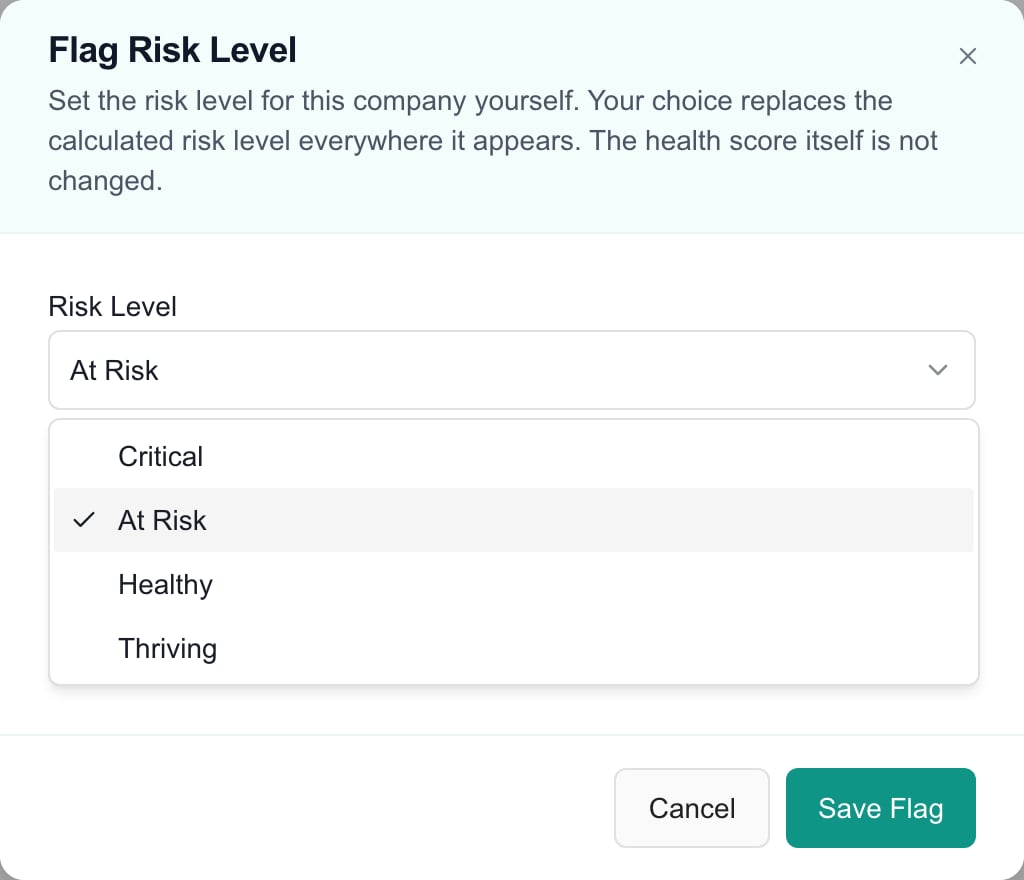
Choose a risk level in the unsaved dialog. Save Flag applies the change; Cancel dismisses it.
Review the reason
Use Edit Flag, the dashboard’s optional Flag Reason column, or the risk tooltip where a numeric score is available. The override changes the risk used in the dashboard, so it can move the company into a different risk-filtered list. The detail interface does not expose a complete flag-event audit history. Removing a flag does not erase its stored audit trail.Remove the override
- Open Edit Flag for the company.
- Select Remove Flag. This acts immediately; there is no second confirmation.
- Wait for success and verify the Manual indicator disappears. The calculated risk takes over; if no calculated risk exists, the result can be N/A.
FAQs
How do I flag a company’s relationship risk?
How do I flag a company’s relationship risk?
Open its Client Health detail, select Flag Risk, choose a level and optional reason, then Save Flag.
Does choosing a risk level immediately save it?
Does choosing a risk level immediately save it?
No. Select Save Flag to persist dialog changes; Cancel discards unsaved edits.
Does a manual flag change the health score?
Does a manual flag change the health score?
No. It changes the effective risk label, while calculated scores and dimensions remain unchanged.
Is a reason required?
Is a reason required?
No. It is optional, limited to 1,000 characters and trimmed when saved. A useful explanation is recommended.
Can I flag a company with Limited data?
Can I flag a company with Limited data?
Yes. The company can have a manual risk label while its calculated score remains unavailable.
Where can I read the flag reason?
Where can I read the flag reason?
Open Edit Flag, enable Flag Reason in the dashboard, or inspect the risk tooltip where available.
How do I remove a manual risk flag?
How do I remove a manual risk flag?
Open Edit Flag and choose Remove Flag. It acts immediately, without another confirmation.
What happens after removing a flag?
What happens after removing a flag?
The calculated risk takes over and Manual disappears. With no calculated risk, the result can be N/A.
Does removing a flag erase its audit trail?
Does removing a flag erase its audit trail?
No. The stored flag history is retained; the detail page is not a full event-audit viewer.
Why is Flag Risk missing?
Why is Flag Risk missing?
The control requires Client Health Write permission in addition to access to the page.