

Branch preview: share links are being reviewed for release. Confirm the controls available in your portal; production verification and refreshed screenshots will follow the release.
Before you start
- You need permission to edit surveys (write_surveys or manage_surveys) to create or change a link. People who can view surveys can see and copy an existing link.
- Share links are managed by your MSP staff. Client users don’t see the Share link button.
- If your MSP has a custom portal domain, links use it, so clients who are already signed in to your portal are recognized automatically.
Create the link
1
Open the survey
Go to Surveys and open the survey. For a general survey, open its results. For an NPS survey, open its analytics.
2
Open Share link
Select Share link in the page header, next to Send details. On a phone, open Actions first.
3
Create the link
Select Create link. The link is on straight away and appears under Survey link. Use the copy button beside it.
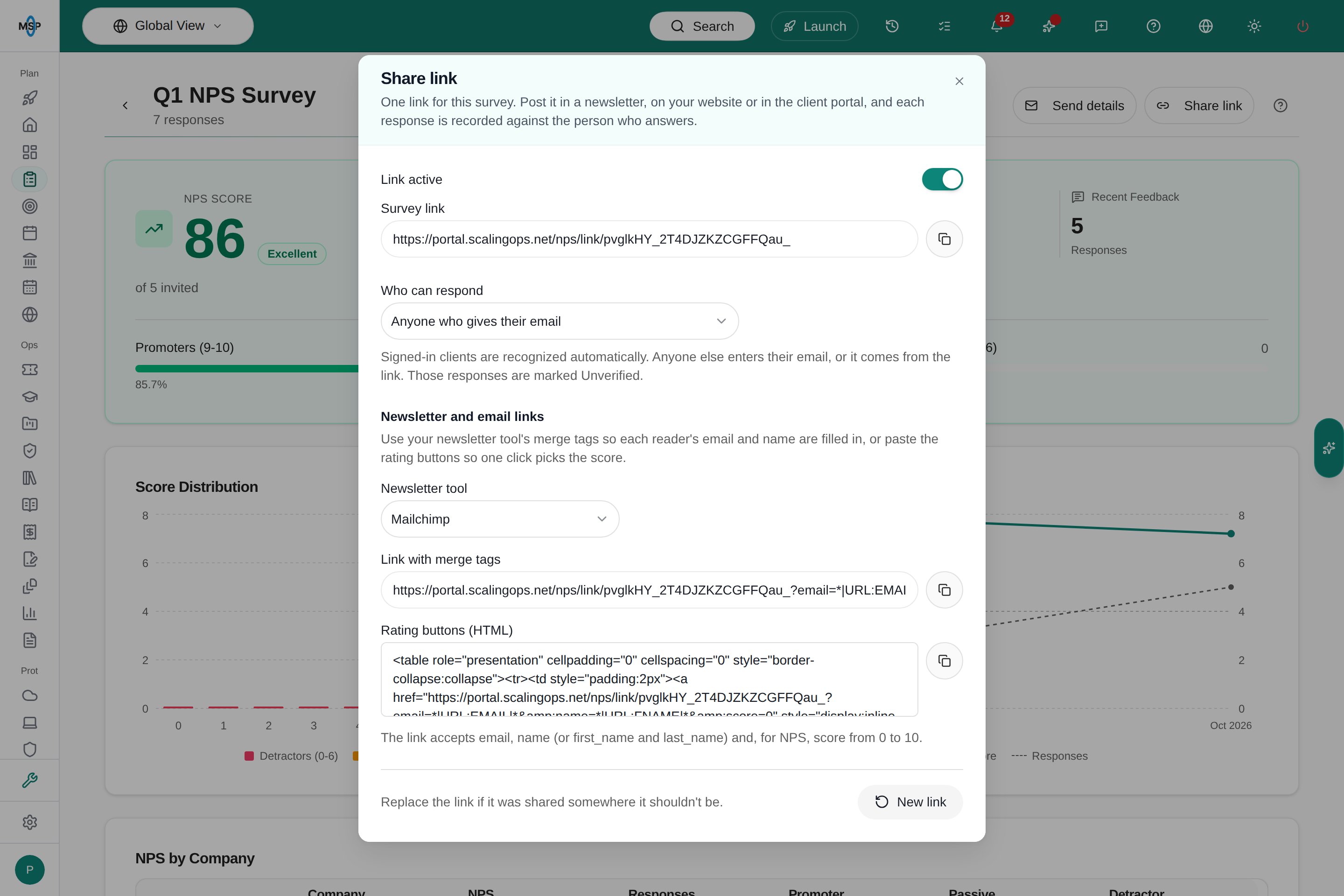
Branch preview: the Share link dialog for an NPS survey.
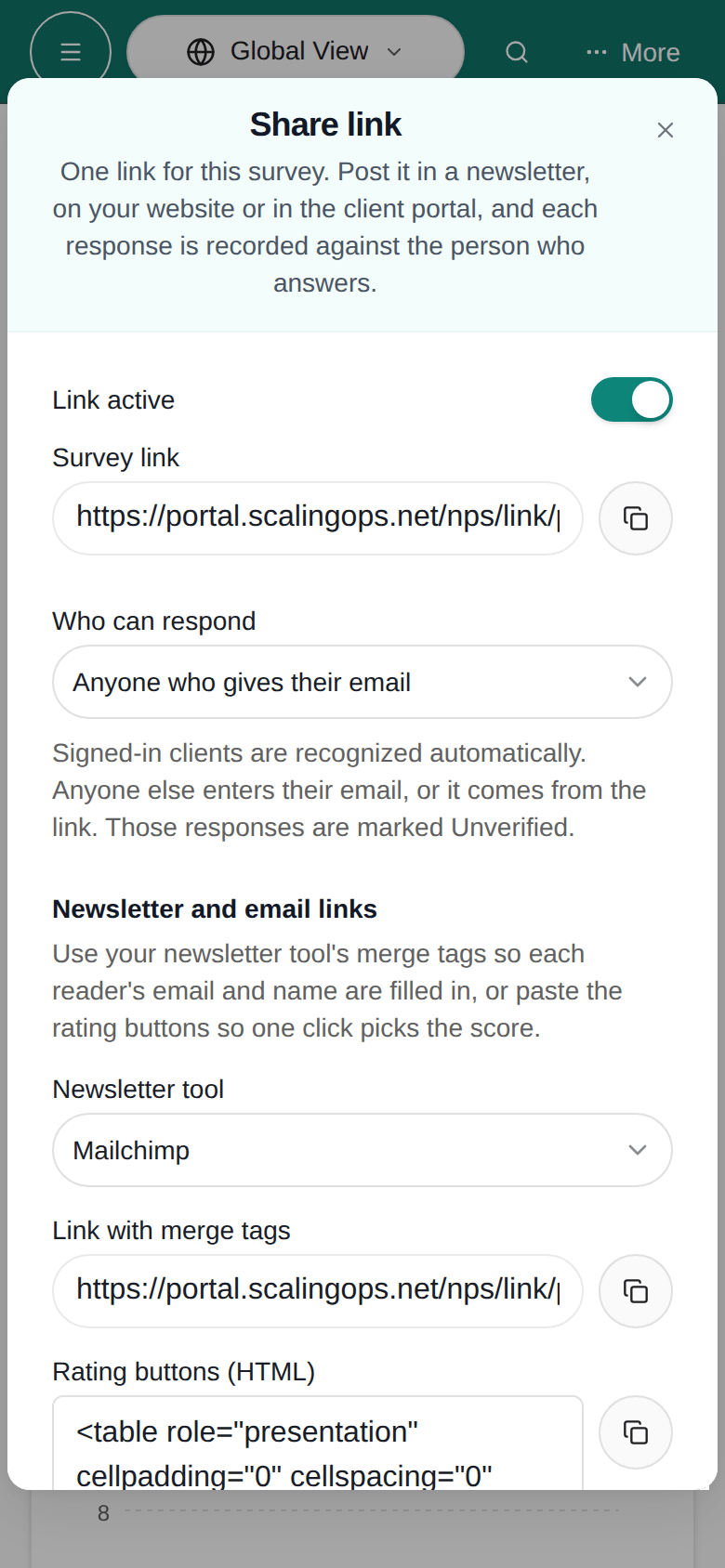
Phone view (branch preview)
Phone view (branch preview)
Choose who can respond
Use Who can respond to pick one of two options:
An email is always required: nobody can answer anonymously.
Use the link in a newsletter
Under Newsletter and email links, choose your Newsletter tool and copy Link with merge tags. Paste it into your newsletter as the survey link. When the newsletter is sent, your tool replaces the merge tags with each reader’s email and name, so the survey opens with their details already filled in.
The link accepts these variables:
If a merge tag isn’t replaced (for example, a contact has no first name), the survey simply leaves that field empty.
Rating buttons for NPS
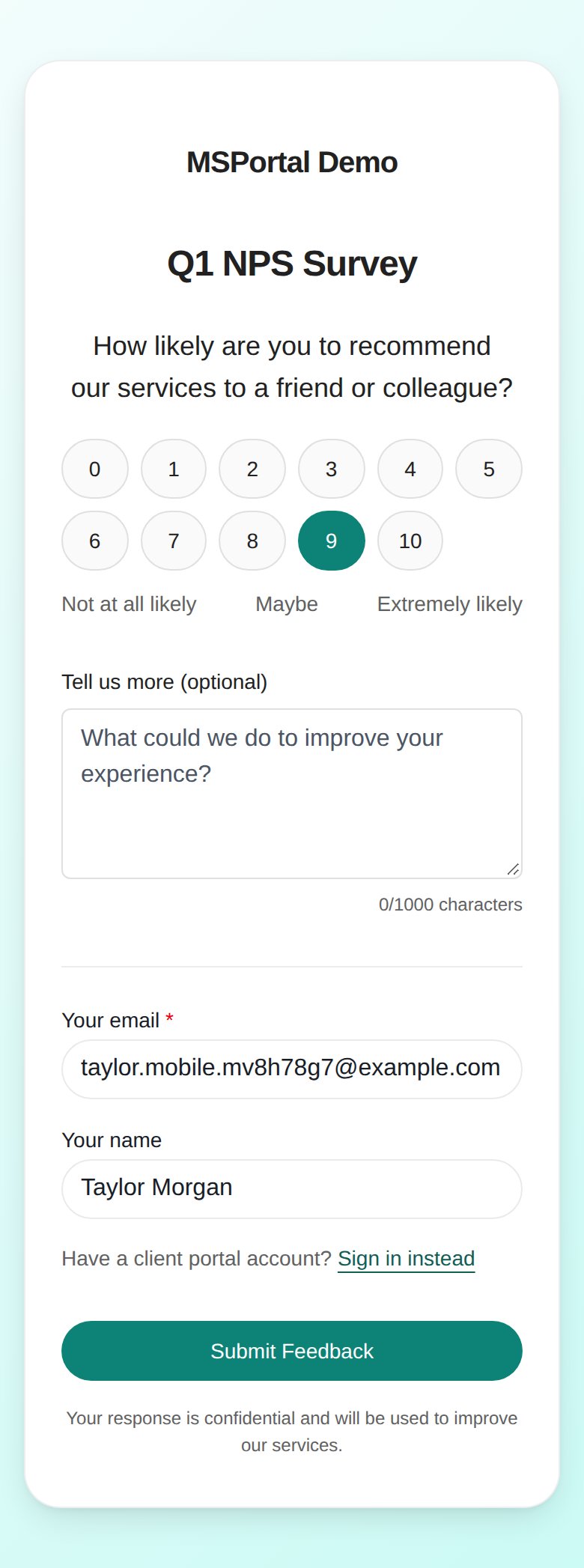
For an NPS survey, copy Rating buttons (HTML) and paste it into your newsletter’s HTML. Readers see a row of buttons from 0 to 10. Clicking a number opens the survey with that score selected and their details filled in, so they only need to add a comment, if they want to, and select Submit Feedback.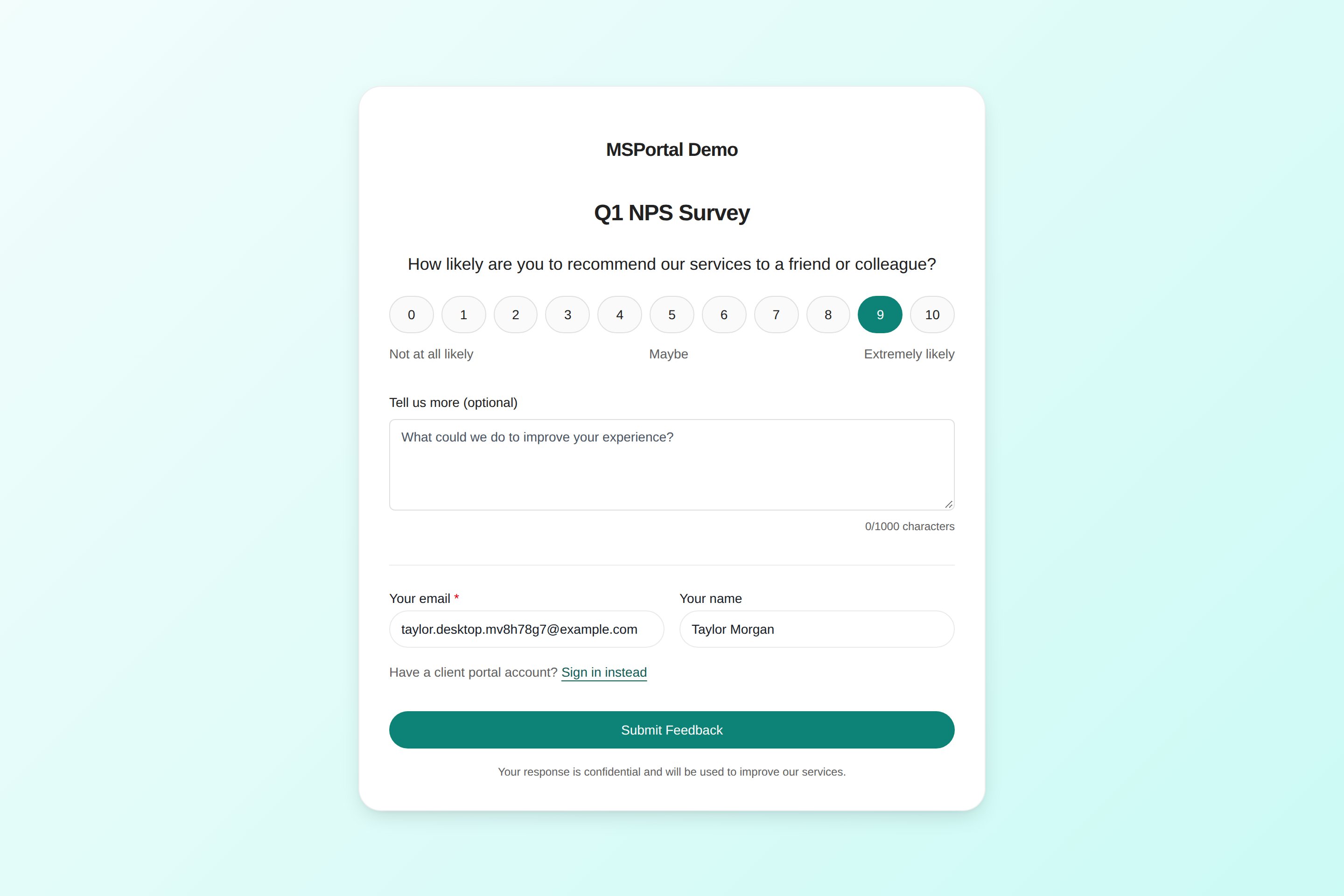
Branch preview: an NPS survey opened from a newsletter link, with the email, name and score filled in.
Phone view (branch preview)
Phone view (branch preview)
How responses are recorded
- If the person already has an emailed invitation for the survey that they haven’t answered, the link completes that invitation instead of adding a second one.
- A person can answer a general survey once through the link, and an NPS survey once every 30 days. Answering again shows that their response was already received.
- If the email doesn’t belong to one of your client users, the response is still accepted. It is recorded without a company.
- When you open the link while signed in as MSP staff, you see a preview. Staff can’t submit responses through a share link.
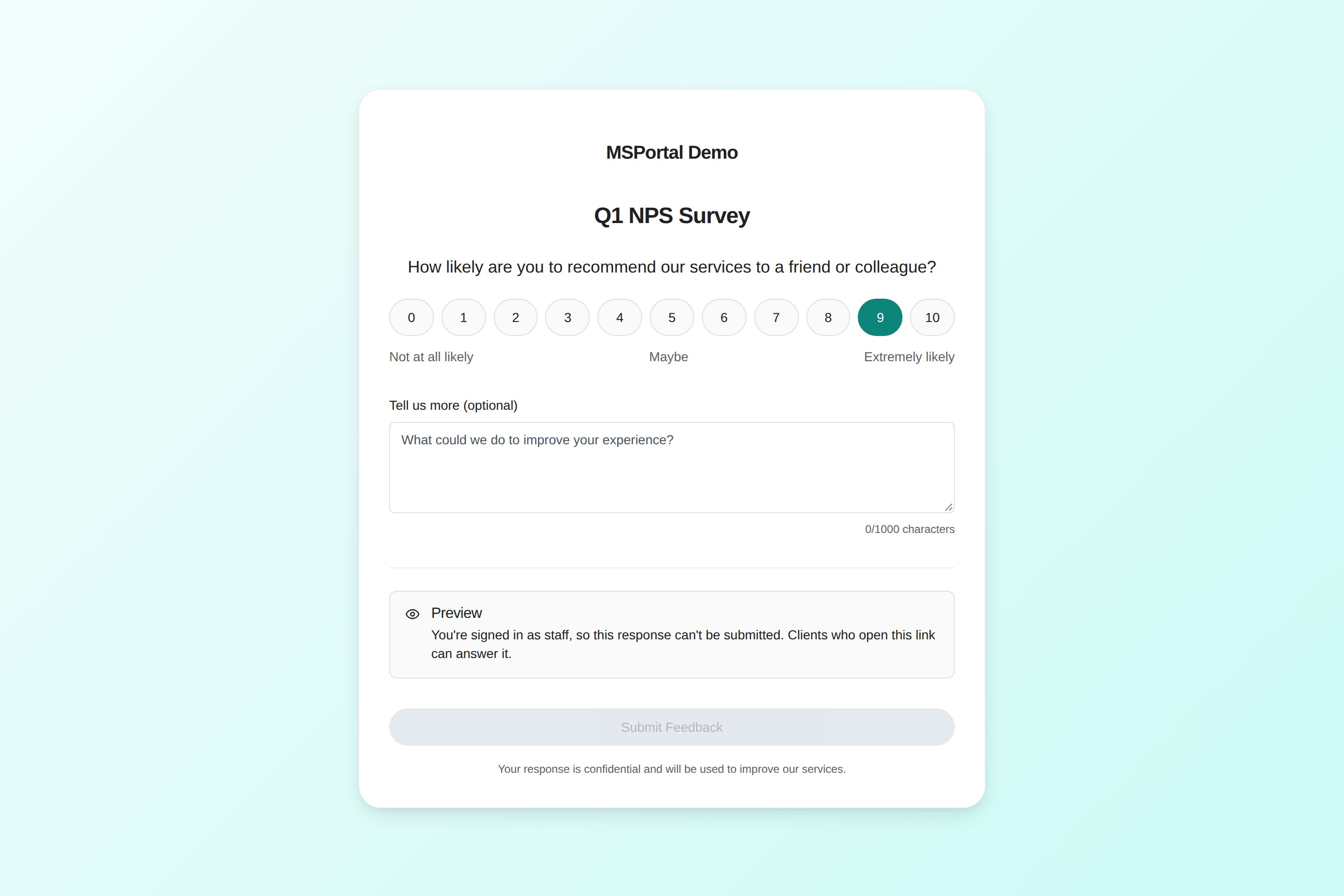
Branch preview: MSP staff see a preview that can't be submitted.
Read link responses
Link responses appear with your other results. Responses identified only by an email from the link or typed on the page show an Unverified badge, on general survey respondents and in NPS recent feedback.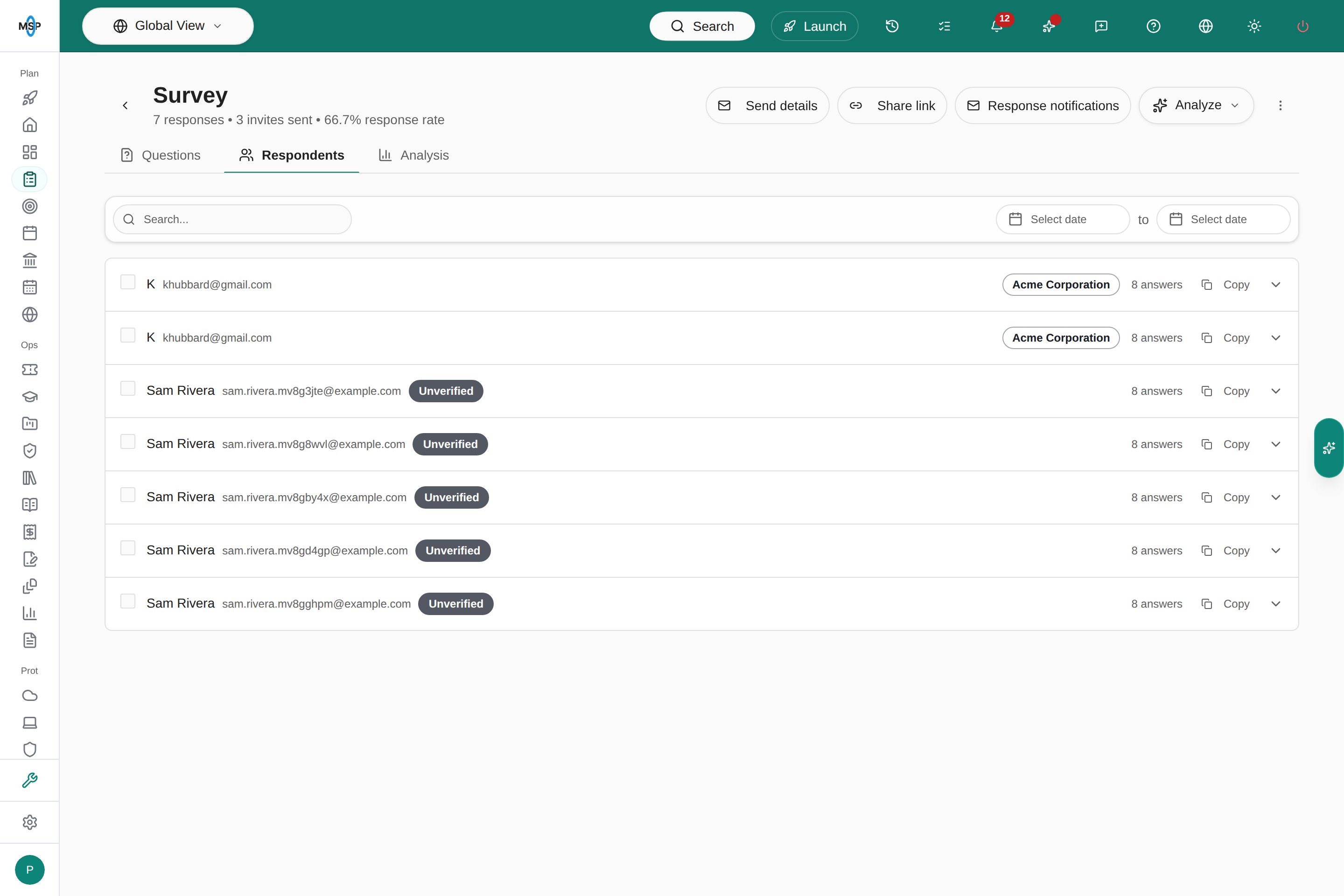
Branch preview: unverified link respondents on a general survey.
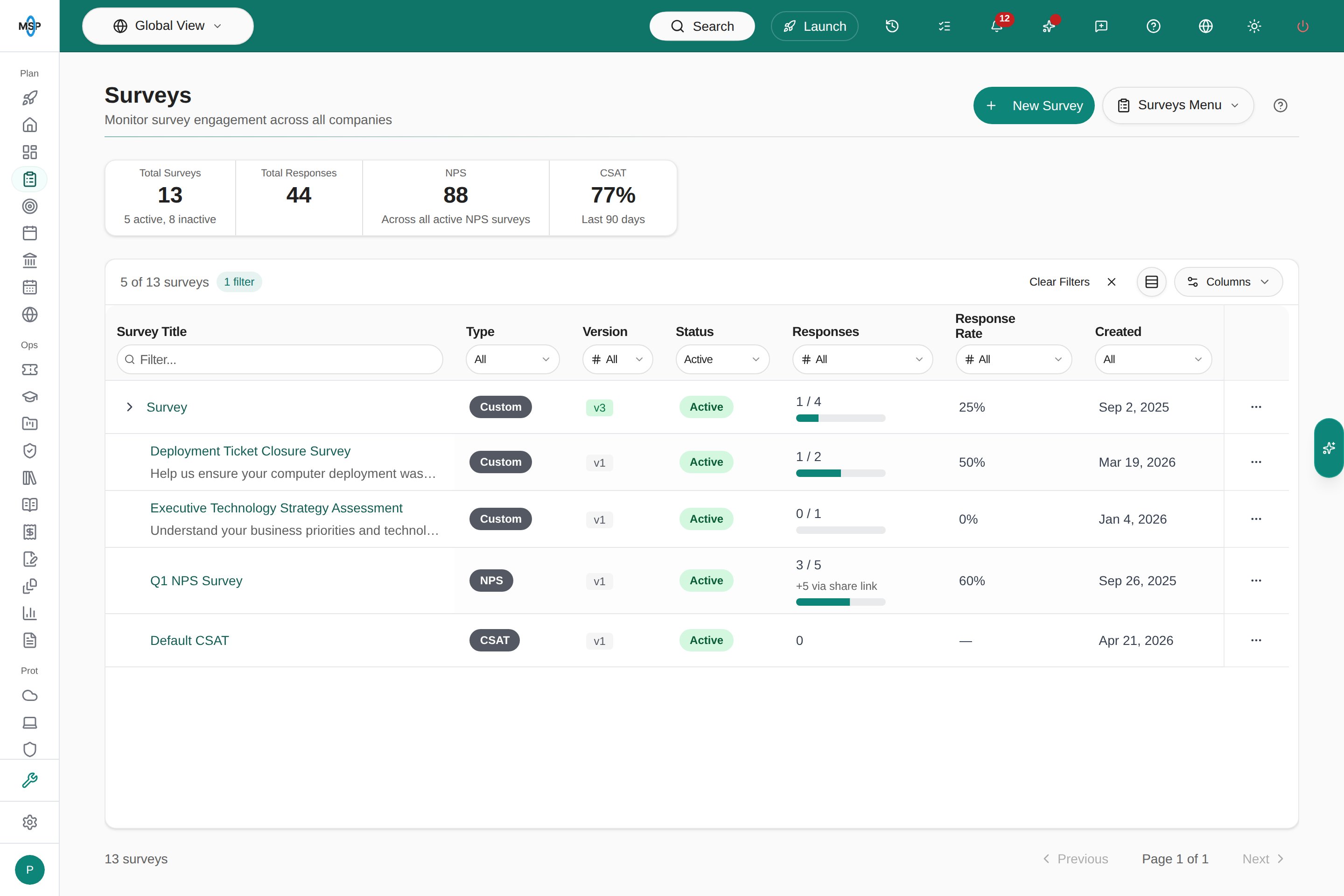
Branch preview: the survey list shows link responses separately from the emailed response rate.
Turn the link off or replace it
- Turn off Link active to stop new responses. Anyone who opens the link sees that the survey isn’t available. Turn it back on at any time; the URL stays the same.
- Select New link to replace the URL, for example if it was shared somewhere it shouldn’t be. The old URL stops working, including in newsletters you’ve already sent.
- Deactivating the survey also stops link responses.
Use the link from an AI assistant
If you connect an AI assistant to MSPortal through the MCP server, it can read a survey’s link with get_survey_share_link and create or change it with set_survey_share_link. Changes are staged for your confirmation, like other survey changes.Troubleshooting
Surveys
Create and send surveys.
Find surveys and read results
Read responses by question or respondent.
Read NPS analytics
Understand your NPS score and feedback.
MCP server
Connect an AI assistant to MSPortal.