

Create a learning path
- Choose Create Learning Path. The full editor opens, the same one used to edit a path.
- Enter a title and optional description.
- Choose the company, or the tenant-wide option when available. Review the mandatory and target role/department fields.
- In Courses, tick the courses to include. In Assignments, add users or groups if you want learners assigned from the start. Both are optional at creation.
- Click Create Learning Path. The path, its courses and its assignments save together, and nothing is created until this succeeds.
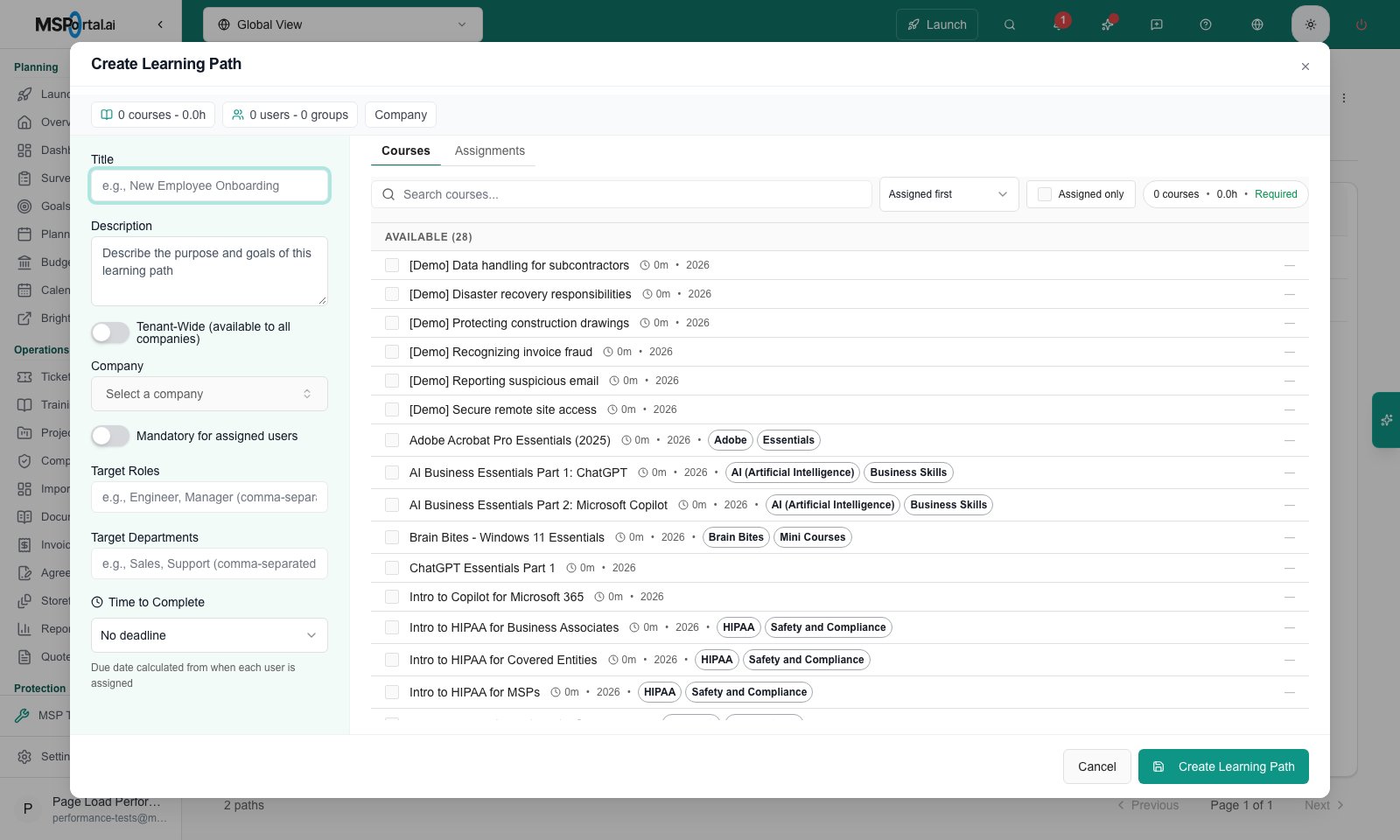
Branch preview, MSP example: the editor opened from Create Learning Path. Nothing has been saved.
Edit details, courses and assignments
The full editor has Details, Courses and Assignments. Changes remain staged until Save & Close succeeds.- In Details, review scope and mandatory/targeting settings. A scope change can affect which users remain eligible; inspect assignments before saving.
- In Courses, search the course list, use the assignment control to include a course, and set whether it is required. Use the move controls to set order. The current editor uses course assignment controls rather than the old pair of Available/Assigned course lists.
- In Assignments, use Users or User Groups, select the intended targets and add them to the assigned side. Remove unwanted targets there. Review the deadline options and mandatory setting where offered.
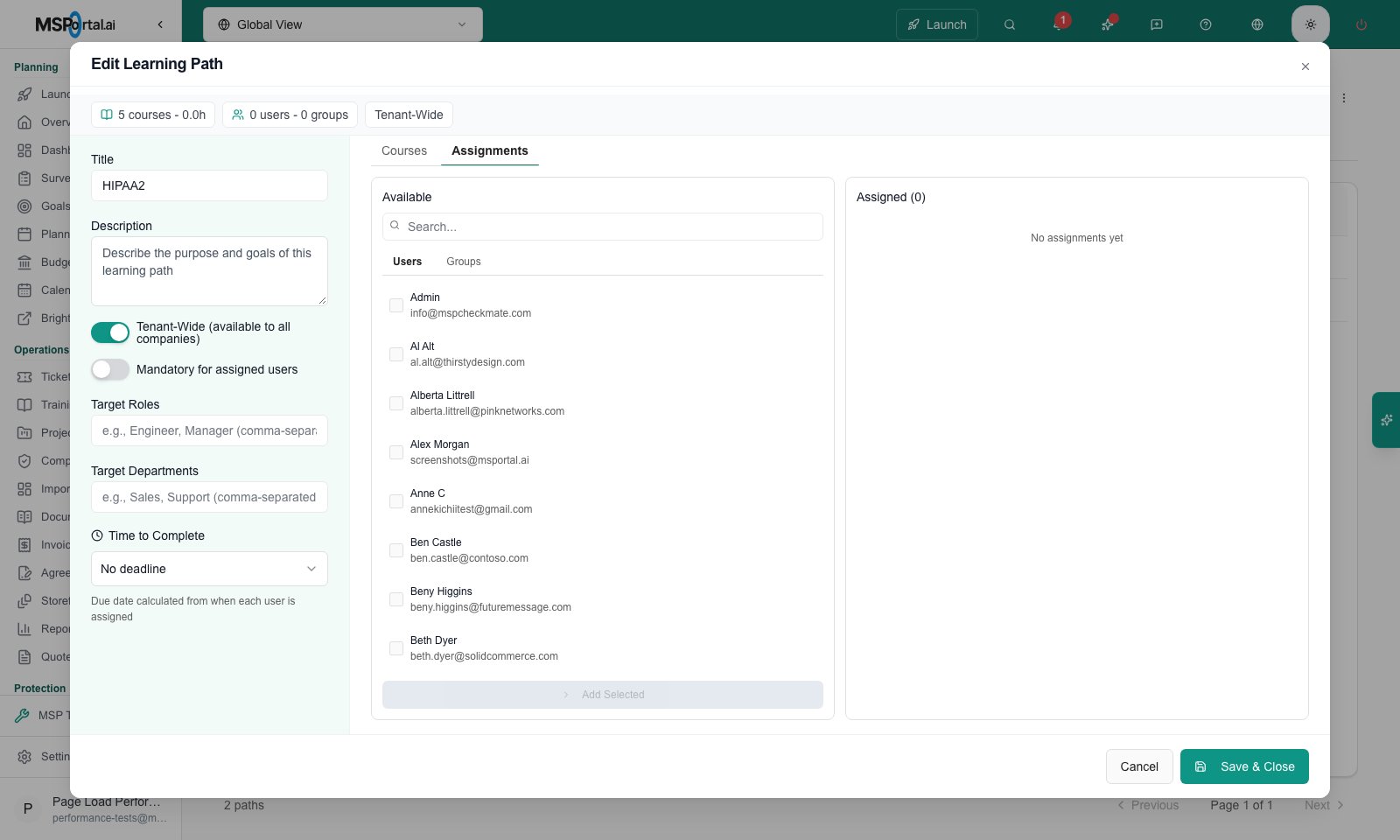
Branch preview, MSP example: the Assignments tab with available users on the left and the assigned list on the right.
Use focused row actions
The path row menu also offers Manage Courses and Assign to Users/Groups. Use Save Changes in Manage Courses and Save Assignments in the assignment dialog. Review the resulting selection and save in that dialog; they do not wait for another page Save. Assigning a group affects its eligible members. Check both company scope and group membership before saving. Removing a path assignment is not a general course-enrollment deletion workflow; inspect learner records separately if you need to remove enrollment or access.Reuse templates and groups
Use Templates to create and edit a reusable curriculum, manage its courses, or create a path from it. Creating a path from a template creates a separate path to configure and verify; do not assume later template edits update every previously created path. Convert to Template is a row action on a path and immediately requests the conversion operation. Use it when you intend to create reusable content, not to preview the template dialog. Use User Groups to manage named assignment groups and their members. A group selected for training is not an authorization role. Review actual membership before assigning a curriculum.Choose a user group’s scope
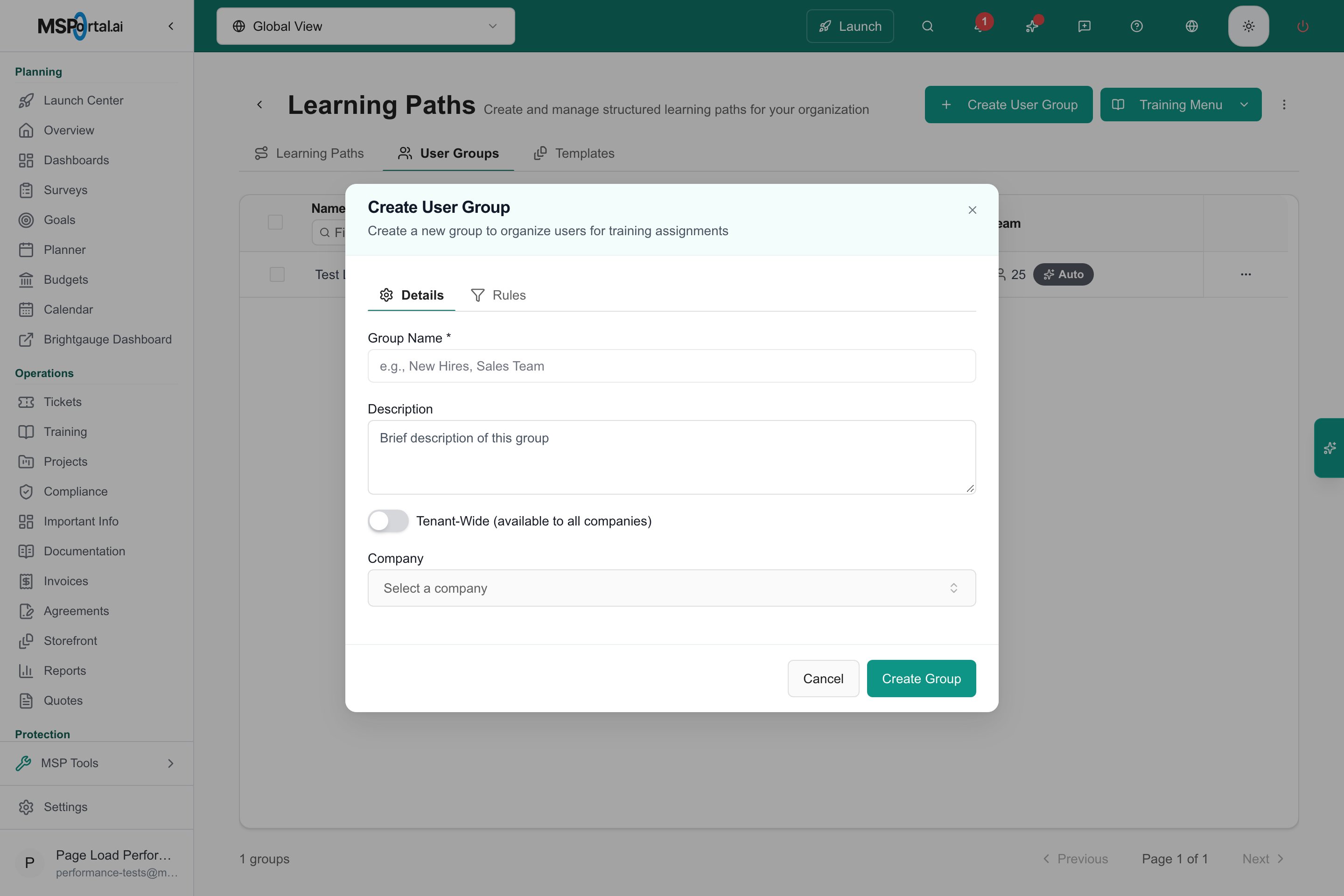
Branch preview — MSP staff can choose a company or use the tenant-wide switch.
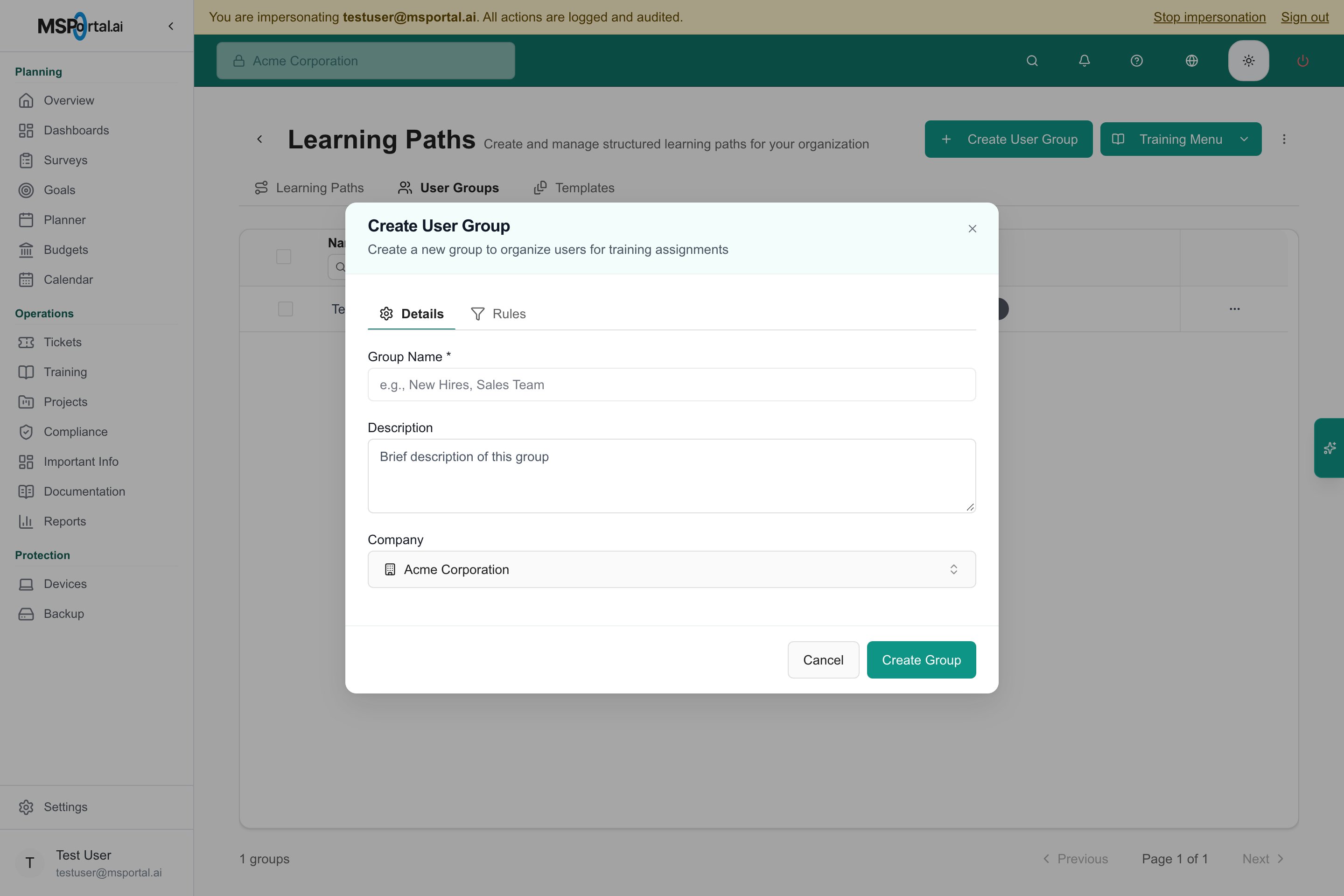
Branch preview — an impersonated Demo company administrator sees the company selector without the tenant-wide switch.
Bulk actions and deletion
Select the intended paths before using a bulk assignment or deletion action. Review the confirmation and target count. Delete is a separate confirmed operation, not a change staged behind Save & Close. Do not use it as a substitute for disabling one course or removing one learner.Troubleshooting
If a learner is missing, check path scope and group membership. If courses do not appear for a learner, inspect the saved path courses, assignments, course enablement, Premium access and training permissions. If Save fails, keep the error and inspect the current record before retrying a create, conversion or assignment.FAQs
Does creating a path also add its courses and learners?
Does creating a path also add its courses and learners?
Do edits save when I switch tabs?
Do edits save when I switch tabs?
Does Add Selected immediately assign learners?
Does Add Selected immediately assign learners?
Do template edits automatically update existing paths?
Do template edits automatically update existing paths?
Does a group grant training administration permissions?
Does a group grant training administration permissions?
Can I assume target roles sent notifications to everyone matching them?
Can I assume target roles sent notifications to everyone matching them?
Does removing a path assignment erase all course enrollment?
Does removing a path assignment erase all course enrollment?