

Before you start
- Risk tracking must be on. An MSP admin turns it on under Settings > Compliance > Risk. See Configure risk tracking and categories. If it is off, you see Risk tracking is disabled with an Open Risk settings button.
- You need Compliance read access to view risks.
- Only internal MSP users with Compliance write or manage access can create, edit, approve, or dismiss. Company users do not see Unaddressed gaps, and they see only risks shared with them.
Find and read a risk
Open Risks
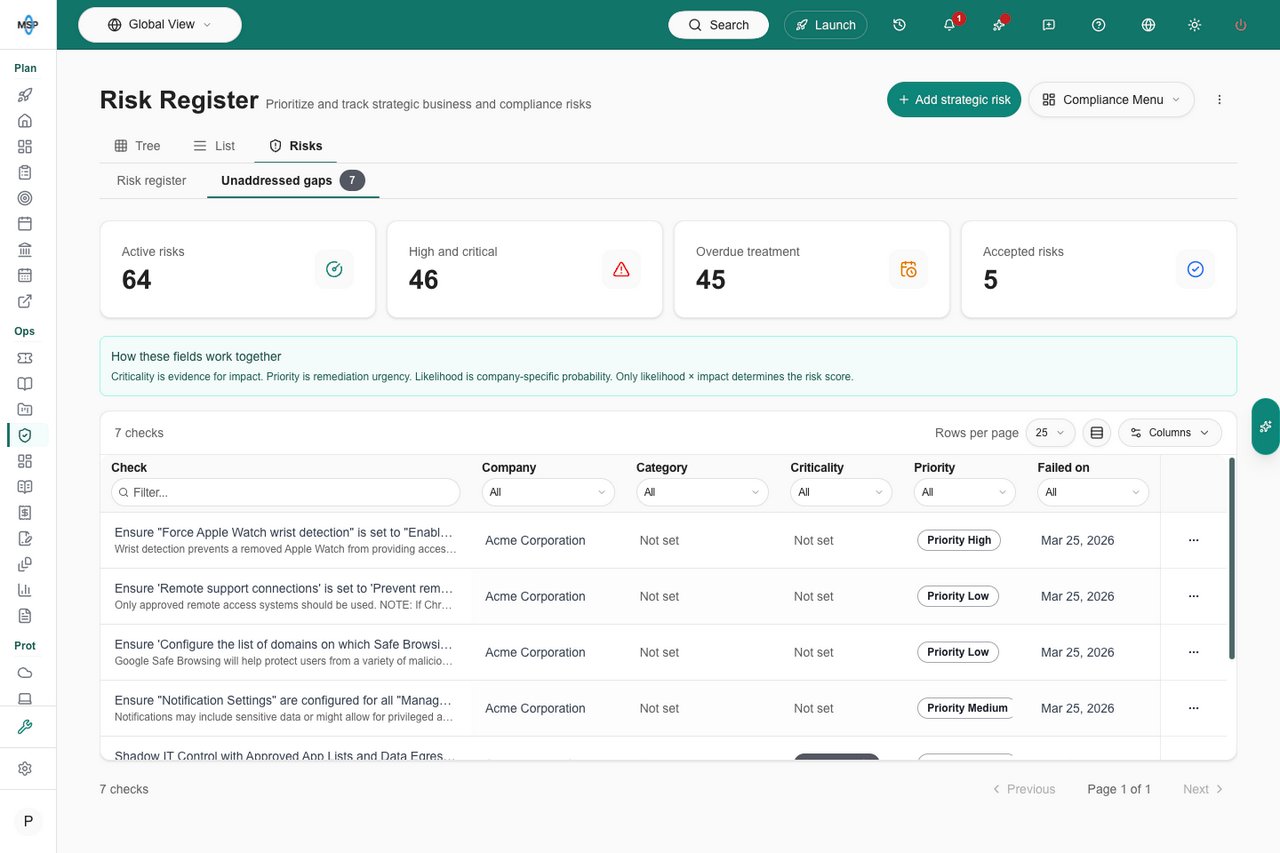
Pick a tab
Read the summary cards
Filter the register
Open a risk
- Source compliance finding, with Open source to jump to the check. A strategic risk has no source.
- Linked remediation work: the PSA ticket, Planner items, and evidence files attached to the source finding.
- Failure occurrences: how often the source check failed. A repeat failure adds to the count and does not create a duplicate risk.
- Risk dependencies: Depends on and Required by.
- Risk history: a log of edits.
- A Source is now compliant badge once the check passes. The badge does not review the risk, finish treatment, or close it.
Promote a compliance gap
Open Unaddressed gaps
Add it to the register
Review the fields
Set visibility
Choose the default category (optional)
Add the risk
Add a strategic risk
Start the risk
Fill in the basics
Add ownership and treatment
Save
Score and track a risk
Likelihood and impact each run from 1 to 5. The score is their product.Share a risk with company users
A company user sees a risk only when Visible to company users is on, an MSP user has set the status to Approved, and the user has Compliance access to that company.Review internally
Approve and share
Verify access
Withdraw sharing
Categories and AI help
Categories apply to the whole tenant. Add, rename, recolor, reorder, and archive them in Risk settings. Archiving keeps existing risks. Category colors do not change severity.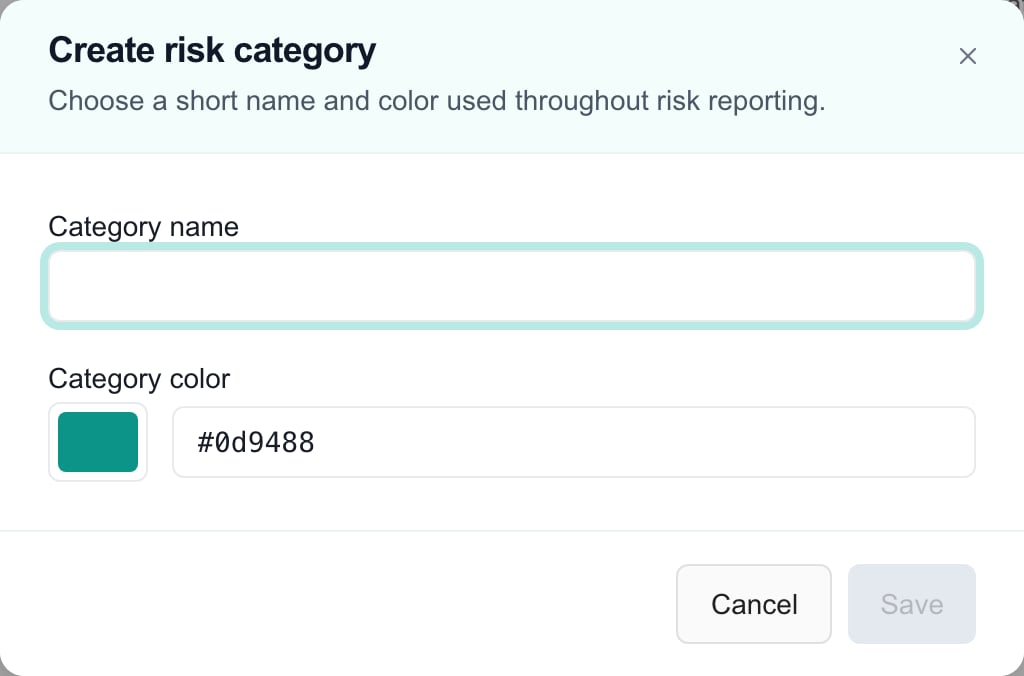
An MSP administrator's unsaved category editor. Category setup is separate from an individual risk.
Report on risks
When risk tracking is on, the report builder offers five risk blocks. Dashboards support all but Risk Register.Troubleshooting
Frequently asked questions
Can I create a risk without a failed compliance check?
Can I create a risk without a failed compliance check?
Can company users create or approve risks?
Can company users create or approve risks?
Will changing Approved to Mitigating make the risk private?
Will changing Approved to Mitigating make the risk private?
Are promoted gaps always internal-only?
Are promoted gaps always internal-only?
What sets risk severity?
What sets risk severity?
Does Use this category for future failures change only this risk?
Does Use this category for future failures change only this risk?
Does dismissing a gap pass its check?
Does dismissing a gap pass its check?
Does a compliant source close the risk?
Does a compliant source close the risk?
Does assigning an owner notify them?
Does assigning an owner notify them?