

Before you start
- The Compliance feature must be available for your account.
- Open Settings > Compliance and click the Risk tab. You need Compliance settings access to view it.
- Turning risk tracking on or off needs manage access. Adding, editing, reordering and archiving categories needs write or manage access.
Turn on risk tracking
1
Open the Risk tab
Go to Settings > Compliance and click Risk. The page is titled Compliance risk.
2
Choose a category starter
Under Choose a category starter, click one card.
The starters are only category lists. They do not make you compliant with a framework.
3
Click Enable risk tracking
Click Enable risk tracking (or turn on the Enable risk tracking switch). The confirmation dialog shows the starter you picked.
4
Confirm
Click Enable risk tracking in the dialog. Cancel leaves risk tracking off. A toast says Compliance risk tracking enabled.
5
Review the result
Check Risk categories on the page and the Risk workspace before you introduce the workflow to your team.
Add or edit a category
1
Open the dialog
Under Risk categories, click Add category. To change an existing category, open its More category actions menu and click Edit.
2
Enter the name and color
Enter a short Category name and choose a Category color. If you type a color, use a full six-digit hex value such as
#0d9488.3
Save
Click Save. A toast confirms Risk category created or Risk category updated. Cancel discards your changes.
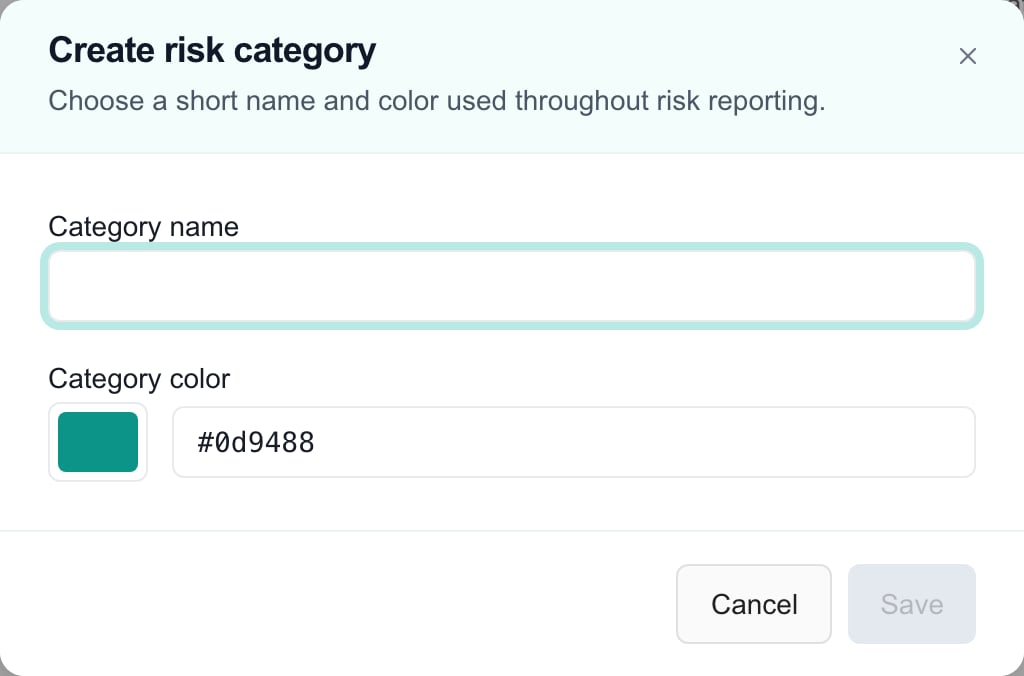
The Create risk category dialog. Save is required to create the category.
Reorder, archive or restore a category
1
Reorder
Click Move category up or Move category down on a category. Each click saves at once.
2
Archive
Open the category’s More category actions menu and click Archive category. It saves at once. An Archived badge appears. Existing risks that use the category keep it.
3
Restore
Open the menu on an archived category and click Restore category.
Turn off risk tracking
1
Open the Risk tab
Go to Settings > Compliance and click Risk.
2
Turn off the switch
Turn off Enable risk tracking. It saves at once with no confirmation. A toast says Compliance risk tracking disabled. Existing risk data has been preserved.
Troubleshooting
Frequently asked questions
Does picking a category starter turn on tracking?
Does picking a category starter turn on tracking?
No. Click Enable risk tracking and confirm in the dialog.
Will a different starter replace my categories?
Will a different starter replace my categories?
No. When you turn tracking back on with a different starter, MSPortal adds the missing starter categories and keeps the rest.
Does turning off risk tracking delete the register?
Does turning off risk tracking delete the register?
No. It hides the feature and keeps the data.
Do the arrows and Archive wait for a Save?
Do the arrows and Archive wait for a Save?
No. Reordering, archiving and restoring save at once. Name and color changes use the dialog’s Save.
Does archiving a category delete its risks?
Does archiving a category delete its risks?
No. Existing risks keep the category.
Can I change the scoring matrix?
Can I change the scoring matrix?
No. It is a fixed 5 by 5 scale.
Does enabling risk show every risk to clients?
Does enabling risk show every risk to clients?
No. A client sees a risk only when it is marked visible to clients and approved by an MSP user, and the client has Compliance access to that company.