

Before you start
- You need Compliance read access. Your MSP decides which companies, checks, and actions you see.
- The checks come from assessment runs your MSP has assigned. See Compliance.
Choose the scope
1
Open Compliance
Click Compliance in the sidebar.
2
Check the company selector
Choose a company or all companies. A permitted parent company can include its child companies.
3
Choose the runs to show
Use the run filter above the table to pick Active, Completed, or All. Choose All to find an older run.
Browse the Tree view
1
Select Tree
Click Tree in the page header. The tree sits under the summary numbers.
2
Search
Type in Search compliance checks… to narrow the tree. The toolbar shows how many checks match, like 12 / 40 checks.
3
Expand the levels
Expand a company, then a run, then any group, location, or device to reach a check. The levels depend on how the run was assigned. Use Expand all or Collapse all when they are shown.
4
Read the counts
Each row can show counts for Past due, Passed, Failed, and In progress. A count of zero is hidden, but each status keeps its place so the rows line up. Hover a count to read its full number.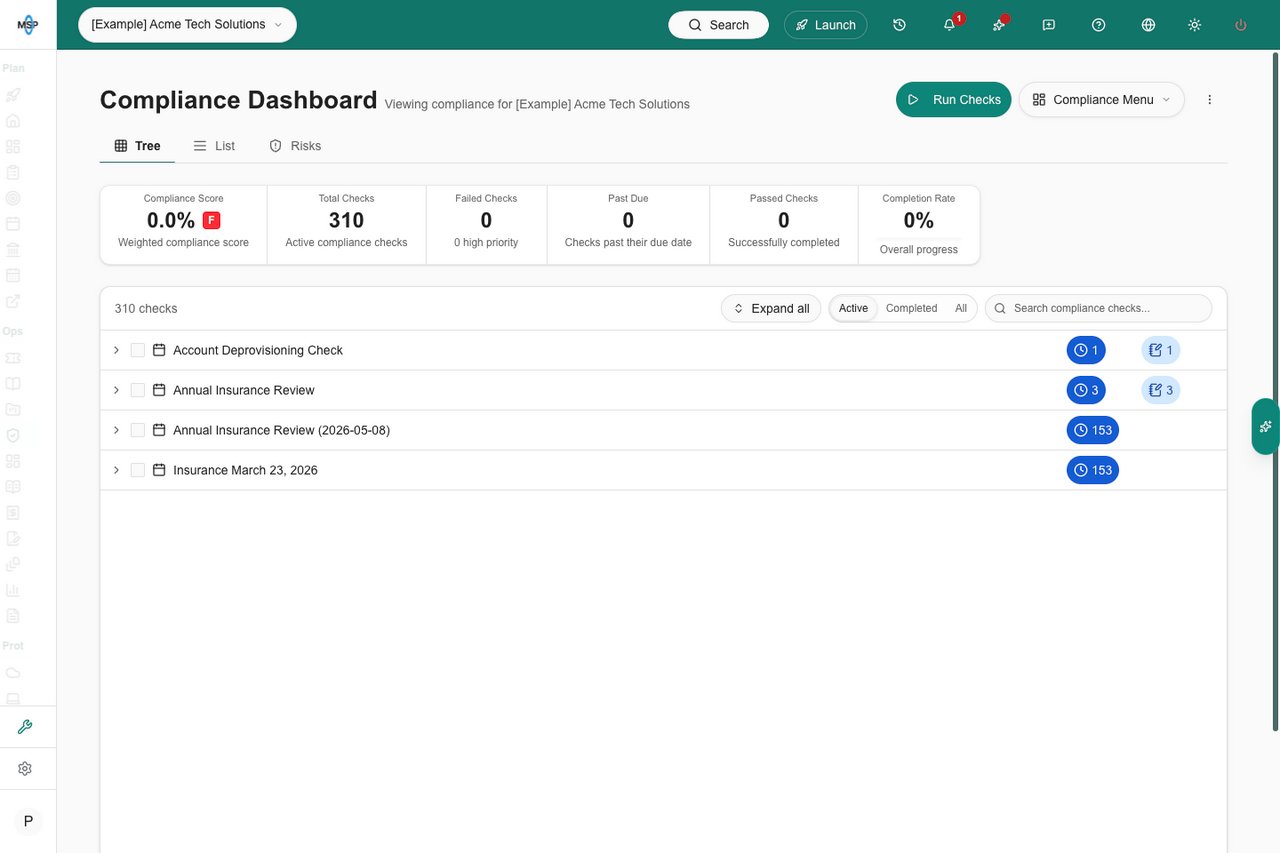
5
Sort the tree
Open Sort and choose Sort ascending for A to Z or Sort descending for Z to A. Names sort within each level, including runs, groups, locations, devices, and checks. Clear sort restores the original order.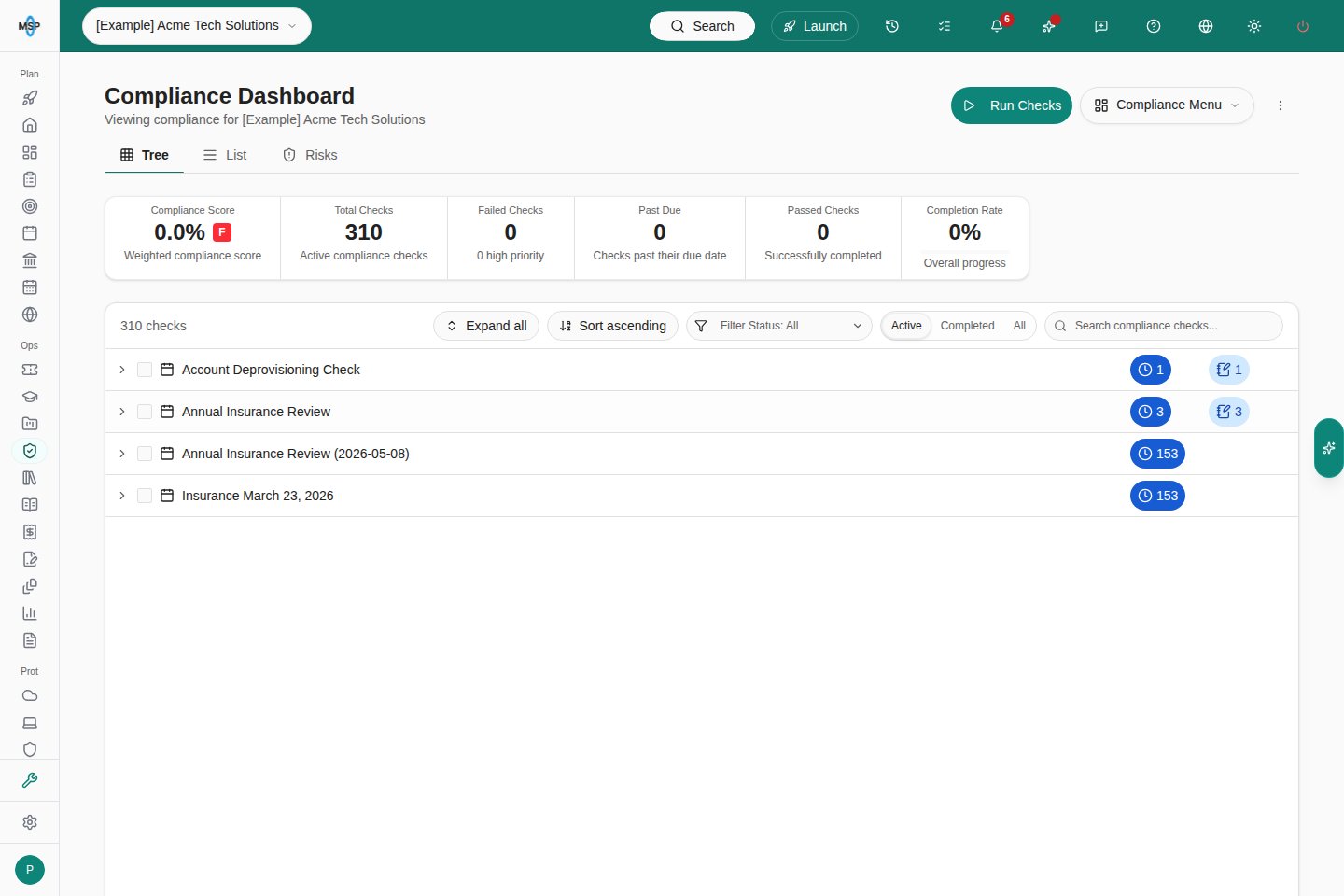
6
Filter by result
Use the Status filter in the toolbar to choose Passed, Failed, or In progress. If you select more than one, the tree shows checks that match any of them.
7
Open a check
Click the check title. See Read compliance guidance, evidence, and history.
Browse the List view
1
Select List
Click List in the page header. The table shows one row per assigned check.
2
Filter the columns
Use the column filters. Columns include Flagged, Title, Status, Priority, Due Date, Notes, Company, Run, Scope, Public Notes, Last Updated, Group, Device, Location, and Check ID. MSP staff also see Private Notes. Use the column menu to show or hide columns.
3
Filter by result
Use the Status filter in the toolbar to choose Passed, Failed, or In progress, as in the Tree. It combines with the column filters and applies before the results are paged. Switching between Tree and List keeps the selected results.
4
Sort the columns
Click a column heading to sort all matching results, across every page. Click it again to reverse the order. Switching Active, Completed, and All keeps your column filters in place.
5
Page through the results
Use the pager at the bottom. You can show 25, 50, 100, or 250 rows per page.
6
Open a check
On a wide screen, click a row to see it in the Review pane beside the list. Click Open full editor in the pane to open the full check. On a smaller screen, or with the pane off, clicking a row opens the full check.
Use the Review pane
The Review pane button in the List toolbar turns the docked pane on or off. It shows on wide screens only. The pane has Review, Guidance, and History tabs.- Move to the next or previous check with the arrows in the pane, with the Up and Down arrow keys, or with J and K.
- Press Enter to open the full editor and Esc to close the pane.
- Users with Compliance write access can change Status, Priority, and Due date and edit notes in the pane. Everyone else sees You have read-only access to this check.
Read the results
Statuses come from the status list on each check. Your MSP chooses the names and which statuses count as complete or successful. Priority is separate and is High, Medium, or Low. A flag marks a check for attention. It is not a pass or a fail. The summary above the Tree shows these numbers:
Completion is not passing. A fully assessed set can still contain failures. The score, the summary, and a filtered List are calculated separately, so List column filters do not change the score or summary.
Troubleshooting
Frequently asked questions
Does Completed mean compliant?
Does Completed mean compliant?
No. Completed is a run filter. Completed checks can pass or fail. Read each check’s status and notes.
Why does the same check appear several times?
Why does the same check appear several times?
The check can be assigned in different runs, or to different companies, locations, or devices. Compare the target and run.
Why do List filters not change the score?
Why do List filters not change the score?
The weighted score and summary are separate from the List column filters.
What does a flag mean?
What does a flag mean?
It marks a check for review. It does not change the pass or fail status.
Can I configure checks as a company reader?
Can I configure checks as a company reader?
No. Your MSP sets up checks and permissions.
Can I create a ticket by opening a failed check?
Can I create a ticket by opening a failed check?
No. For a support request, tell the Home AI Assistant and confirm the request when prompted.