

Before you start
- You need Compliance read access.
- The export covers every item that matches the List’s current filters, company selection, run filter and sort. It is not limited to the page you are looking at.
Export to CSV
1
Open the List
Open Compliance and click List in the page header.
2
Set the scope
Check the company selector and choose Active, Completed, or All runs.
3
Filter and sort
Set the column filters and the status filter, and click a column heading to sort. The CSV uses the same filters and order. The page size and the page you are on do not matter.
4
Click Export
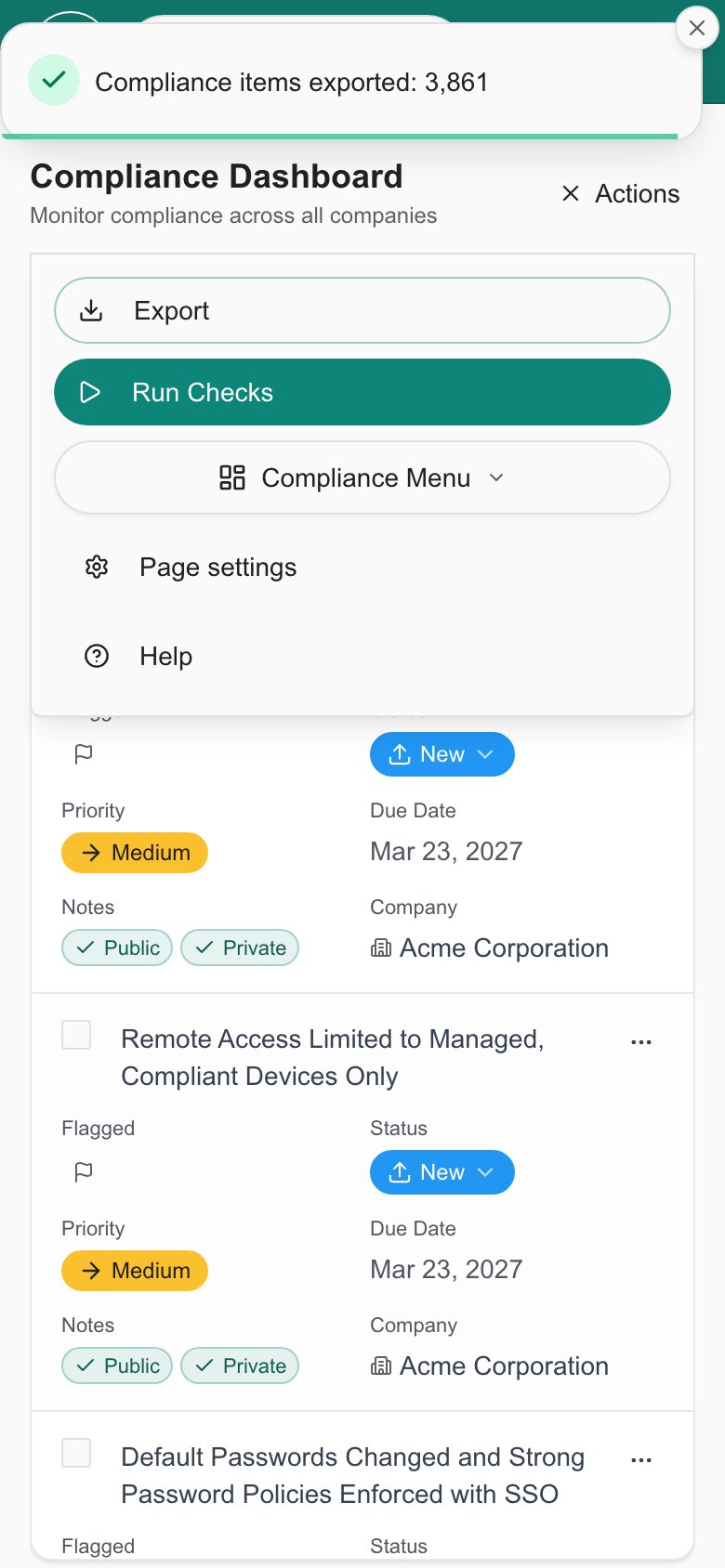
Click Export in the page header. On a phone, open the header Actions menu and click Export. A message reads “Preparing an export of every matching compliance item…” while MSPortal gathers the rows.
5
Wait for the download
When the file is ready, a message reads “Compliance items exported:” followed by the number of rows. The file downloads as
compliance-list- followed by the date.6
Check the file
Open the CSV and check the rows and fields before you share it.
- Desktop
- Phone
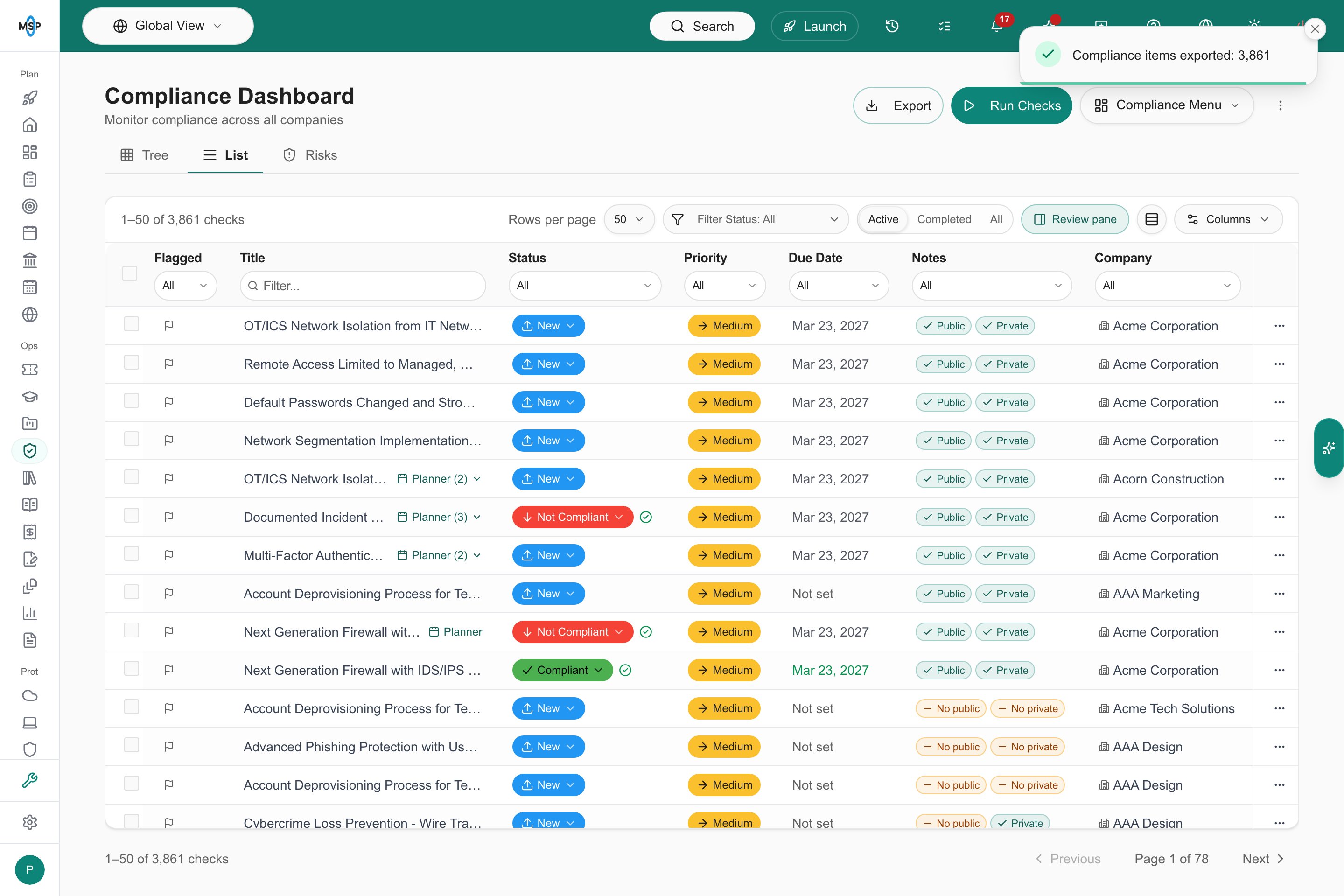
the List after an export of all 3,861 matching items, not just the 50 on the page.
What the CSV includes
The columns are always the same, in this order:
Hiding a column in the table does not remove it from the CSV. Company users never receive private notes. MSP staff exports can include private notes, so check the file before you share it with company users.
The CSV does not include uploaded files or custom fields. Open the item to see those. See Read compliance guidance, evidence, and history.
Troubleshooting
Frequently asked questions
Does Export download every matching item?
Does Export download every matching item?
Yes. It downloads every item that matches the current filters, company selection, run filter and sort, across all pages of the List.
Can I export only the rows I checked?
Can I export only the rows I checked?
No. Checkboxes are for bulk actions. Use filters to narrow the export.
Why is the Score column blank for some rows?
Why is the Score column blank for some rows?
Those rows have a status that is excluded from scoring, so they earn no credit and the Result column reads Excluded.
Does hiding Private Notes remove it from the CSV?
Does hiding Private Notes remove it from the CSV?
No. The CSV always has the same columns. Company users’ exports never contain private notes. Check MSP staff exports before you share them.
Does the CSV include evidence files?
Does the CSV include evidence files?
No. Download files from the item’s Uploads tab.
Why are note and guidance formatting and images missing?
Why are note and guidance formatting and images missing?
Notes and guidance are exported as plain text.