

Before you start
- You need permission to manage Documentation settings. New page, Upload, and New folder only appear for MSP staff with that access.
- Portal documents do not need Hudu or IT Glue.
Create a page
Open the editor
Choose the title and scope
Write the page
Create the page
Verify
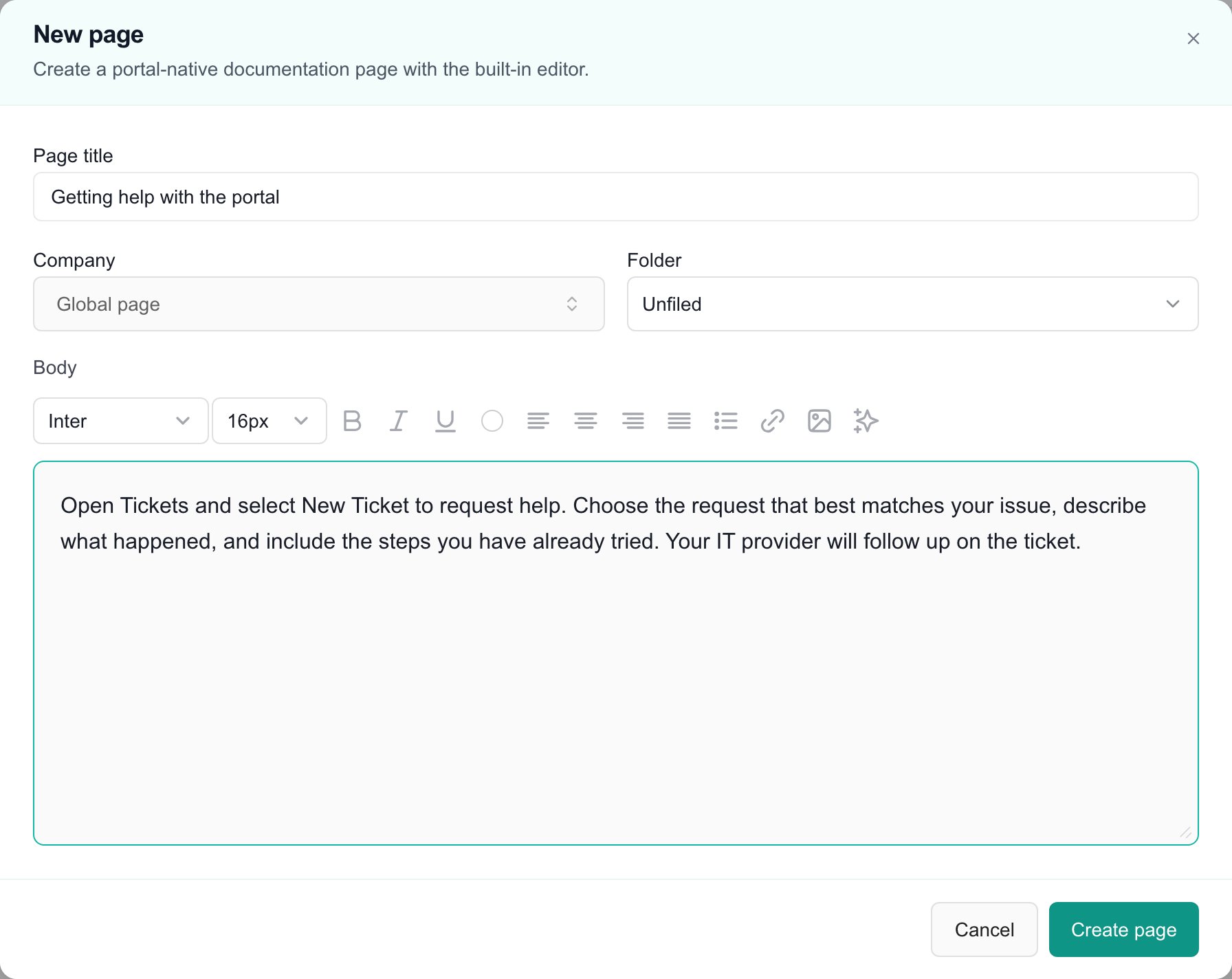
A new portal page with sample instructions. The page has not been saved.
Start from a Word file or with AI
The editor’s Body row has two shortcuts. Both replace the body in the editor. Nothing is saved until you click Create page or Save, and Undo beside the result puts back what was there before.Import a Word file
Click Import Word file
Check the result
Save
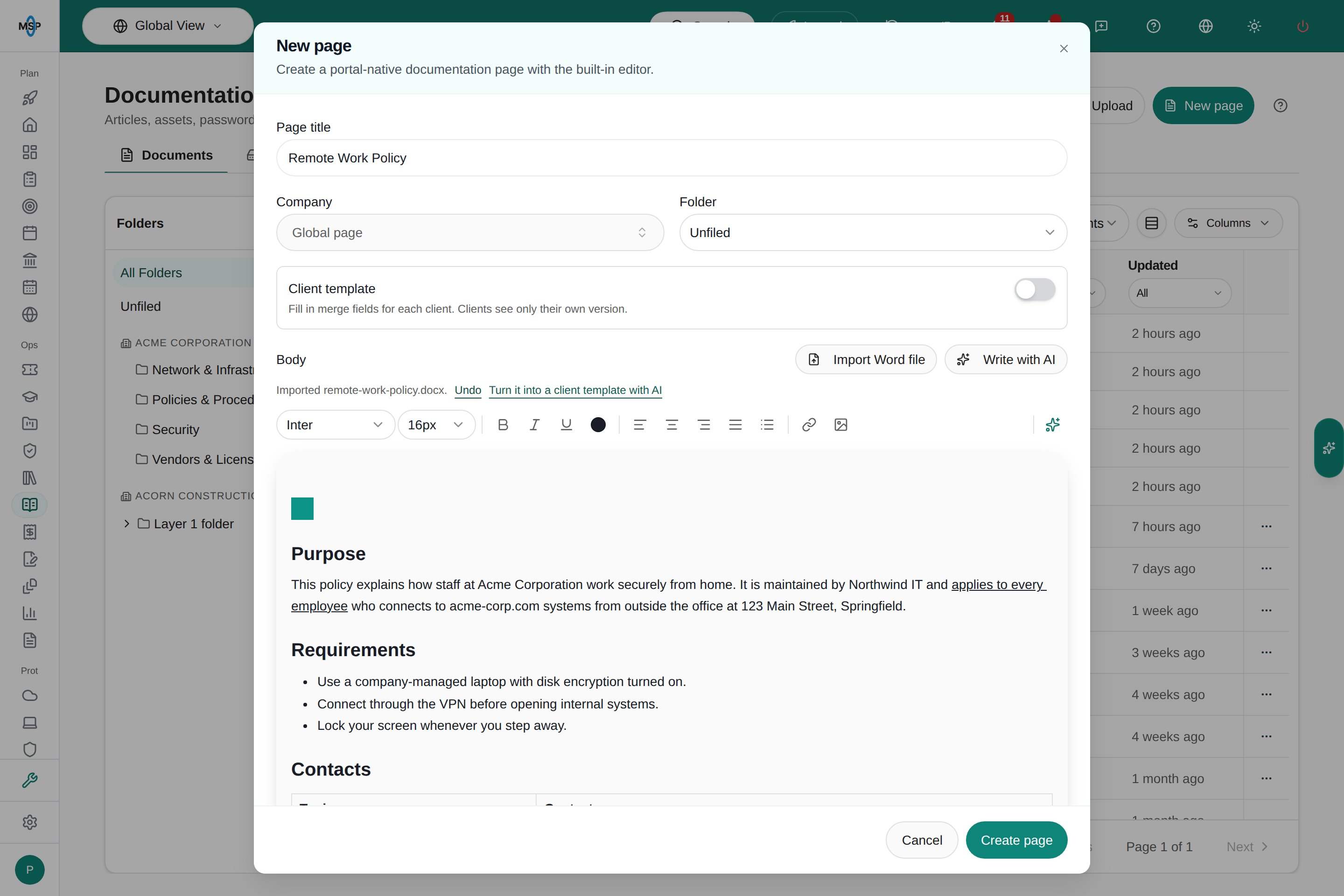
A client's Remote Work Policy imported from Word, with its headings, list, table, and image. The page has not been saved.
Write with AI
Click Write with AI
Describe the page or the change
Review the draft
Turn a client’s document into a client template
After you import a document written for one client, click Turn it into a client template with AI, or Make it a client template in the AI prompt, and send it. AI replaces that client’s name, logo, address, website, domain, and contact details with merge fields, and your organization’s name with MSP name. Because the result uses merge fields, the editor turns on Client template. Check every field before you save: the template is what every client reads.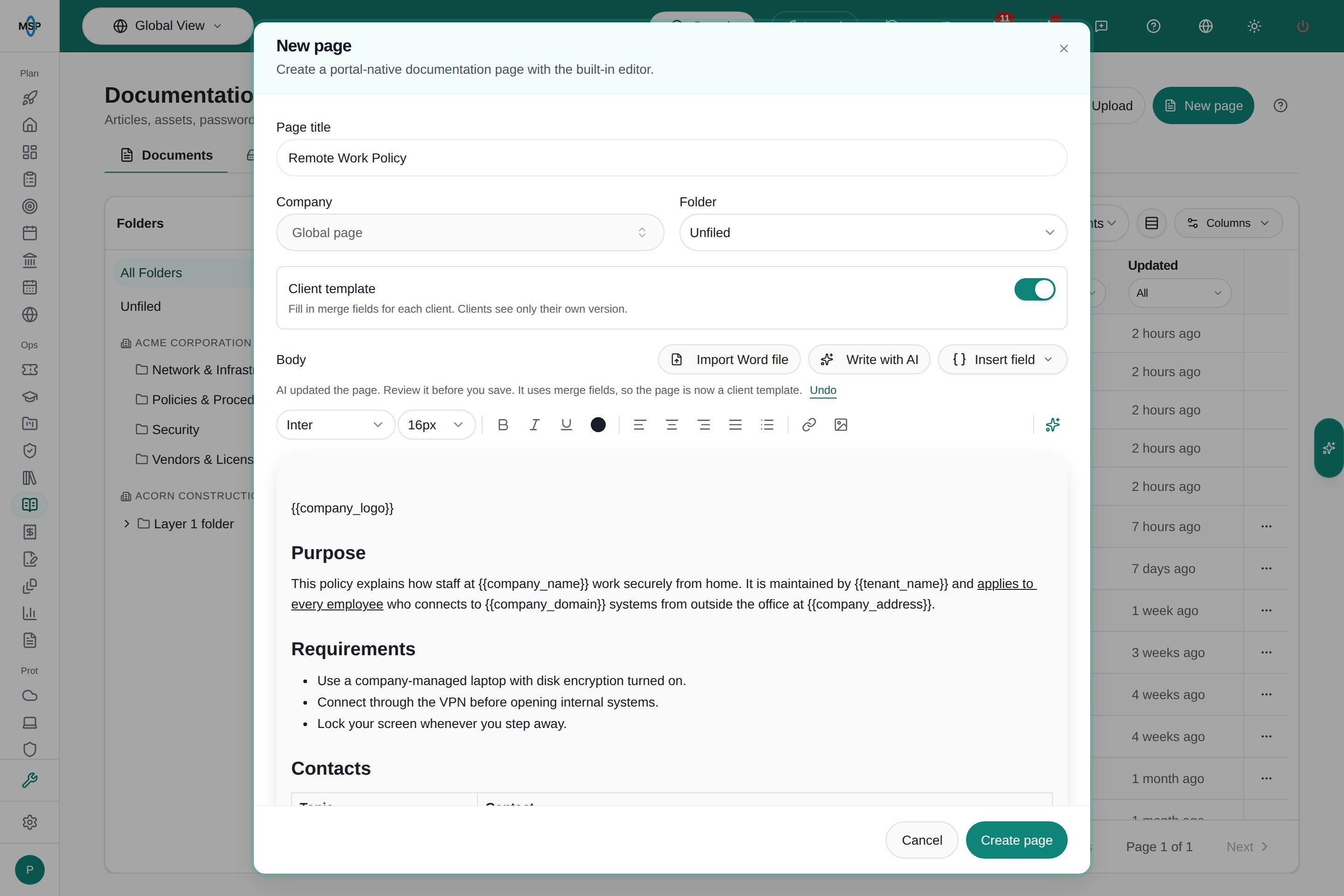
AI turned the imported policy into a client template. Client details became merge fields and Client template switched on.
Write a page once for every client
Turn on Client template in the page editor to write one policy or guide that every client reads in their own name. While it is on, Insert field adds a merge field at the cursor, such as{{company_name}}.
Export a branded PDF
Click Export PDF on a portal page to download it as a PDF. The PDF starts with the client’s logo and name, the page title, its effective date and revision, and numbers each page. For a client template, the PDF is filled in for the company you are viewing. If no company is selected, choose the client in the export dialog. Set how portal pages export in Settings > Documentation > Documents, in the PDF export section at the end of the tab:- Export portal pages as PDF shows or hides Export PDF on portal pages for everyone. It is on by default.
- “Prepared by” line chooses where the PDF names your organization: Not shown (the default, so a client’s PDF carries only their branding), Footer of every page, or Title page only.
- When Hudu or IT Glue is connected, the same section also turns Export PDF on or off for its synced articles.
Upload files
Open the upload dialog
Add files
Check the names
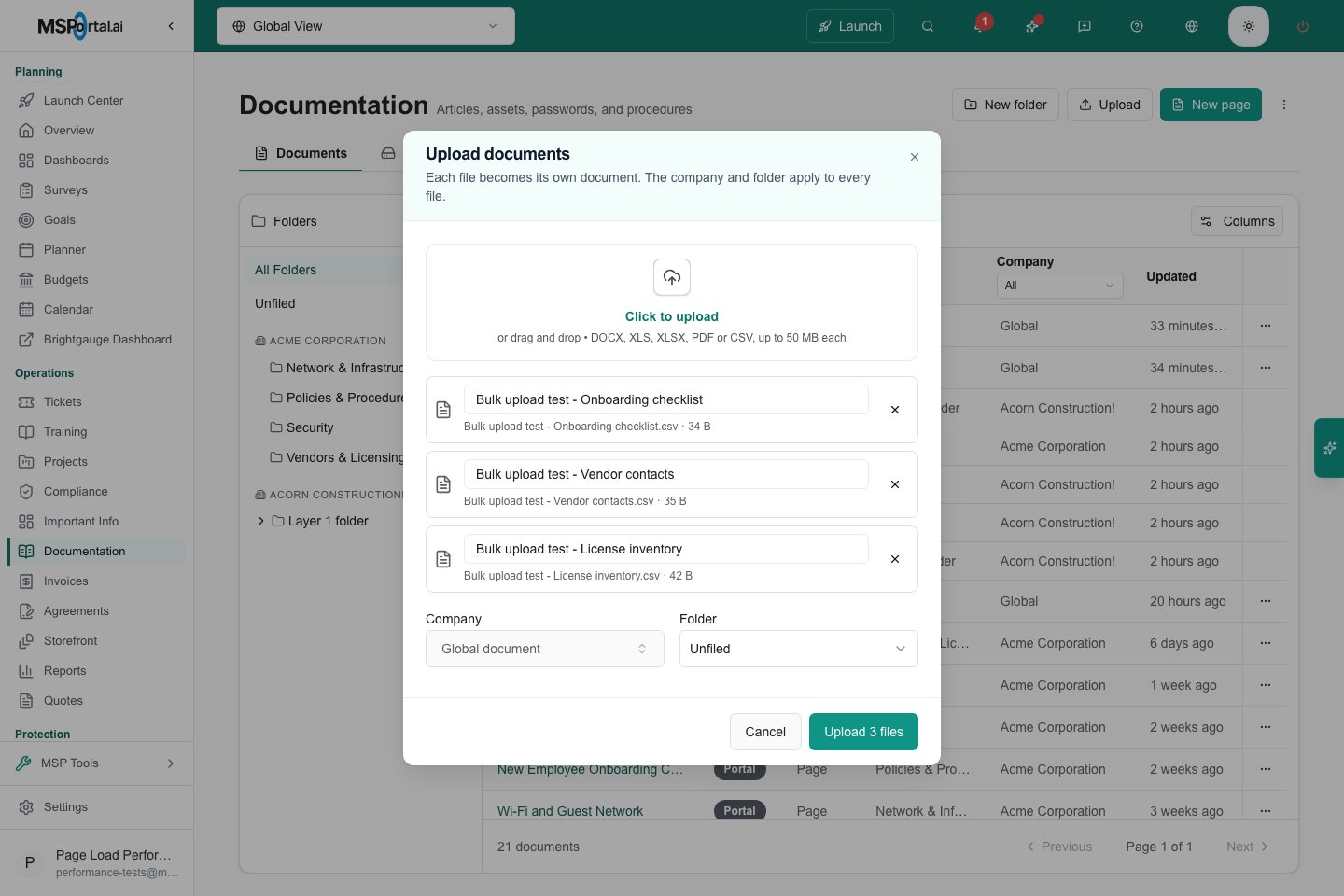
Three files queued for upload, before Upload is clicked.
Choose company and folder
Upload
Replace an uploaded file
Open the document
Click Replace file
Confirm
Put a file in the Documentation Hub
After you upload a file, add it to the Hub as a Document resource in Settings > Documentation > Hub. You can also add a Folder resource for a collection, or a Link resource for a file stored elsewhere. See Add files and links to the Documentation Hub. Uploading and adding to the Hub are separate steps.Organize folders and documents
Create a folder
Move a document
Delete a folder (optional)
Edit a page and review history
Edit the page
Review the history
Restore a version
Archive and restore a page
Archive
Find archived pages
Restore
Troubleshooting
Frequently asked questions
Does choosing a company make a page visible to everyone in that company?
Does choosing a company make a page visible to everyone in that company?
Is an unsaved page saved automatically?
Is an unsaved page saved automatically?
Can I edit a synced Hudu or IT Glue article here?
Can I edit a synced Hudu or IT Glue article here?
Does deleting a folder delete its files?
Does deleting a folder delete its files?
Can I recover a previous version of a page?
Can I recover a previous version of a page?
Does Write with AI save the page?
Does Write with AI save the page?
Can a client see another client's version of a template?
Can a client see another client's version of a template?
Does a client template update Hudu or IT Glue?
Does a client template update Hudu or IT Glue?
Does copying a document URL create a public link?
Does copying a document URL create a public link?