This guide walks you through connecting your Addigy instance to MSPortal.ai using our streamlined setup wizard. Addigy is a cloud-based Apple device management platform, and this integration syncs your policies and macOS/iOS devices into MSPortal.
The Addigy integration is currently in Beta. Core functionality is complete and available for all users. You will see a “Beta” badge on the Addigy card in the Integrations page.

Overview

The Addigy integration syncs your Apple device fleet into MSPortal, allowing you to:
  • Import and manage macOS devices from Addigy
  • Map Addigy policies to your MSPortal companies
  • Keep device inventory synchronized automatically
  • View extended device details including hardware, security, battery, and MDM status
  • Track devices in reports and compliance workflows

Prerequisites

Before you begin, ensure you have:
  • Active Addigy account with administrative access
  • MSPortal.ai account with integration management permissions
  • Companies already set up in MSPortal (from your PSA integration or manually created)
The Addigy integration maps policies to existing companies in MSPortal. Import your companies from your PSA integration first, or create them manually before setting up Addigy.

Part 1: Generate an API Token in Addigy

Before connecting to MSPortal, you need to create an API token in Addigy.
1

Log into Addigy

Access your Addigy portal at app.addigy.com.
2

Navigate to API Settings

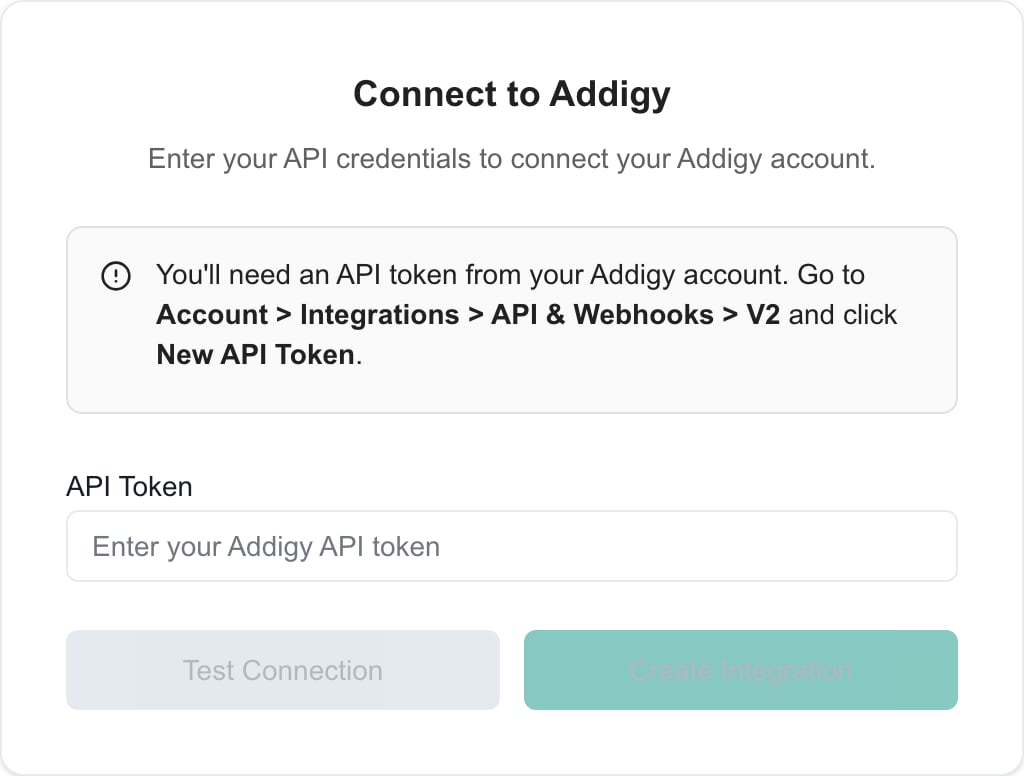
Go to Account > Integrations > API & Webhooks > V2.
3

Create a New API Token

Click New API Token and give it a descriptive name (e.g., “MSPortal Integration”).
A read-only API token is sufficient for MSPortal to sync your device and policy data. This follows the principle of least privilege.
4

Copy Your Token

Copy the generated API token immediately.
Copy the API token right after creation. It may not be retrievable once you close the dialog. Store it securely for use in MSPortal.

Required Information

Before proceeding to MSPortal, ensure you have:
InformationDescription
API TokenThe V2 API token generated in Addigy

Part 2: MSPortal Setup Wizard

MSPortal provides a guided setup wizard to connect and configure your Addigy integration.

Starting the Wizard

1

Navigate to Integrations

In MSPortal, go to Settings > Integrations.
2

Start Setup

Find the Addigy integration card and click Configure to launch the setup wizard.

Step 1: Connect

Enter your Addigy API token to establish the connection.
1

Enter API Token

Paste your Addigy V2 API token into the API Token field.
Your token is stored securely using encrypted vault storage. It is never exposed in logs or API responses.
2

Test Connection

Click Test Connection to verify your token. You will see a green “Connection successful” message when the test passes.If the connection fails:
  • Verify your API token is copied correctly without extra spaces
  • Ensure the token has not been revoked or expired
  • Confirm your Addigy account has API access enabled
3

Create Integration

Once the connection test passes, click Create Integration to save your credentials and proceed.

Step 2: Map Policies

Map your Addigy policies to MSPortal companies. Addigy uses policies as the primary organizational unit (similar to sites in other RMM tools). Only devices from mapped policies will be available for import.
1

Wait for Initial Sync

After creating the integration, MSPortal begins syncing your policies from Addigy. This may take a few minutes depending on the number of policies.
If no policies appear, wait a few minutes and check back. The initial sync runs in the background and may take several minutes.
2

Review Policy List

The mapping table displays all policies from Addigy with:
  • Policy Name - The name of the policy in Addigy
  • Mapped To - The MSPortal company (if mapped)
  • Confidence - Matching confidence score (for auto-matched policies)
3

Use Quick Match (Recommended)

Click Quick Match to automatically map policies to companies with similar names. This uses fuzzy matching to find likely matches.
  • Policies matched with high confidence are automatically mapped
  • Review the results and adjust any incorrect mappings
4

Manually Map Remaining Policies

For policies that were not auto-matched:
  1. Find the policy in the list
  2. Click the company dropdown in the “Mapped To” column
  3. Search for and select the correct MSPortal company
  4. The mapping is saved automatically
5

Unmap Policies (Optional)

To remove a mapping, click the X button next to the mapped company name.
6

Filter the List

Use the filter dropdown to show:
  • All - View all policies
  • Mapped - View only policies with company mappings
  • Unmapped - View policies that still need mapping
You must map at least one policy before proceeding to device import. Devices from unmapped policies will not appear in the import staging area.

Step 3: Import Devices

After mapping policies, import devices from Addigy into your MSPortal asset inventory.
1

Open Device Import

Click Open Device Import to access the full device import interface. This opens a dedicated page for managing device imports.
2

Complete Setup

Click Complete Setup to finish the wizard. You can always return to the device import page later from Settings > Integrations.

Part 3: Device Import

The device import page lets you configure device type mappings and selectively import devices. For a detailed guide on device type mappings, auto-sync, and category ignore, see Import Devices.

Device Type Mappings

Before importing devices, map Addigy device types to your MSPortal device types.
1

Use Quick Match

Click Quick Match to automatically map Addigy device types to existing MSPortal device types with similar names.
2

Use Quick Create for Remaining Types

Click Quick Create to automatically create new MSPortal device types for any unmatched Addigy types.
3

Enable Auto-Sync (Optional)

Check the Auto-Sync checkbox for device types you want automatically imported. New devices of these types will be imported without manual intervention during each sync cycle.
Auto-sync requires a device type mapping. You must select a “Maps To” value before enabling auto-sync.
4

Ignore Categories (Optional)

Check the Ignore checkbox for device types you never want to import. Ignored categories are dimmed and excluded from pending import counts.

Staged Devices

The Staged Devices table shows devices ready for import from mapped policies.
1

Trigger a Sync

Click Sync Now in the page header to fetch the latest devices from Addigy.
The initial sync may take some time to complete depending on the size of your fleet. Subsequent syncs are faster.
2

Review Staged Devices

The table displays:
  • Device Name - Hostname of the device
  • Type - Addigy device classification
  • Company - The mapped MSPortal company
  • Manufacturer - Always Apple for Addigy devices
  • Model - Device model (e.g., MacBook Pro, iMac)
  • Status - Whether the device has been imported
3

Filter Devices

Toggle Show only unimported to hide devices that have already been imported.
4

Select and Import

  1. Check the boxes next to devices you want to import
  2. Click Import Selected to import the selected devices
  3. Imported devices appear in your MSPortal device inventory
For bulk imports, use the device type mapping’s “Import All” button or click “Import All Mapped” instead of selecting individual devices.

What Gets Synced

Data TypeSync DirectionDescription
PoliciesAddigy to MSPortalPolicies for mapping to companies
DevicesAddigy to MSPortalAll managed Apple devices from mapped policies
Device TypesAddigy to MSPortalDevice model classifications for mapping
Hardware DetailsAddigy to MSPortalModel, processor, RAM, disk space
Security StatusAddigy to MSPortalFileVault, Firewall, Gatekeeper, SIP, MDM status
Network InfoAddigy to MSPortalIP address, MAC address, hostname
Battery DataAddigy to MSPortalBattery percentage, charging status, cycle count
User InfoAddigy to MSPortalCurrent user, user email
Online StatusAddigy to MSPortalWhether the device is currently online

Extended Device Data

Devices imported from Addigy include rich extended data visible in the Device Detail view. Click any device in the Devices module to see:
  • Hardware - Processor, RAM, total and free disk space with usage percentage
  • Security - FileVault encryption, Firewall, Gatekeeper, System Integrity Protection (SIP), MDM enrollment, supervised status
  • Network - Hostname, LAN IP, WAN IP, Wi-Fi and Ethernet MAC addresses
  • Battery - Battery percentage, charging status, and cycle count
  • User - Current logged-in user and email
  • System - OS version, agent version, last seen time

Sync Schedule

Addigy data syncs automatically on the following schedule:
Sync TypeScheduleDescription
PoliciesDaily at 2:00 AM UTCSyncs all policies from Addigy
DevicesEvery 4 hoursSyncs devices from mapped policies, updates staged data
You can trigger a manual sync at any time by clicking Sync Now on the device import page.

Managing Your Integration

After setup, manage your integration from Settings > Integrations:
ActionDescription
ConfigureRe-open the setup wizard to modify settings or re-map policies
Import DevicesAccess the device import page directly
ResyncTrigger a fresh sync of all data from Addigy
DeleteAvailable inside the Configure wizard - permanently removes the integration

Re-running the Wizard

You can return to any step of the setup wizard at any time:
  1. Go to Settings > Integrations
  2. Click Configure on the Addigy card
  3. Navigate between steps using the step indicators or Back/Next buttons

Updating API Credentials

If you need to update your Addigy API token:
1

Open Integration Settings

Go to Settings > Integrations and click Configure on the Addigy card.
2

Enter New Token

On the Connect step, enter your new API token.
3

Test Connection

Click Test Connection to verify the new token works.

Troubleshooting

Causes:
  • Incorrect API token
  • Token has been revoked or expired
  • Addigy account does not have API access enabled
Solutions:
  1. Verify your API token is copied exactly, without extra spaces
  2. Generate a new API token in Addigy (Account > Integrations > API & Webhooks > V2)
  3. Confirm your Addigy account has API access permissions
Causes:
  • Initial sync still in progress
  • API token lacks read permissions
Solutions:
  1. Wait a few minutes for the background sync to complete
  2. Click Sync to trigger a manual sync
  3. Verify your API token has the necessary read permissions in Addigy
Causes:
  • No policies have been mapped to companies
  • Device sync still in progress
  • Policies do not have any enrolled devices
Solutions:
  1. Map at least one policy to a company in the Map step
  2. Wait for the device sync to complete (can take several minutes initially)
  3. Click Sync Now to trigger a fresh sync
Causes:
  • Device type not mapped
  • Policy mapping was removed
Solutions:
  1. Ensure all device types have a “Maps To” value configured
  2. Verify the policy is still mapped to a company
  3. Check for error messages in the import results
Causes:
  • Auto-sync not enabled for the device type
  • Device type not mapped
  • Policy not mapped to a company
Solutions:
  1. Enable the Auto-Sync checkbox for the device type
  2. Ensure the device type has a “Maps To” mapping configured
  3. Verify the device’s policy is mapped to a company
Causes:
  • Device was recently imported and extended data has not synced yet
  • Device is offline and Addigy cannot collect current facts
Solutions:
  1. Wait for the next sync cycle to populate extended data
  2. Click Sync Now to trigger a manual refresh
  3. Verify the device is online in your Addigy portal

Best Practices

Map Policies First

Always map your Addigy policies to companies before trying to import devices. Unmapped policy devices will not appear in staging.

Use Quick Match

Start with Quick Match for policy mapping, then manually adjust any incorrect matches. It saves significant time.

Enable Auto-Sync

For device types you always want imported (like MacBooks and iMacs), enable Auto-Sync to reduce manual work.

Ignore Unwanted Types

Use the Ignore checkbox to permanently hide device types you do not manage. This keeps your pending import counts clean and accurate.

Security and Privacy

  • Credential Storage: Your Addigy API token is encrypted using vault storage and never exposed in logs or responses
  • Data Isolation: All synced data is tenant-isolated and only visible to your organization
  • Read-Only Access: MSPortal only requires read access to Addigy data; it never modifies your Addigy configuration
  • Rate Limiting: MSPortal uses conservative API rate limits to avoid triggering Addigy’s rate limit protections

Need Help?

For assistance with the Addigy integration, contact support@msportal.ai.