

Overview
DNSimple is a domain registration and DNS management service. By integrating DNSimple with MSPortal.ai, you can:- Keep an up-to-date inventory of every domain registered or hosted in your DNSimple account
- Map each domain to the MSPortal company it belongs to
- Track expiration dates, auto-renew status, and registration details
- Show domain renewals in client reports with the DNSimple Domains reporting block
- Build automation rules that alert you before a domain expires
Prerequisites
- Active DNSimple account
- DNSimple Account API token
- MSPortal.ai account with integration management permissions
Part 1: Generate a DNSimple API Token
Before connecting to MSPortal.ai, you need an Account API token from DNSimple.1
Log into DNSimple
Access your account at dnsimple.com.
2
Open Access Tokens
Go to your account page and open Account > Access Tokens.
3
Create the Token
Click to add a new access token and give it a recognizable name, such as
MSPortal Integration.4
Copy the Token
Copy the token immediately.
Part 2: MSPortal Setup Wizard
MSPortal.ai provides a guided 3-step wizard to connect DNSimple and map your domains.Starting the Wizard
1
Navigate to Integrations
In MSPortal.ai, go to Settings > Integrations.
2
Find DNSimple
Locate the DNSimple row in the list of available integrations.
3
Start Setup
Click Connect to launch the setup wizard.
Step 1: Connect
Enter your DNSimple Account API token to establish the connection.1
Enter the Token
Paste your token into the Account API Token field. Use the eye icon to show or hide the value while you paste.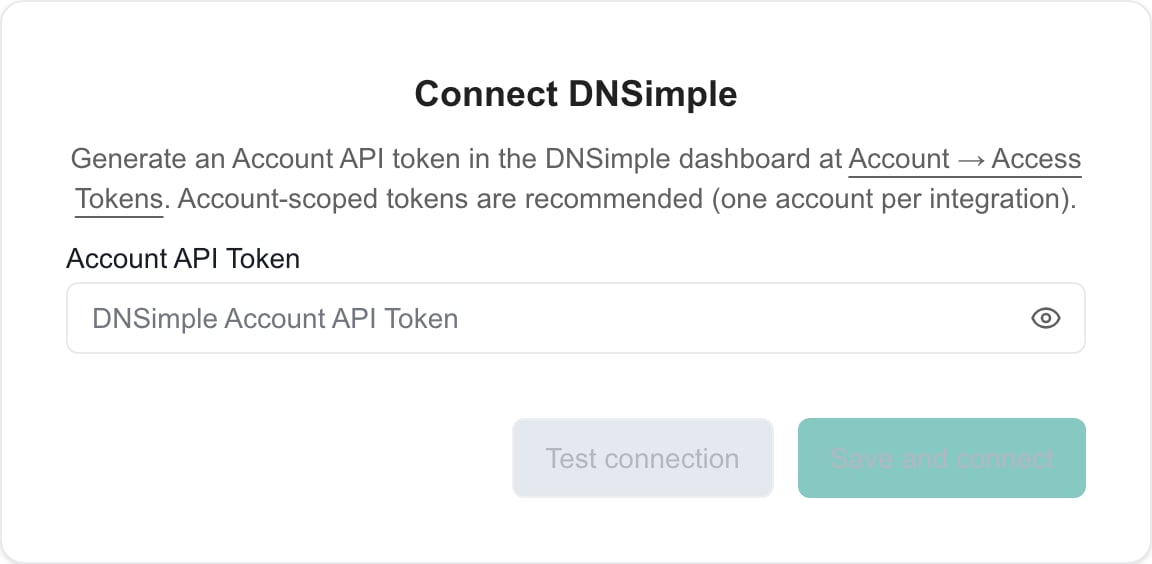
Your token is stored securely using Supabase Vault encryption. It is never exposed in logs or API responses.
2
Test the Connection
Click Test connection.When the test passes, you’ll see a “Connection works” confirmation showing the authenticated account email and account number.If the test fails:
- Verify you copied the full token without extra spaces
- Confirm the token is an account token and has not been revoked
3
Save and Connect
Click Save and connect to create the integration. MSPortal checks the token again, saves it, and starts an initial domain sync in the background.
Test connection does not save anything. Only Save and connect creates the integration.
4
Continue to Mapping
Click Next to open the Map Domains step.
Step 2: Map Domains
Map DNSimple domains to your MSPortal companies. Mapped domains are what power reporting and renewal alerts for each client.1
Wait for Domains to Appear
The initial sync usually completes in under a minute. If no domains are listed yet, click Sync Domains to fetch them from your DNSimple account.
2
Use Quick Match
Click Quick Match to automatically match domains to MSPortal companies based on name similarity. Review the suggested matches and adjust as needed.
3
Map Manually
For domains that were not matched automatically:
- Find the domain in the list
- Click the Select company… dropdown in the Mapped column
- Search for and select the correct MSPortal company
Domains can only be linked to companies that already exist. The mapping step does not create new companies, because a domain represents an asset of a client, not the client itself.
4
Ignore Domains You Don't Need
Click Ignore on an unmapped domain to remove it from the mapping backlog. Click Restore to bring it back. Both save immediately. Ignoring a domain does not delete it or change anything in DNSimple.
5
Apply Your Mappings
New matches show as Pending until you save them. Click Import Selected to save, then click Next to continue. Next also saves any pending mappings and starts another domain sync.Removing a saved mapping takes effect immediately.
Step 3: Complete
Confirm the integration and run the first full sync.1
Run a Full Sync
Click Run full sync to refresh the domain inventory. A full sync also purges any domains that have been transferred out of your DNSimple account since the last sync.
2
Complete Setup
Click Complete setup to finish the wizard and return to the Integrations page.You can revisit your mappings at any time under Settings > Integrations > Company Mapping.
What Gets Synced
The DNSimple integration keeps one record per domain in your account:- Domain name
- State: registered, or hosted (DNS only)
- Expiration date (registered domains)
- Registration date
- Auto-renew status
- Private WHOIS status
- The DNSimple Domains reporting block, showing renewal dates and auto-renew status
- Automation rules built on the DNSimple Domain entity, for example an alert 30 days before a domain expires
Synchronization Schedule
After initial setup, data syncs automatically:
The daily sync refreshes every domain’s details and removes domains that no longer exist in your DNSimple account.
You can trigger a manual sync at any time from the wizard’s Complete step with Run full sync, which is useful right after registering or transferring domains in DNSimple.
Managing Your Integration
After setup, manage your integration from Settings > Integrations:Rotating Your API Token
1
Open the Integration
Go to Settings > Integrations and click Manage on the DNSimple row.
2
Enter the New Token
On the Connect step, paste the new token. Leaving the field blank keeps the current token.
3
Test and Update
Click Test connection to verify, then Update credentials to save. Clicking Next does not save a new token.
Troubleshooting
Security & Privacy
- Token Storage: Your DNSimple token is encrypted using Supabase Vault and never exposed in logs or responses
- Data Isolation: All synced data is tenant-isolated and only visible to your organization
- Read-Only Access: MSPortal only reads domain information; it never changes your DNSimple domains or DNS records
Next Steps
After setting up the DNSimple integration:Build Reports
Add the DNSimple Domains block to client reports
Automation Rules
Alert your team before domains expire
Company Mapping
Manage domain-to-company links after setup
Other Integrations
Explore additional integration options