

Adobe Enterprise is currently in Beta and available to selected tenants. If you don’t see Adobe Enterprise in Settings > Integrations, contact support@msportal.ai. This integration uses VIP Marketplace OAuth credentials, not an Adobe personal or Creative Cloud login.
Prerequisites
- An Adobe Developer Console project with Commerce Partner API access
- The project’s client ID (API key) and client secret
- MSPortal.ai integration management permission
- MSPortal companies to map to Adobe customers
Connect Adobe Enterprise
1
Create OAuth credentials
In Adobe Developer Console, create or open a project with VIP Marketplace Commerce Partner API access. Copy the project’s Client ID / API key and Client secret.
2
Open the setup page
In MSPortal, go to Settings > Integrations, find Adobe Enterprise, and click Connect.
3
Enter the credentials
Enter the Client ID / API key and Client Secret.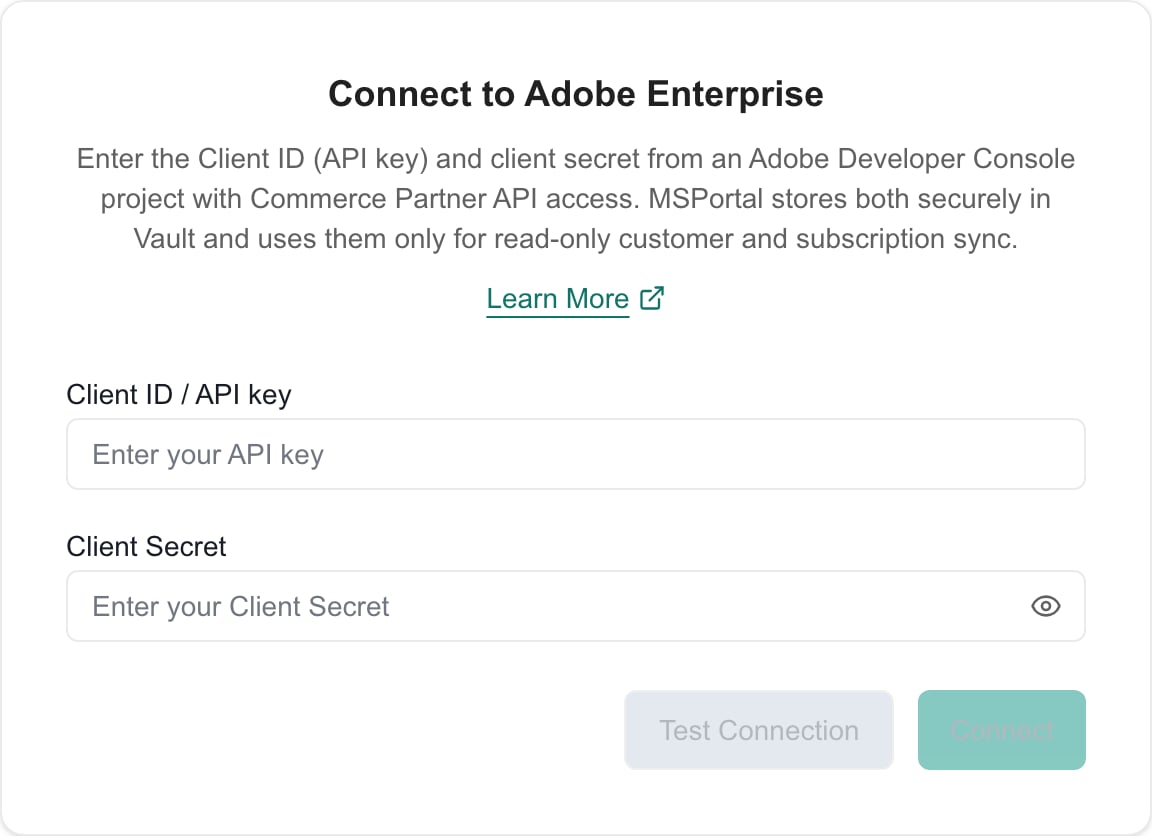
4
Test the connection
Click Test Connection. MSPortal verifies that Adobe accepts the OAuth credentials.
5
Connect
Click Connect to store the credentials securely in Vault. MSPortal starts pulling your Adobe customers and subscriptions right away so the next step has customers to map.
Map Adobe Customers
1
Review discovered customers
Click Next to continue to the Map companies step after customer discovery completes.
2
Match customers to companies
Click Quick Match to suggest mappings by name, or select the correct MSPortal company manually. Use Create new company to add a missing MSPortal company from the mapping workflow.
3
Save the mappings
Click Import Selected to save your pending mappings, or click Next, which saves them before moving on. Saved mappings associate Adobe subscriptions with the correct MSPortal companies.
Start the First Sync
In the Finish step, click Sync All Data. The synchronization runs in the background and imports the Adobe customer and subscription data available to the connected VIP Marketplace account. After data is available, use the Cloud licenses view to review Adobe subscriptions for mapped companies. This integration only reads data. It does not purchase seats, place orders, or assign licenses in Adobe.Managing the Connection
- Click Manage on your Adobe Enterprise connection to replace the client ID or client secret. Enter only the values you want to change, then click Update. A blank field keeps its stored value. If an older connection has no client secret saved, enter it before you continue.
- Run a manual refresh from the integration entry when you need current Adobe data immediately.
- To remove the integration, click Delete in the wizard footer and confirm in the Delete Adobe Enterprise Integration? dialog. This deletes its Vault credentials, synchronized Adobe data, and company mappings from MSPortal. It does not change data in Adobe or revoke the Developer Console credentials.
Troubleshooting
Related Resources
Licensing
Review licensing data in MSPortal
Integrations Overview
Manage all MSPortal integrations