

Before you start
- You can open Devices and the device’s company.
- The device came from an integration that reports an external IP address.
- The IP location service is available in your MSPortal environment.
- Your portal has active billing for new lookups.
- You do not enter a geolocation API key. The service is set up centrally.
Find an approximate location
1
Open Devices
Click Devices in the sidebar.
2
Open the device
Click the device Name. The panel opens on Overview.
3
Check the external IP
Find the IP location section. Read External IP and IP observed to see which address will be checked and when the integration last reported it.
When an external IP is available, its label and value appear beside the observation date, with Find approximate location below the fields. Devices without a reported external IP hide the section.
4
Click Find approximate location
MSPortal shows the city, region, country, and Accuracy it finds. Some fields can be missing. If a saved result is already shown, you can open the map right away.
5
Click Open map
This opens one approximate point in a new OpenStreetMap tab. It does not show all your devices together.
Check a location again
1
Click Check again
MSPortal reuses recent results to avoid extra lookups. If you can manage devices, Check again asks for a fresh lookup, with a short cooldown for the same IP. Other users can also click Check again, but they get the saved result until it is old enough to refresh.
2
Wait if a lookup is already running
If another lookup for the same IP is in progress, wait a moment and click Check again to get its result.
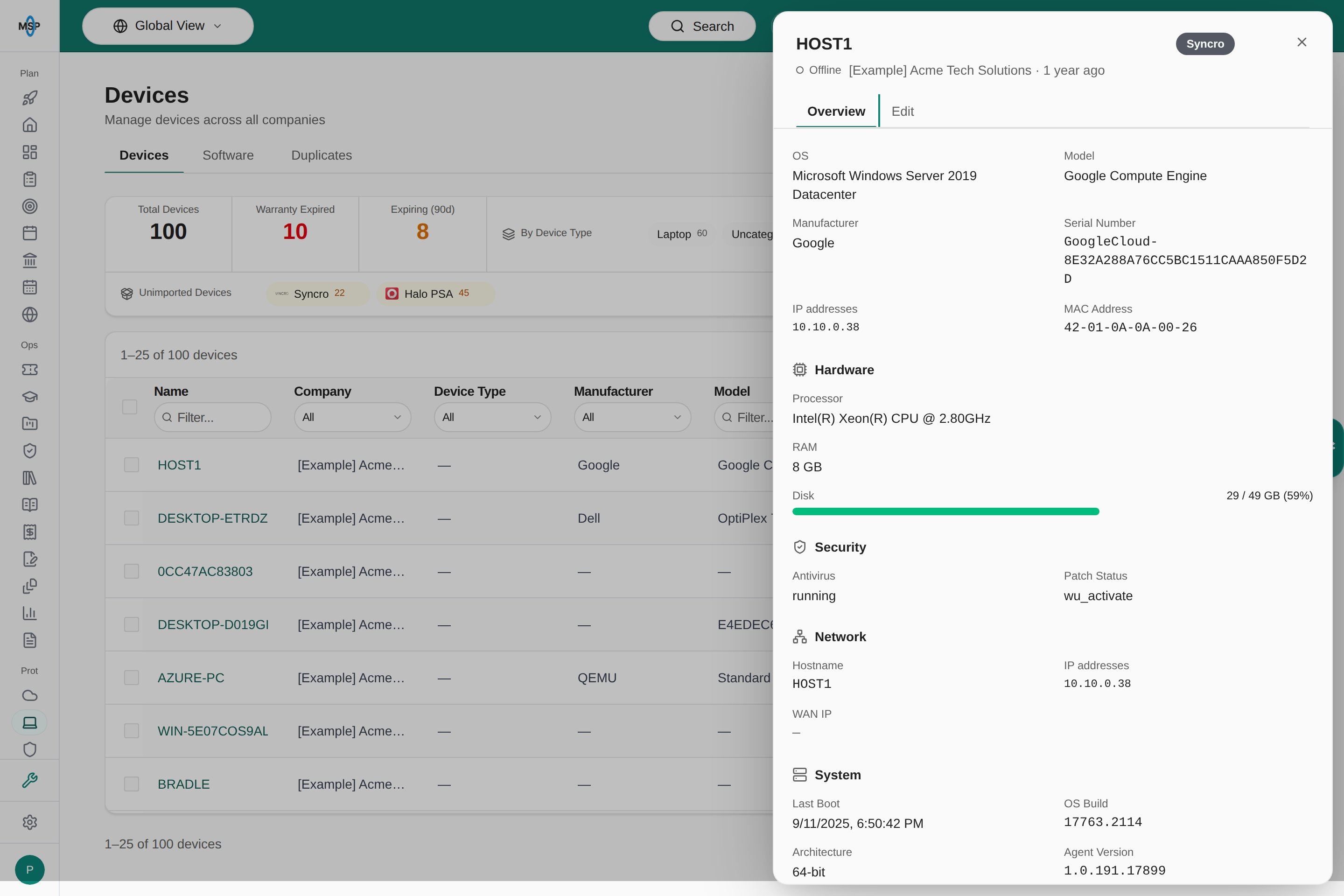
This Demo device has no external IP, so Overview hides the IP location section.
When no external IP is available
The IP location section is hidden when no external IP has been reported. In that case:1
Check the integration
Confirm the device’s integration is connected and syncing.
2
Check the source
Check that the source tool reports an external or public IP for the device.
3
Wait for the next sync
After the next device sync finishes, reopen the device.
Troubleshooting
Frequently asked questions
Can company users see device IP locations?
Can company users see device IP locations?
Yes, when their role lets them view the device. Your MSP controls company user permissions.
Does opening Overview run a paid lookup?
Does opening Overview run a paid lookup?
No. Opening the device only shows the saved result. Find approximate location and Check again start a lookup.
Does Check again always contact the location provider?
Does Check again always contact the location provider?
No. Most users get the saved result. Users who can manage devices can force a refresh, subject to the cooldown.
Do I need to save the device to keep a result?
Do I need to save the device to keep a result?
No. The result is saved on its own.
Can I type a different IP address?
Can I type a different IP address?
No. The lookup always uses the external IP on the device record.
Does Open map show all devices?
Does Open map show all devices?
No. It opens one point on OpenStreetMap.