

For Company users and MSP staff with access to the device. Provider portal and remote-access shortcuts are hidden from Company users. An MSP screenshot can include additional controls that your account does not have.
Read the Overview
- Confirm the device name and company in the panel header. A friendly display name may also show the underlying device name.
- Review the reported dates, including Last Seen in the inventory and any timestamps shown in the panel.
- Check the relevant fields below. A dash or absent section means the value is unavailable; it is not a successful health check.
A protection badge or recent inventory entry does not by itself establish that every security control is healthy. Use the relevant reported evidence and ask your provider about missing or unexpected values.
Purchase date and device age
Purchase Date appears in the Overview when one is recorded. The line under it shows where the date came from: Entered manually, or From followed by the source, such as ConnectWise PSA, Autotask, Halo PSA, IT Glue or ConnectWise RMM. Apple and Dell warranty lookups can also supply it. A date entered on the device is kept when syncs run. Clear it to use the date from your PSA or IT Glue again. See Add and edit device records. Device Age counts the years since the purchase date. When no purchase date is recorded, it counts from Warranty Start. A device with neither date has no age.Review Microsoft Entra ID and Intune details
When your MSP connects CIPP and the device has a matching Intune record, the Overview shows a Microsoft Entra ID and Intune section. It can include:
The note under the section gives the device name Intune reports, which can differ from the RMM name. The section is absent when CIPP has no Intune record for the device; that is not a compliance result. Intune devices that no RMM agent reports are listed in Devices > Not in RMM; see Find Intune devices missing from your RMM.
Understand the IP location section
Reported IP Address and External IP serve different purposes. The former may be an internal network address. IP location uses the integration-reported external IP to estimate the internet exit point.- IP observed describes when the external address was recorded.
- Last checked describes when that address was looked up for location.
- Find approximate location runs the available lookup; it can contact the configured location service.
- Open map opens the approximate coordinates on an external map.
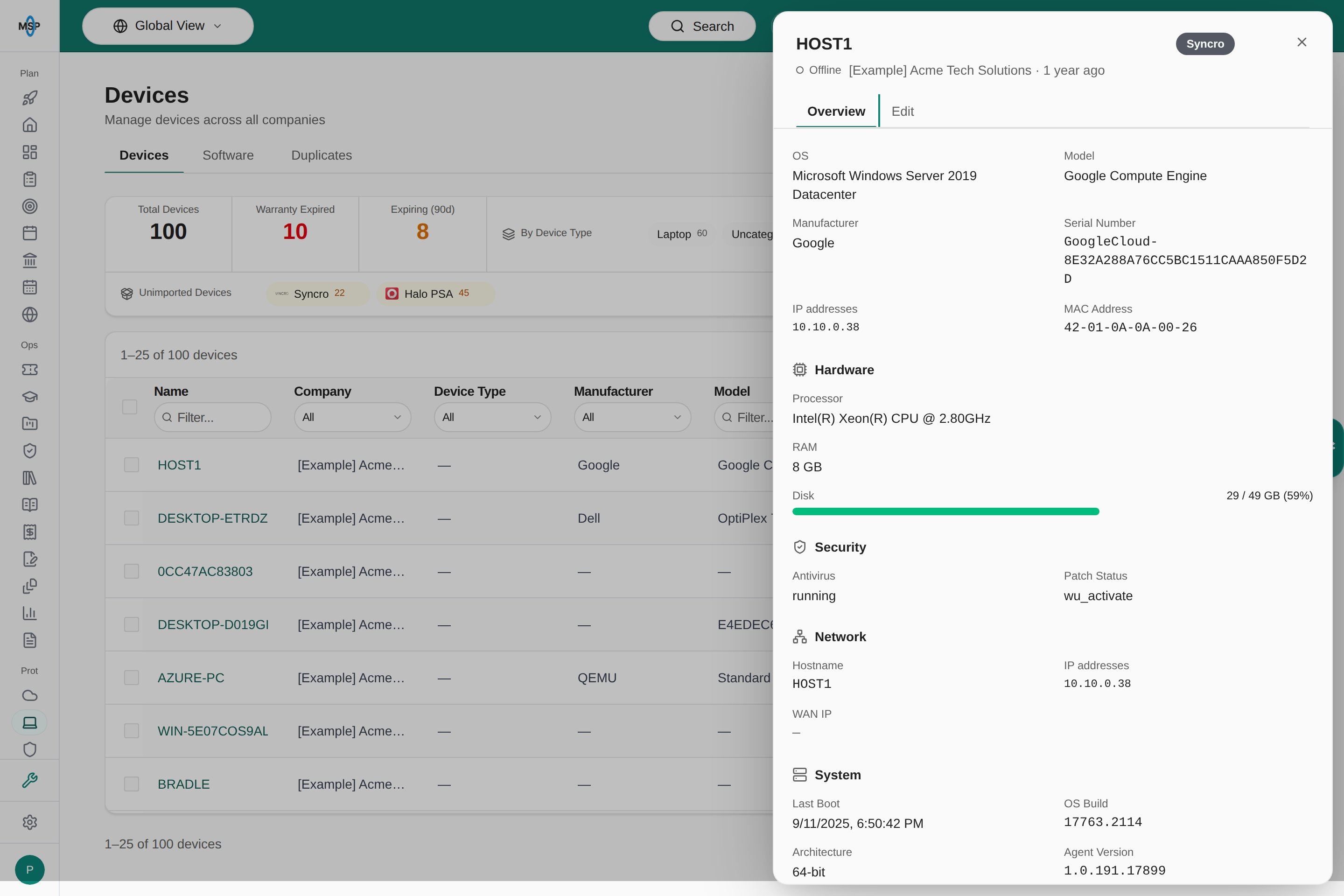
This Demo device has no Software tab or IP location section because those details are unavailable.
Open integration tabs
The detail panel can also offer:- Cork or Liongard, when the device has corresponding integration data.
- IT Glue, when the portal has an active integration and this device has an IT Glue mapping.
- Software, for MSP staff with device-read access when software inventory is enabled and installed inventory has been confirmed for this device. Review installed versions and lifecycle warnings. Urgent and High update priorities appear only when the separate Software assessments flag is enabled; see Software inventory.
- Edit, when your account has device-management permission.
Supported device resync controls sit beside the close button. Software inventory is available to MSP staff when enabled for the tenant.
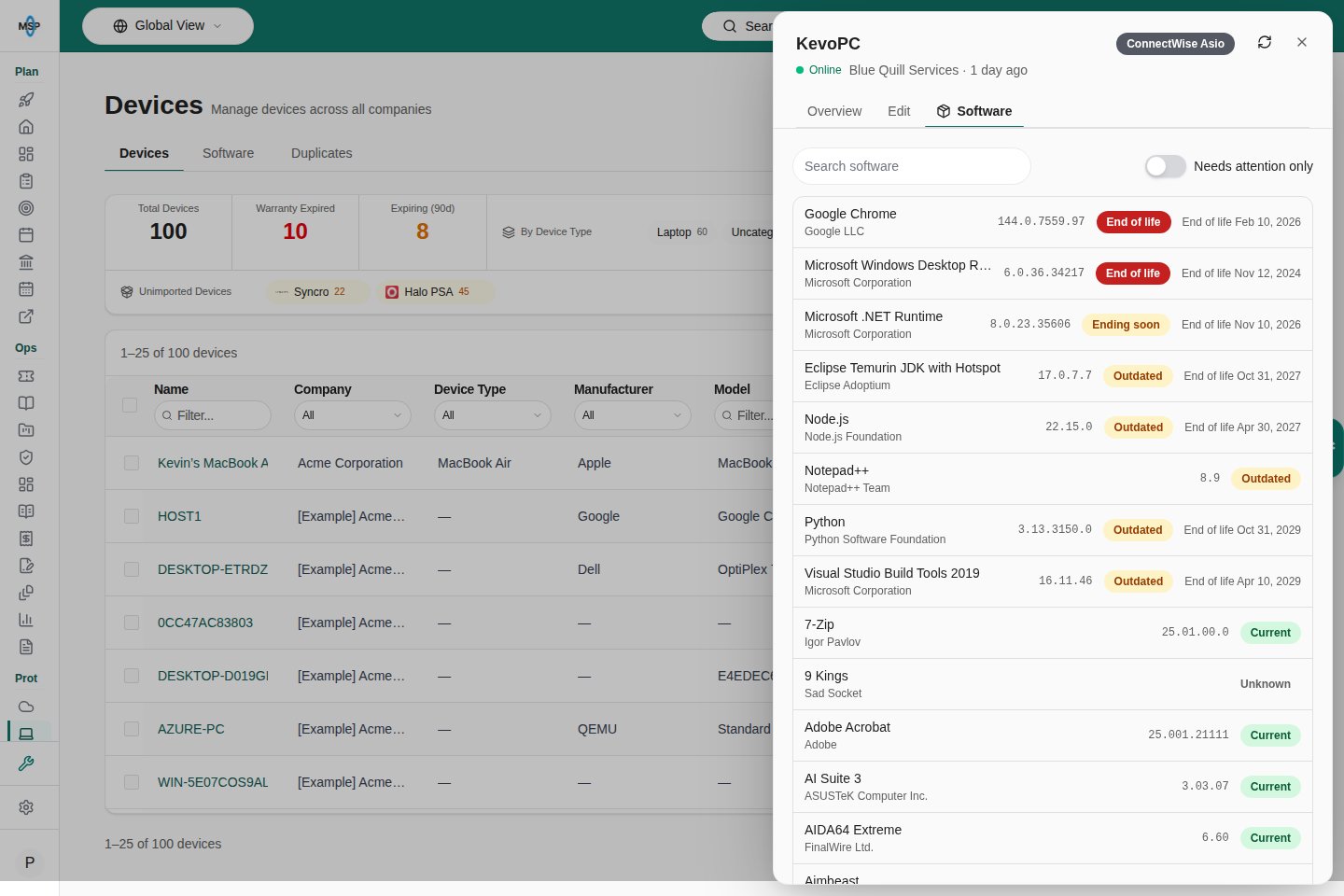
Device software with the resync action beside the close button.
Review installed software
These screenshots show the MSP staff view using Demo inventory; Company users do not receive the Software tab.
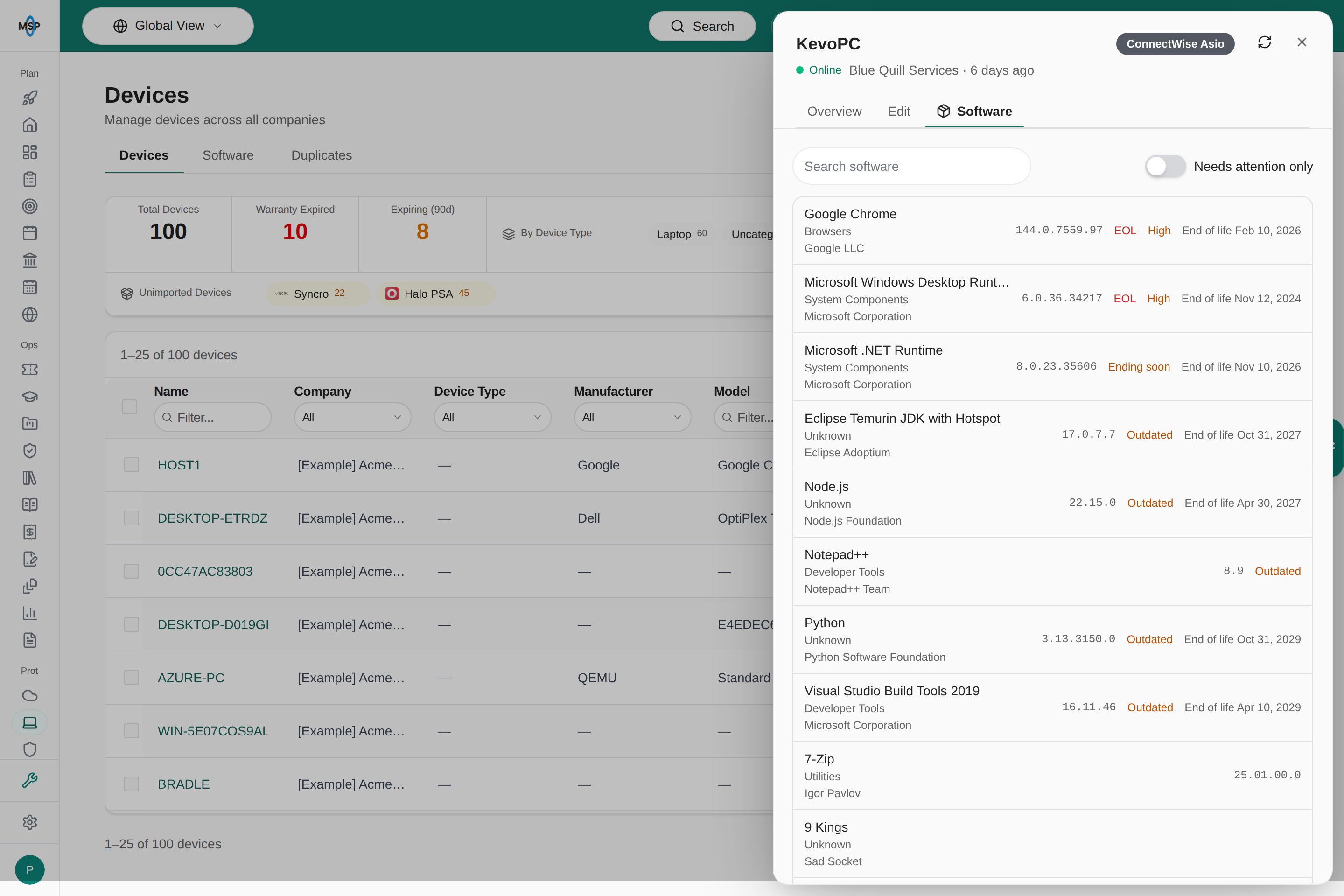
The device Software list on desktop.
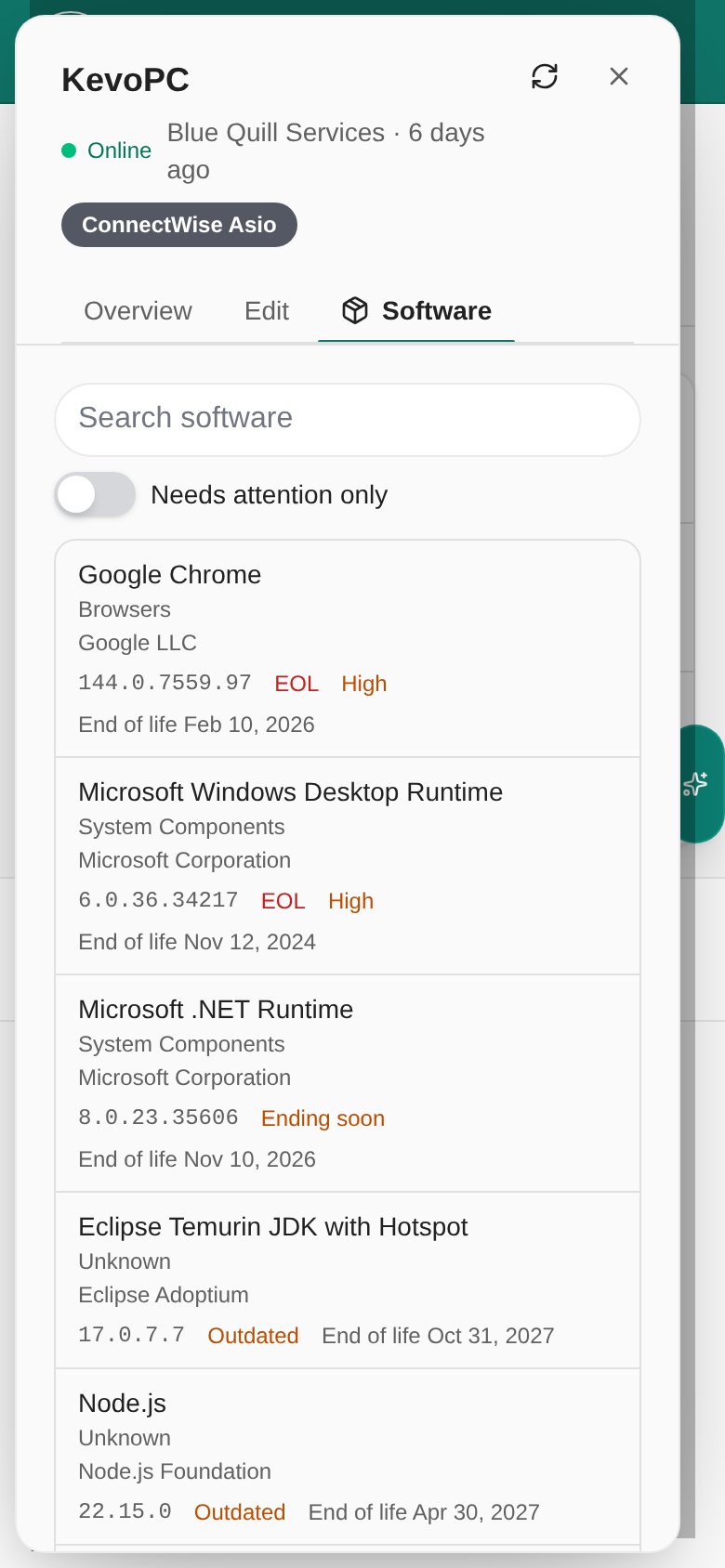
The same Software controls and list on a phone.
Report a problem with the record
Give your IT provider the device name, company, the field that appears wrong, and the reported date. Explain whether you are reporting an inventory error or a problem using the device. Opening a detail panel does not create a support ticket. If a section fails to load, close and reopen the device after the inventory has loaded. Do not treat missing extended details as proof that the device has no hardware, security tools, or network connection.Frequently asked questions
Does opening the panel run a fresh scan of the device?
Does opening the panel run a fresh scan of the device?
The panel primarily displays imported and cached information. Some MSP management views can refresh provider data, including an automatic refresh for supported ASIO devices. Opening the IP location section alone does not force a new location lookup. Check the reported timestamps.
Why are Hardware, Security, or Battery missing?
Why are Hardware, Security, or Battery missing?
The connected source may not supply that information, or its details may not have loaded. Missing information is not a healthy or unhealthy result by itself.
Can I remotely control my computer from this page?
Can I remotely control my computer from this page?
Company users do not receive the MSP provider or remote-access shortcuts. MSP staff may see external links when a connected source supplies them; those services have their own access requirements.
Why does the device name differ from the inventory name?
Why does the device name differ from the inventory name?
Some integrations supply a friendly display name. The panel can show that name together with the underlying device name so you can identify the same record.
Why does Device Age differ from the warranty start?
Why does Device Age differ from the warranty start?
Device Age counts from the purchase date when one is recorded, and from the warranty start only when there is no purchase date.
Does a missing warranty date mean it expired?
Does a missing warranty date mean it expired?
No. It means no date is available in the record. Ask your provider to confirm coverage.
Which coverage does an automatic warranty check use?
Which coverage does an automatic warranty check use?
The latest end date across all coverage the manufacturer lists for the serial number. For HP that includes the factory warranty, bundled warranty and Care Packs. A coverage whose start date equals its end date is a placeholder, not real coverage, so the device shows no warranty date until real dates are found.
Is IP location live GPS tracking?
Is IP location live GPS tracking?
No. It estimates the location of the internet exit point associated with a reported external IP. Check both observation and lookup dates.
Why is IT Glue missing for this device?
Why is IT Glue missing for this device?
The tab requires an active IT Glue integration and an IT Glue mapping for this device. Ask the MSP to check the saved mapping and your access.
Does closing the Edit panel prove my changes were saved?
Does closing the Edit panel prove my changes were saved?
No. Check any error message, reopen the device, and verify the intended values. A closed panel alone is not confirmation of a successful update.