

Branch preview for the Devices software update. For MSP staff with access to Devices. Company users do not see the Software tab. The tab appears when the Software inventory feature is turned on for your portal.
Before you start
- Connect ConnectWise Asio or Datto RMM and import devices. Software is collected only for imported devices.
- Choose Software in the integration’s dedicated Sync step. New connections sync software after devices are imported. Ongoing inventory syncs run daily: ConnectWise Asio at 04:00 UTC and Datto RMM at 04:30 UTC. See Sync schedules.
- See Choose what the integration syncs to enable or disable inventory collection.
Review software across your clients
1
Open Software
Select Devices > Software. The company selector applies, so choose the companies you want to review.
2
Read the summary
The summary shows Tracked products, Installs, Needs attention, and Devices with inventory. Needs attention breaks down into end of life, ending soon, and outdated installs.
3
Focus on what needs attention
Select Needs attention in the summary, or choose Needs attention in the Status filter. Use the Product filter to search by name or publisher. Every data column supports sorting and filtering: numeric columns accept ranges and Next end of life accepts a date range. Filters apply to the full matching inventory, including rows on later pages.
4
Choose which products to show
Applications is the default view. Include system components adds runtimes and vendor utilities that have no lifecycle data, such as Visual C++ redistributables. Ignored lists products you have ignored.
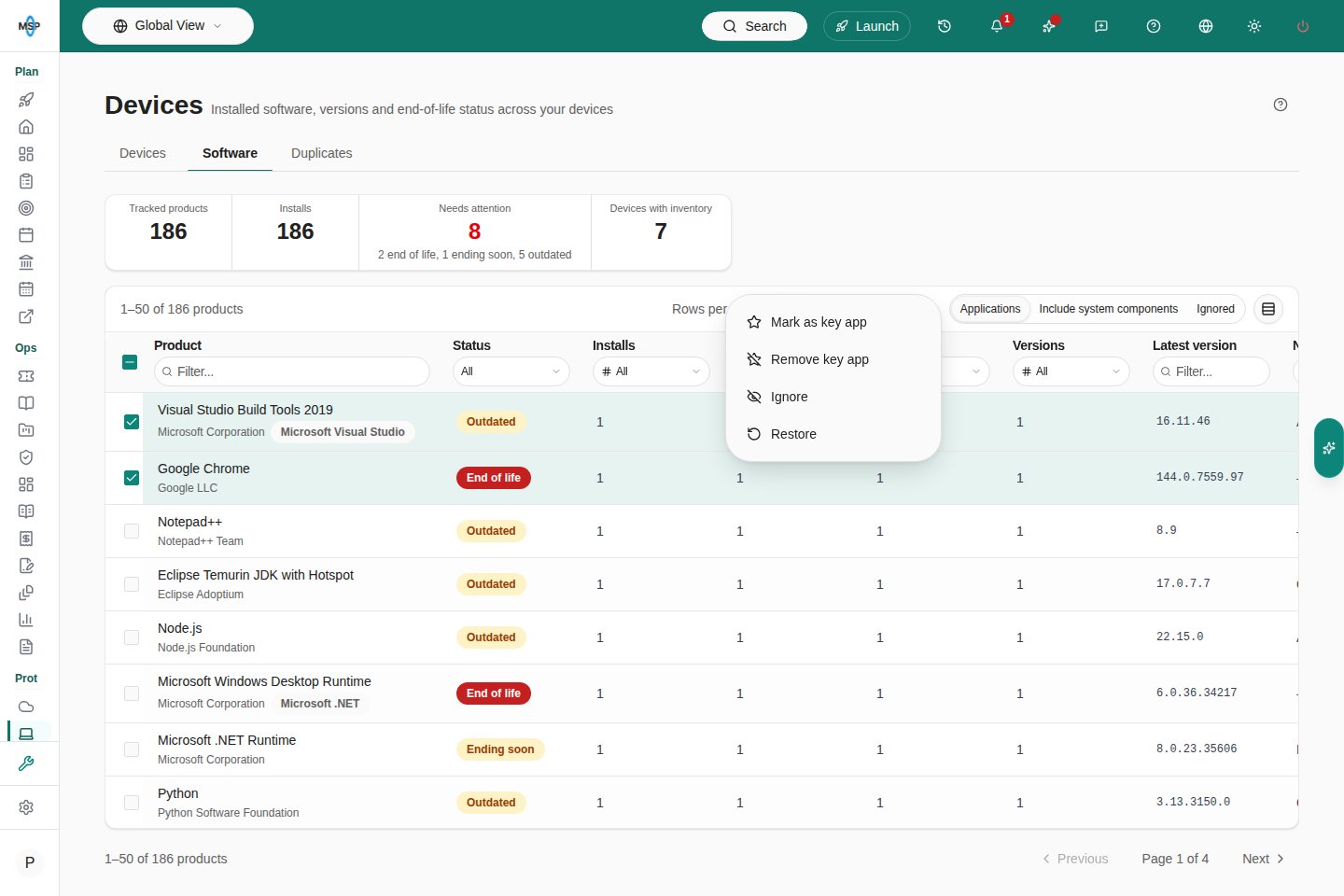
Branch preview: select products for bulk classification on Devices > Software.
What each status means
End-of-life dates and latest versions come from endoflife.date, refreshed daily. Products with a reported version but no lifecycle data are Current unless you set a target version. Current means no known issue was found; it does not establish that the vendor supports the installed release.
Investigate a product
Select a product to open its details. The sheet shows the lifecycle source, each installed version with its status and end-of-life date, and the devices that have the product.- Select a version to list only the devices running it. Select it again to clear the filter.
- The Status filter defaults to Needs attention only. Clear it to see every device with the product.
- The compact device table supports sorting and filtering by device, company, version, and status. It displays 25 rows per page.
- Select a device to open its details.
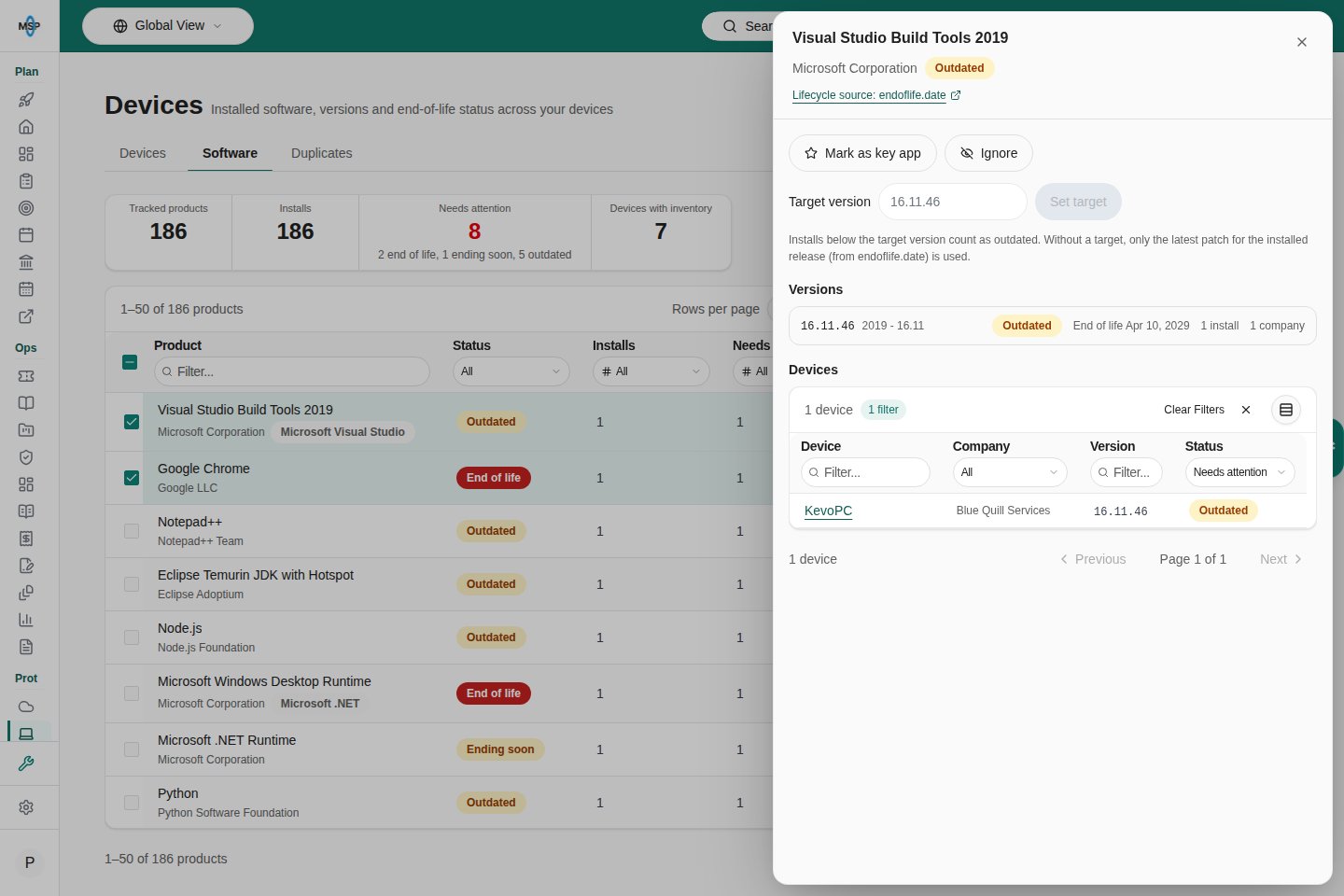
Branch preview: the product sheet with a compact table of affected devices.
Update several products
- Select the intended products using their checkboxes. Selection applies to the current page, with up to 200 products per page.
- Open Actions (selected count) and choose Mark as key app, Remove key app, Ignore, or Restore.
- Review the result. Ignored products move to Ignored, where you can select and restore them. Changing company scope, filters, sorting, or pages clears selection.
Mark key apps, ignore products, and set a target version
MSP staff who can edit devices can change these settings in the product sheet. Each change saves immediately.Check one device’s software
Open a device from Devices and select its Software tab. The list shows each product with its version, status and end-of-life date, worst status first. Use Search software or turn on Needs attention only to narrow the list.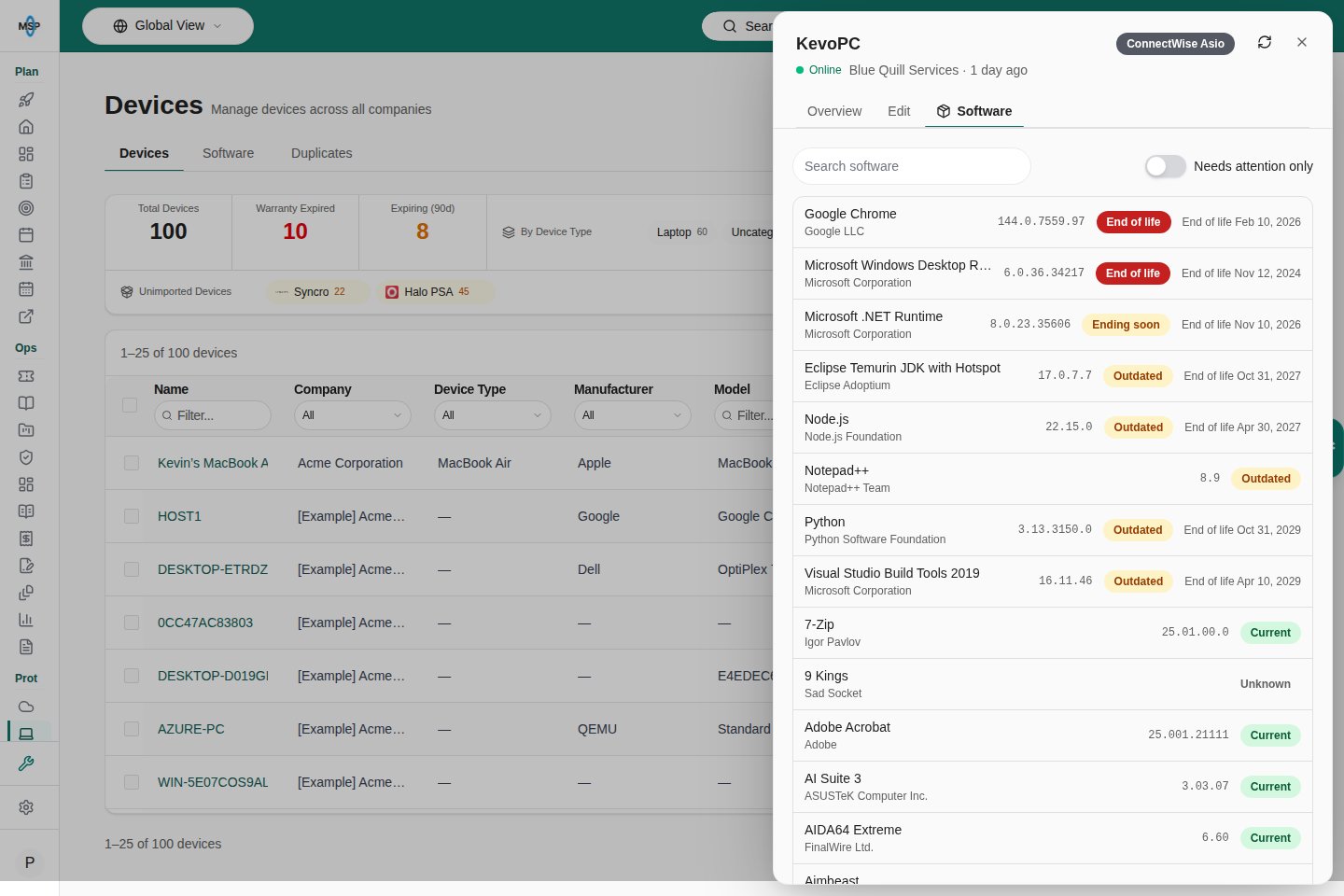
Branch preview: device software with the resync action beside the close button.
Retrieve software information through MCP
Connect an AI client to the MSPortal MCP server and ask for installed products, key applications, outdated or end-of-life installs, product version details, or the devices running a particular product. The server reads the same staged inventory within your staff permissions and selected company scope. The grouped query_software tool exposes four read actions: get_software_inventory_overview, list_software_products, get_software_product, and list_software_product_devices. Use the schemas returned by your connected server; product and device lists are paginated. Product details return up to 200 version groups and signal truncation when that cap is reached. These actions do not install, update, uninstall, or reclassify software. Use the Software workspace to change key-app, ignore, or target-version settings.Choose what the integration syncs
1
Open the integration
Go to Settings > Integrations, open your ConnectWise Asio or Datto RMM integration, and continue to the Sync step.
2
Select supported categories
Asio offers Companies, Locations, Devices, Networks, Tickets, and Software. Datto RMM offers Companies (Datto sites), Devices, and Software.
3
Save your choices
Select Next to save the choices and continue to company mapping and imports. Existing connections retain their current behavior until you save different choices.
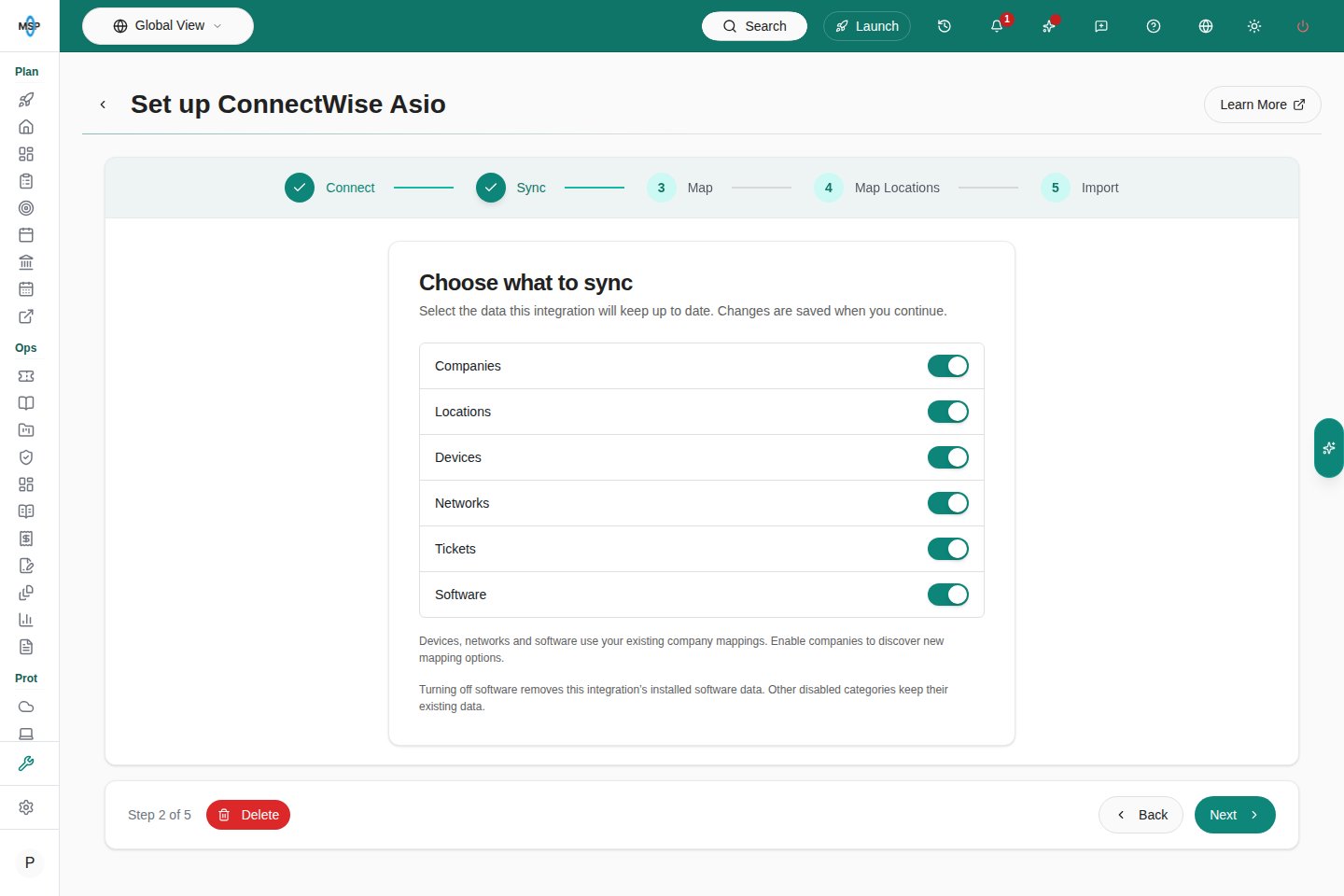
Branch preview: choose what ConnectWise Asio syncs.
Troubleshooting
Frequently asked questions
Why is a browser that updates itself not flagged as outdated?
Why is a browser that updates itself not flagged as outdated?
Browsers and other auto-updating apps move through versions quickly. They are flagged when their release passes end of life by more than 30 days, or when they fall below a target version you set.
Does ignoring a product remove it from the RMM?
Does ignoring a product remove it from the RMM?
No. Ignoring only hides the product in MSPortal. Nothing changes on the device or in the RMM.
Can my clients see this tab?
Can my clients see this tab?
No. The Software tab is available to MSP staff only.
Devices
Return to the Devices overview.
Understand device details
Read the other tabs in a device’s details.