

Before you start
- Add Device needs Write or Manage access to Devices. Without either, the button is disabled. The Edit tab, and editing a device, need Manage access. Your MSP sets this.
- Adding, editing, and deleting also need an active MSPortal subscription.
- Search the inventory first. A connected tool may have already imported the device.
Add a manual device
1
Check for an existing record
In Devices, filter by Name or Serial Number.
2
Click Add Device
The button is at the top right of the page. A panel opens.
3
Enter the Name
Name is required.
4
Choose the Company
Company is required. Check it even when you opened the form from a filtered list. Then choose a Location for that company if it fits.
5
Fill in what you know
Choose Device Type and Manufacturer. Add OS, IP Address, MAC Address, Serial Number, Warranty Start, and Warranty End. Leave unknown fields empty.
6
Check Status and Auto Apply Groups
Status is a text field. Auto Apply Groups is a switch. Use them the way your MSP uses them. They do not change the physical device.
7
Click Add Device in the footer
A message confirms “Device created successfully.” Find the record in the company’s inventory and open it to check the values. Click Cancel to close the panel without saving.
Edit a device
1
Open the device
Click the device Name. You can also open the row menu and choose Edit.
2
Click the Edit tab
Wait for the current values and custom fields to load.
3
Change the fields
Update what you need. When you move a device, change Company and Location together. Fill in any custom fields your MSP marked as required.
4
Click Update Device
Nothing saves until you click it. Watch for a success or error message, then reopen the device to check the saved values.
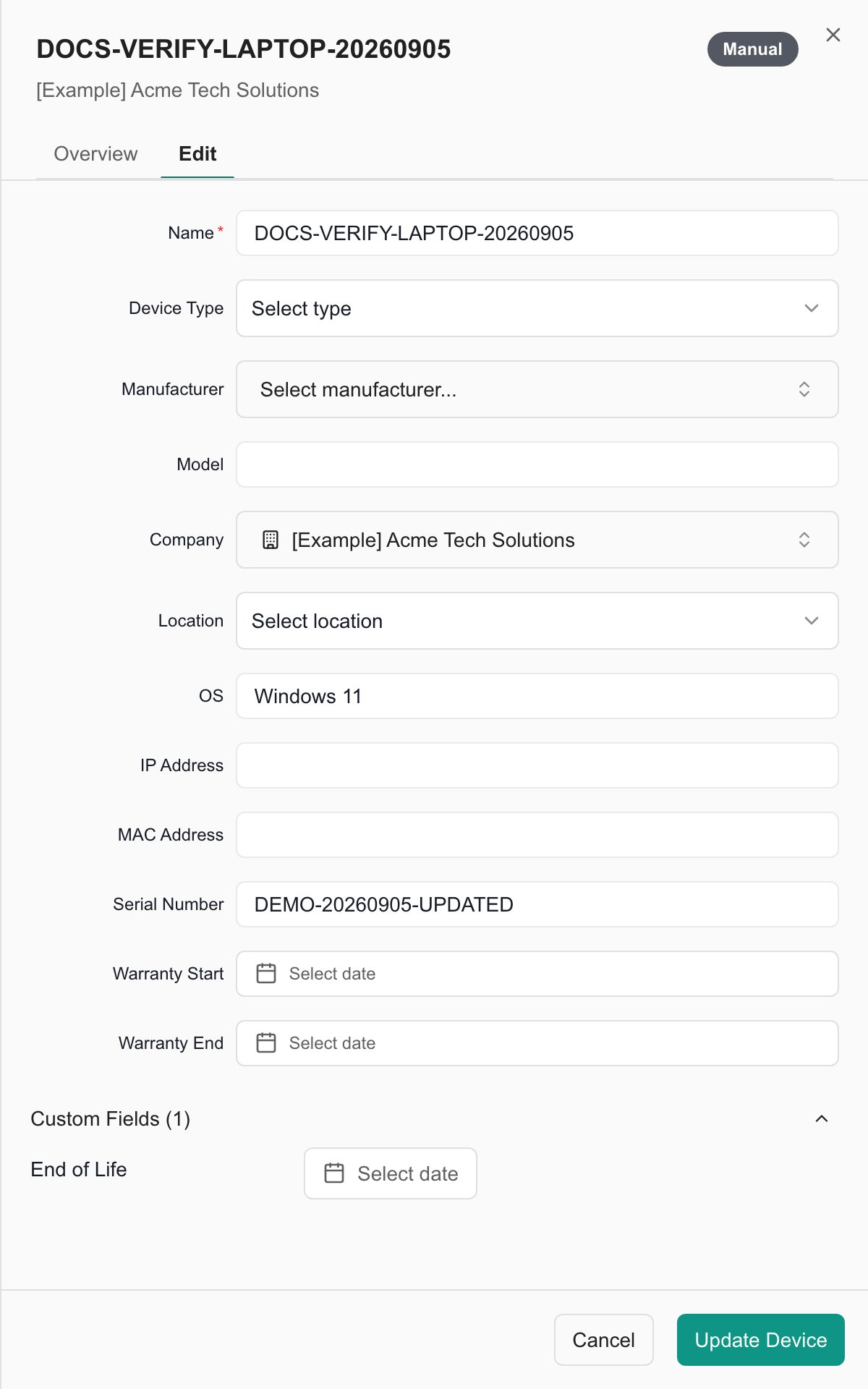
The Edit tab after saving and reopening an example device. Blank fields have no recorded value.
Set a purchase date
Purchase Date is on the device’s Edit tab. Connected tools fill it in where they have one: ConnectWise PSA, Autotask, Halo PSA, IT Glue, ConnectWise RMM, and Apple and Dell warranty lookups.1
Open the Edit tab
Open the device and click Edit.
2
Pick the date
Choose a date in Purchase Date.
3
Click Update Device
The Overview then shows the date with Entered manually.
purchase_date value is saved as a manual date, and a blank cell leaves the stored date unchanged.
Edit a device that came from an integration
Synced devices take their details from the connected tool.- Meraki devices show some fields as read-only (“Some fields synced from Meraki”). You can still change warranty dates, company, location, and custom fields.
- A field the connected tool controls can be replaced at the next sync.
- A Purchase Date you enter is kept across syncs.
- Update Device changes the portal record. It does not change the physical computer or write the change back to your RMM or PSA.
Delete a device record
1
Open the row menu
Click the actions button at the end of the device’s row.
2
Choose Delete
This needs manage access to Devices.
3
Confirm
Check the name in the Delete Device dialog, then click Delete.
Troubleshooting
Frequently asked questions
Does Add Device install monitoring or antivirus?
Does Add Device install monitoring or antivirus?
No. It only creates an inventory record. Your MSP sets up agents and integrations elsewhere.
Why do I have to check Company when the list is already filtered?
Why do I have to check Company when the list is already filtered?
The form has its own company field. Check it so the record lands in the right company.
Does a field save as soon as I type?
Does a field save as soon as I type?
No. Click Add Device for a new record or Update Device on the Edit tab.
Does Delete erase the physical device?
Does Delete erase the physical device?
No. It removes the portal record. Wiping a device or removing an agent is done in your RMM.