

Bitdefender GravityZone is in Beta. It is available to every tenant and shows a Beta badge in Settings › Integrations › Directory. If something does not match your GravityZone console, contact support@msportal.ai.
What the integration covers
- Covered: GravityZone Cloud consoles, the managed endpoints of each GravityZone company, their agent health, and license use.
- Not covered: on-premises GravityZone consoles, detection and incident details, quarantine, and EDR or XDR events. Bitdefender endpoints are not added to Devices; coverage is compared with the devices your RMM already reports.
Before you connect
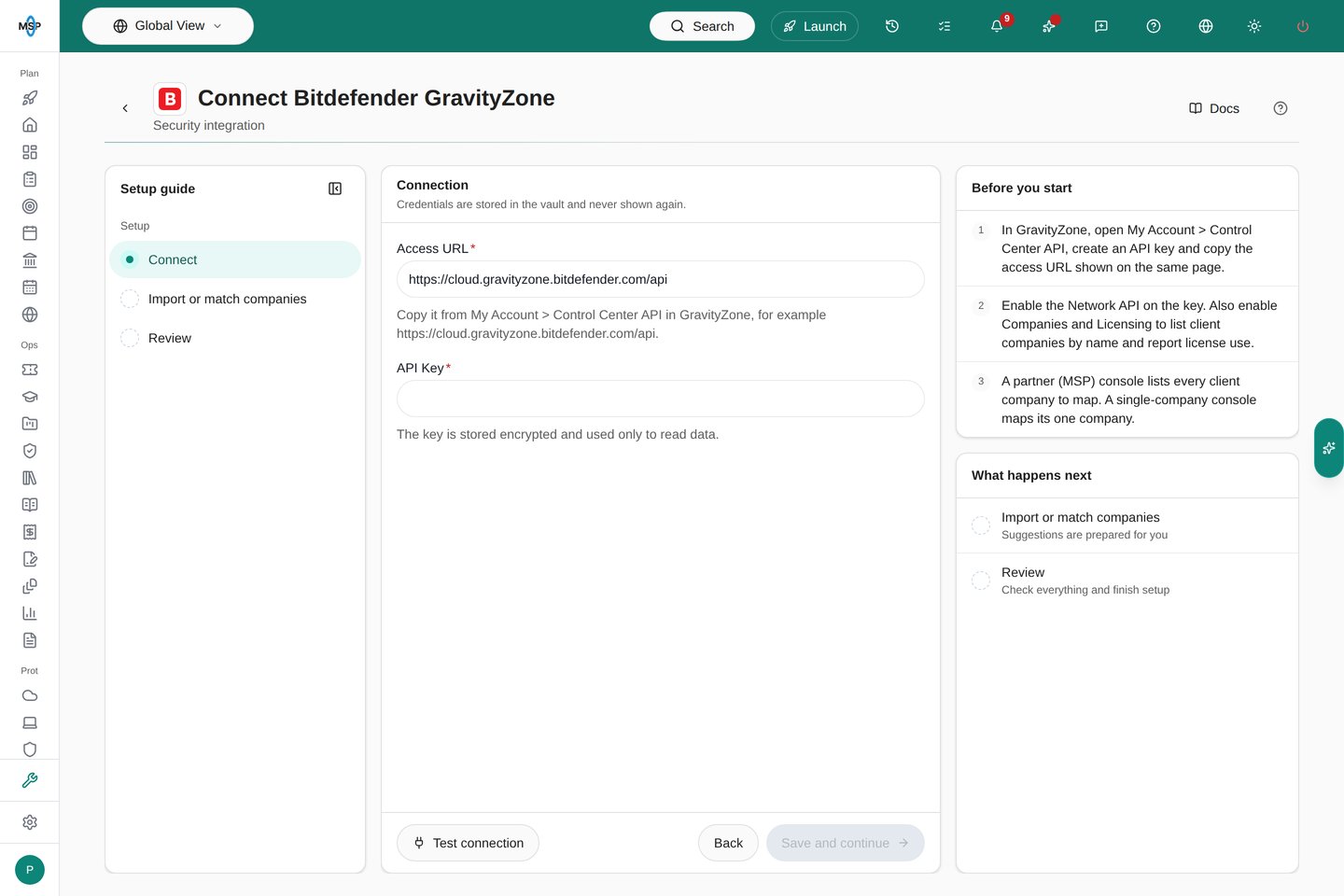
Create an API key in GravityZone Control Center:- In GravityZone, open My Account › Control Center API and create an API key.
- Enable the Network API on the key. Also enable Companies and Licensing to list client companies by name and report license use.
- Copy the key, and copy the access URL shown on the same page, for example
https://cloud.gravityzone.bitdefender.com/api.
Connect
- Open Settings › Integrations, choose Directory, find Bitdefender GravityZone, and choose Connect.
- Enter the Access URL and paste the key into API Key.
- Choose Test connection. A rejected key, a key without the Network API, or an address that is not a GravityZone access URL each shows its own reason.
- Choose Save and continue. MSPortal saves the key in the vault and starts the first sync.
Match companies
Open Import or match companies. Link each GravityZone company to its MSPortal company: accept the suggestion, choose another company, or use Import company to create one. Accept strong matches accepts every suggestion at 90% confidence or more after you review them. Ignore hides a GravityZone company that is not a client’s, and you can restore it later. Reports, the dashboard and AI reports count endpoints only for matched companies.Where the data appears
- Security › Endpoints: Bitdefender endpoints appear with the source Bitdefender, an online status, and badges for Infected, Malware detected, Signatures outdated and Agent outdated. Open an endpoint to see the Bitdefender agent section: agent version, license, last update, antivirus signatures, agent updates, malware, policy, network isolation and protection modules. See Find security endpoints.
- Reports: add the Bitdefender Protection Coverage block. It compares protected endpoints with the devices your RMM manages, counts healthy endpoints and agent problems, and lists the companies with the largest coverage gaps. It compares device counts; endpoints are not matched to RMM devices one by one. It reflects the latest sync, not the report period.
- AI reports: security reports include a Bitdefender summary and the endpoints with problems.
- Assistant and MCP: ask which endpoints have outdated signatures, or use
list_bitdefender_endpoints.
Sync and troubleshooting
GravityZone syncs every 4 hours. To sync now, choose Run sync on the connection page or on the integration’s row. Large consoles take longer because MSPortal stays within GravityZone’s API rate limits.- GravityZone rejected this API key: check that the key was copied in full and is still active.
- This API key cannot read endpoints: enable the Network API on the key, then test again.
- GravityZone did not answer at this access URL: copy the access URL again from My Account › Control Center API.
- License counts are missing: enable the Licensing API on the key, then run a sync.
- An endpoint is missing: only managed endpoints sync. Check that the endpoint has a GravityZone agent and that its company is matched.