

Before you start
- You need Security read access.
- Cork, Acronis, or Bitdefender GravityZone must be connected. Without one of them, the Endpoints tab does not appear.
- Your MSP manages integrations and company mapping. See Enable the Cork integration, Enable the Acronis integration, and Configure Bitdefender GravityZone Integration.
Find a device
1
Open Endpoints
Open Security > Endpoints and check the company selector.
2
Search by name
Type in the Device Name column filter to narrow the list. Wait for the table to finish loading.
3
Filter the list
Use the column filters to narrow further. Status offers Online, Offline, and Unknown. Company lets you pick companies. Source lets you pick one or more of the sources in your data. Last Seen takes a date range.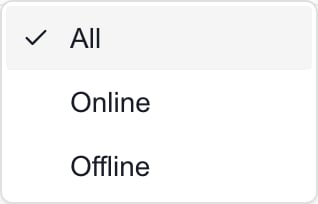
4
Identify the right record
Check Company, OS, and Source. Cork records show Cork - followed by the source tool name. Acronis records show Acronis, and Bitdefender GravityZone records show Bitdefender. The same device can appear once per source.
5
Open the details
Click a row, away from its checkbox, to open the side panel. See Read security endpoint details.
Read status and dates
- Status comes from Acronis and Bitdefender. It shows Online or Offline for their devices and is blank for Cork devices, which count as Unknown in the filter. A blank Status does not mean a Cork device is offline. A suspended Bitdefender endpoint counts as Offline.
- Online does not mean Protected. Protection status is in the side panel for Acronis and Bitdefender records.
- Last Seen is blank for Acronis rows, because Acronis does not report it. The registration date is in the side panel, under Acronis Agent. A badge like 45d ago appears when a date is more than 30 days old.
Read Bitdefender badges
Bitdefender rows can show badges beside their status:
Badges reflect the latest GravityZone sync, every 4 hours. Open the row to see the Bitdefender agent section with the agent version, license, last update, policy, network isolation, and protection modules.
Follow up on endpoints
Select rows from one company, then open Actions (N) in the page header.- Add to Meeting adds the endpoints to an upcoming meeting agenda. See Add Cork findings to a meeting agenda.
- Add to Planner creates one Planner item. It appears only if your role has Planner write or manage access. See Add security findings to Planner.
Troubleshooting
Frequently asked questions
Why is Status blank for a Cork endpoint?
Why is Status blank for a Cork endpoint?
Status comes from Acronis online information. Cork does not supply it, so the cell stays blank.
Why is Last Seen blank for an Acronis endpoint?
Why is Last Seen blank for an Acronis endpoint?
Acronis does not report a last-seen time. Check Status for the connection state, and the side panel for the registration date.
Is this the same as the Devices inventory?
Is this the same as the Devices inventory?
No. Security Endpoints lists records from Cork, Acronis, and Bitdefender GravityZone. See Find devices for the device inventory.
I am a company user. How do I ask about a device?
I am a company user. How do I ask about a device?
Describe it to the Home AI Assistant, including the device name, company, and source, then confirm the request when prompted.