

Overview
The Liongard integration syncs configuration audit data into MSPortal, allowing you to:- Import environments, systems, and inspectors from Liongard
- Sync configuration metrics and their current values across all clients
- Track security detections and anomalies
- View per-device Liongard data directly in the Device Detail panel with pass/fail/warning metrics and change history
- Map individual metrics to MSPortal compliance checks for automated audit evidence
Prerequisites
Before you begin, ensure you have:- Active Liongard account with API access
- MSPortal.ai account with integration management permissions
- Companies already set up in MSPortal (from your PSA integration or manually created)
Part 1: Generate API Credentials in Liongard
Before connecting to MSPortal.ai, you need to create API credentials in your Liongard instance.Log into Liongard
us1, us2, ca1, eu1, but your instance may also have a custom name (e.g., safari). Your instance name is the subdomain in your Liongard URL:Navigate to Access Keys
Create an Access Token
Note Your Roar Instance Name
us1, ca1, or a custom name like safari). You will need this when connecting in MSPortal.Required Information
Before proceeding to MSPortal, ensure you have the following:Part 2: Connect in MSPortal
Go to Settings > Integrations, open the Directory tab, find Liongard, and select Connect. If Liongard is already connected, open it from the Active tab with Open instead. The connection page lists its tasks in the Setup guide. Under Setup you will find Connect, Choose data, Import or match companies, Import devices, and Review. Under Manage you will find Overview and Sync activity. Select a task to open it.Connect
Enter Instance URL
- Just the instance name (e.g.,
us1,ca1,safari) - The full URL (e.g.,
https://us1.app.liongard.com)
https://us1.app.liongard.com or safari in https://safari.app.liongard.com).Enter API Credentials
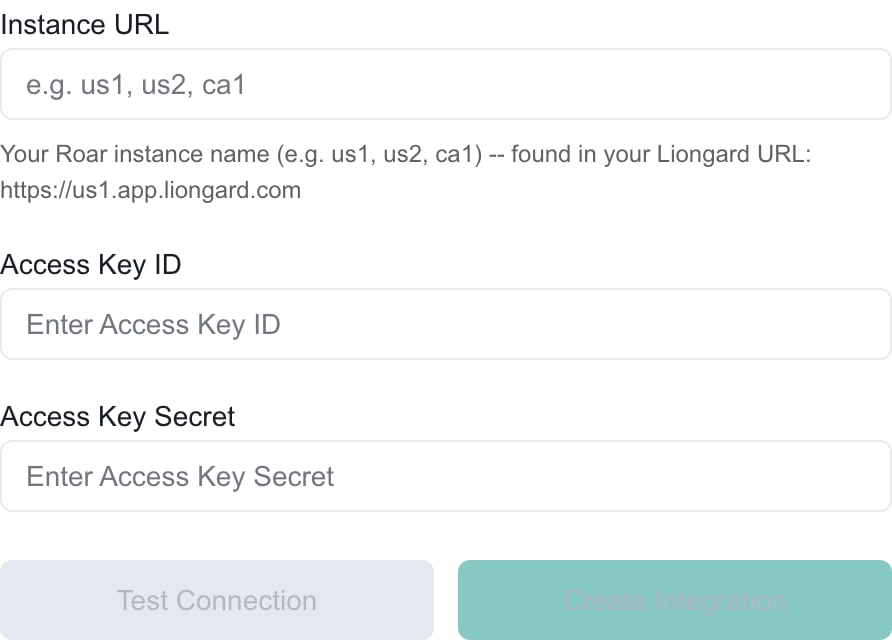
The Connect task's Instance URL, Access Key ID and Access Key Secret fields.
Test Connection
- Verify your Instance URL matches your Liongard instance exactly
- Check that your Access Key ID and Access Key Secret are copied correctly without extra spaces
- Ensure the API key has not been revoked or expired
- Confirm your Liongard account has API access enabled
Save and Continue
Import or match companies
Match Liongard environments to your MSPortal companies. This determines which audit data syncs to which company. The workspace is titled Import or match Liongard environments.Wait for Environments
Review Suggested Matches
Match Remaining Environments
Check Your Matches
Choose data
Choose data comes before Import or match companies in the Setup guide, but it only fills in once you have matched environments. It shows what has synced for your matched environments. There are no separate switches per data type; everything below syncs for matched environments.Import devices
Use Import devices to bring Liongard systems into your MSPortal device inventory. Under Match device types, choose the device type each Liongard type becomes, or use Match all suggested or Match the rest with AI. Turn on Auto-import for types you want imported automatically, then use Import all matched to import the staged devices. Every change saves immediately. See Import Devices.Review
Open Review and select Finish setup once the required tasks are done. Finishing setup does not wait for all Liongard data to finish syncing. Check the counts in Choose data and the results in Sync activity before you rely on the data.Part 3: Map Metrics to Compliance Checks
This is the key feature of the Liongard integration. After the initial sync completes, you can map individual Liongard metrics to MSPortal compliance checks with custom evaluation rules, creating a direct link between automated configuration audits and your compliance reporting.Accessing the Metrics Page
Navigate to Settings > Compliance > Metrics. This dedicated tab shows all synced metrics from your Liongard instance with options to browse by metric or by device.Quick Start
Browse Metrics
Create a Compliance Check
Add to a Compliance Run
Why Map Metrics to Compliance Checks?
Automated Evidence
Custom Rules
Per-Device Tracking
Historical Snapshots
What Gets Synced
Part 4: Liongard Data on Devices
Once Liongard environments are matched and data is synced, you can view Liongard configuration audit data directly on individual devices in the Devices module.Accessing the Liongard Tab
Open a Device
Select the Liongard Tab
What You See
The Liongard tab displays three main sections:Summary Cards
At the top, summary cards show the overall health of the device’s configuration metrics:- Passing - Number of metrics with a passing status (green)
- Failing - Number of metrics with a failing status (red)
- Warning - Number of metrics with a warning status (orange)
System Overview
Shows the Liongard system name, environment, inspector type, and when the device was last inspected.Configuration Metrics
Metrics are organized into two collapsible sections:Recent Changes
The Recent Changes section shows configuration change detections from Liongard. Each entry shows:- The change description and inspector name
- When the change was detected
- A diff view showing what was added (+) or removed (-) in the configuration
How Device Matching Works
MSPortal automatically matches your imported devices to Liongard systems using multiple strategies:- Direct link - If the device was previously matched, it uses the stored link
- Name match - Matches by device hostname or name within the same company
- IP/MAC fallback - If no name match is found, attempts to match by IP address or MAC address
Managing Your Integration
After setup, open the Liongard connection from the Active tab in Settings > Integrations. Select any task in the Setup guide to return to it.Checking or Replacing API Credentials
Open Connect
Retest the Saved Credentials
Replace a Key
Troubleshooting
Connection test fails
Connection test fails
- Incorrect Roar instance name, Access Key ID, or Access Key Secret
- API key has been revoked or expired
- Liongard account does not have API access enabled
- Verify your Roar instance name matches exactly what appears in your Liongard URL (e.g.,
us1,ca1, or your custom name) - Check that your Access Key ID and Access Key Secret are copied exactly, without extra spaces
- Generate a new access token in Liongard (Admin > API > Access Keys) if the current one is expired
- Confirm your Liongard account has API access permissions
Does Test connection save my new integration?
Does Test connection save my new integration?
No environments appear in Import or match companies
No environments appear in Import or match companies
- Initial sync still in progress
- API key lacks read permissions
- Wait a few minutes for the background sync to complete
- Use Run sync in the connection header, then check Sync activity
- Verify your API key has the necessary read permissions in Liongard
Metrics not appearing on the Metrics page
Metrics not appearing on the Metrics page
- Metrics sync not yet complete
- No environments have been matched to companies
- Ensure at least one environment is matched to a company
- Wait for the metrics sync to complete (this may take several minutes after initial setup)
- Check the Metrics and Metric values counts in Choose data, and select Sync all data if they are zero
Compliance checks not updating from mapped metrics
Compliance checks not updating from mapped metrics
- Metric is not properly mapped to a compliance check
- Metric values have not synced yet
- The compliance check was created after the last sync
- Navigate to the Metrics page and verify the mapping is in place
- Wait for the next sync cycle to update metric values
- Use Run sync on the Liongard connection if needed
Missing data for some environments
Missing data for some environments
- Environment is not matched to a company
- Inspectors are not configured for that environment in Liongard
- Match the environment to a company in Import or match companies
- Verify that the environment has active inspectors configured in Liongard
Can I undo a removed match by leaving the connection?
Can I undo a removed match by leaving the connection?
Does Finish setup mean all Liongard data is ready?
Does Finish setup mean all Liongard data is ready?
Will connecting Liongard expose its data to my clients?
Will connecting Liongard expose its data to my clients?
Best Practices
Match Environments First
Start With Strong Matches
Prioritize Key Metrics
Review Regularly
Security and Privacy
- Credential Storage: Your Liongard API credentials are encrypted using vault storage and never exposed in logs or responses
- Data Isolation: All synced data is tenant-isolated and only visible to your organization
- Read-Only Access: MSPortal only requires read access to Liongard data; it never modifies your Liongard configuration
- Client Visibility Is Separate: Connecting Liongard does not share its data with company users. Set inspector and system sharing in Settings > Documentation under the Liongard tab
Related Resources
- Devices Module - Managing devices and viewing Liongard data in the device detail panel
- Liongard Compliance Metrics - Custom rules, per-device tracking, and auto-sync details
- Liongard Documentation Visibility - Choose which Liongard data company users can see
- Compliance Module - Manage compliance checks and assessments
- Compliance Settings - Configure compliance checks and metrics
- Import or Match Companies - General company import guide
- Integration Company Mapping - Shared matching controls
- Import Devices - Import Liongard systems as MSPortal devices
- Clear and Resync Integrations - Troubleshooting sync issues
- Cork Integration - Another security-focused integration