

Overview
The NinjaOne integration syncs your organizations, locations, and devices into MSPortal, allowing you to:- Import and manage devices from NinjaOne
- Map NinjaOne organizations to your MSPortal companies
- Map NinjaOne locations to your company locations for accurate site-level tracking
- Keep device and installed-software inventory synchronized automatically with daily syncs
- Track device status, backup usage, and ownership details
- View NinjaOne devices in reports and compliance tracking
Prerequisites
Before you begin, ensure you have:- Active NinjaOne account with administrative access
- MSPortal.ai account with integration management permissions
- Companies already set up in MSPortal (from your PSA integration or manually created)
Part 1: Generate API Credentials in NinjaOne
Before connecting to MSPortal, you need to create API credentials in NinjaOne.Access the NinjaOne Dashboard
Navigate to API Settings
- OAuth Tokens
- Client App IDs
- Legacy
Create a New API Application
Configure the Application
https://app.msportal.ai. It is not used by the Client Credentials flow but satisfies the form validation.Note Your Region
Part 2: Set Up NinjaOne in MSPortal
The Setup guide rail on the connection page lists the tasks: Connect, Choose data, Import or match companies, Locations (optional), Import devices and Review.Connect
Open the connection
Select Your Region
- United States
- Europe
- Oceania
- Canada
- Custom URL (for non-standard NinjaOne instances)
https://your-instance.ninjarmm.com.Enter API Credentials
Test Connection
- Verify your Client ID and Client Secret are copied correctly (no extra spaces)
- Confirm you selected the correct region
- Ensure the API application is set to Client Credentials grant type
- Check that the application platform is API Services (Machine-to-Machine)
Save
Choose data
Open Choose data to choose what to sync from NinjaOne. Changes save as you make them, and turning a dataset on starts its first sync. Leave Software on to collect installed applications for imported devices. It defaults on. Turning Software off removes this connection’s installed-software data from MSPortal after cleanup completes. It does not uninstall applications or remove inventory supplied by another connection. Turn it back on to collect the inventory again. Company mapping is still required. Software uses the device’s mapped company; enabling it does not import an unmapped organization’s devices.Import or match companies
Open Import or match companies to match your NinjaOne organizations to MSPortal companies. The workspace is titled Import or match NinjaOne organizations. Only devices from matched organizations are available for import.Wait for discovery
Review suggestions
Match the remaining organizations
Ignore or unmatch (optional)
Locations
Open Locations to match your NinjaOne locations to your company locations. The workspace is titled Match NinjaOne locations to your locations. This preserves your organizational hierarchy from NinjaOne and ensures devices are assigned to the correct site within each company.- Locations appear only for organizations you have already matched.
- Accept a suggestion, or choose one of the company’s locations from Choose location…. Suggestions are based on the same name, the same street address or a similar name.
- Choose Accept N suggested to accept every suggestion at once.
- If the company has no matching location, choose Create location to create one from the NinjaOne location and match them.
Import devices
Open Import devices to match device types and import devices from NinjaOne into your MSPortal asset inventory. Every change saves immediately.Match device types
- Match all suggested accepts every suggested device type.
- Match the rest with AI suggests device types for the types still unmatched.
Turn on Auto-import (optional)
Ignore a type (optional)
Import staged devices
- Choose Import all matched to import every device whose type is matched.
- Or select devices and choose Import N selected.
- To hide devices you never want to import, select them and choose Ignore N selected.
Review
Open Review and choose Finish setup once the required tasks are complete. You can return to Import devices at any time. Finishing setup does not mean every background sync or device import has finished.What Gets Synced
Review installed software
After devices are imported, software synchronization is queued separately and also runs daily. Wait for that work to finish before checking inventory. Failed reads preserve the last known inventory; a device missing from a snapshot is not proof that all its applications were removed. MSP staff with device-read access and software inventory enabled can open Devices > Software when Asio, Datto RMM, or NinjaOne is connected. Use the company selector to narrow the fleet. In an individual device, Software appears only when its installed inventory is available. Company users do not receive these Software destinations.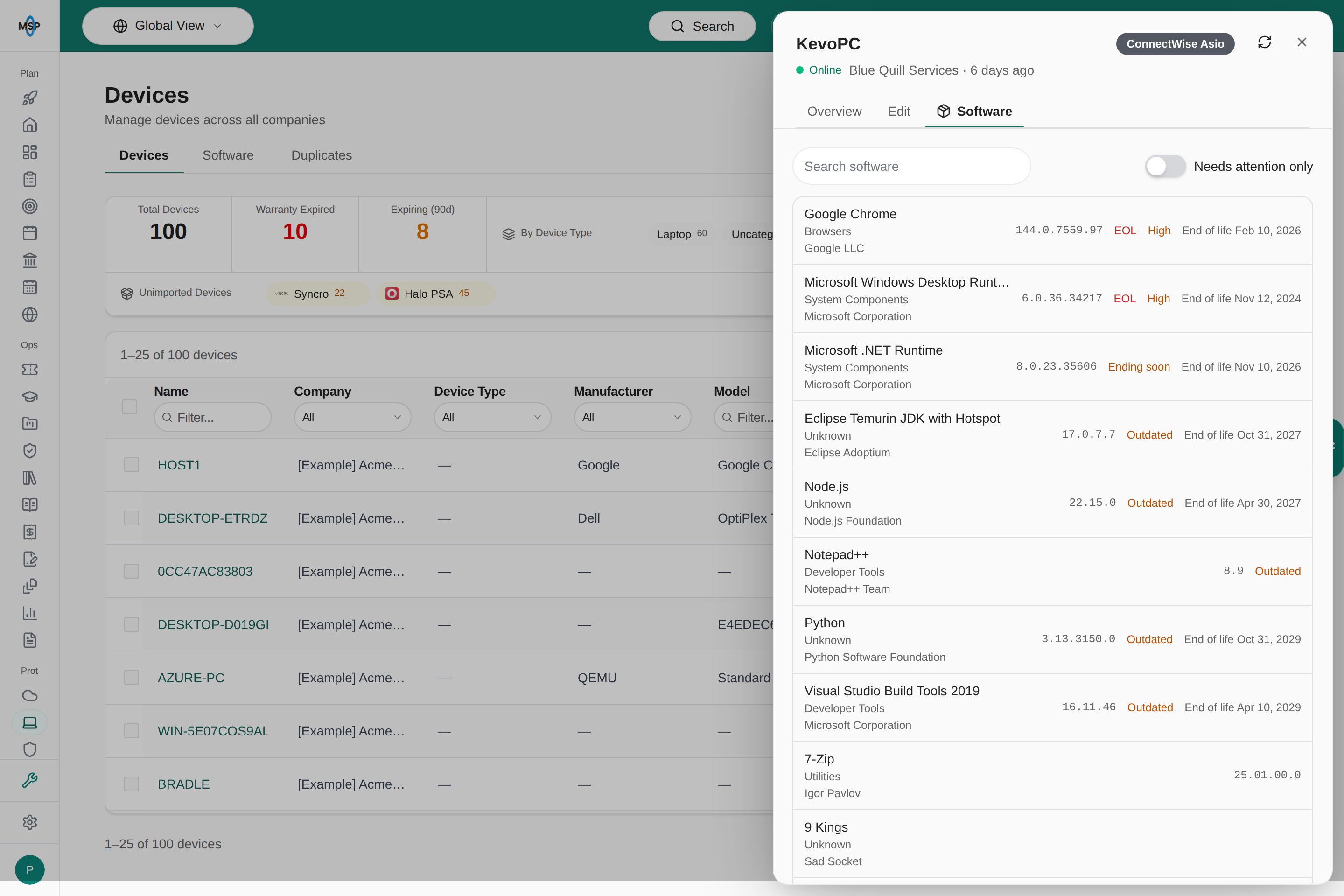
Installed applications in an MSPortal Demo device's Software tab.
Sync Schedule
Syncs run automatically on a daily schedule:Managing Your Integration
After setup, open the NinjaOne connection from Settings > Integrations:- Setup guide: Return to any task, such as Import or match companies, Locations or Import devices, to change matches or import more devices.
- Overview and Sync activity: Inspect connection status, last syncs and errors.
- Run sync: Start a fresh sync of All data or one dataset.
- More actions › Rename: Rename the connection.
- More actions › Disconnect…: Remove the connection. This removes the stored credentials, the matches between NinjaOne organizations and your companies, and the data synced from NinjaOne. It does not revoke the API application in NinjaOne.
Updating or retesting credentials
On an existing connection, the Region (and any custom URL) stays fixed. To check or replace the saved credentials:- Open Connect.
- To retest, leave the masked Secret unchanged and choose Test connection.
- To replace credentials, enter the new Access Key ID and Secret. Changing the Access Key ID requires its matching secret.
- Choose Test connection, then Save changes. Testing alone does not save replacements.
Troubleshooting
Connection test fails with 'Client app not exist'
Connection test fails with 'Client app not exist'
- Log into NinjaOne and go to Administration > Apps > API
- Click the Client App IDs tab (not Legacy)
- Click Add and create a new application with:
- Application Platform: API Services (Machine-to-Machine)
- Grant Type: Client Credentials
- Scopes:
monitoring
- Copy the new Client ID and Client Secret into Connect in MSPortal
- Choose Test connection again
Connection test fails (other errors)
Connection test fails (other errors)
- Incorrect Client ID or Client Secret
- Wrong region selected
- API application not configured as Machine-to-Machine
- Client Credentials grant type not selected
- Missing
monitoringscope - Expired or revoked credentials
- Verify your Client ID and Client Secret are copied exactly (no extra spaces)
- Confirm you selected the correct region matching your NinjaOne portal URL
- Check that the API application in NinjaOne uses API Services (Machine-to-Machine) platform
- Ensure the grant type is set to Client Credentials
- Confirm the
monitoringscope is enabled on the app - Generate new API credentials in NinjaOne if needed
No organizations appear in Import or match companies
No organizations appear in Import or match companies
- Initial sync still in progress
- API credentials lack organization read permissions
- Wait a few minutes for the initial sync to complete
- Start a sync from the empty list, or choose Run sync on the connection page
- Verify your API application has the necessary permissions in NinjaOne
- Avoid creating another connection; check Sync activity for errors instead
A mapping disappeared
A mapping disappeared
No staged devices
No staged devices
- No organizations have been matched to companies
- Device sync still in progress
- Organizations don’t have any devices
- The device types are ignored
- Match at least one organization to a company in Import or match companies
- Wait for the device sync to complete (may take a few minutes)
- Choose Run sync to start a fresh sync
- Check for ignored types under Match device types
Device sync takes a very long time
Device sync takes a very long time
- Large number of devices across many organizations
- NinjaOne API rate limits
- This is expected behavior for large environments. The sync processes devices in batches to respect rate limits.
- The daily sync runs overnight so it completes before business hours
- No action is needed; the sync will complete automatically
Import fails for some devices
Import fails for some devices
- Device type not matched
- Organization match was removed
- Ensure every device type has a device type under Match device types
- Verify the organization is still matched to a company (devices without one show Match company first)
- Check for error messages in the import results
Auto-import not importing new devices
Auto-import not importing new devices
- Auto-import not turned on for the device type
- Device type not matched
- Organization not matched to a company
- Turn on Auto-import for the device type
- Ensure the device type has a device type match
- Verify the device’s organization is matched to a company
Locations not appearing in Locations
Locations not appearing in Locations
- The parent organization is not matched yet
- NinjaOne organizations don’t have locations defined
- Location sync has not completed yet
- Match the organization in Import or match companies first
- Verify that locations are configured in NinjaOne for your organizations
- Wait for the sync to complete and check again
- Location matching is optional. You can skip this task if you don’t use locations.
Inventory is old
Inventory is old
Frequently asked questions
Does Test connection save the integration?
Does Test connection save the integration?
Are suggested links saved automatically?
Are suggested links saved automatically?
Does Finish setup mean all devices are imported?
Does Finish setup mean all devices are imported?
Best Practices
Map Organizations First
Accept Strong Matches
Turn On Auto-import
Ignore Unwanted Types
Match Suggested, Then AI
Schedule Around Syncs
Security and Privacy
- Credential Storage: Your NinjaOne Client ID and Client Secret are encrypted using vault storage and never exposed in logs or responses
- Data Isolation: All synced data is tenant-isolated and only visible to your organization
- Read-Only Access: MSPortal only reads data from NinjaOne; it does not modify your NinjaOne configuration or device settings
Related Resources
- Import Companies - General company import guide
- Integration company mapping - Review company matches across integrations
- Import Devices - Device type mappings, auto-import, and category ignore
- Devices Module - Managing devices in MSPortal
- Integration settings - Manage your connected integrations
- Clear and Resync Integrations - Troubleshooting sync issues
- Datto RMM Integration - Similar RMM integration guide