Audience: MSP staff with access to Secure Score and the destination workflow. Planner creation requires Planner write or management permission; agenda changes require Calendar write access; PSA tickets require ticket-creation permission and a configured connection. Company users start with the Home AI Assistant to request MSP help.

Choose the company and controls

  1. Open Cloud > Posture > Secure Score.
  2. Select one company in the top bar, choose the appropriate status view and filter the list.
  3. Clear old checkbox selections, then check the intended controls. The header checkbox selects the current page only.
  4. Check the company and selection count before opening Actions. These bulk workflows require controls from one company.
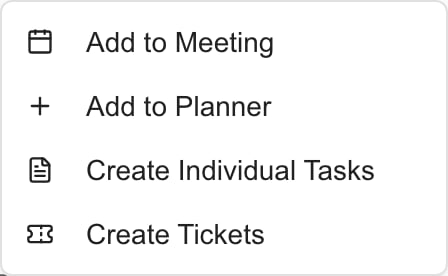
  5. Choose the action for the result you need.

MSP actions available in this example. Permissions and destination setup affect what you can use.

These actions create coordination work. They do not change Microsoft security settings, automatically mark a control Planned or Completed, or immediately increase the score.

Create one Planner item

  1. For one control, open its Title, then Add to Planner. For several, select the rows and use Actions > Add to Planner.
  2. Review the proposed title, company, description, type, status, business value, effort, cost, due date and notes available in the editor.
  3. Review the generated points wording. It uses maximum control points, which can overstate the remaining possible improvement if some points are already achieved.
  4. Select Save only when ready. Use the close control to leave the proposal without creating the main item; respond to any unsaved-change prompt.
  5. Open the result in Planner and verify the content and control links. Check dates, visibility and any additional fields there before sharing; the current Secure Score handoff does not carry every field exposed by the shared editor.
A successful Add to Planner save is intended to link the selected controls to one item. Creation and linking are separate operations. If a save or linking error occurs, check Planner before retrying: the item may already exist even if its links failed. A blank Planner cell is not proof that no item was created.

Create separate Planner tasks

Use Actions > Create Individual Tasks only after confirming the selected company and rows. It creates one item per selected control immediately, with a security-prefixed title, recommendation content and a Not Started status. Review and finish the details in Planner afterward. The current individual-task path does not add the same control links as Add to Planner. Find the created work in Planner by its title; do not depend on a link appearing back in the Secure Score table.

Add controls to an upcoming meeting

  1. Use a control’s Add to Meeting, or select rows and choose Actions > Add to Meeting.
  2. Review the controls and company in the dialog.
  3. Choose an existing upcoming meeting. The picker lists up to the next 50 available meetings for that company; it is not a browser for past meetings.
  4. Review the displayed agenda, then select Add to Agenda.
  5. Wait for success and check the meeting agenda.
The dialog does not create a meeting. If none is available, cancel and arrange the meeting through Calendar first. Controls become agenda items; they are not automatically remediated. A visible action does not guarantee that the account can save: Calendar permission and account access are checked on submission.

Create PSA tickets

  1. Select up to 25 controls from one company, then Actions > Create Tickets.
  2. Review the selected controls, company and connected provider. This flow supports ConnectWise, HaloPSA and Autotask when configured and mapped.
  3. Enter the required reason for the work. Keep it within 5,000 characters.
  4. Resolve any missing company mapping or PSA default warning before submission. The dialog does not let you choose a board, queue or category for this batch; the configured defaults apply.
  5. Use the displayed Create Tickets submission button when ready, then wait for the result.
  6. Verify the created tickets in the destination before retrying failed items. The batch can partially succeed. A reported email fallback is a different outcome from a confirmed PSA ticket.
Each selected control creates its own request, not one combined ticket. A fallback or failure can stop the remaining batch. Do not resubmit the entire selection after partial success without checking for existing tickets.

FAQs

Add to Planner opens one editable proposal for the selected controls. Create Individual Tasks immediately creates separate items without a review dialog.
No. Saving creates the item. Review the result and control links in Planner after success.
No. Planner work, meeting agenda items and PSA tickets do not automatically change Microsoft’s state or security configuration.
These bulk workflows require one company. Narrow the scope, clear previous selections and verify the selected rows.
Check Planner before retrying. Creation may have succeeded before a later link failed, so an immediate retry can duplicate work.
No. Select an existing upcoming company meeting. If none is available, cancel and arrange it in Calendar first.
The dialog lists upcoming meetings only, up to the next 50 available for the company.
ConnectWise, HaloPSA and Autotask, with a configured integration, company mapping and required defaults.
Select up to 25 controls from one company. Each control creates a separate request, and the reason is required.
First check the destination for successful tickets. Retry only confirmed failures; partial success or an email fallback is possible.
No. The current Secure Score handoff does not carry every shared-editor field. Check additional dates, visibility and other details in the resulting Planner item before sharing.