

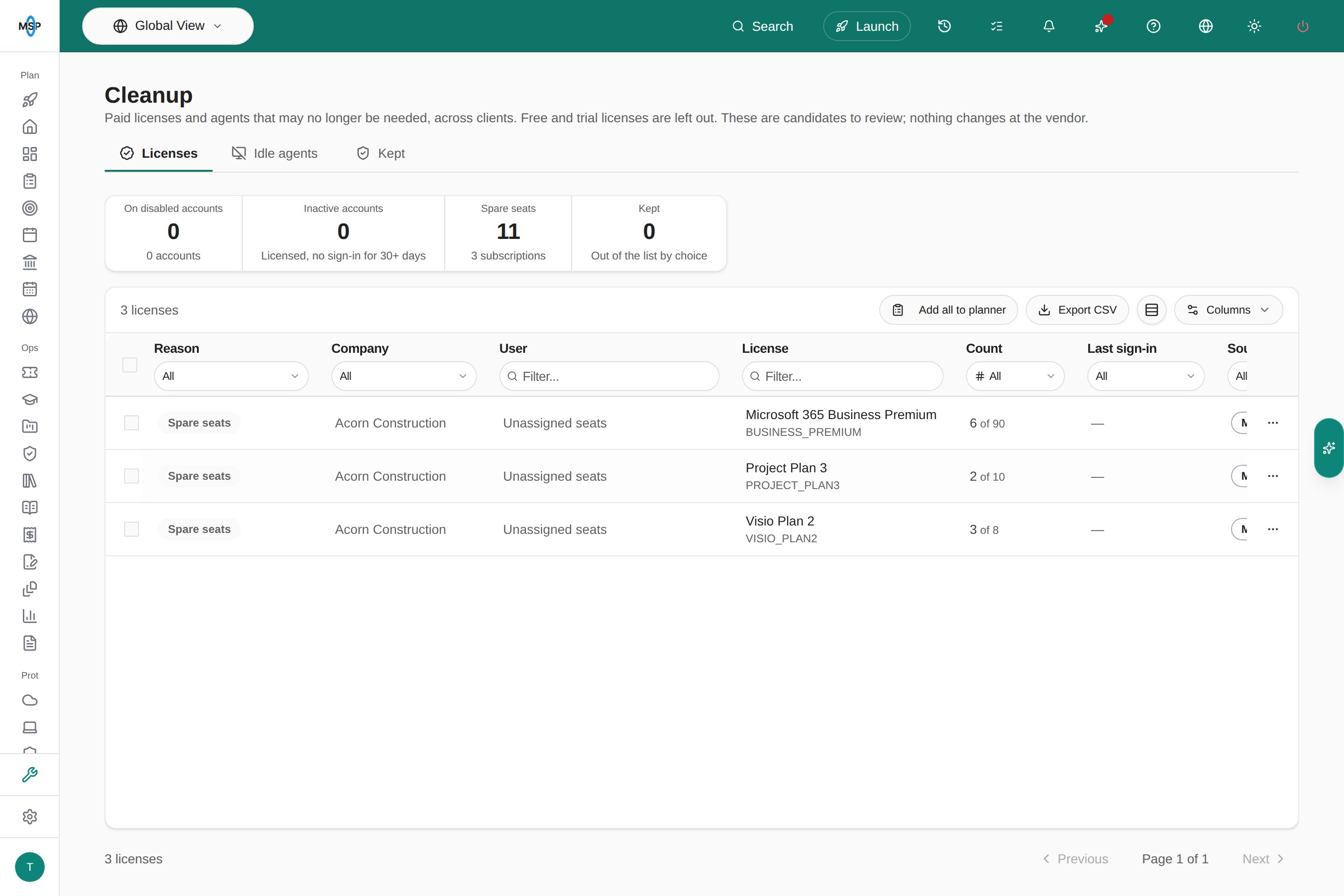
MSPortal Demo: the Licenses tab with its summary cards, Add all to planner and the candidate table.
Before you start
- Open it from the sidebar at MSP Tools > Cleanup.
-
Each tab needs its own access in the role editor (Settings > Users & Roles):
Write and Manage include Read. Cleanup opens on Licenses when your role can read it, and on Idle agents otherwise.
- Keeping an item needs Write on the permission that covers it: Cloud for Microsoft 365 licenses and accounts, Storefront for Adobe seats and Devices for agents. Without it, you can read the lists and the Kept tab, but you see no row menu and no checkboxes.
- Adding items to the Planner needs Write on Planner. Creating tickets needs permission to create tickets.
- Cleanup can only list what your integrations sync. Connect Microsoft 365, CIPP, Adobe and your RMM and security tools, and map their companies. See Integration Company Mapping.
Choose the companies
Cleanup follows the company selector at the top of the app. Unless you select a single company, each tab shows a Company column, and its column filter narrows the list to some of the companies in scope. Changing the company selector reloads the tab and clears its filters, sort and page.Review licenses
The Licenses tab lists paid licenses for a reason shown in the Reason column:
Free, trial, viral and zero-cost licenses are never listed. Storage add-ons sold by the gigabyte do not count as spare seats. An account already listed for a disabled-account license is not listed again for inactivity. No sign-in for 30+ days uses only CIPP connections that are active and not paused.
The summary rail above the table shows:
- On disabled accounts: paid licenses on disabled accounts, and how many accounts hold them.
- Inactive accounts: accounts with a paid license and no sign-in for 30+ days.
- Spare seats: unassigned paid seats, and how many subscriptions they come from.
- Kept: items your team chose to keep. Click it to open the Kept tab.
Review idle agents
The Idle agents tab lists agents whose own vendor has not heard from them for a while. Each agent from each tool is its own row, so a device with a stale Huntress agent and a stale NinjaOne agent appears twice.1
Choose how long an agent has been idle
Use Idle for at least in the table header: 14+ days, 30+ days, 60+ days or 90+ days. The tab opens on 30+ days.
2
Read the rows
Each row shows the Device, the Agent (the tool it belongs to), its Last check-in and how long it has been Idle for.
Filter, sort and export
Both tabs work the same way:- Filter from the column headers. Reason, Source, Agent and Company take a list of values, Count and Idle for take a range, Last sign-in and Last check-in take a date range, and User, License and Device take text.
- Click a column header to sort.
- Use Columns to show or hide columns.
- Click Export CSV to download every row that matches your filters, across all pages. The file adds columns the table does not show, such as the sign-in name, license code, purchased and assigned seats, and each agent’s vendor ID.
Turn candidates into work
Send what you find to the Planner for a client conversation, or to your PSA for a technician to act on. Both group the items by company and list each one, so nobody has to copy rows by hand.Add to the Planner
- Add all to planner in the table header takes every item in the current, filtered list.
- To add only some, select their checkboxes and choose Actions > Add to planner, or choose Add to planner from a row’s ⋯ menu.
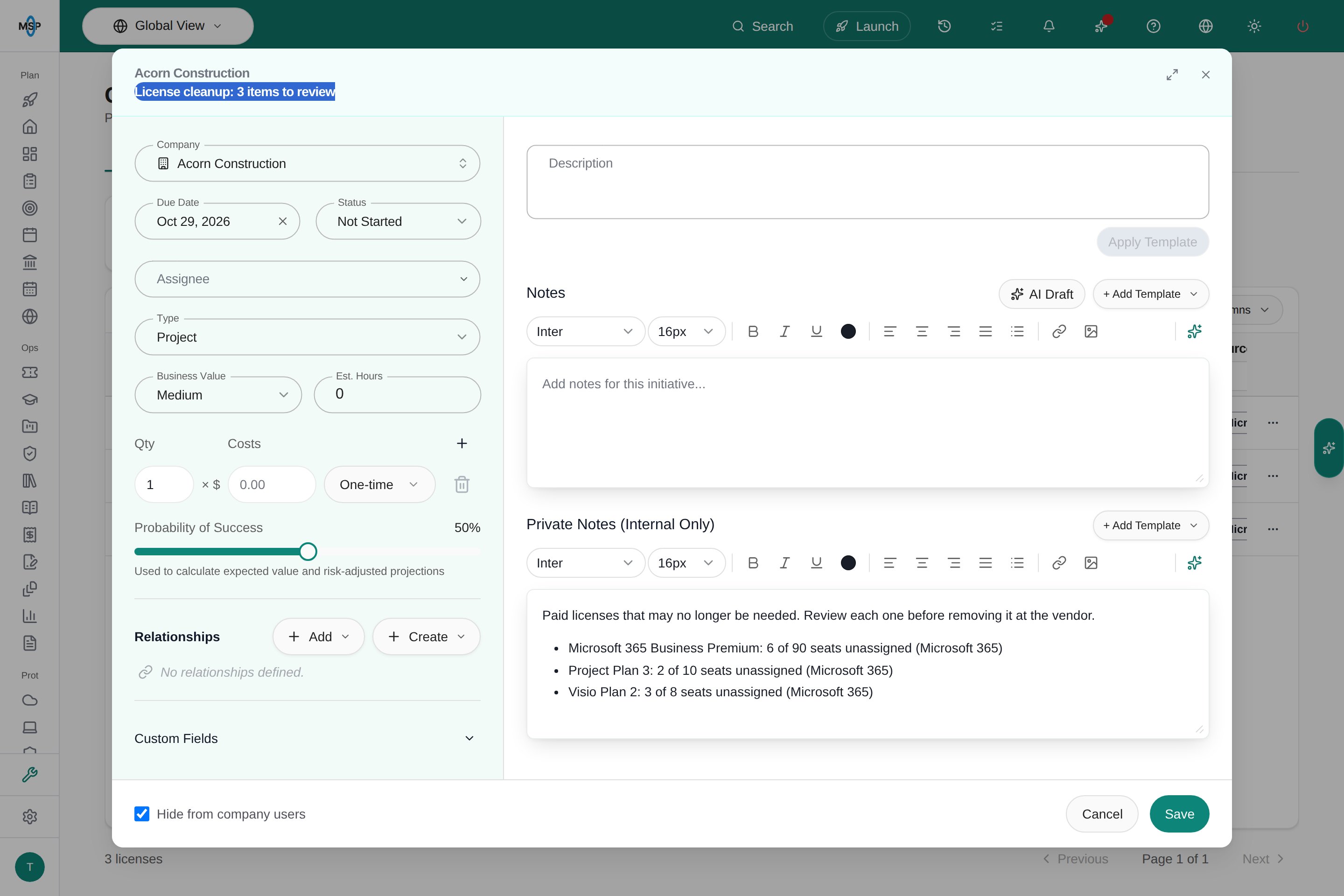
MSPortal Demo: Add all to planner for one company opens the planner item for review, with the candidates in Private Notes.
Create tickets
Select items and choose Actions > Create ticket, or choose Create ticket from a row’s ⋯ menu. MSPortal creates one PSA ticket per company that lists its items. Add a Note for the technician (optional) before you click Create.- Tickets use your compliance ticket settings for board, status, priority and type, the same as tickets created from Compliance. A company’s own ticket defaults still apply first.
- Tickets go to the PSA you create tickets in. Companies not linked to a company in that PSA are listed as skipped. Link them in your PSA integration settings.
- If your PSA doesn’t respond, MSPortal emails the request to your fallback ticket address and stops, so no other tickets are created in that run.
Keep an item
Some candidates stay on purpose: a shared mailbox, an account on legal hold, a spare laptop in a cupboard. Keep them, and they leave the list until you remove the keep or their review date passes.1
Open the row menu
Click the ⋯ menu at the end of the row and choose Keep….
2
Enter a reason
Reason is required, up to 2,000 characters. It stays with the keep so anyone can see why the item stayed.
3
Set a review date (optional)
Pick a Review after date to bring the item back for another look. Leave it empty to keep the item until someone removes the keep.
4
Click Keep
The item leaves the list, and the Kept count in the summary rail goes up.
Kept agents and automatic device cleanup
Keeping an agent also protects its device from MSPortal’s automatic device cleanup, and stops Huntress idle-agent retirement from removing it. The protection ends when you remove the keep or its review date passes.Manage kept items
The Kept tab lists every keep in the selected companies with its Item, Type (License or Agent), Reason, Kept by, Kept on, Review after and Status. The summary rail counts items that are Kept and items whose Review due date has passed. Click either card to filter the table to that status.- Edit keep… in the row menu changes the reason or the review date. Click Save to replace the keep.
- Remove keep in the row menu asks you to confirm, then returns the item to its cleanup list.
- To remove several keeps, select them and choose Actions > Remove keep.
- Turn on Show removed to see the history, including who removed each keep and when.
- Export CSV downloads the kept items that match your filters.
Troubleshooting
Frequently asked questions
Does Cleanup remove licenses or uninstall agents?
Does Cleanup remove licenses or uninstall agents?
No. Cleanup lists candidates. Remove a license, reduce a subscription or retire an agent in the vendor’s own tool.
Why does a device appear more than once on Idle agents?
Why does a device appear more than once on Idle agents?
Each tool’s agent is its own row. A device can have an idle agent in more than one tool.
Can my clients see Cleanup?
Can my clients see Cleanup?
No. Cleanup is for MSP staff only.
What happens to a keep when the review date passes?
What happens to a keep when the review date passes?
The item returns to its list with a Review due tag, and the keep shows Review due on the Kept tab. For an agent, the device is no longer protected from automatic device cleanup.
Related guides
Cloud licenses
Read license usage and assignments for each company.
Devices
Find devices and the agents reporting on them.
Users & Roles
Give a role access to Cloud, Storefront or Devices.
MSP Tools
See the other staff-only tools.