

Before you start
- You need Manage Planner for the target companies. Company users cannot use this action.
- Create the templates first. See Create and manage Planner templates.
- Keep each run to 500 template and company combinations or fewer.
- To link compliance checks, you also need access to read Compliance for the target companies.
Create the items
Open Templates
Select templates and open the action
Set the due date
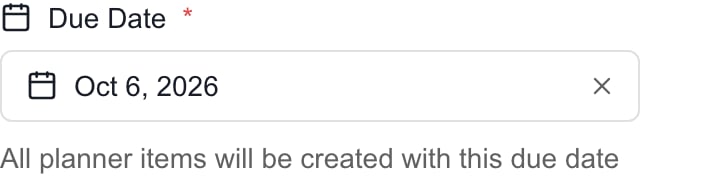
One due date for all new items. This example shows October 6, 2026.
Select companies
Choose the fields
Check the item count
Click Apply to N Companies
Check the result
Pick companies carefully
Typing in the search box keeps companies you already ticked. Select All (N) ticks every company in the current search results and keeps your earlier picks. Unticking it unticks only the companies in the current results. Clear the search at the end and check the selected count. If a company is missing, clear the search and ask your MSP to check that the company is active and that you can manage Planner for it.Choose the fields to copy
All 13 fields start ticked. None clears them all except Title. All ticks them all again. The same choices apply to every item in the run.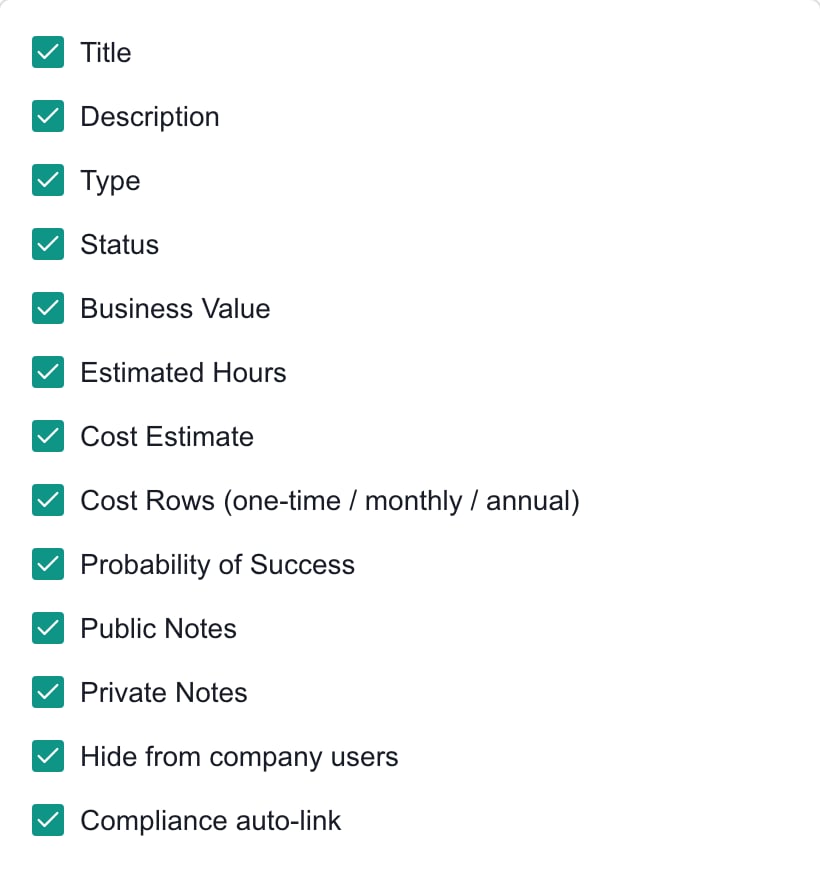
Bulk application includes both Cost Estimate and Cost Rows. Review the selection before you create the items.
Understand compliance results
Tick Compliance auto-link when you want each template’s configured checks matched in each company. A missing assignment does not stop the item from being created. You get a success message, and a separate error message says how many items were created without a matching link. That number counts items, not companies or checks. For example, with one template and two companies you create two items. If only one company has the assignment, that item gets the link and the other item is created without it. Check Relationships on the affected item and arrange the compliance assignment separately.Cancel, retry and errors
- Cancel before you apply creates nothing. It resets the company choices, the field choices and the date.
- After a successful run, the dialog closes and the template selection clears.
- Deleting a template later does not remove the items it created.
- If an error or lost connection leaves the result unclear, check List View for the companies and titles before you start another run. A new run creates a new set with the same titles. It does not update earlier items. A compliance warning after success is not a reason to run the batch again.
Troubleshooting
Frequently asked questions
Where do I create the same work for several companies?
Where do I create the same work for several companies?
How many items do two templates and three companies create?
How many items do two templates and three companies create?
Does Apply to Companies update existing items with the same title?
Does Apply to Companies update existing items with the same title?
Do I need to save each item afterward?
Do I need to save each item afterward?
Can each company get a different due date?
Can each company get a different due date?
What is the maximum run size?
What is the maximum run size?
Does ticking both Cost Estimate and Cost Rows double the costs?
Does ticking both Cost Estimate and Cost Rows double the costs?
Does unticking Title leave items unnamed?
Does unticking Title leave items unnamed?
Are new items visible to company users?
Are new items visible to company users?
Are companies without a matching compliance assignment skipped?
Are companies without a matching compliance assignment skipped?
Can company users run Apply to Companies?
Can company users run Apply to Companies?
Does deleting the templates undo the run?
Does deleting the templates undo the run?