

Before you start
- You need Write Planner or Manage Planner, plus access to the records you want to link.
- The item needs a Company. Pickers search that company’s records.
- Relationships save with the item’s Save button. Closing a picker does not save them.
Add existing records
Open the Planner item
Open the Add menu
Choose a record type
Search and select
Click Done
Review costs if you linked devices
Click Save
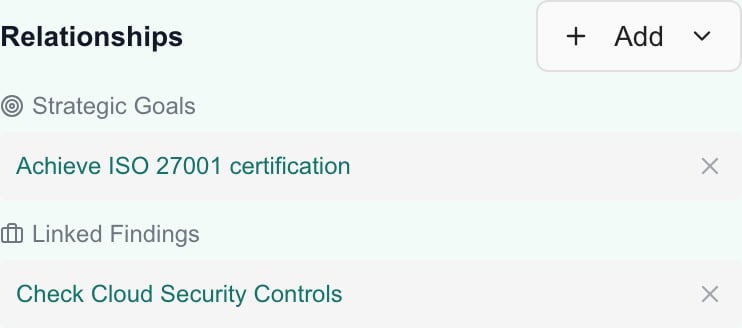
Saved goal and compliance relationships. Use a row's remove button to take a link off before you save.
Suggest matching devices
Use Suggest devices when the work covers a group of devices, such as replacing old laptops or renewing expiring warranties.- Open the Planner item and confirm its Company and Due Date.
- In Relationships, choose Add > Suggest devices.
- Set one or more conditions. All conditions must match; within one condition, any value matches.
- Device type and Manufacturer list this company’s values with device counts.
- Operating system contains and Model contains match part of the name, for example “Windows 10” or “Latitude”.
- At least this many years old counts from each device’s purchase date, or from its warranty start date when no purchase date is recorded.
- Checked in within (days) keeps only devices seen recently. Leave it blank to include devices that have gone quiet.
- Warranty ends before the due date compares warranty end dates with the item’s due date, or with today when the item has no due date.
- Review the matching devices. All are selected; clear any you don’t want. Devices already linked to the item are marked Linked.
- Choose Link N devices to add the selected devices to the item, then review Costs and choose Save.
Keep devices linked automatically
Turn on Keep linked automatically in Suggest devices when the item should always cover the devices that match, for example every laptop whose warranty ends before the due date.- Choose Keep N devices linked, then Save the item. The item’s device links become exactly the matching devices. Linked devices that don’t match are unlinked; the dialog says how many before you confirm.
- MSPortal re-checks the conditions every hour. Newly synced devices that match are linked, and devices that stop matching (a renewed warranty, a changed type, an archived device) are unlinked. Device price rows in Costs follow the links.
- While it is on, Relationships shows the conditions notice, and devices can’t be added or removed one by one. Choose Edit device conditions to change them, or Stop keeping linked and Save to return to manual links. Stopping keeps the current links.
- Items managed by Standards or by an automation rule keep their own device management, so the switch is unavailable for them. Archived, Completed and Cancelled items are not refreshed.
Link a compliance assignment
Link to Compliance Check opens Select Compliance Assignment. It selects an existing assignment for the item’s company. It does not create a compliance check.Open the picker
Filter by run (optional)
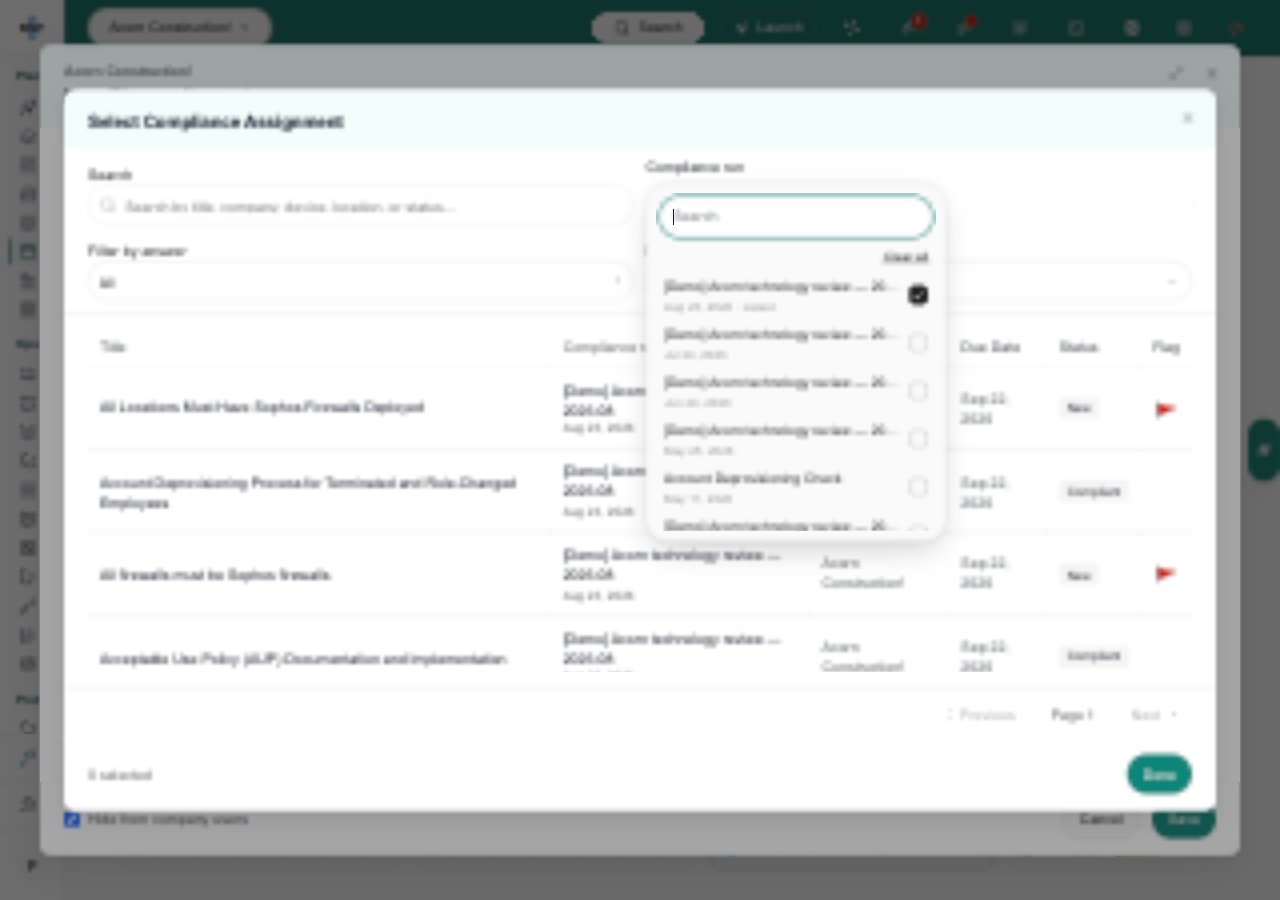
Search compliance runs by name or date. The date and Latest marker show below the name. Shown in MSPortal Demo.
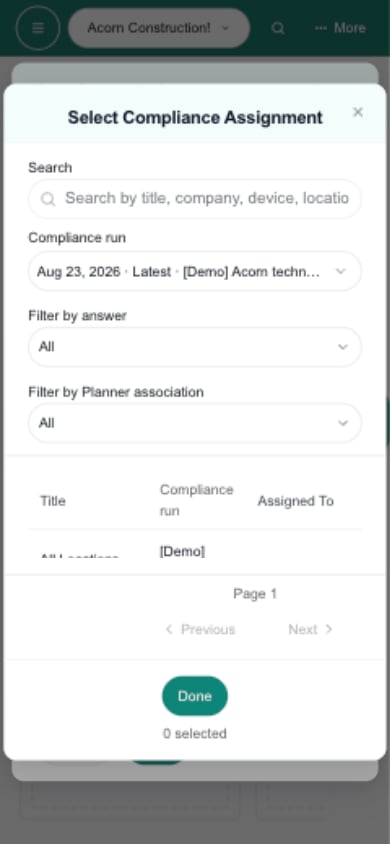
The selected run keeps its date and Latest marker visible at phone width.
Search and filter
Check each row
Select, click Done and Save
Remove a relationship
Open the item
Click the remove button
Click Save
Create a PSA opportunity
Add links something that already exists. Create makes a new opportunity in your PSA.Check the details first
Open the Create menu
Click Save
Troubleshooting
Frequently asked questions
Where do I link an existing record to planned work?
Where do I link an existing record to planned work?
Does Done save the relationships?
Does Done save the relationships?
Can I select several records at once?
Can I select several records at once?
How do I link checks from the latest compliance run?
How do I link checks from the latest compliance run?
Can I select a compliance assignment that is linked elsewhere?
Can I select a compliance assignment that is linked elsewhere?
Does linking a compliance check create or fix it?
Does linking a compliance check create or fix it?
Does removing a relationship delete the original record?
Does removing a relationship delete the original record?
Can linking a device change the planned costs?
Can linking a device change the planned costs?
Does Discard undo a PSA opportunity I created?
Does Discard undo a PSA opportunity I created?