

- Standards asks, “Do they have it?”
- Compliance asks, “Is it configured properly, and does it meet the requirements?”
At a glance
Standards: do they have it?
Use Standards for your standard offering: the tools, services and policies you expect every client to have, and the projects you want to recommend to every client. For example:- Your standard firewall, switches and wireless
- Endpoint protection, backup and email security
- Security awareness training
- An acceptable use policy the client has adopted
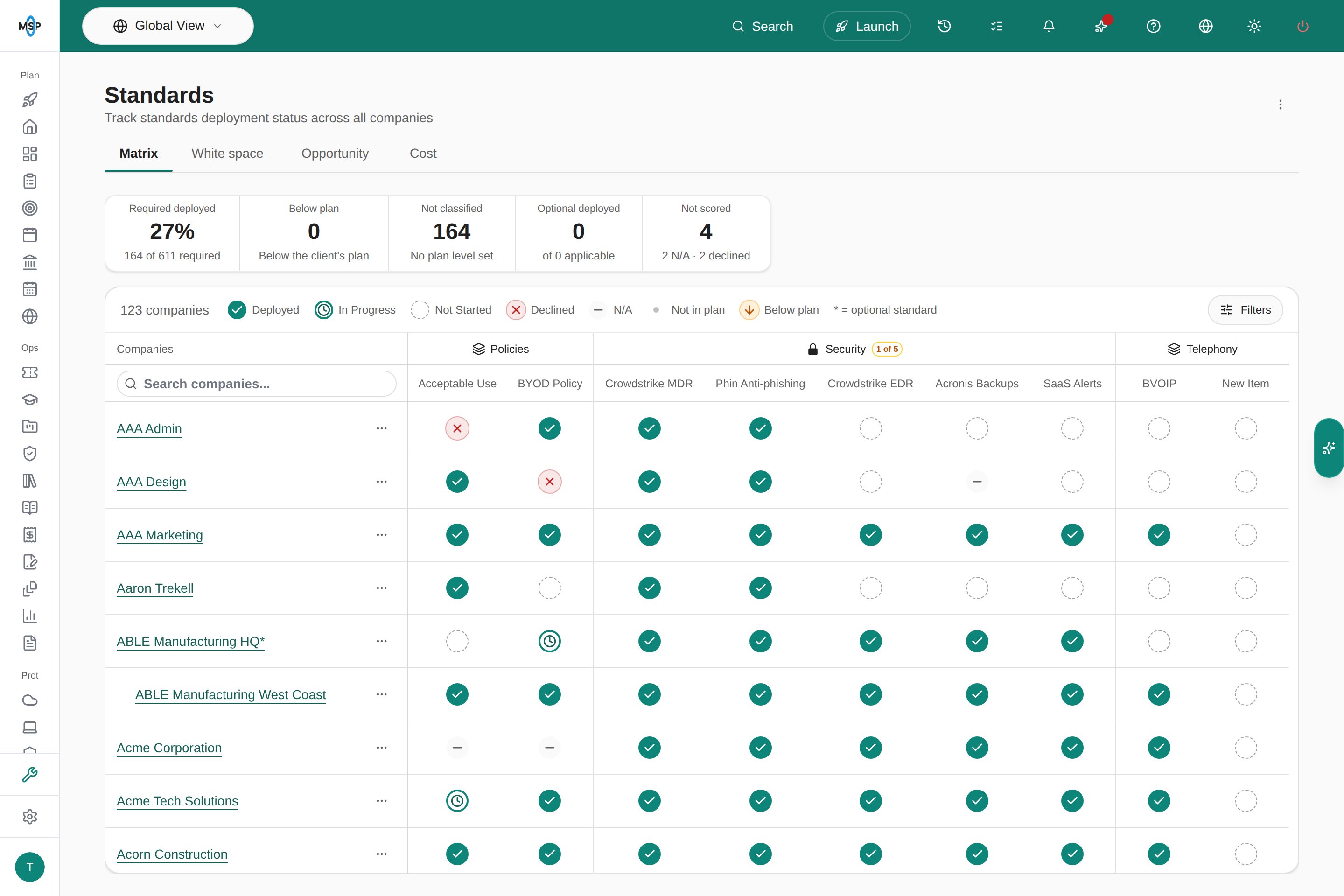
MSPortal Demo: companies are rows, standards are columns, and each cell holds one status.
Let MSPortal answer for you
Many standards can be answered without anyone touching the matrix. Choose the evidence that proves each standard in the Detection step of Settings > MSP Tools > Standards > Setup, or link billed products under Answered by billing.
Hover a cell to see where its answer came from, for example Answered from billing or Detected from software. Automatic answers refresh every night and are withdrawn when the evidence goes away. They never overwrite a status a person set.
You can also limit a standard to the clients it fits, such as Mac management only for companies with Macs, or a compliance-focused tool only for one industry. Companies that do not match show the standard as a locked N/A. See Choose which Standards apply.
Turn missing standards into work
Each standard links one to one with a Planner item for each client, which makes a missing standard easy to turn into work for that client. Sync All Companies creates the items, and each one follows its matrix status: Deployed shows as Completed, and N/A or Declined show as Cancelled. Use those items to build the client’s roadmap, add them to a meeting agenda, and share them with the client when you are ready. The White space and Opportunity tabs put a monthly value on missing standards that are linked to agreement SKUs, so you can see the revenue behind the gaps.Compliance: is it configured properly?
Compliance goes deeper. It checks whether the things a client has are configured properly, or whether the client meets a particular set of requirements. For example:- Is the firewall using your standard security features, running current firmware, and backed up?
- Is multifactor authentication enforced for every administrator?
- Do the client’s computers meet the CIS benchmark for their operating system?
- Can the client answer yes to each control on their cyber insurance application?
How Compliance is organized
Build checks yourself in Settings > Compliance, or import them from Playbooks, which include CIS Benchmarks and NIS2. Keep separate templates for separate purposes: one for your configuration baseline, one for an insurance review, one for a framework a client must meet. With Liongard connected, Liongard metrics can update a check’s status on their own.
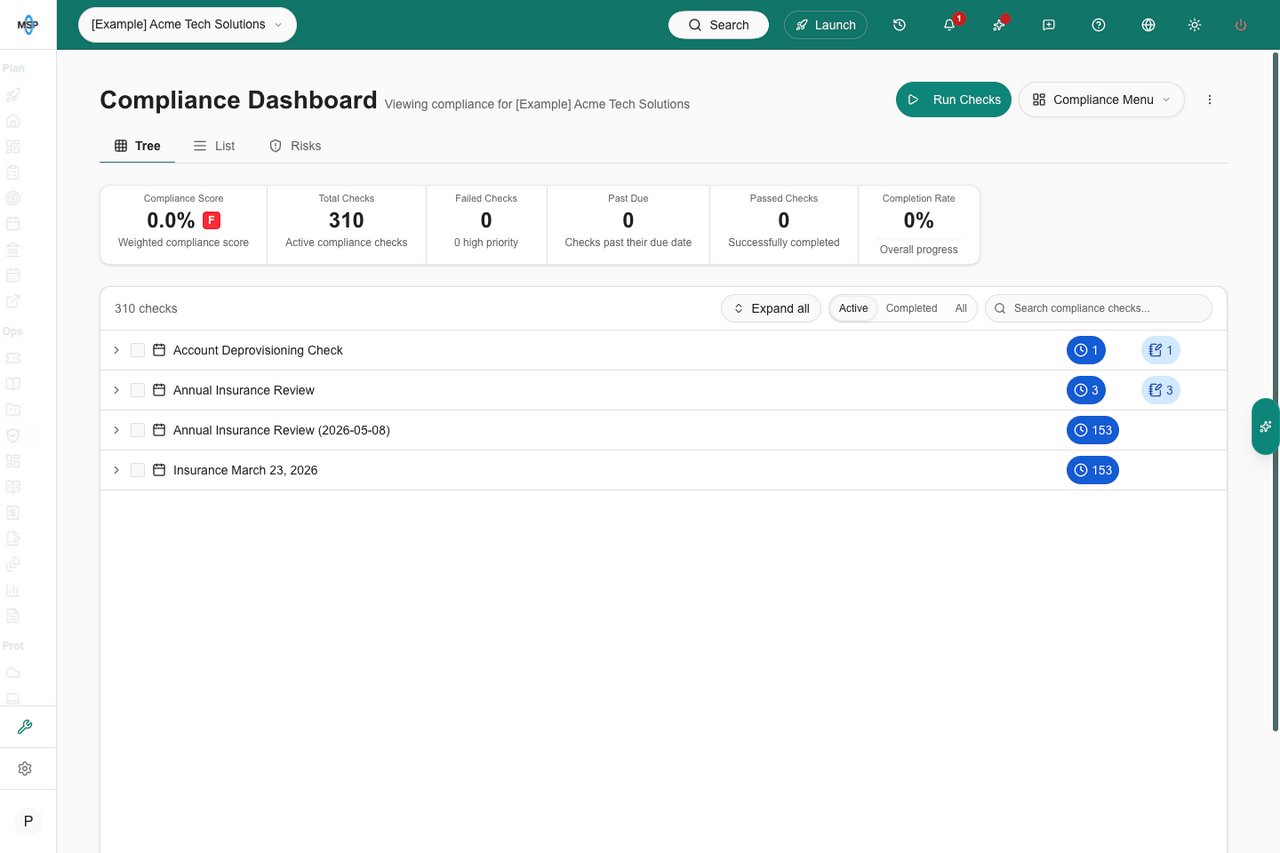
MSPortal Demo: one company's insurance review runs on the Compliance Dashboard.
Statuses fit the requirement
A standard has a fixed set of statuses. A compliance check uses a status list you define in Settings > Customization > Statuses: you name each status, pick its color, and mark which ones count as compliant or complete. One list might be Pass, Fail and Needs review. Another for an insurance review might add Risk accepted or Not applicable. A note template linked to a status can add client-ready text to the check when an assessor picks it.Record findings and act on them
Each assessed check records a status, a priority, a due date, public notes the client can read, private notes for your team, and uploaded evidence. When a check fails:- Create Ticket opens a ticket in your PSA. Use it for in-scope work your agreement already covers.
- Add to Planner creates a Planner item. Use it for a project or anything that needs the client’s approval or budget.
- Add to Meeting, from Actions after you select checks, adds the findings to a meeting agenda for that client.
- Add to risk register tracks a gap you cannot close right away, when risk tracking is on. See Risk Management.
How they work together
Standards and Compliance work best as a pair. Standards confirms the client has the right things; Compliance confirms those things are set up correctly.- Firewall
- Acceptable use policy
- Standard: Managed firewall. Your firewall agreement SKU answers it, so every billed client shows Deployed. The rest get a Planner item to propose.
- Compliance: a Firewall configuration group with checks for your standard security features, current firmware, restricted admin access and a configuration backup. A quarterly schedule runs it for every company.
- Follow-up: a failed backup check becomes a ticket, because it is in-scope work. A firewall that needs replacing becomes a Planner item.
Which one should I use?
A simple rule: if someone without technical knowledge can answer it yes or no, it is a standard. If a technician has to look at settings, or you need evidence on file, it is a compliance check.
Get started
1
Build your Standards catalog
Open the Standards phase in Launch Center, or Settings > MSP Tools > Standards > Setup. Discovery reads your agreement billing, software and product evidence and suggests standards to create. See Manage the Standards catalog.
2
Let evidence answer them
Link agreement SKUs and choose detection evidence for each standard. See Use PSA billing to answer Standards.
3
Sync to Planner
Click Sync All Companies to create a Planner item for each client and standard. See Sync Standards to companies.
4
Build your compliance library
Import playbooks such as CIS Benchmarks, then add checks for your own standard configurations and organize them into groups. See Compliance settings.
5
Package and schedule assessments
Create a run template for each purpose, then a schedule to run it. See Schedule compliance assessments.
Frequently asked questions
Do I need both?
Do I need both?
No. Each works on its own. Standards is usually the quicker start, because billing, RMM and integration data you already sync can answer much of it. Add Compliance when you want to verify configuration or assess a client against a set of requirements.
Does Deployed mean the tool is configured correctly?
Does Deployed mean the tool is configured correctly?
No. Deployed records that the client has the standard. Whether it is configured properly is a compliance check.
Can a standard be technical?
Can a standard be technical?
Yes. Endpoint protection and backup are common standards. The standard still only answers whether the client has it.
What do clients see?
What do clients see?
Company users never see the Standards matrix. They see the Standards Planner items you share with them. In Compliance, they can read the checks and public notes shared with their company. Private notes stay internal, and Hide from company users keeps a whole run internal.
Does a high Compliance Score certify a client?
Does a high Compliance Score certify a client?
No. It summarizes the checks you assessed.
Are Standards and Tool Stack different?
Are Standards and Tool Stack different?
No. Tool Stack is the former name for Standards.
Related guides
Standards
The matrix, white space, opportunity and cost.
Compliance
Run checks, record findings and read scores.
Standards work in Planner
How matrix statuses map to Planner items.
Compliance settings
Checks, groups and run templates.