

Before you start
- Open branding in Launch Center (the Branding step) or in Settings > Administration > Tenant on the Branding tab. Both show the same editor.
- Have your logo files ready. Use a PNG, JPEG, or SVG file under 1.5 MB. A favicon must be under 256 KB.
- Have your primary brand color as a hex value, such as
#0f766e.
Set your brand color
1
Open the Colors tab
Open the Colors tab.
2
Pick the primary color
In Primary brand color, choose a swatch or type a 3 or 6 digit hex value. MSPortal builds light and dark variants for you. The live preview shows buttons, a badge, a sidebar item, and a link in light and dark mode.
3
Save the color
Click Save color. Wait for Brand color saved.
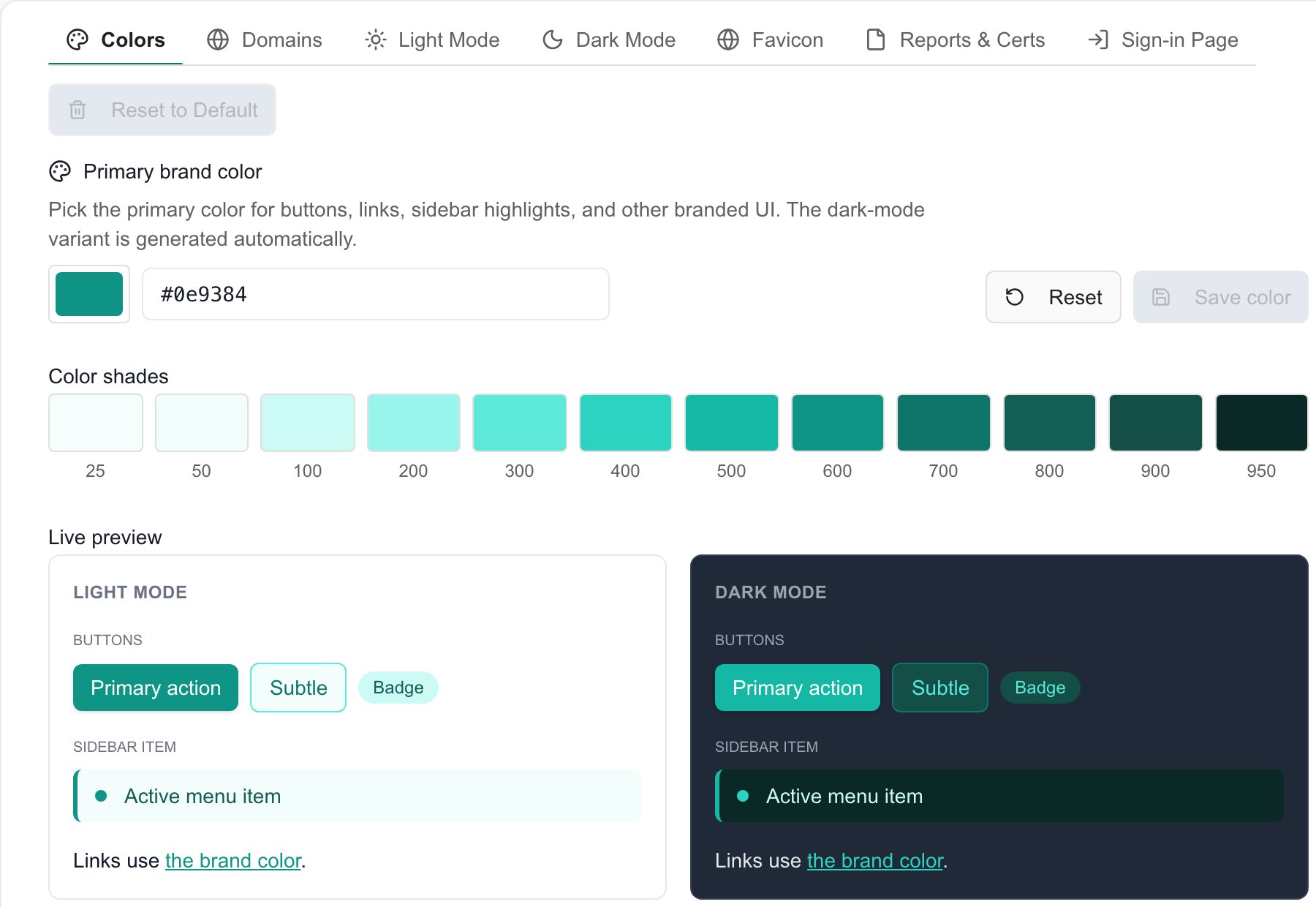
Tenant branding shows light and dark sample previews. Save color is separate from Save Settings.
Upload logos
1
Open Light Mode
Open the Light Mode tab. It has Primary Logo (Light), shown in the expanded sidebar, and Small Icon (Light), shown when the sidebar is collapsed.
2
Upload the primary logo
Click Upload under Primary Logo (Light) and choose a file. A wide logo around 140 x 32 px works best.
3
Crop and apply
In the Crop Logo dialog, position and zoom the image, then click Save & Apply. Wait for Logo updated successfully. Closing the dialog without Save & Apply does not save.
4
Upload the small icon
Click Upload under Small Icon (Light). Use a square image around 32 x 32 px, crop it, and click Save & Apply.
5
Repeat for dark mode
Open Dark Mode and upload Primary Logo (Dark) and Small Icon (Dark). If you skip these, MSPortal uses the light versions.
Upload the favicon and the reports logo
1
Add the favicon
Open the Favicon tab and click Upload. Use an ICO or PNG file under 256 KB, around 32 x 32 px. It shows in browser tabs when people use your custom domain. There is no crop dialog.
2
Add the reports logo
Open the Reports & Certs tab and click Upload. This logo appears on generated reports, documents, and training certificates. Any size works, and a PNG with a transparent background looks best.
Customize the sign-in page (optional)
The Sign-in Page tab changes how the sign-in page looks on your custom domain. You can set the logo size, a solid, gradient, or image background, a welcome title and subtitle, and help instructions. Click Save sign-in page to apply, or Reset to default to remove your changes.Check where the brand appears
1
Look at both themes
Switch between light and dark mode and check the sidebar, the compact logo, and the browser tab icon.
2
Check a report
Open a generated report or a training certificate and check the reports logo.
3
Check readiness
In Launch Center, open Live verification. A portal logo is configured and Brand colors are configured are recommended checks. They confirm the assets exist, not that they look right.
Reset branding
Click Reset to Default at the top right of the editor to clear all logos and the favicon. A confirmation asks first. This affects the whole organization.Troubleshooting
Frequently asked questions
Does closing the cropper save the logo?
Does closing the cropper save the logo?
No. Click Save & Apply and wait for the success message.
Does Save Settings save my logos and color?
Does Save Settings save my logos and color?
No. Logos, the favicon, and the reports logo save on upload. The color saves with Save color.
Does a passing branding check prove my logos look right?
Does a passing branding check prove my logos look right?
No. Check light, dark, compact, and report placements yourself.