

support@yourdomain.com, instead of the default MSPortal sender. This page is for MSP administrators with Email settings access and someone who manages the domain’s DNS. It is not a Launch Center step, so do it when you are ready to email clients.
Before you start
- You need write access to Email settings. Without it, you see No sending domain configured. Contact an administrator to set one up.
- Have access to your DNS provider, or ask the person who does.
- Pick the domain you want to send from, for example
yourdomain.com.
Add and verify the domain
1
Open Sending Domain
Go to Settings > Email and open the Sending Domain tab. If a domain is already listed, review it before you add another.
2
Add the domain
Under Custom Sending Domain, enter your domain in Domain Name and click Add Domain. You see Domain added successfully. Please add the DNS records to verify.
3
Copy the DNS records
Copy each record shown for the domain, with its type, name, and value, into your DNS provider. Use exactly what the page shows. Example SPF and DKIM values from other guides will not work.
4
Check verification
When the records are in place, click Check Verification. The status shows Pending DNS, Verifying, Verified, or Failed. Pending does not mean verified.
5
Refresh the status
Click Refresh Status to get the latest result. If it still says Pending DNS or Failed, compare each record with your DNS provider before you try again. Some providers add your domain name to the host name for you, so check for a doubled suffix.
6
Save the sender address
Once the status is Verified, the page shows Domain verified and ready to use and the Default From Address field. Enter the address, such as
support@yourdomain.com, and click Save. Wait for Default from address updated.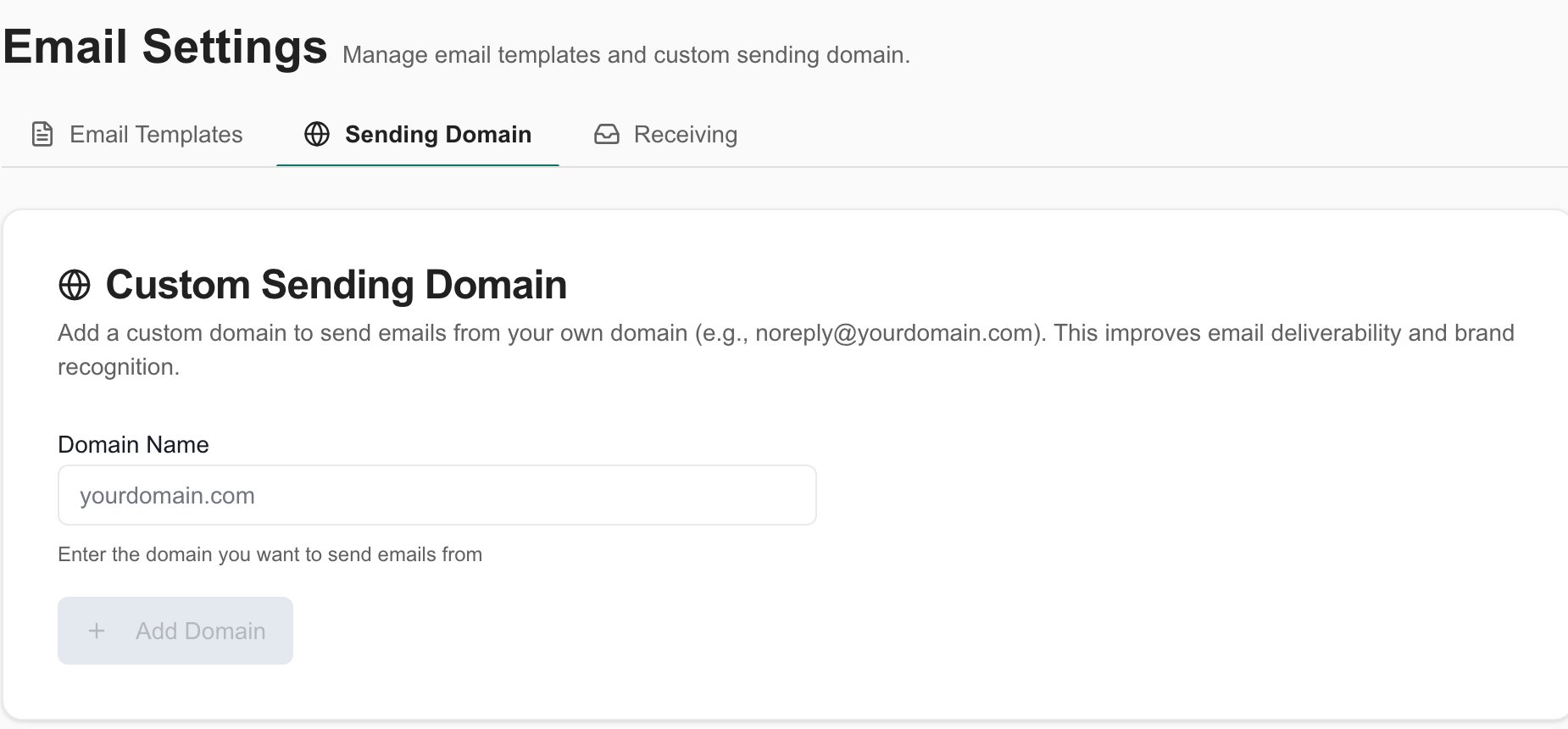
Email settings separates templates, sender verification and receiving addresses.
Remove a sending domain
1
Open the Sending Domain tab
Go to Settings > Email > Sending Domain.
2
Click Remove
Click Remove. A dialog explains what happens. MSPortal stops sending from the domain, goes back to the default msportal.ai sender, and needs a new verification if you add the domain again.
3
Confirm
Click Remove Domain. This does not delete the DNS records at your provider, so clean those up yourself.
What this setting does not do
A sending domain sets the sender of outbound messages. It does not set up ticket delivery, your support mailbox, or inbound email. Those are separate. Launch Center’s support check needs only a Support email.Troubleshooting
Frequently asked questions
Can I copy generic SPF and DKIM examples?
Can I copy generic SPF and DKIM examples?
No. Use the exact records shown for your domain.
Does Check Verification mean the domain is verified?
Does Check Verification mean the domain is verified?
No. Read the status. It can stay pending.
Does a sending domain set up incoming support tickets?
Does a sending domain set up incoming support tickets?
No. Sending, receiving, and ticket delivery are separate settings.