

Choose the systems for this rollout
- Open the integration-strategy step in Launch Center.
- Decide whether the plan needs a PSA and a primary RMM. Choose the provider for each enabled option.
- Select additional integrations relevant to the goals, such as Microsoft 365, documentation, security or backup services. Only use options available to your organization.
- Where multiple connections exist for a provider, choose the intended instance. Its nickname helps distinguish environments.
- Select Next to save the strategy. Review the regenerated steps and readiness findings.
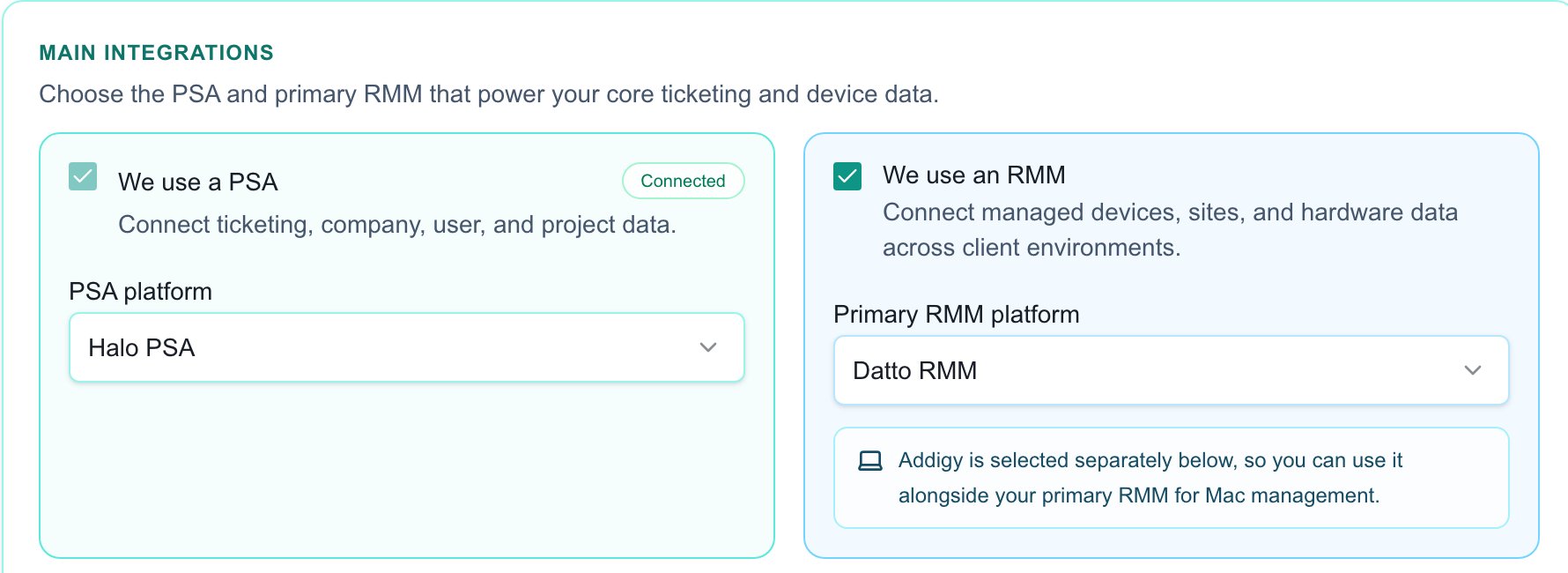
Choose the PSA and primary RMM for the plan; connection setup follows separately.
Understand what selection does
Saving the strategy configures the plan; it does not enter credentials, grant provider consent or import records. Open each connection workspace to perform those tasks. A displayed existing connection is not proof that the selected instance is healthy. The plan supports more than the old PSA-or-RMM questionnaire. Follow the steps generated for the goals rather than expecting an email-domain step to follow every integration choice.Change the selection safely
Use the strategy step or Edit launch plan to revise the rollout. Review the new requirements after saving. If a chosen instance was removed, choose its replacement explicitly; do not assume another connection for the same provider is interchangeable. Removing a provider from the plan does not itself disconnect or delete that integration.FAQs
Does selecting a provider connect it?
Does selecting a provider connect it?
No. Selection saves the plan; credentials, consent and imports are separate actions.
Which connection is checked when I have several?
Which connection is checked when I have several?
Review the selected provider instance. Do not substitute a different connection merely because it is healthy.
Does removing an integration from the plan disconnect it?
Does removing an integration from the plan disconnect it?
No. Plan selection and integration disconnection are separate operations.