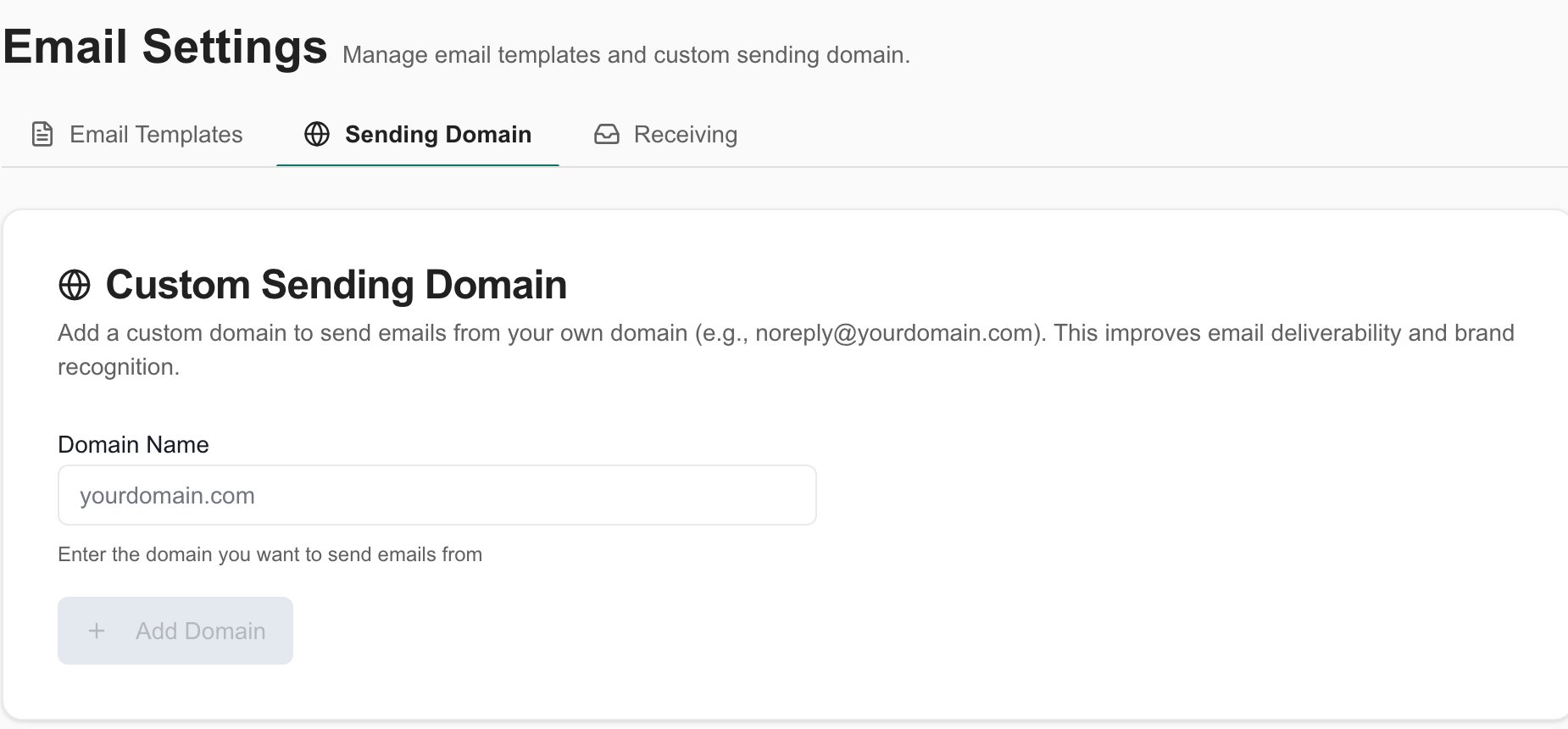
The Email Settings module allows you to customize how emails are sent from MSPortal.ai. Set up a custom sending domain for improved deliverability and brand recognition, and create custom email templates for surveys, invitations, meetings, and more.

Overview

Email Templates

Create and manage reusable email templates for different communication types

Sending Domain

Configure a custom domain to send emails from your organization’s address

Accessing Email Settings

1

Open Settings

Click Settings in the main sidebar
2

Navigate to Email

Click the Email icon in the settings navigation
3

Choose a Tab

Select either Email Templates or Sending Domain tab

Email Templates

Email templates allow you to customize the content and appearance of emails sent from MSPortal.ai. Each template belongs to a category and can use dynamic variables that are replaced with actual values when the email is sent.

Template Categories

Templates are organized by their purpose:
CategoryDescription
SurveyEmails sent when requesting survey responses from clients
InvitationUser invitation emails for new portal access
MeetingMeeting notifications and calendar invites
ReportReport delivery and notification emails
Training ReminderTraining course reminders and enrollment notifications
Client ActionNotifications for assigned client actions in projects
Ticket FallbackFallback emails when PSA ticket creation fails

Creating a Template

1

Click Create Template

Click the Create Template button at the top of the templates table
2

Select Category

Choose the appropriate category from the dropdown. This determines which variables are available
3

Enter Template Name

Give your template a descriptive name (e.g., “Quarterly Survey Request”)
4

Configure Display Settings

  • Toggle Set as default template to make this the primary template for the category
  • Toggle Use dark theme email wrapper to choose between dark (MSPortal branded) or light mode display
5

Write Subject Line

Enter the email subject. You can include variables like {{recipient_name}}
6

Design Email Content

Use the rich text editor to format your email. Click variables in the right panel to insert them
7

Add Plain Text Version (Optional)

Provide a plain text fallback for email clients that don’t support HTML
8

Save Template

Click Create Template to save

Light vs Dark Theme

Each template can be configured to use either the dark or light email wrapper:
Emails are wrapped in the MSPortal dark-themed template with:
  • Dark background with professional styling
  • Your company branding
  • Consistent look across all emails
Best for: Professional communications, branded client emails

Using Template Variables

Variables are placeholders that get replaced with actual data when the email is sent. Click any variable in the right panel to insert it at your cursor position.

Survey Variables

VariableDescription
{{recipient_name}}Recipient’s full name
{{recipient_firstname}}Recipient’s first name
{{company_name}}Client company name being surveyed
{{survey_title}}Survey title
{{survey_url}}Survey link URL
{{sender_name}}Sender’s name
{{sender_company}}Your MSP company name
{{expires_date}}Survey expiration date
{{portal_name}}Custom portal name
{{company_logo_url}}Your company logo URL

Invitation Variables

VariableDescription
{{recipient_name}}Recipient’s full name
{{recipient_email}}Recipient’s email address
{{company_name}}Company they’re being invited to
{{tenant_name}}MSP tenant/portal name
{{inviter_name}}Name of the person sending the invite
{{portal_name}}Custom portal name

Meeting Variables

VariableDescription
{{recipient_name}}Recipient’s full name
{{meeting_title}}Meeting title/subject
{{meeting_date}}Meeting date (formatted)
{{meeting_time}}Meeting start time
{{meeting_location}}Meeting location (if in-person)
{{meeting_link}}Video call link (if virtual)
{{organizer_name}}Meeting organizer’s name
All categories include {{portal_name}} and {{company_logo_url}} for consistent branding across emails.

Managing Templates

Editing Templates

  1. Click the more options () button on any template row
  2. Select Edit to open the template editor
  3. Make your changes
  4. Click Save Changes
The category cannot be changed after a template is created. If you need a different category, create a new template.

Setting a Default Template

Each category can have one default template that’s automatically used when sending emails:
  1. Click the more options () button on the template
  2. Select Set as Default
The default template is indicated by a Default badge in the table.

Duplicating Templates

To create a copy of an existing template:
  1. Click the more options () button
  2. Select Duplicate
A new template is created with “(Copy)” appended to the name.

Previewing Templates

Before sending, preview how your template will appear:
  1. Click the more options () button
  2. Select Preview
  3. Use the Preview as dropdown to select a real user from your system
  4. Review the subject, HTML preview, plain text version, and variable values
The preview shows exactly how the email will appear to recipients, with all variables replaced with actual data.

Deleting Templates

  1. Click the more options () button
  2. Select Delete
  3. Confirm deletion in the dialog
Deleted templates cannot be recovered. Make sure you have a backup or duplicate if needed.

Custom Sending Domain

By default, emails are sent from MSPortal.ai’s domain. Setting up a custom sending domain allows emails to be sent from your own domain (e.g., [email protected]), improving:
  • Email deliverability - Recipients’ mail servers trust emails from verified domains
  • Brand recognition - Your company name appears in the sender address
  • Professionalism - Consistent branding across all communications

Adding a Custom Domain

1

Enter Domain Name

On the Sending Domain tab, enter your domain name (e.g., yourdomain.com)
2

Click Add Domain

Click Add Domain to register the domain
3

View DNS Records

The required DNS records will be displayed in a table

Configuring DNS Records

After adding your domain, you’ll see a table of DNS records that must be added to your domain’s DNS settings:
Record TypePurpose
TXTDomain ownership verification
CNAMEEmail authentication (DKIM)
MXMail routing (if applicable)
For each record, copy the Name and Value using the copy buttons, then add them to your DNS provider.
  1. Log into your Cloudflare dashboard
  2. Select your domain
  3. Go to DNS > Records
  4. Click Add record
  5. Select the record type (TXT, CNAME, or MX)
  6. Paste the Name in the hostname field
  7. Paste the Value in the content field
  8. Set TTL to Auto
  9. Click Save
  1. Open the Route 53 console
  2. Select your hosted zone
  3. Click Create record
  4. Choose the record type
  5. Enter the record name and value
  6. Click Create records
  1. Sign in to your GoDaddy account
  2. Go to Domain Settings > DNS Management
  3. Click Add under the appropriate record type
  4. Enter the host and value
  5. Click Save
DNS changes can take up to 48 hours to propagate, but usually complete within a few minutes.

Verifying Your Domain

After adding DNS records:
1

Wait for DNS Propagation

Allow a few minutes for DNS changes to propagate
2

Click Check Verification

Click the Check Verification button
3

Confirm Status

If successful, the status changes to Verified with a green badge

Domain Status Badges

StatusDescription
Pending DNSDNS records need to be added
VerifyingVerification in progress
VerifiedDomain is ready to use
FailedDNS records incorrect - check and retry

Configuring the From Address

Once your domain is verified:
1

Enter From Address

In the Default From Address field, enter the email address you want to appear as the sender (e.g., [email protected])
2

Click Save

Click Save to update the from address
Common from addresses include noreply@, support@, or notifications@ followed by your domain.

Removing a Domain

If you need to remove your custom domain:
  1. Click the Remove button
  2. Confirm in the dialog
Removing your domain will:
  • Stop sending emails from your custom address
  • Revert to the default MSPortal.ai sender
  • Require re-verification if you add it again

Troubleshooting

Symptoms: Domain shows “Pending DNS” status even after adding recordsSolution:
  1. Verify DNS records are correctly entered (no typos)
  2. Wait at least 15-30 minutes for propagation
  3. Use a DNS checker tool to verify records are visible
  4. Click Check Verification again
Prevention: Double-check values when copying DNS records
Symptoms: Recipients report not receiving emailsSolution:
  1. Check the recipient’s spam/junk folder
  2. Verify domain status is “Verified”
  3. Ensure the from address is correctly configured
  4. Check that recipient email is valid
Prevention: Use a verified custom domain for better deliverability
Symptoms: Emails show raw variables like {{recipient_name}}Solution:
  1. Ensure variable syntax is exact (including double braces)
  2. Check that the variable is available for the template category
  3. Preview the template to verify variable replacement
Prevention: Use the variable panel to insert variables instead of typing manually

Best Practices

Email Templates

  • Use recipient’s first name ({{recipient_firstname}}) for a personal touch
  • Keep subject lines clear and concise
  • Preview templates with real user data before use
  • Create category-specific templates for different audiences
  • Include plain text versions for better compatibility

Sending Domain

  • Use a subdomain for transactional emails (e.g., mail.yourdomain.com)
  • Monitor domain verification status regularly
  • Keep DNS records in sync if you change DNS providers
  • Use a professional from address that matches your brand

Permissions

The Email Settings menu only appears if your user role has the Manage Email Settings permission enabled. If you don’t see the Email option in Settings, ask your administrator to add this permission to your role.
To enable Email Settings for a user role:
1

Go to Settings > Users & Roles

Navigate to the Users & Roles section in Settings
2

Edit the Role

Select the role you want to modify and click Edit
3

Enable Permission

Find and enable the Manage Email Settings permission
4

Save Changes

Click Save to apply the changes
Users will need to refresh their browser or log out and back in to see the new menu item after permissions are updated.

  • Surveys - Configure survey emails with custom templates
  • Training - Training reminder email settings
  • Tenant Settings - Organization-wide branding options