

Choose ticket delivery
In General, use Ticket Delivery Method to select PSA Integration or Email (SMTP). This determines how requests are delivered; it is not a choice between email notifications and portal access.- For PSA delivery, select the intended active PSA Integration.
- Review Fallback Email Address for delivery when the PSA connection fails.
- For email delivery, enter the destination Email Address.
- Inspect the save result before leaving. Delivery and integration selectors save immediately. Email fields save when you leave the field.
Set ordinary ticket defaults
In General, configure the Ticket Defaults card for the selected PSA. Choose from the available board or queue, status, priority and ticket-type fields. Provider-dependent fields can change when the board or ticket type changes. Click Save Defaults to persist this card. These defaults do not guarantee identical routing for every request: templates and company settings can supply their own values. A missing option can mean that the provider lookup has not synchronized or does not belong to the selected board.Choose the new-ticket presentation
New Ticket View controls whether the AI sidebar starts open, whether request templates appear as Cards or List, and whether template sections use Tabs or All sections. Each choice saves immediately; the sample cards are built-in previews.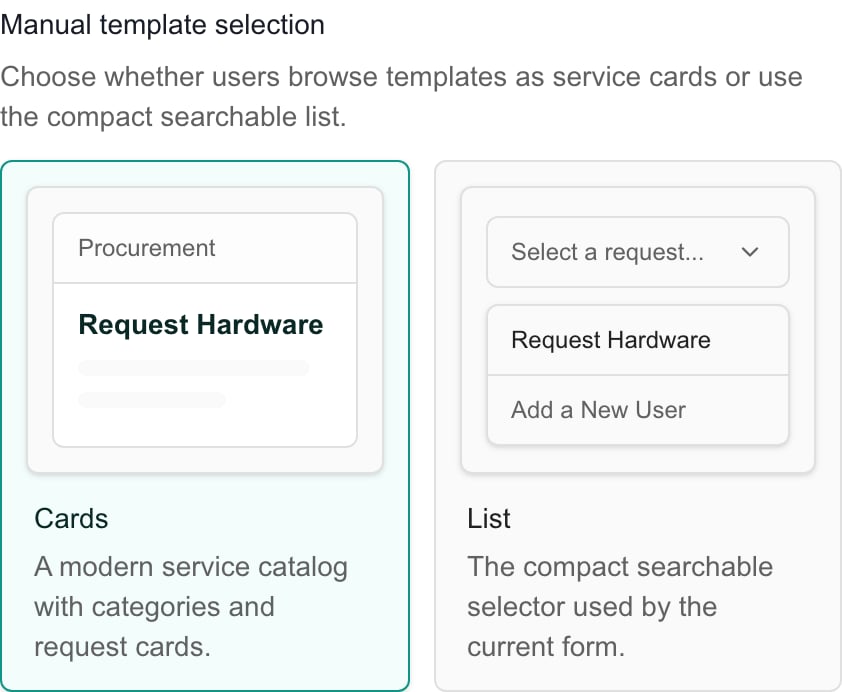
MSP example: built-in Cards and List previews. Choosing a presentation saves immediately.
Maintain categories
Use Add Category to draft a category, enter its name and visual details, and save the row. To change an existing category, open its edit control and use the row Save or Cancel control. Where offered, map the category to an existing PSA ticket type. A category is not a new ticket type created in your PSA. Deleting a category uses its row delete action; do not expect a separate page-level Save to stage or undo the deletion.Create a display group for a role
Display groups control ticket scope and visible fields for assigned roles and a PSA provider.- Open Display Groups and choose Create Group.
- Enter a name and optional description.
- Choose All Tickets, Same Location Only or Own Tickets Only. These operate inside the companies the user can already access. All Tickets does not add companies. A user at a parent company reaches the child companies through the Parent Admin role.
- Select the PSA Provider and Assigned Roles. A role has one display-group assignment per provider, so review existing assignments before moving it.
- Optionally restrict boards or queues, choose Allowed Ticket Statuses, and hide ticket types. Empty restrictions mean unrestricted choices for that control. Status choices follow the provider and selected boards.
- Select the fields to display, using the field sections or select-all controls as needed.
- Click Create Group or Update Group. Reopen the group and verify the result with a representative user of the assigned role.
Set company routing overrides
Open Companies, locate the exact company and review the displayed effective values and their source. Change the needed routing field using its cell editor. These edits save immediately. Clear an override using the available inherit/default choice to return to the applicable default, then inspect the resolved value. Bulk actions affect selected companies. Check the selected set before applying a bulk change; a filtered view alone is not a substitute for reviewing selection.Configure compliance requests and change approvals
Use Compliance for the separate Compliance Ticket Defaults card. PSA delivery and an active selected PSA are prerequisites. Choose the provider’s available routing fields and click Save. Halo can require category, impact and urgency as well as other ticket fields; review the controls actually offered for your provider. Use Change Approvals for the approval policy and approver settings offered to your account, then Save that panel. Changing policy is separate from approving an individual request. See Change management before using that workflow.Manage request templates
Templates opens the template catalog. Use the ticket-template guide for fields, conditions, routing, company access and embedded requests. A template’s saved configuration and a user’s permission to request it are separate checks.Troubleshooting
If controls are disabled, check settings permissions. If a PSA or lookup is absent, review the connection and synchronization state. If a user sees the wrong tickets, check their company, role, display group and location before changing broad visibility. If a user at a parent company sees only their own company’s tickets, follow Give a parent-company user access to child companies. If routing differs from General defaults, inspect the template and company override. Reopen the affected setting after a failed save before retrying.FAQs
Are delivery methods Email, Portal and Both?
Are delivery methods Email, Portal and Both?
No. The available delivery methods are PSA Integration and Email (SMTP). Portal visibility is configured separately.
Do all ticket settings wait for a page Save?
Do all ticket settings wait for a page Save?
No. Delivery, PSA selection, New Ticket View and company cells save immediately; email fields save on blur. Default cards and display-group forms have their own Save controls.
Where are Allowed Statuses configured?
Where are Allowed Statuses configured?
Inside the Display Group form for the selected provider, alongside board restrictions and hidden ticket types.
Does All Tickets let a Company user see other companies?
Does All Tickets let a Company user see other companies?
No. It operates within the companies the user can already access. A Company user sees only their own company unless they hold the Parent Admin Team Role for a parent company, which adds its child companies. See Give a parent-company user access to child companies.
Does a category mapping create a PSA ticket type?
Does a category mapping create a PSA ticket type?
No. It maps the portal category to an existing provider ticket type.
Can company users see the hours worked on their tickets?
Can company users see the hours worked on their tickets?
Yes, when you allow it. Open the display group assigned to their role, select Hours Worked and click Update Group. They then see the ticket’s worked hours and the hours on each time entry. Internal notes stay hidden.
Does hiding a field prevent access to its ticket?
Does hiding a field prevent access to its ticket?
No. Field presentation and ticket visibility are separate controls.
Do ordinary defaults also configure every compliance ticket?
Do ordinary defaults also configure every compliance ticket?
Review the separate Compliance tab and save its defaults. Do not assume all request paths use identical values.
Does changing the new-ticket layout send a request?
Does changing the new-ticket layout send a request?
No. It changes presentation. A user must still complete and submit the request workflow.