Create reusable starting content for notes, Planner items, meetings and report sections.
Note templates are reusable starting text. Staff pick one from a + Add Template menu while they write a compliance note, a Planner item, or meeting notes and agendas. This page is for MSP staff who manage those templates.
You need Note Templates access. View needs read access. Add New Template and Edit need write access. Set Default, Remove Default and Delete need manage access.
Notification email templates are not managed here. Use Email settings for those.
The page lists your templates in a table with the columns Name, Template Type, Description and Default.
2
Pick a tab to filter the list
The tabs are All Templates, Compliance Notes, Planner Items, Meeting Agendas, Meeting Notes and Report Sections. The Template Type column only shows on All Templates.
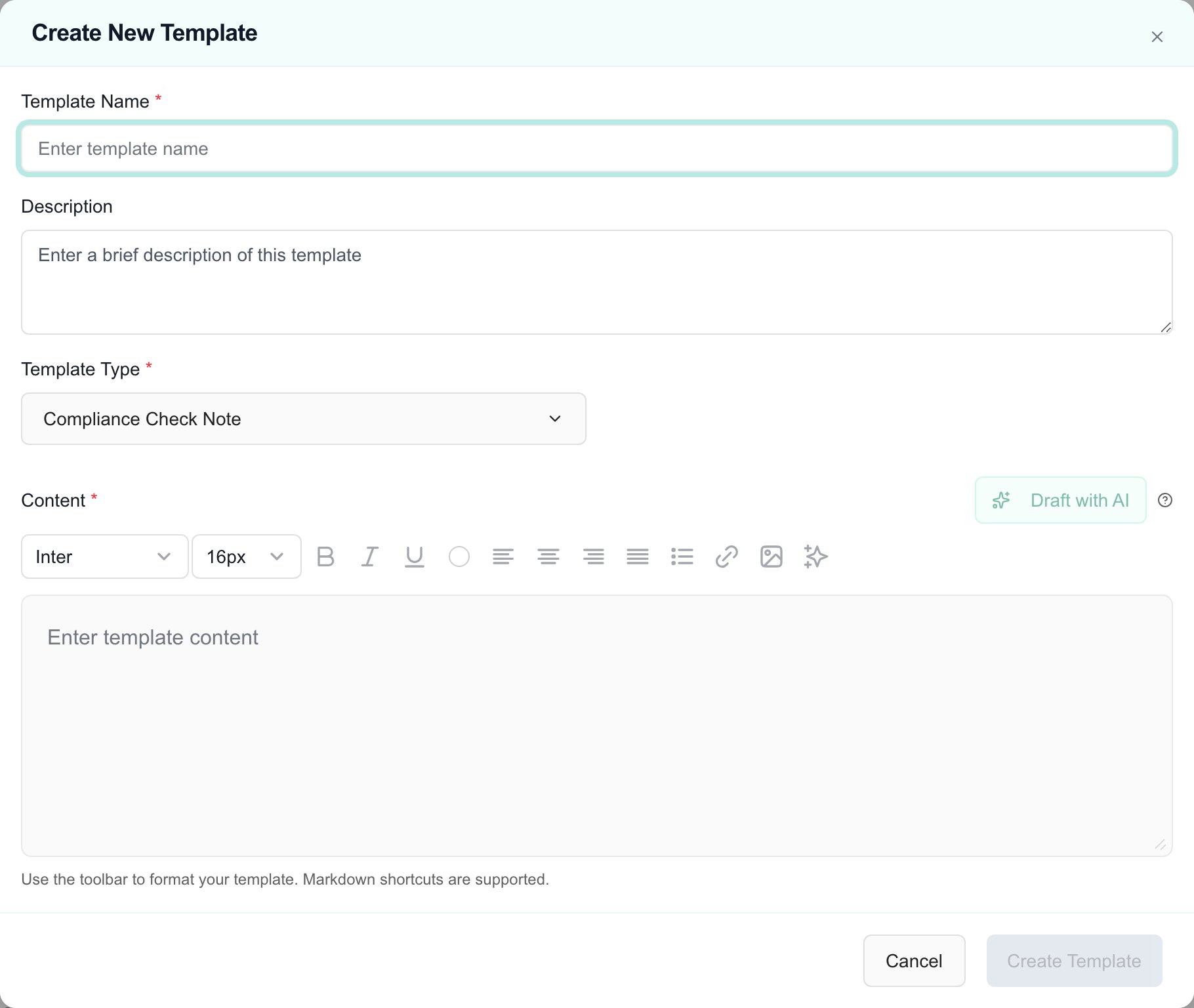
The button is at the top right of the page. It is disabled if you do not have write access. A Create New Template dialog opens. Nothing is saved yet.
2
Enter a Template Name
This field is required. The name is what staff see in the template picker.
3
Add a Description
Optional. A short description helps other staff choose the right template.
4
Choose a Template Type
Pick Compliance Check Note, Planner Item, Meeting Agenda, Meeting Notes or Report Section. The type decides where the template shows up in a picker.
5
Write the Content
Type in the editor and format it with the toolbar. Markdown shortcuts work. Content is required.To start from a draft, fill in both Template Name and Description, then click Draft with AI. The button stays disabled until both are filled in. The draft replaces whatever is in the editor, so edit it before you save.
The Create New Template dialog. Create Template stays disabled until the name and content are filled in.
6
Click Create Template
The template appears in the list.
If you close the dialog with unsaved changes, MSPortal asks you to confirm before it discards them.
Click its name in the Name column, or open the row’s Open menu (the three dots) and choose Edit. If you only have read access, the menu shows View instead, and the dialog is read-only with a Close button.
2
Change the fields and click Save Changes
Existing notes and meetings that already used the template do not change.
A template marked as the default shows a Default badge in the Default column. Each template type can have one default.
3
Confirm a replacement
If another template of the same type is already the default, a Change Default Template prompt names both templates. Click Confirm to replace the old default, or Cancel to keep it.
Open a compliance check note, a Planner item, or a meeting, and click + Add Template next to the notes field. Search by name and click a template. Its content is added to the notes. The menu lists only templates of the matching type. The type’s default template is listed first and carries a Default badge. MSPortal does not apply the default for you, so you still click it to add it.
Where
Types offered
Compliance check notes
Compliance Check Note
Planner item notes
Planner Item
Meeting notes and agendas
Meeting Notes and Meeting Agenda, grouped by type
If the menu says No templates found, click the settings link in it to open this page.