

Before you start
- You need Write access to Calendar or Meetings, and an active subscription.
- The wrap-up must be on for the meeting’s type in Settings > Calendar > Post-Meeting.
- Your administrator controls the questions and which are required. See Manage survey questions.
Answer the survey
1
Open the wrap-up
Open the meeting and click Wrap-Up, Start wrap-up or Continue wrap-up. You can open it before the meeting is marked Completed.
2
Select Survey
Click Survey in the step bar. The page is titled How did the meeting go?
3
Answer each question
Click a number for a rating or scale, Yes or No, pick an option from a list, or type text. Required questions have a red asterisk.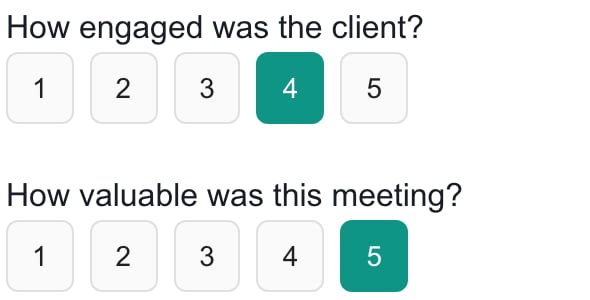
4
Click Continue
This saves your answers and opens Transcript & AI. If a required question is empty, Please answer the required questions before continuing. appears.
Revise saved answers
1
Return to Survey
Click Survey in the step bar.
2
Change your answers
Edit them as needed.
3
Click Continue
This replaces the saved answers. The survey is one record for the meeting, so check with colleagues before you replace it.
Skip the survey
Click Skip this step to mark the survey skipped and go to Transcript & AI. Skipping clears any answers already saved for the meeting. To keep saved answers, click Transcript & AI in the step bar or Save & exit instead. The check mark on Survey means the survey was submitted. It does not mean the meeting is complete or a summary was sent.Troubleshooting
Frequently asked questions
Can company users fill in this survey?
Can company users fill in this survey?
No. It is for MSP staff. Client feedback surveys are separate.
Is No the same as leaving a Yes / No question blank?
Is No the same as leaving a Yes / No question blank?
No. No is an answer. Blank is unanswered.
Does each technician get their own response?
Does each technician get their own response?
No. The meeting has one survey response.
Does submitting the survey finish the meeting or send email?
Does submitting the survey finish the meeting or send email?
No. It saves the survey and opens Transcript & AI.